
HandBrake: A Powerful Video Compression and Transcoding Tool
What is HandBrake?
In simple terms, HandBrake takes the HandBrake video compression tool—which originally required software installation on a computer—and brings it to the web. You just need to open your browser to compress videos, and you can even have multiple machines working together.
Imagine this scenario: You have a bunch of video files that need compressing, but your laptop isn't powerful enough, taking forever to process just one video. Now, with this tool, you can assign tasks to several idle computers at home, letting them work on the job together. All you need to do is watch the progress bar in your web browser.
https://appstore.lazycat.cloud/#/shop/detail/cloud.lazycat.app.handbrake
How to Use
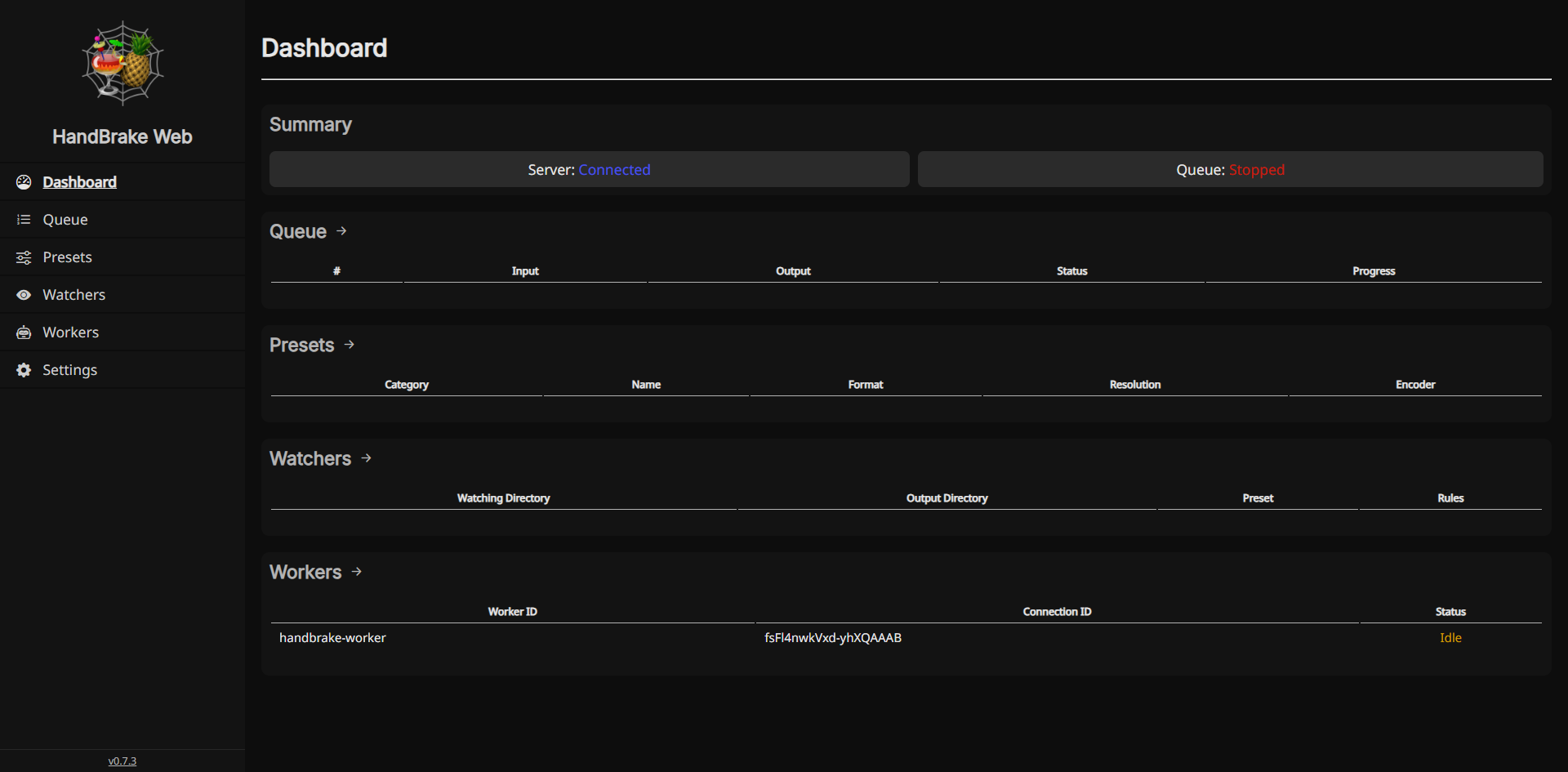
After installing the application, the functional page opens directly.
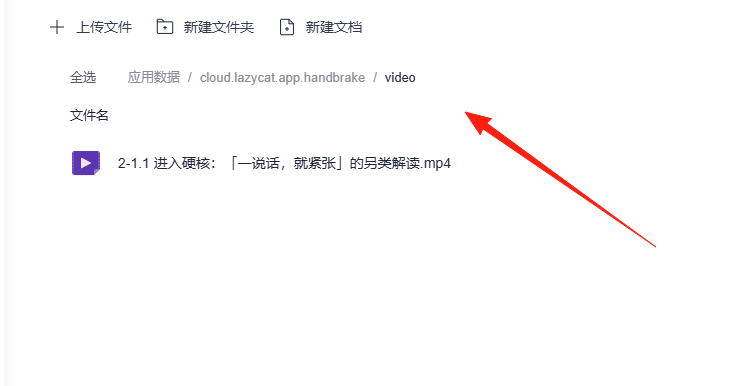
Place all the videos you want to compress into the ./video folder.
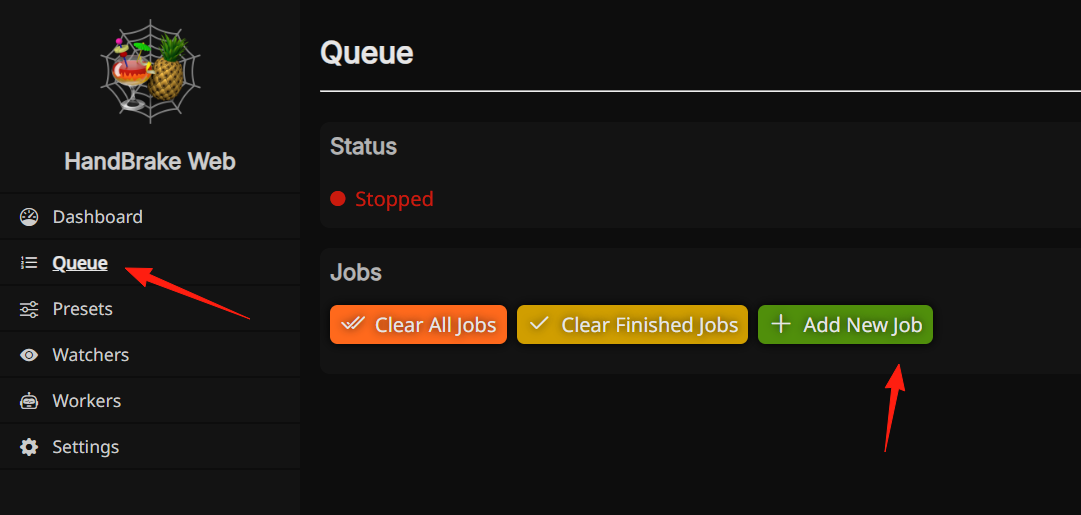
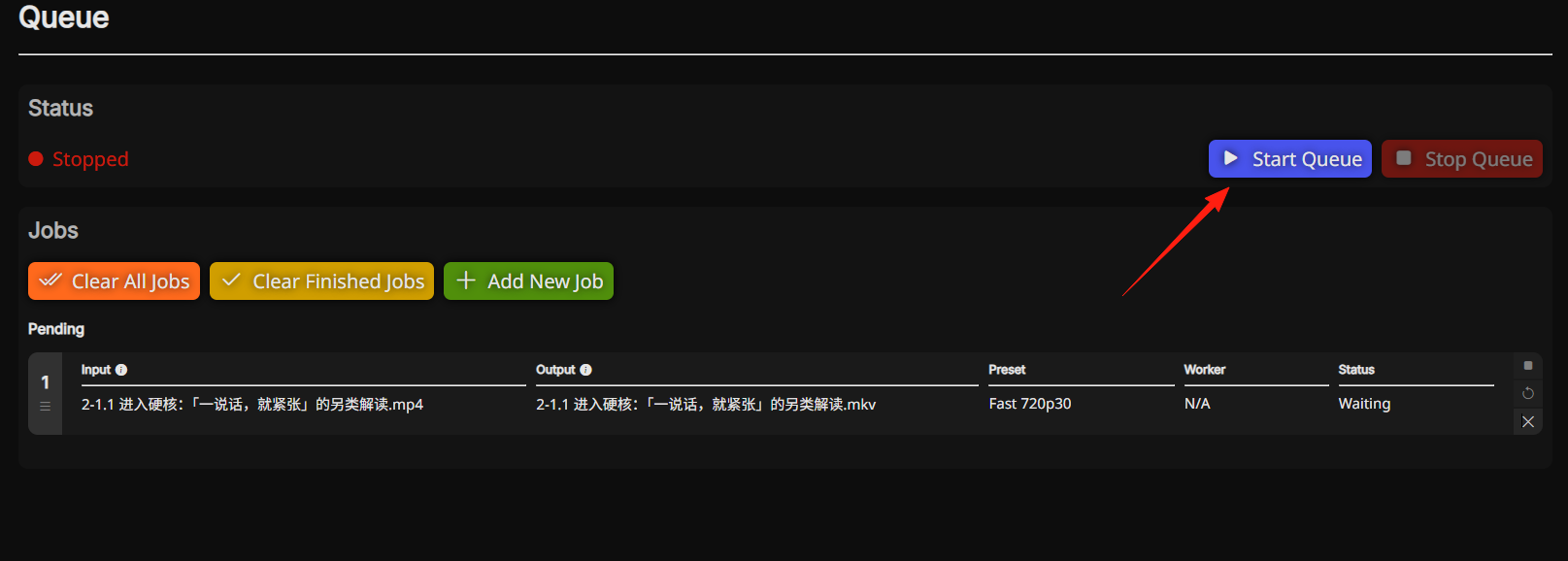
Return to the application, go to the Queue, and create a new task.
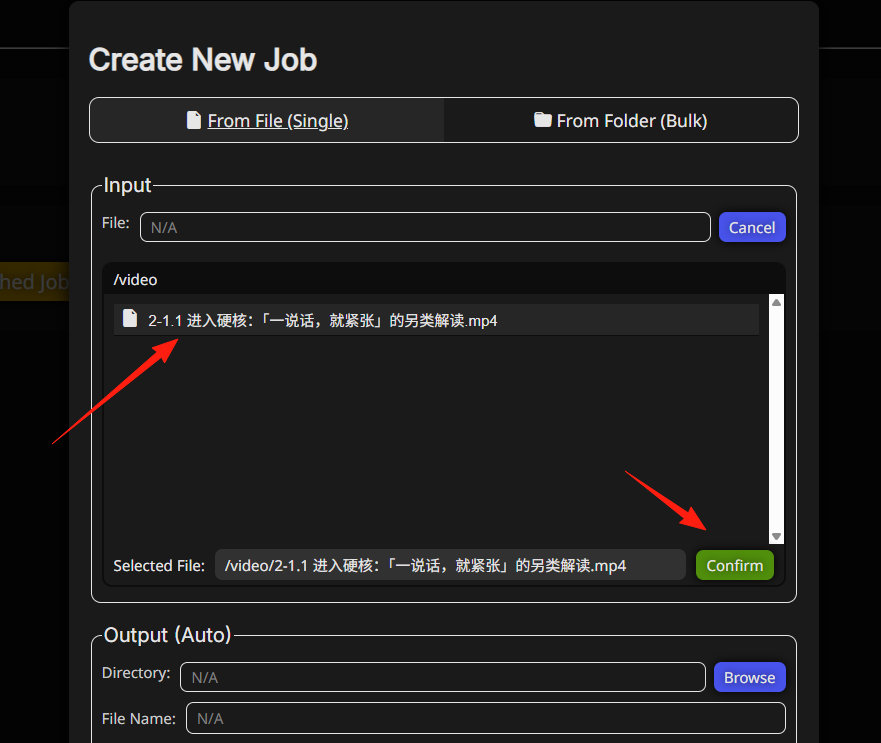
In the input field, select the video you just uploaded.
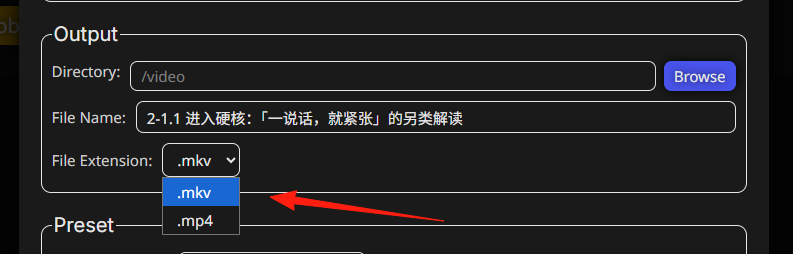
The output directory can be left as default, or you can choose your own folder. Output formats include mkv and mp4.
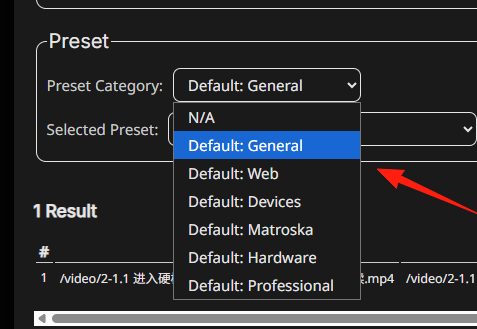
"Preset Category":
Default: General: This usually contains balanced presets suitable for most everyday video conversion needs, such as reducing file size and ensuring basic compatibility. If you're unsure where to start, look here first.
Default: Web: This group of presets is specifically optimized for online video (e.g., YouTube, Bilibili, Vimeo). They typically result in smaller file sizes and broader compatibility, ensuring smooth playback and fast uploading on the web.
Default: Devices: This group of presets is optimized for playback on various specific devices, such as iPhone, Android phones, iPad, Apple TV, etc. Selecting the corresponding device ensures optimal playback and format compatibility.
Default: Matroska: This group of presets is specifically for the MKV (.mkv) video container format. The MKV format supports more audio tracks, subtitle tracks, etc. Consider these presets if you need more flexible video files.
Default: Hardware: This group of presets utilizes your computer's hardware encoders (e.g., Intel Quick Sync Video, NVIDIA NVENC, AMD VCE/VCN) to accelerate video conversion. If your computer supports it, choosing this option usually results in significantly faster conversion speeds.
Default: Professional: This group of presets may offer higher quality, more professional video encoding options, suitable for users with higher demands on video quality. However, file sizes might be larger, and conversion times could be longer.
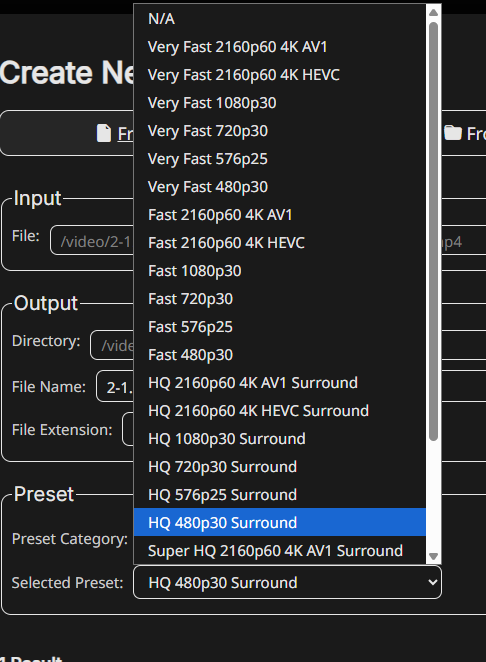
This represents the video quality.
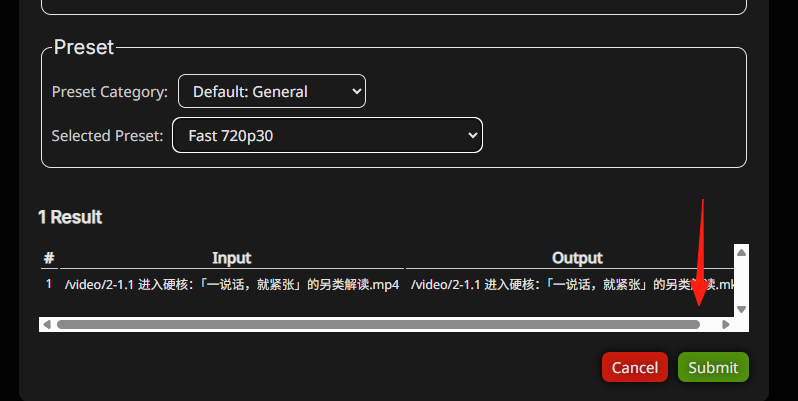
Click Submit.
After the task is created, you can start the queue.
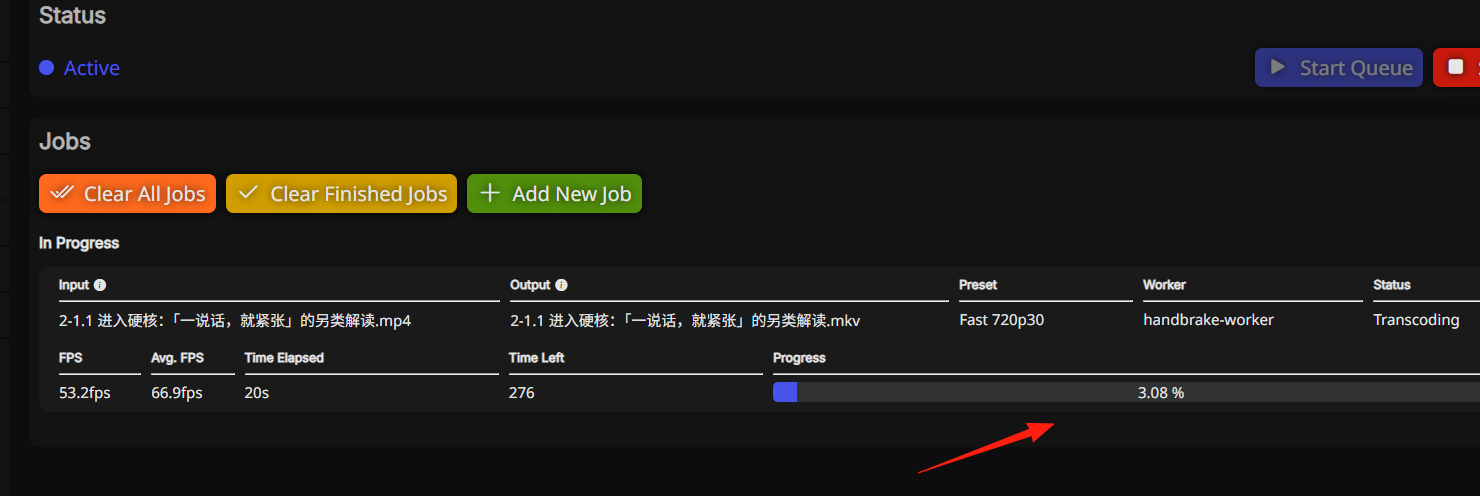
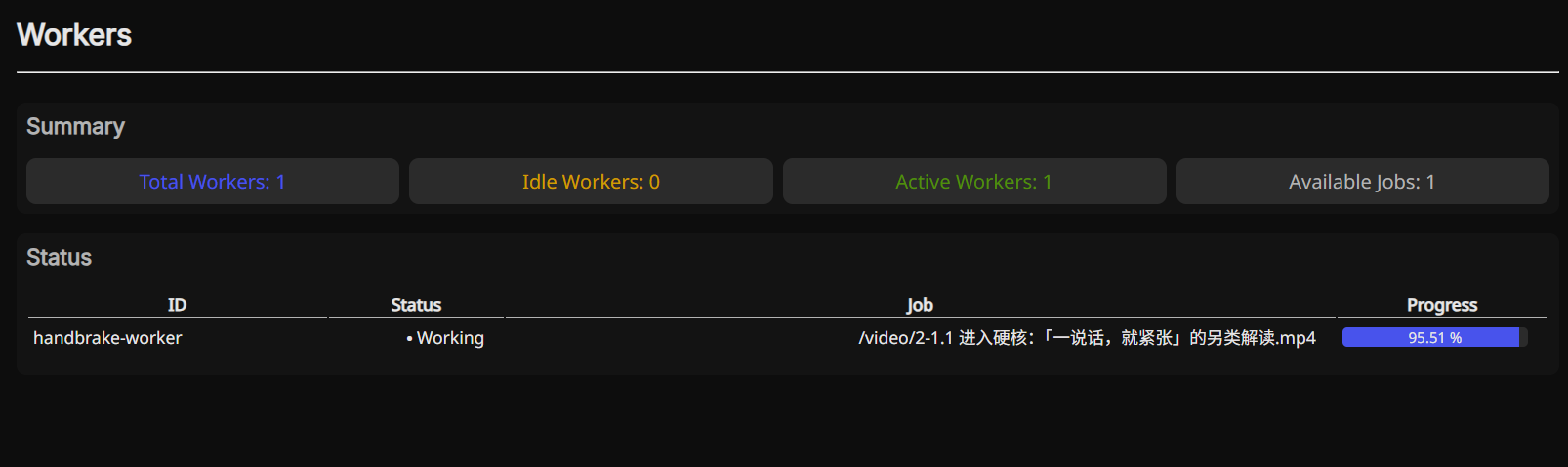
You can see the progress running.
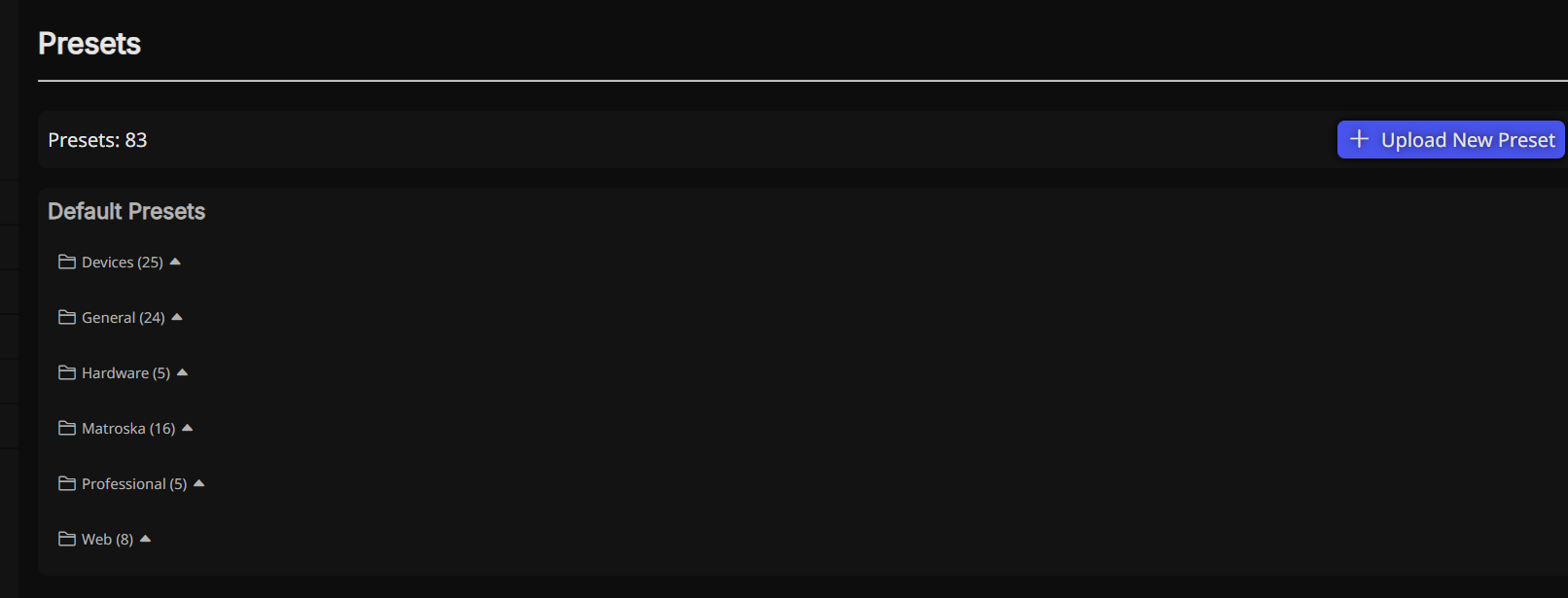
The "Presets" page is where you store and manage all your "video conversion templates." When you want to convert a video, you don't need to manually adjust complex parameters like resolution, bitrate, encoding format, audio tracks, etc., every time.
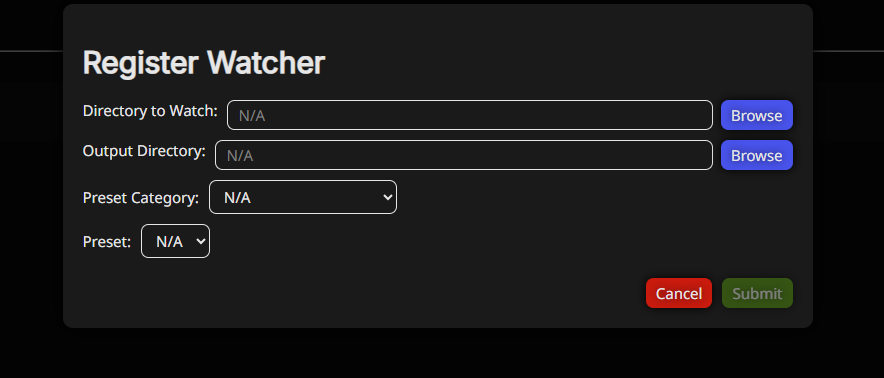
The "Watchers" function is used for automated video file processing. You place video files into a designated folder, and it automatically detects new videos in that folder.
Then, based on your pre-configured rules (e.g., which preset to use), it automatically converts these videos.
After conversion is complete, it automatically saves the converted videos to your specified "output folder."
The Worker page is where you check "how the work is progressing."
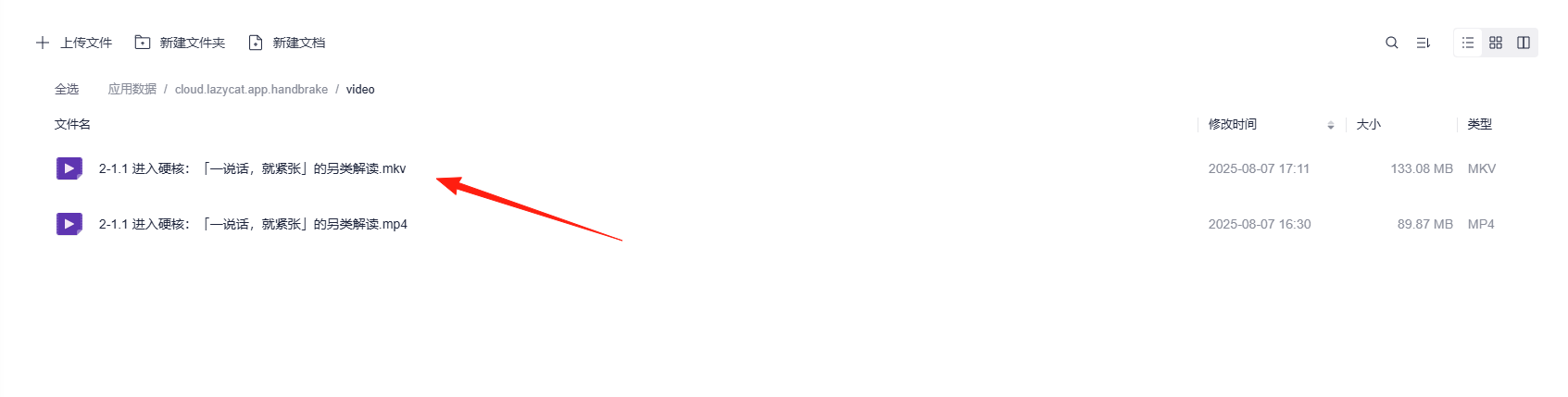
Once the task finishes running, you can see the results in the directory.
Summary
HandBrake is a great tool, especially for those who frequently need to compress videos.
If you happen to have video compression needs, it's highly recommended to give it a try.