
yt-dlp-web: A Practical Video Downloading Tool
What is yt-dlp-web?
Simply put, yt-dlp-web wraps the powerful yt-dlp command-line tool into a beautiful web interface. You no longer need to type commands into a black terminal—just operate directly in your browser.
Imagine this:
- Copy a YouTube link, paste it into the webpage, click download, and you're done!
- Supports almost all major video sites (YouTube, Bilibili, Twitter, etc.)
- Choose video quality, download audio only, or batch download playlists
- Play downloaded videos directly in the web interface after downloading
https://appstore.lazycat.cloud/#/shop/detail/wcloud.gblw.app.yt-dlp-web
How to Use
After installing the application, opening it takes you directly to the functional page.
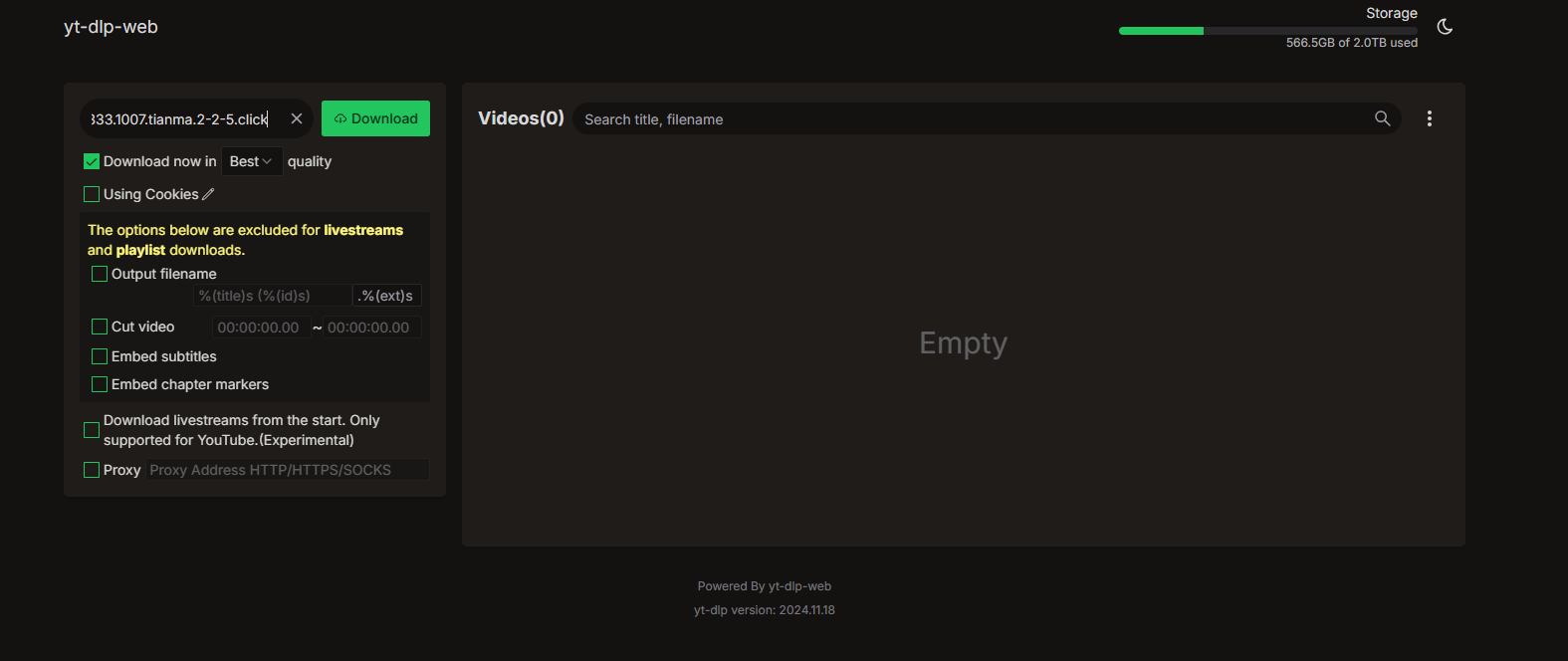
However, since the interface is in English, I'll explain each detailed function thoroughly. The entire interface can be divided into two main sections: the left side is the operation area (where you set up download tasks), and the right side is the display area (where you view download progress and history).
Copy the video link: For example, https://www.youtube.com/watch?v=xxxxx
Paste it into the input box, and click "Download"
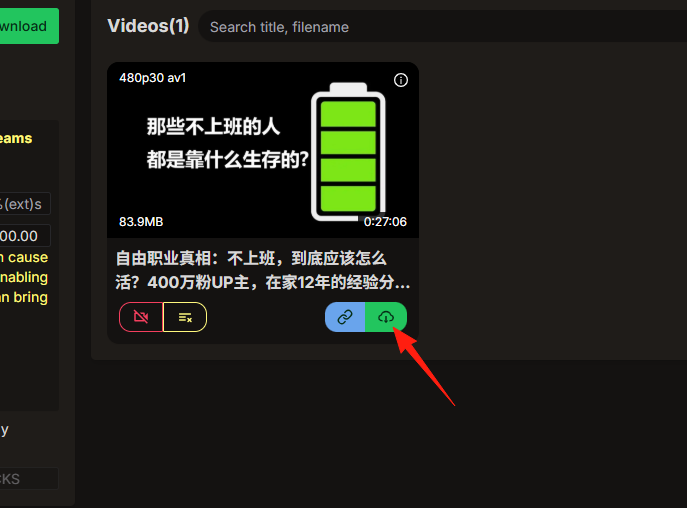
You can see the progress on the right side.
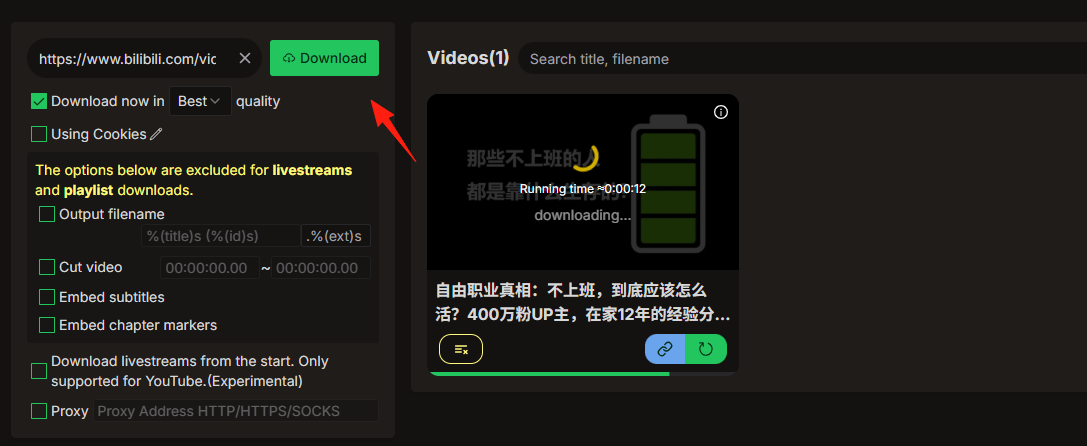
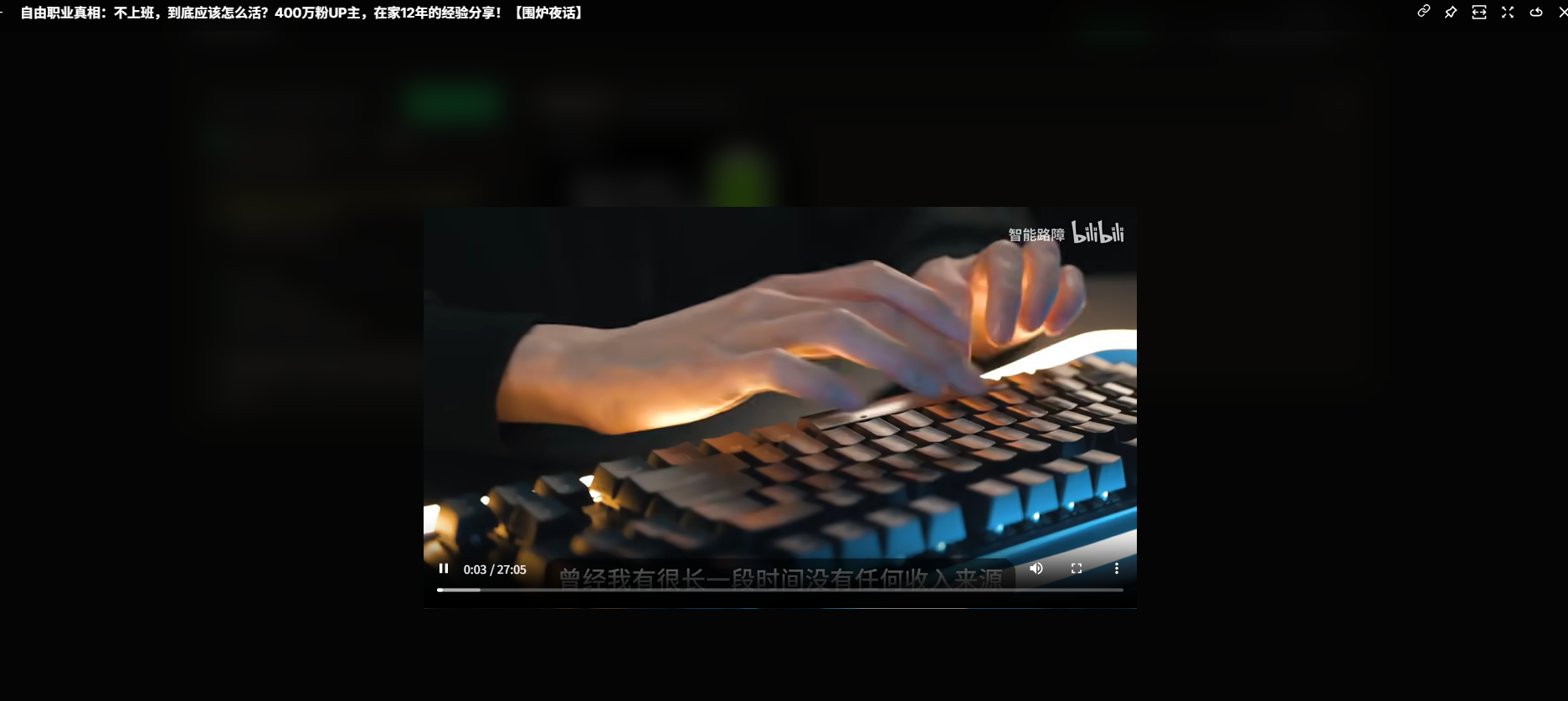
Click directly on the video to watch it online.
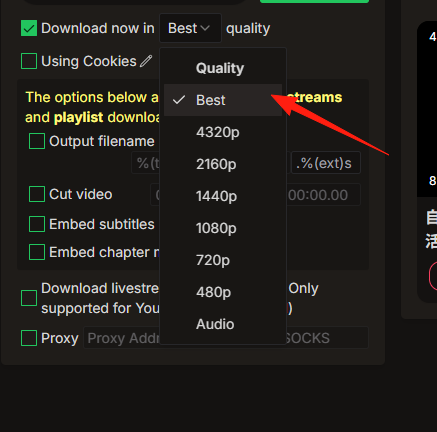
Best quality dropdown menu: Select your desired video quality.
Options include "Best" (highest quality, largest file size), "1080p", "720p", etc. At the very bottom is the "Audio" option (download audio only). Choose this if you only want the audio track, like for listening to music or getting background sound.
Using Cookies checkbox
Some websites require login to watch videos or have regional restrictions. Checking this option makes yt-dlp-web attempt to use the login information (Cookies) saved in your browser to access and download the video.
The following advanced features (like cutting videos, embedding subtitles, etc.) only work for single videos. If you are downloading a live stream or an entire playlist, these features are not available.
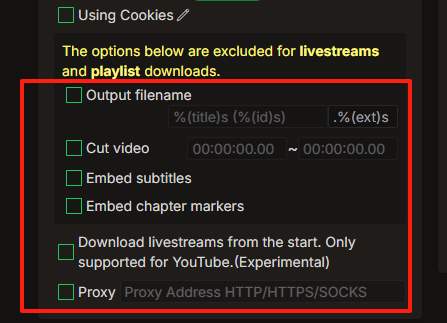
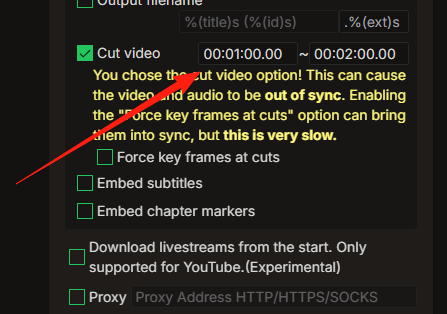
Cut video checkbox and time range Function: If you only want to download a specific segment of a video, rather than the entire video, use this feature.
After checking "Cut video", two time input fields will appear. You need to enter the start time and end time of the video segment (format is HH:MM:SS).
For example, if you want the segment from the 1-minute mark to the 2-minute mark, enter 00:01:00 ~ 00:02:00.
Embed subtitles checkbox
If the video has subtitles (e.g., auto-generated subtitles on YouTube or subtitles provided by the uploader), checking this option will download the subtitles and attempt to embed them into the video file or download them as separate subtitle files.
Embed chapter markers checkbox
Some long videos have chapter markers (those small dots on the video progress bar that you can click to jump to different sections). Checking this will download these markers and embed them into the video.

Click the cloud button in the lower right corner to save the video directly to your local device.
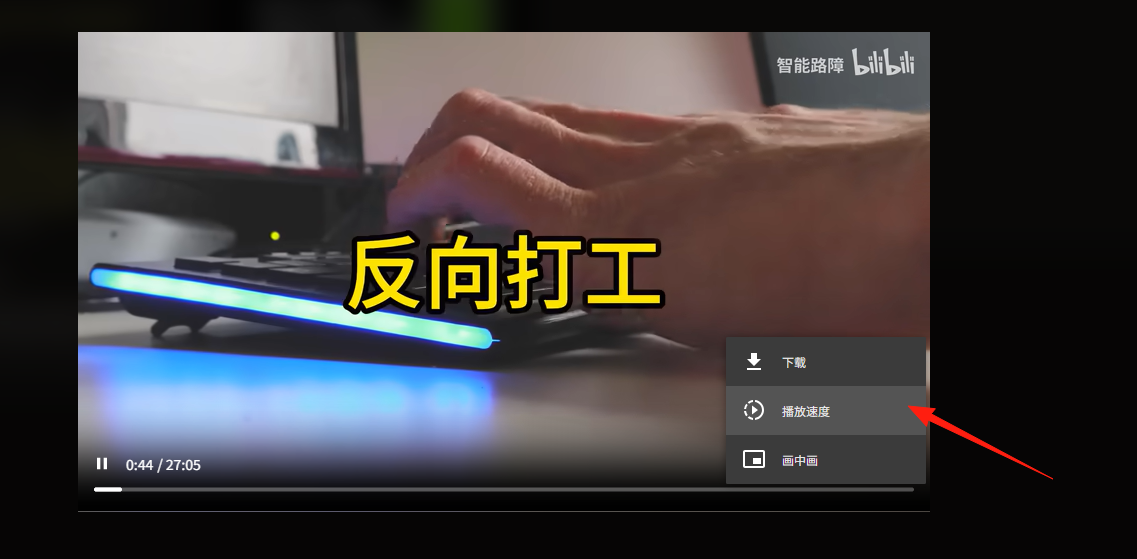
Alternatively, during video playback, you can also download the video and adjust the playback speed using the controls in the lower right corner.
Summary
yt-dlp-web is truly a gem of a project, especially suitable for:
- Content creators who frequently need to download videos
- Users who want to watch videos offline
- Friends who want to avoid ads
The project is continuously updated, with features becoming more and more comprehensive.
Most importantly, it's a completely free and open-source project, so you can use it without any reservations.