
Mail-Archiver: Making Email Management Headache-Free
What is Mail-Archiver
Mail-Archiver is a specialized web application for archiving, searching, and exporting emails. It supports multiple IMAP email accounts and features a user-friendly interface with powerful capabilities.
It can connect to your various email accounts (such as QQ Mail, Gmail, corporate email, etc.) and download all your emails completely onto your own computer's hard drive.
First, let's talk about the common pain points we encounter with emails:
- Finding emails is like searching for a needle in a haystack: Important emails from years ago are impossible to find after searching through the entire mailbox.
- Insufficient mailbox capacity: Gmail offers 15GB, QQ Mail offers even less, often requiring you to delete emails to free up space.
- Switching email providers is troublesome: Want to switch from 163 to Gmail? Migrating emails is a huge project.
- Lost emails when employees leave: Important company email correspondence is completely lost when an employee departs.
- Chaotic management of multiple mailboxes: Juggling work, personal, and temporary email accounts is frustrating with constant switching.
Mail-Archiver is designed to solve these problems.
https://appstore.lazycat.cloud/#/shop/detail/cloud.lazycat.app.mailarchiver
How to Use
After installing the application, open the login page. The initial administrator credentials are: admin / admin123
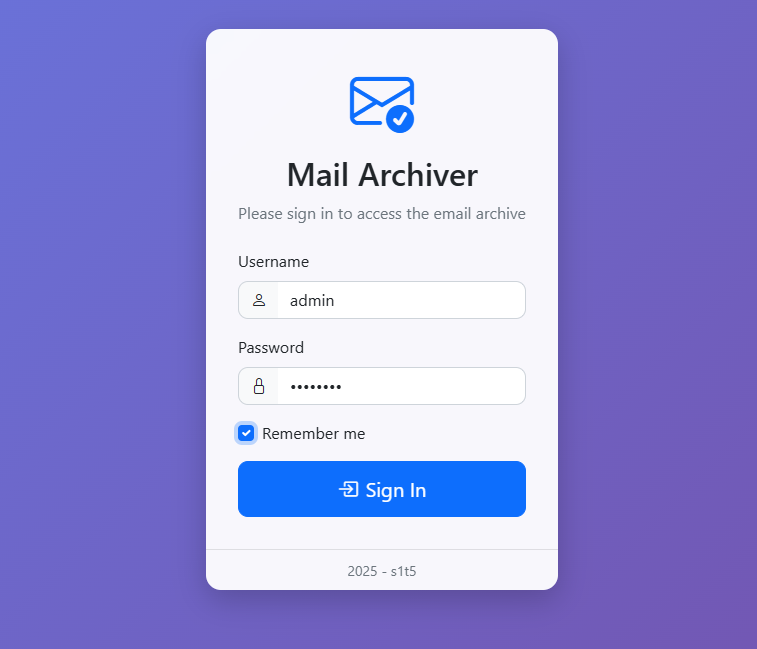
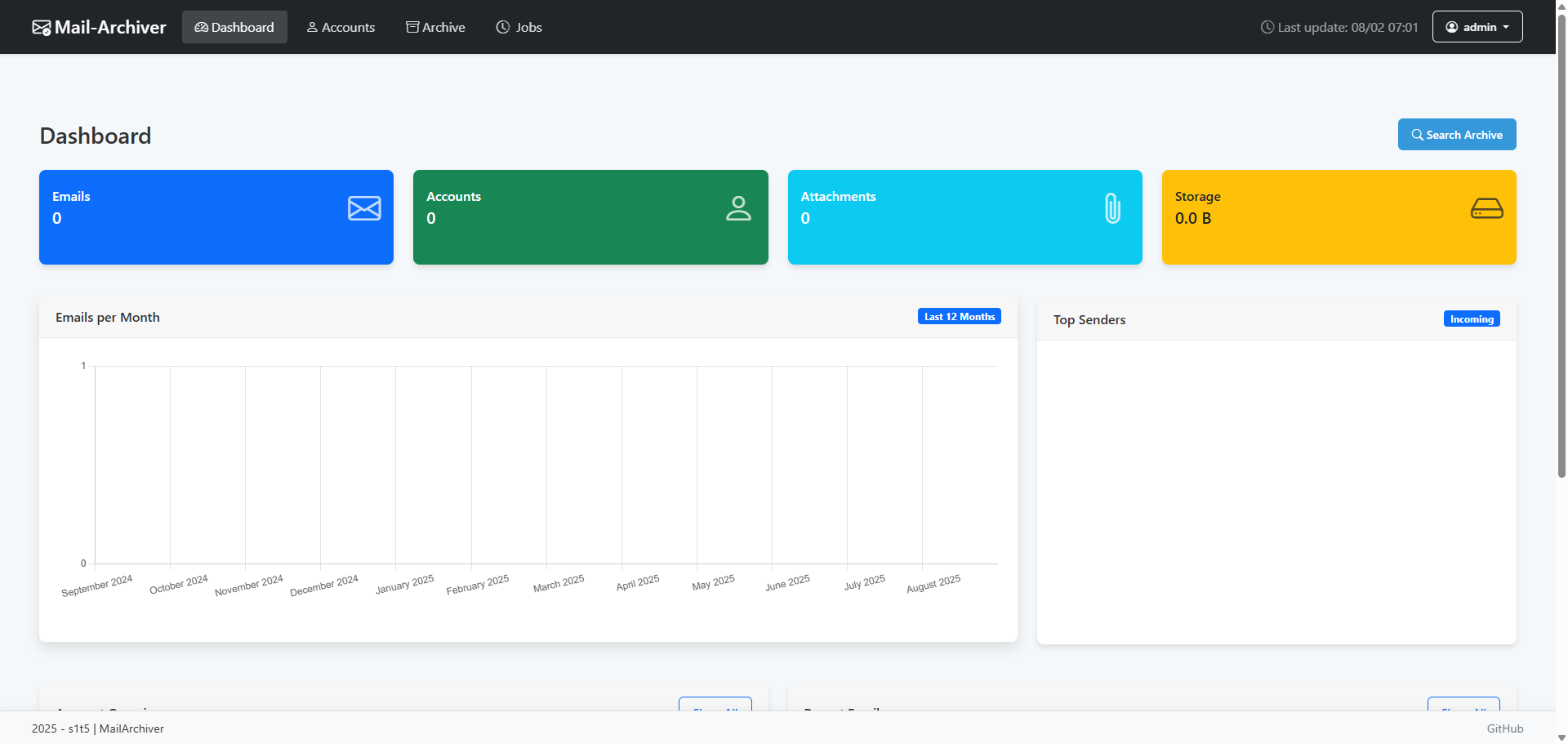
Enter the main page.
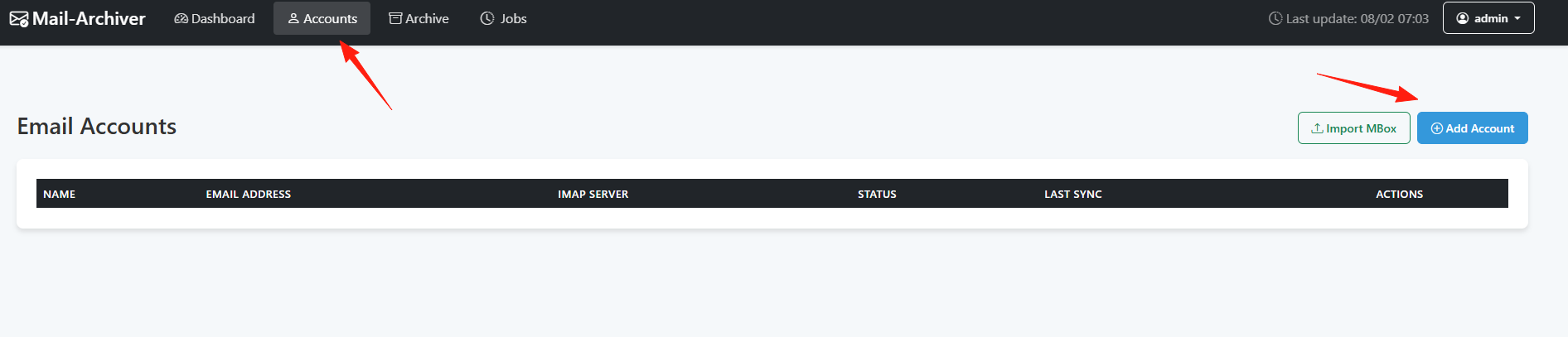
Click "Account" to add an account.
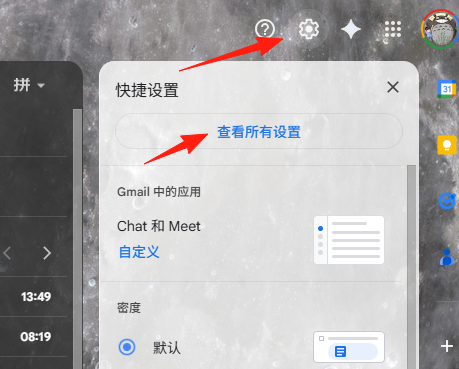
Using a Gmail account as an example: Open Gmail in your browser, click the "Settings" icon (gear shape) in the top right corner, and then select "See all settings".
Click the "Forwarding and POP/IMAP" tab at the top.
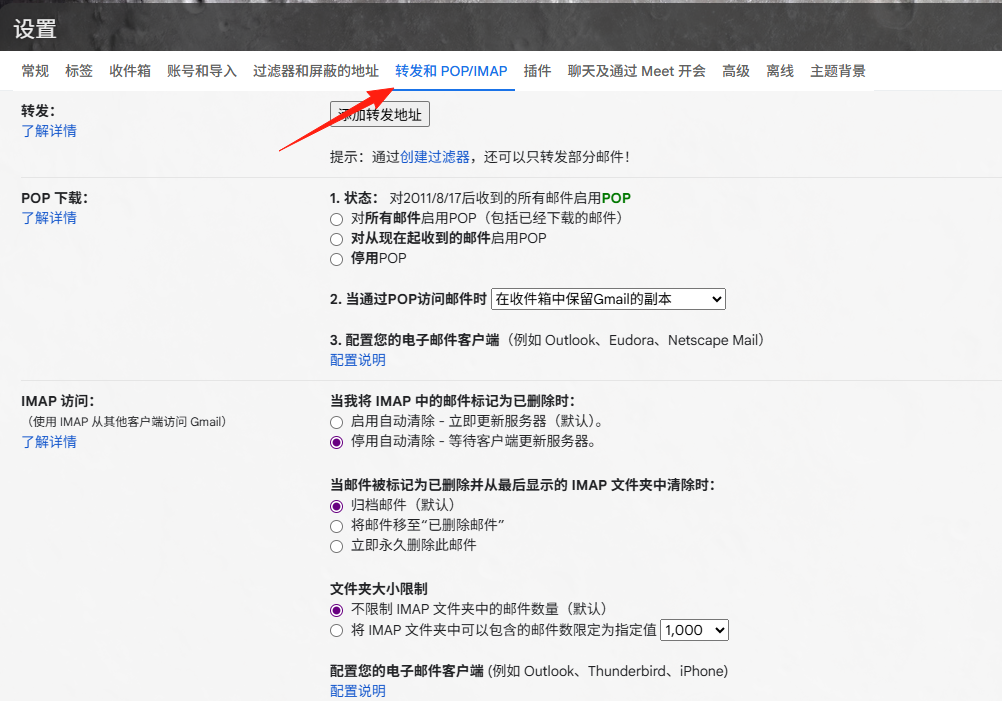
In the "IMAP access" section, select "Enable IMAP". When two-factor verification is enabled for your Google account, third-party applications like Mail-Archiver cannot use your login password directly. You must use an "App password" to connect.
Open your Google Account security page: https://myaccount.google.com/security
Find the section "How you sign in to Google".
Click "App passwords".
For security, Google may ask you to enter your password again for verification.
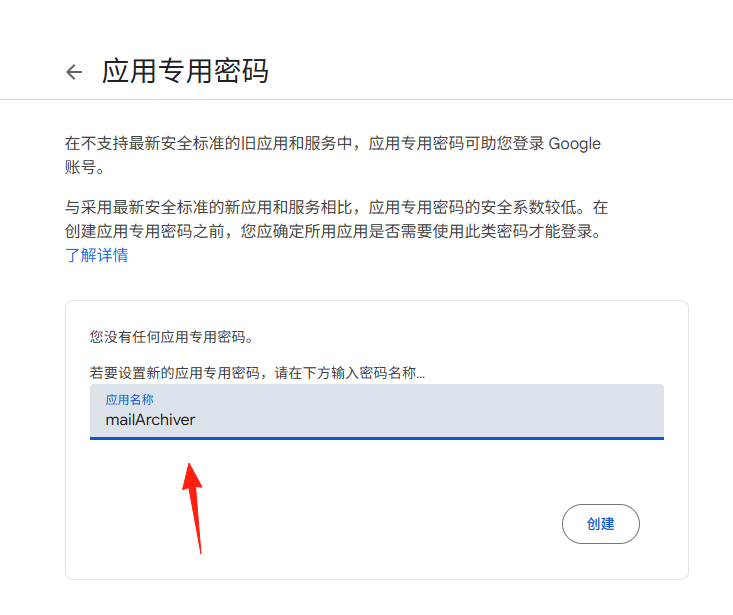
Once on the "App passwords" page, you can generate a new password.
In the pop-up input box, give it a name, e.g., mail-archiver, and then click "Generate".
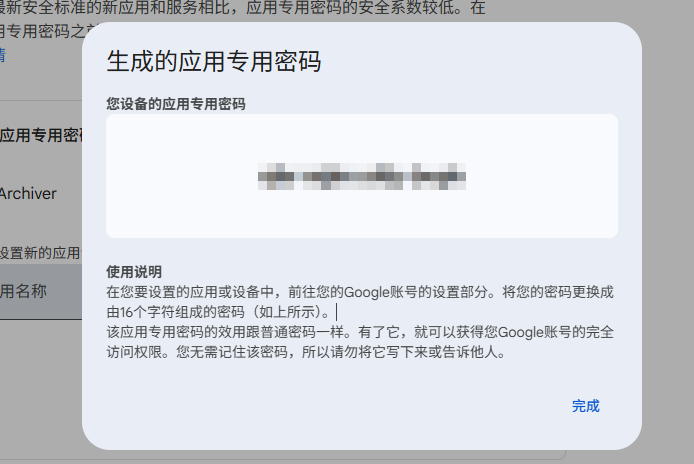
Google will generate a 16-character password (e.g., abcd efgh ijkl mnop). This is your authorization code. Copy this password immediately, as it is only displayed once and won't be shown again.
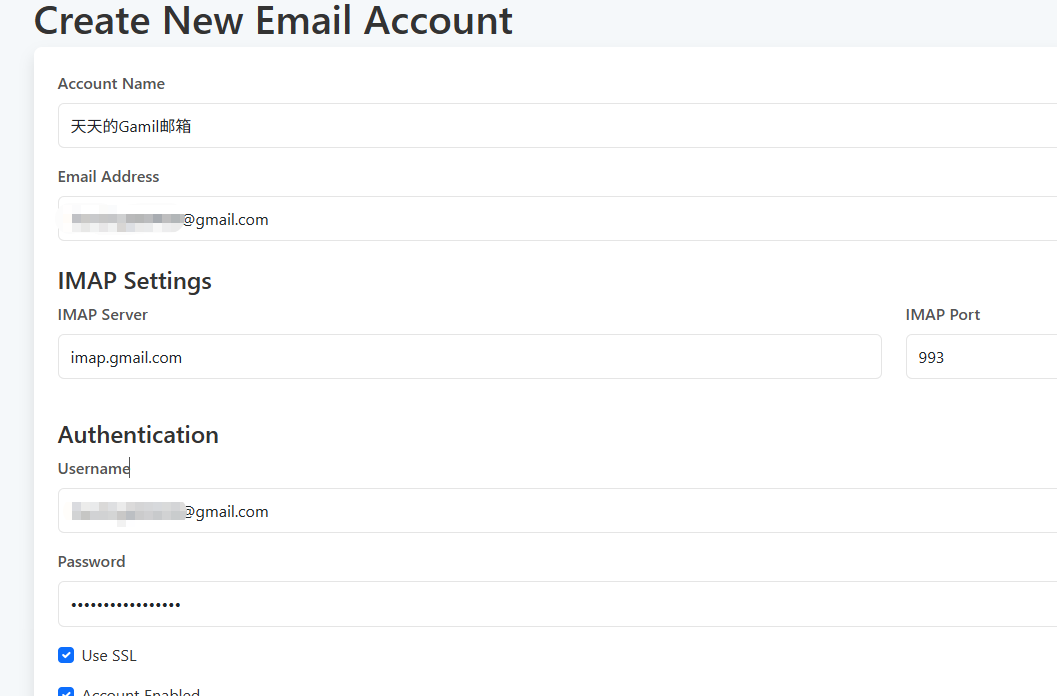
Return to the application. Note: The password generated by Google has spaces by default; you must delete the spaces. ● IMAP Server: imap.gmail.com ● Port: 993 ● Username: Your Gmail address ● Password: The Gmail App Password (Not your Gmail password!)
After successful addition, you can see it in the list.
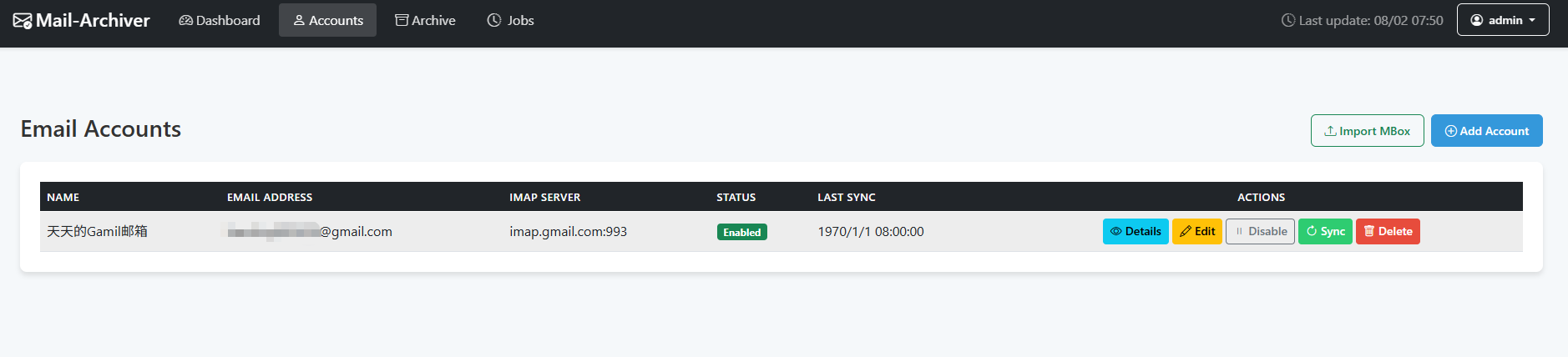
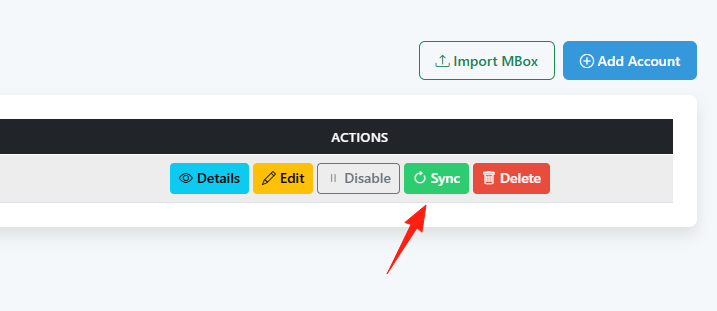
Click the "Sync" button.
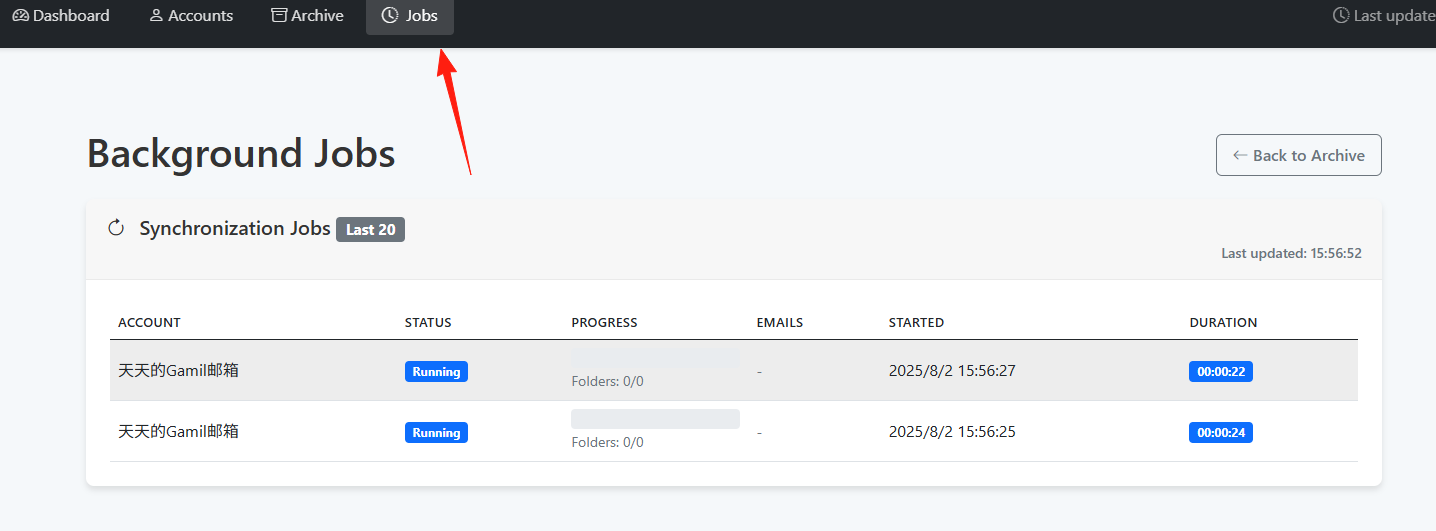
You can see the job running in the "Jobs" section.
- Initial Sync: Recommended to perform at night. Large mailboxes may take several hours.
- Sync Interval: Default is 15 minutes. If you don't receive many emails, you can change it to 60 minutes.
- Folder Selection: Only sync important folders. It's recommended to skip folders like Spam.
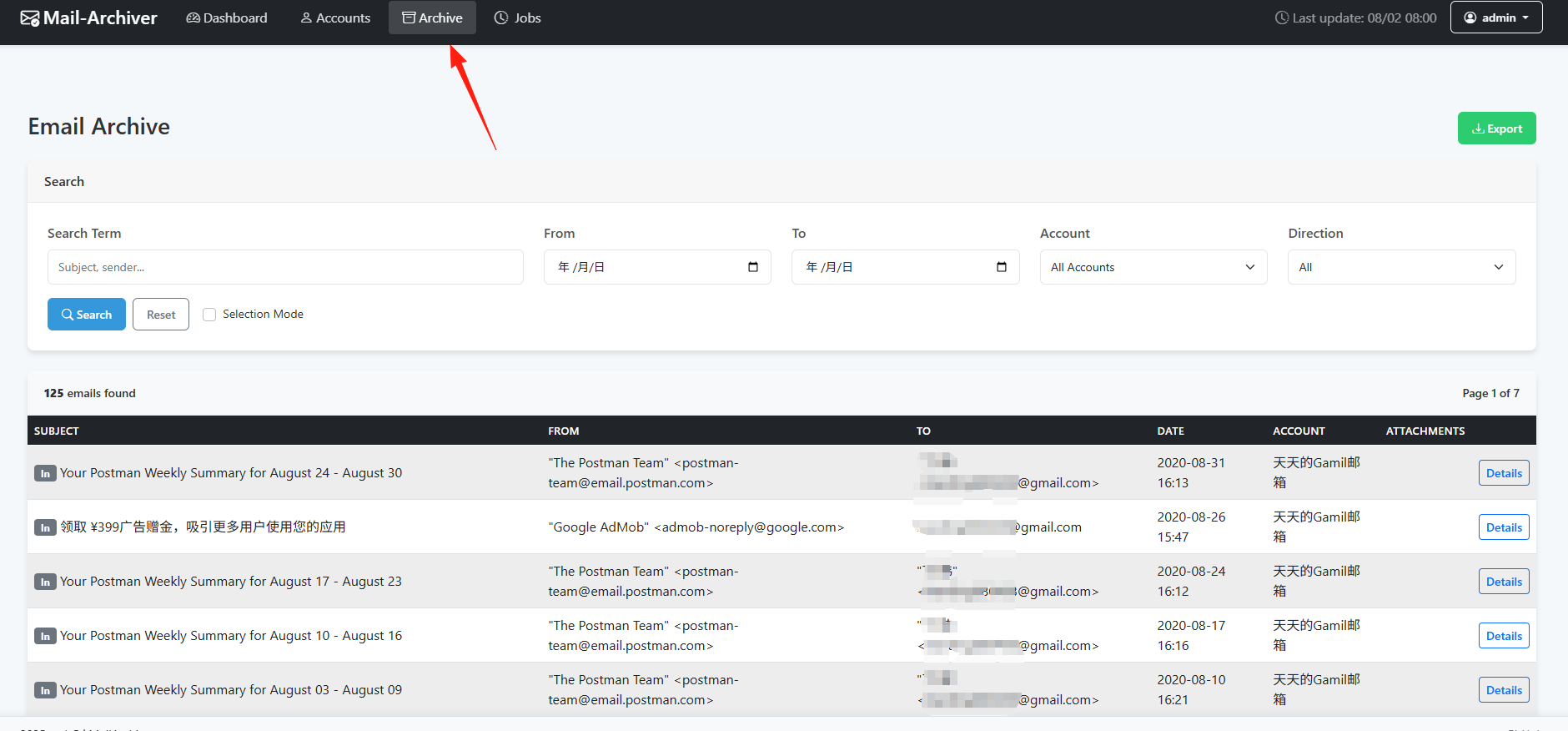
You can see the data has been imported in the "Archive" section.
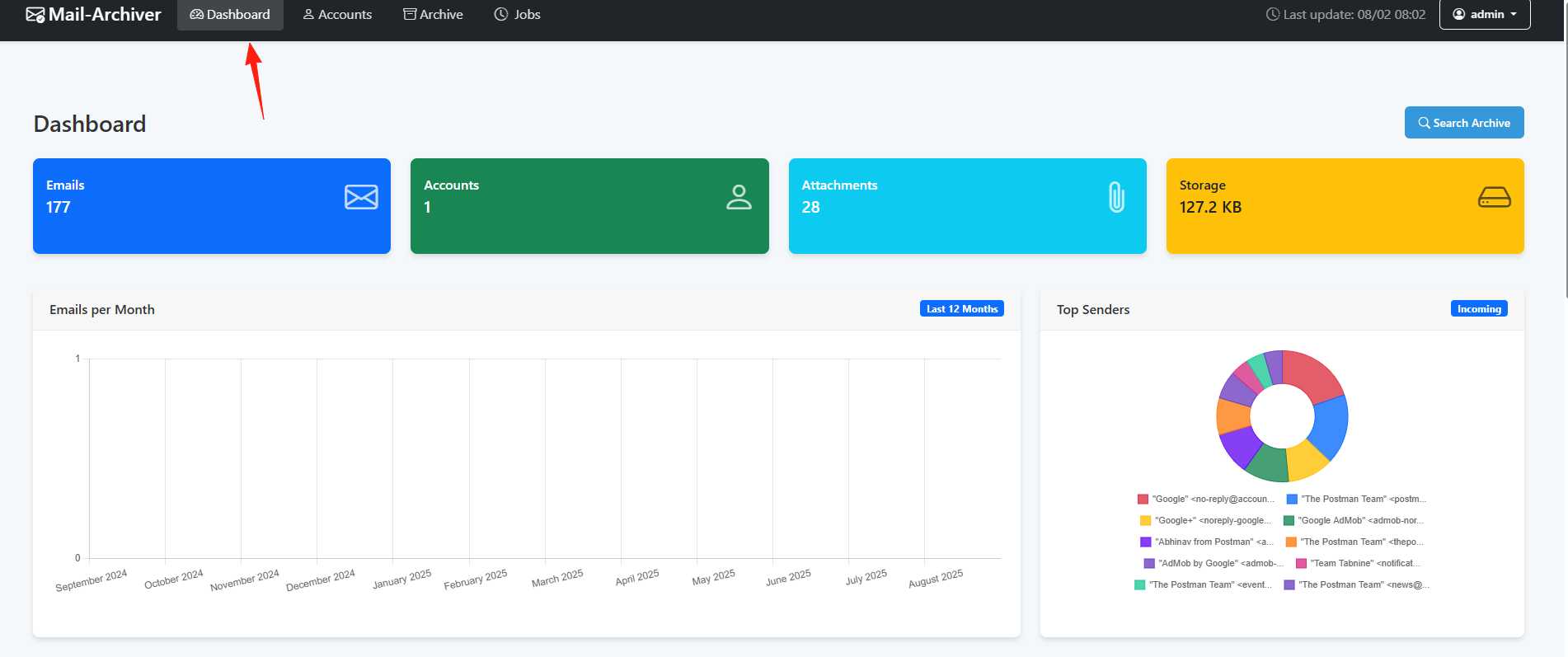
Return to the main page to view statistical information.
Summary
Mail-Archiver is a very practical email management tool, especially suitable for:
- Individual users who need to preserve emails long-term.
- Small businesses that need email backups.
- Users who need to migrate emails.
- Users who want centralized management of multiple email accounts.
While it's not flashy high-tech, it effectively solves real-world problems.
If you also struggle with email management, why not give this tool a try?