
Portracker: The Ultimate Solution to Eliminate Port Conflict Headaches
If you've worked with Docker, you've probably had this experience:
You're excited to deploy a new service, but it immediately throws an error: "port is already in use." Then you start frantically running docker ps, netstat -tulpn, scanning the screen to find which port is occupied by which process.
Today, I want to recommend a tool - Portracker - specifically designed to solve this pain point.
What is Portracker?
Portracker is a self-hosted port monitoring tool. Simply put, it helps you monitor all running services and their port usage on your system in real-time.
Its biggest highlight is automatic discovery. You don't need to manually input any information; once deployed, you can see the entire port map of your system.
Core Features
- Automatic Port Discovery: Scans the system to find all running services, no manual recording needed.
- Deep Docker Integration: Can identify Docker container information, displaying details like container names, images, etc.
- Multi-Server Monitoring: Connect Portracker instances from multiple servers to manage all devices from a single interface.
- Lightweight Design: Runs as a single process with a built-in SQLite database, requiring no additional database service.
- Modern Interface: Supports light/dark themes, responsive design, and is usable on mobile devices.
https://appstore.lazycat.cloud/#/shop/detail/cloud.lazycat.app.portracker
How to Use
After the application is installed, it needs to scan for data initially. The main page opens directly.
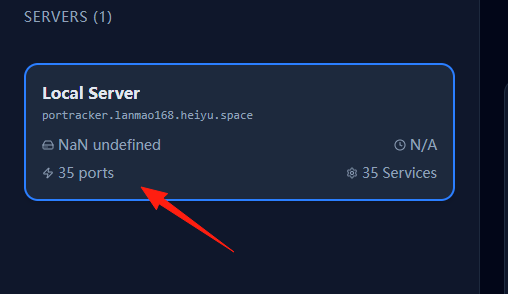
The more containers you have, the longer this will take. On the left, you can see my microservices are using 35 ports.
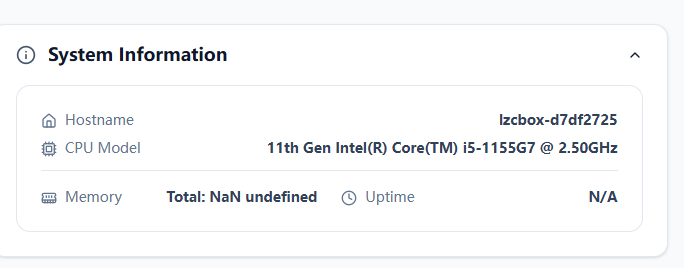
The system information area at the top displays:
- CPU Model and Frequency: Helps identify server performance.
- Memory Usage: Monitors resource consumption.
- Uptime: Understands system stability.
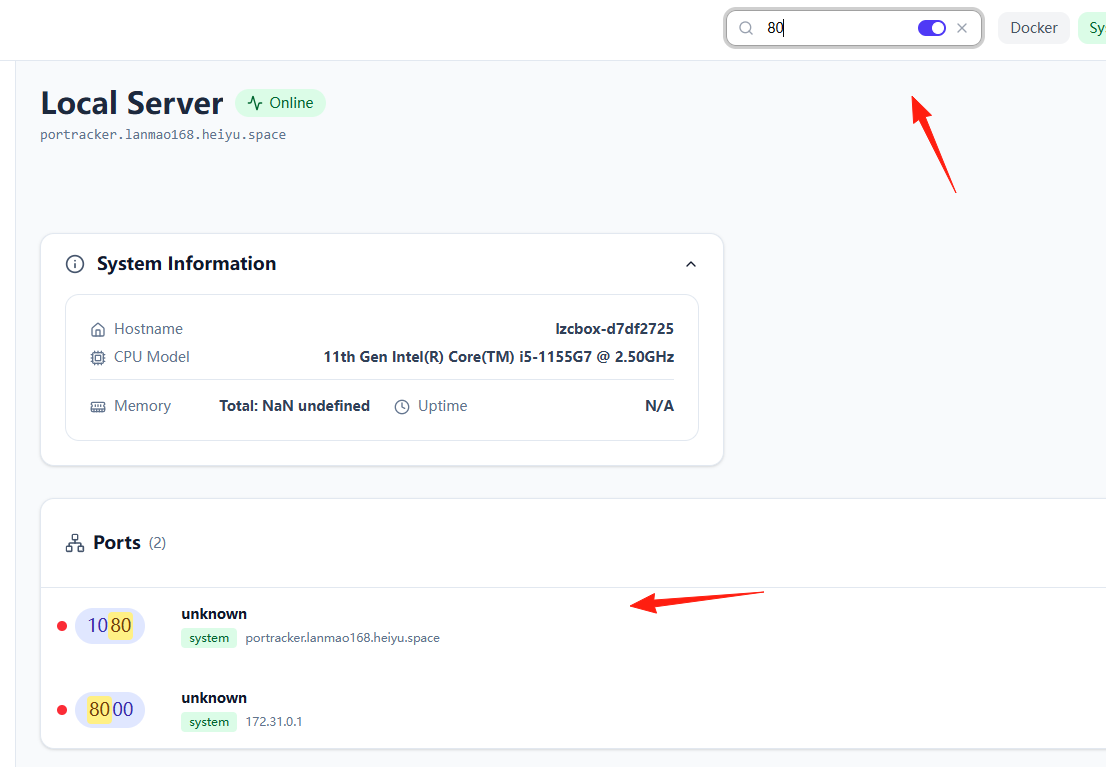
The interface supports real-time filtering:
- Filter by port number or service name.
- Supports multiple display modes (List, Grid, Table).
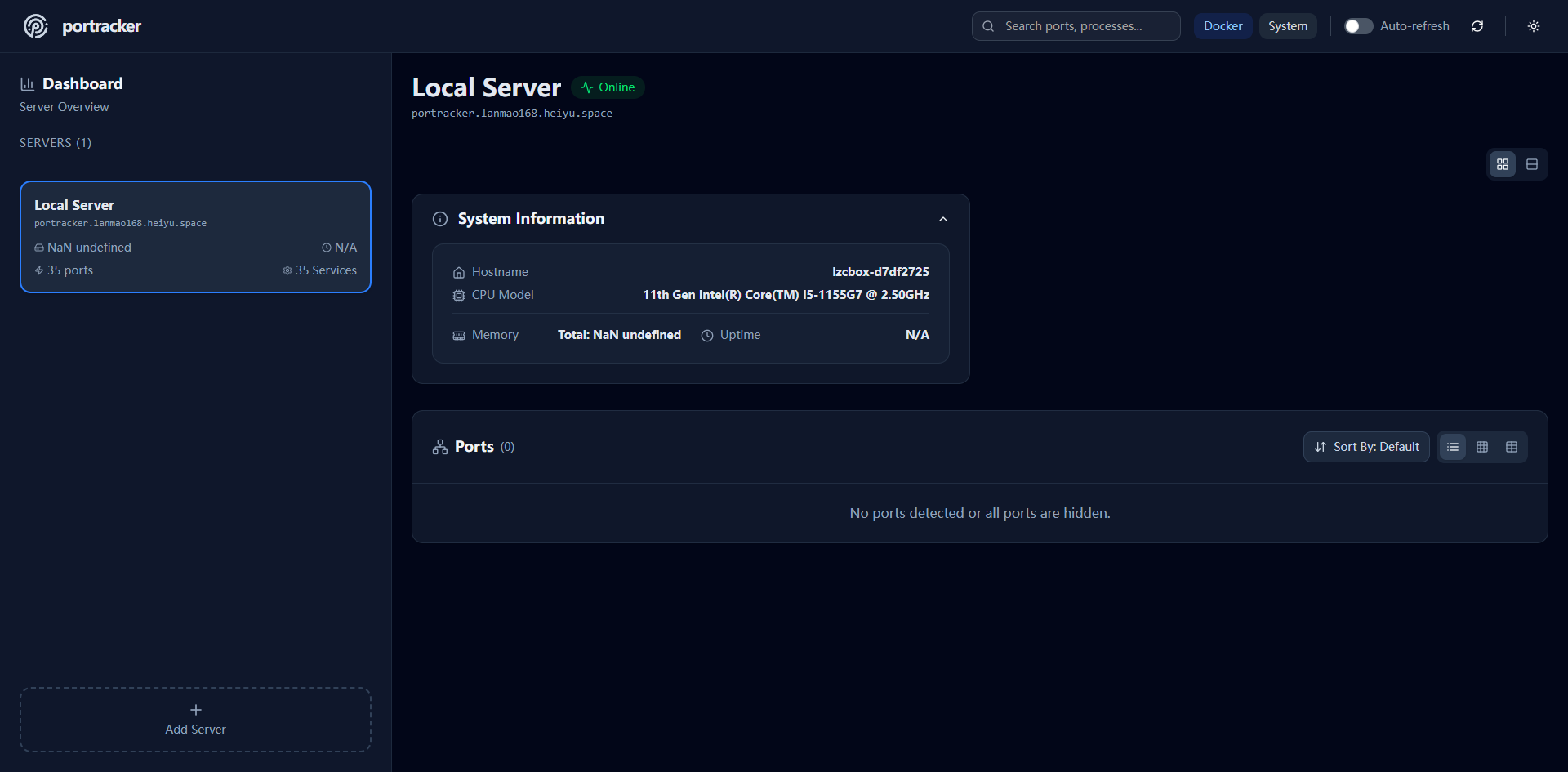
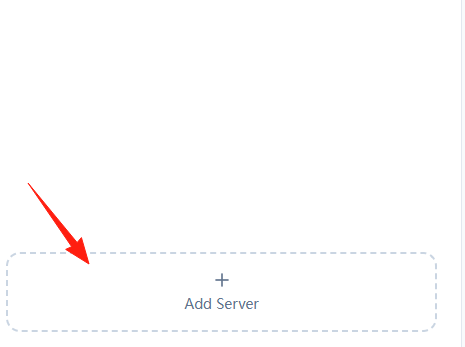
The "Add Server" button in the lower left corner allows you to add other servers.
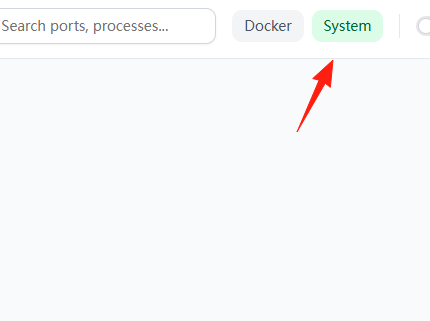
Click on "system" to see which specific ports are in use.
- Port 5353: This is typically an mDNS service (Apple's Bonjour or Linux's Avahi), used for local network device discovery.
- Port 5500: Could be a VNC server or other remote desktop service.
- Port 53: DNS service, but bound to different IP addresses.
These are all system-level services. Portracker cannot automatically identify their specific purposes, so they are displayed as "unknown".
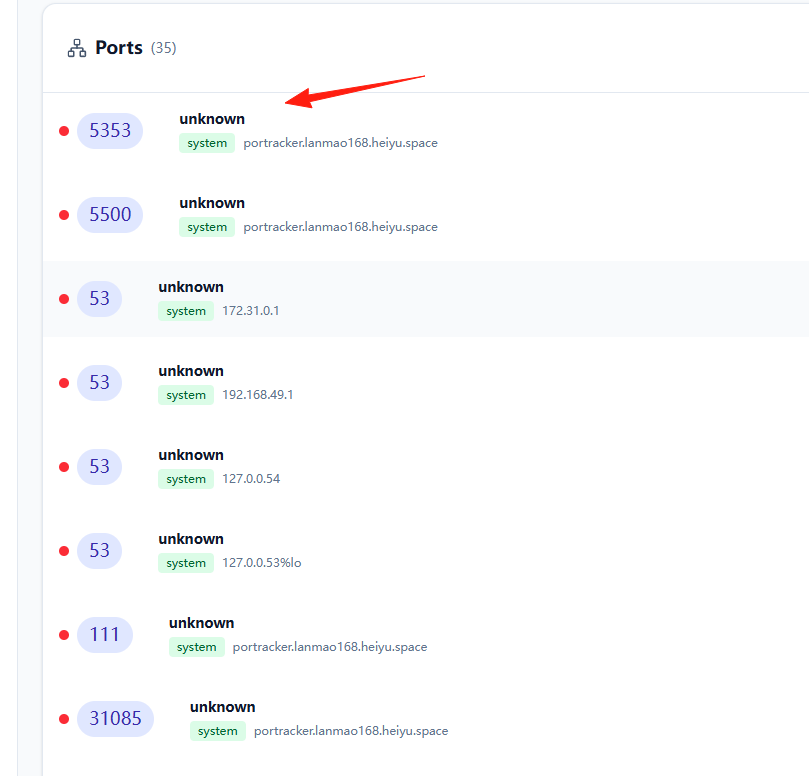
However, the main point isn't necessarily to identify the service name, but to clearly know which ports are occupied. When deploying a new service, seeing a red dot tells you this port is unavailable.
Summary
Portracker is a very practical tool, especially suitable for:
- Advanced users who need to manage multiple servers.
- Docker users who frequently encounter port conflicts.
While its functionality is relatively specialized, it's this focus that makes it excel in the field of port monitoring.
If you've also been troubled by port management issues, why not give this tool a try.