
Claper User Guide - Bring Your PowerPoint Presentations to Life Instantly
What is Claper?
Claper transforms your presentations into an interactive, engaging, and exciting experience.
Simply put: You present, and your audience doesn't just listen—they participate in real-time by sending comments, voting, asking questions, instantly bringing the entire room to life.
Imagine this scenario:
- You ask: "What does everyone think of this solution?"
- The audience votes directly from their phones, and the results are displayed on the big screen in real-time.
- Someone has a question? They can send it directly to your presentation interface.
- Feeling a tense atmosphere? Lighten the mood with a real-time emotion poll.
This is the magic of Claper.
https://appstore.lazycat.cloud/#/shop/detail/cloud.lazycat.app.claper1
Quick Start Guide
After installing the app, open it and click "Login" in the top right corner.
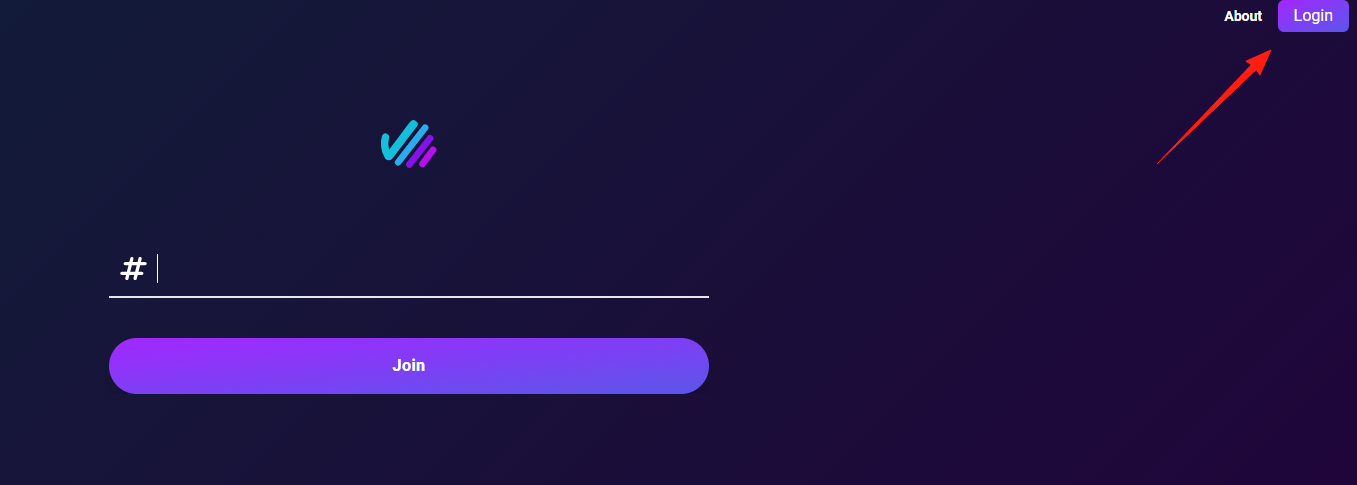
First, register a new user.
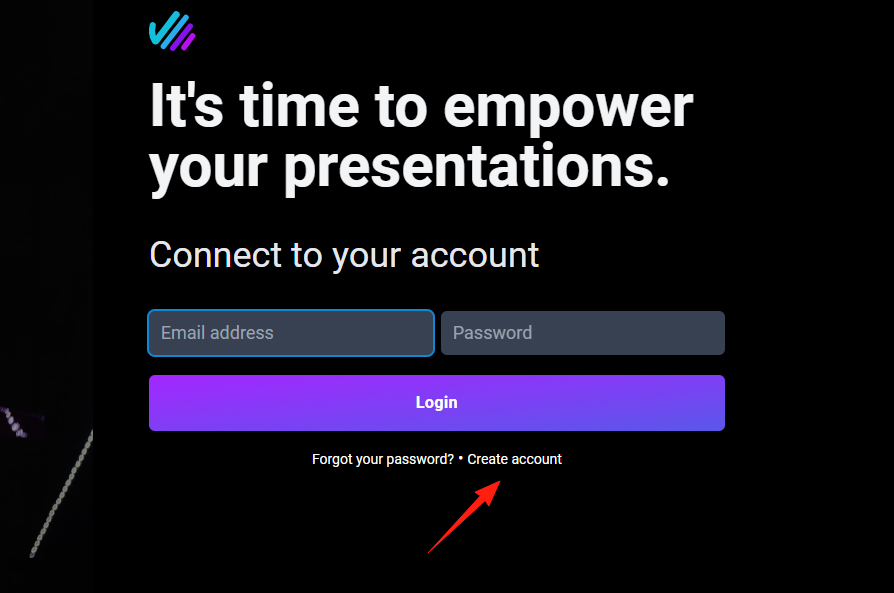
After successful registration, you will enter the main page.
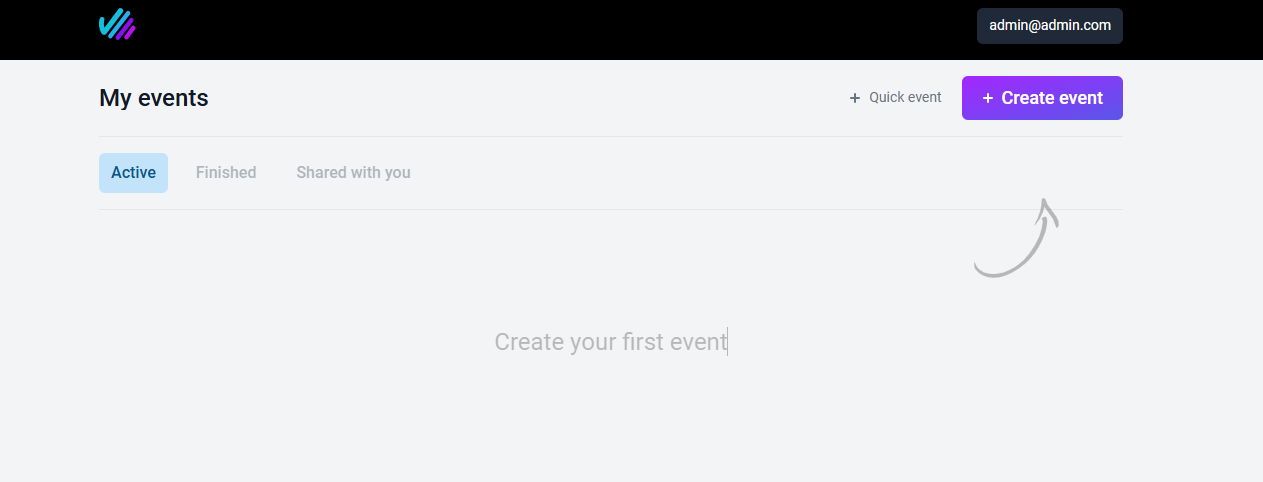
Click "Create", then upload your presentation file (max 15MB). (Note: I encountered an issue where the file couldn't be saved after upload; this has been reported to the official team).
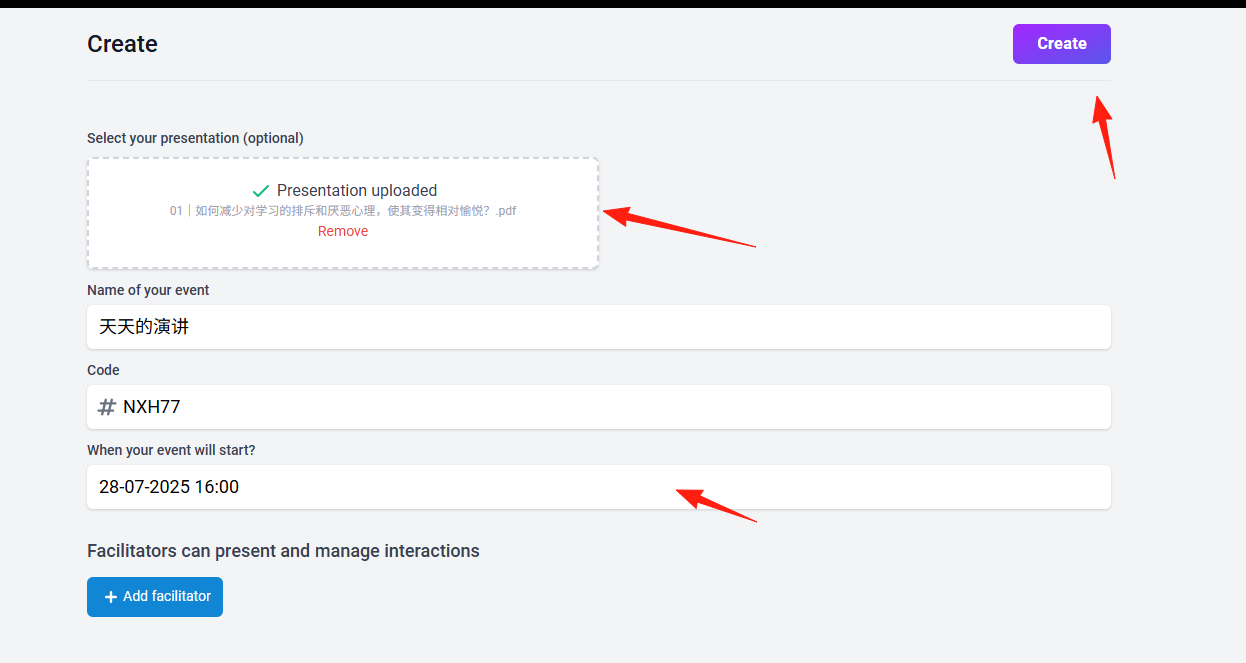
Click "Add facilitator" to add a facilitator by entering their email address.
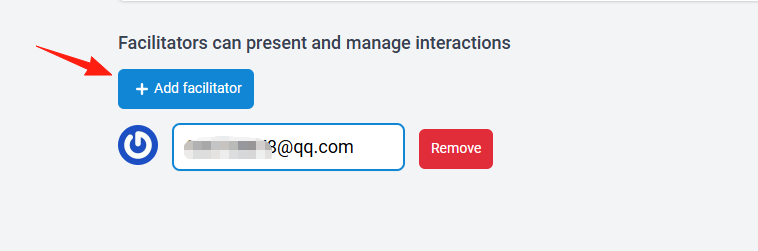
After successful addition, you can see it on the home page.
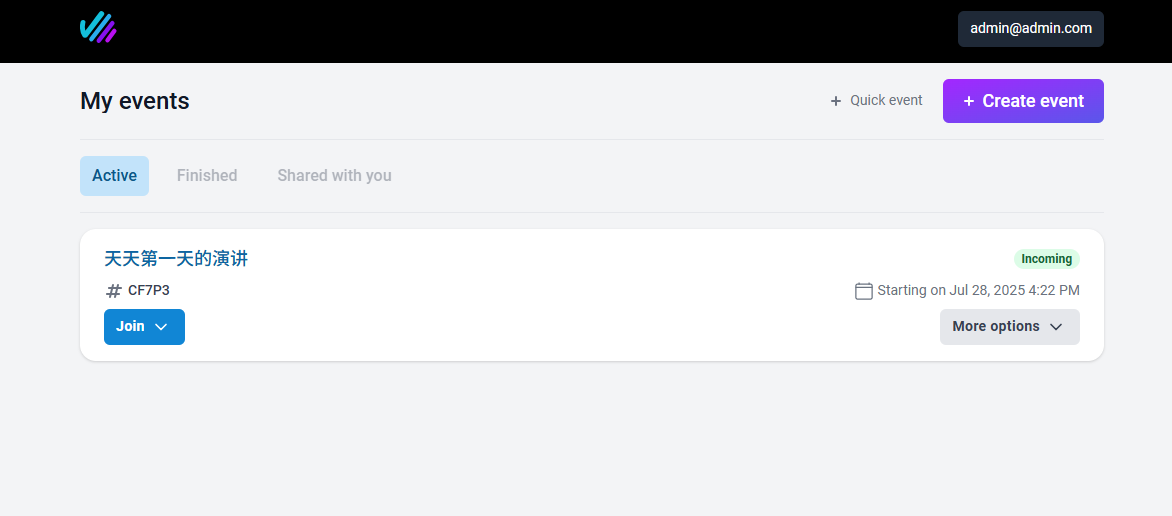
Click "My presentations" to enter your presentation list. You will see three sections: Preview, Chat, and Settings.
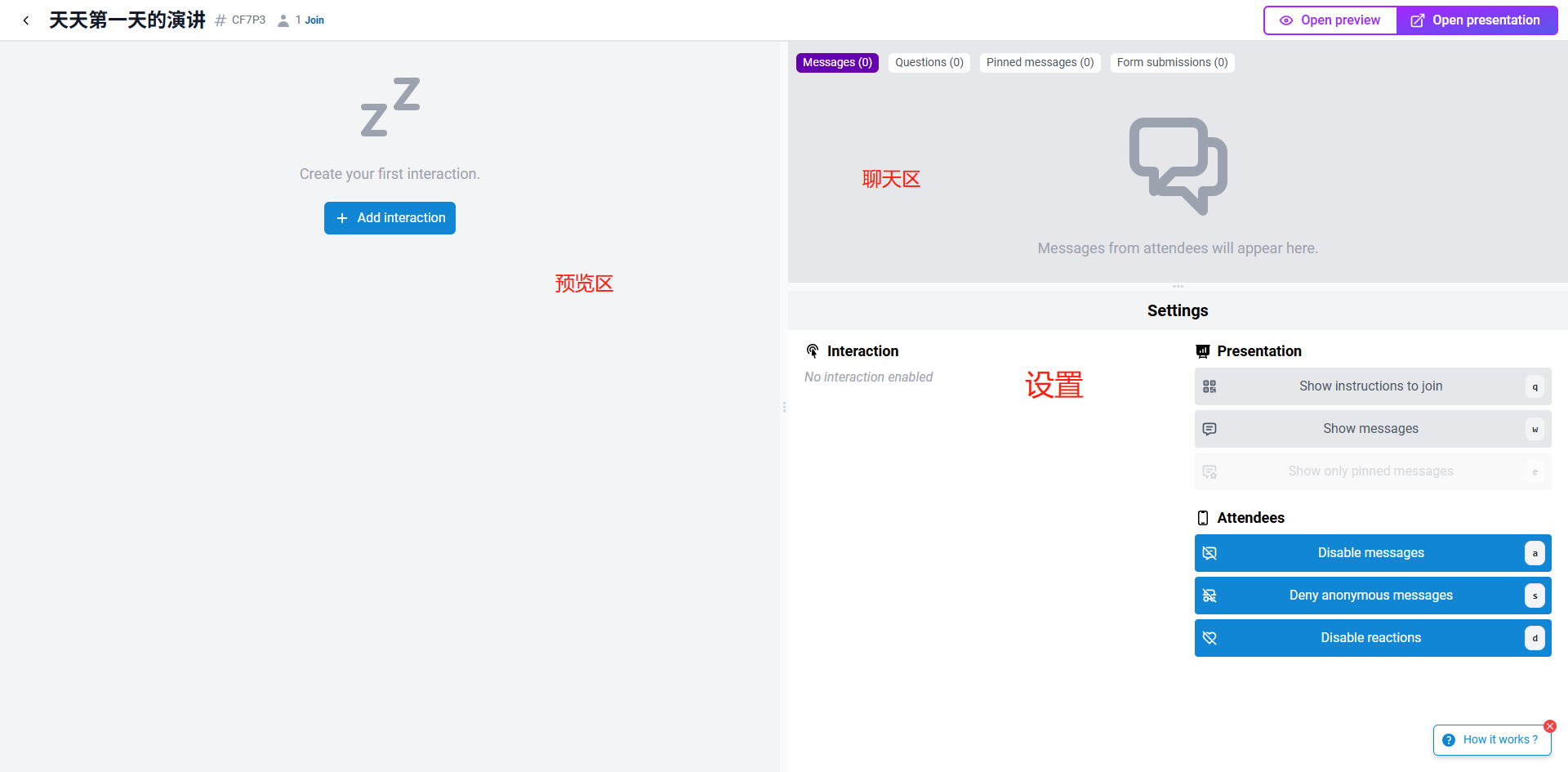
Click "Add Interaction" on the left.
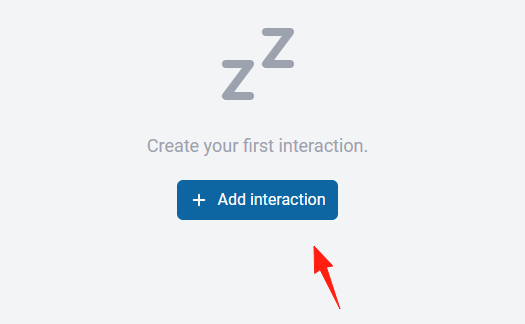
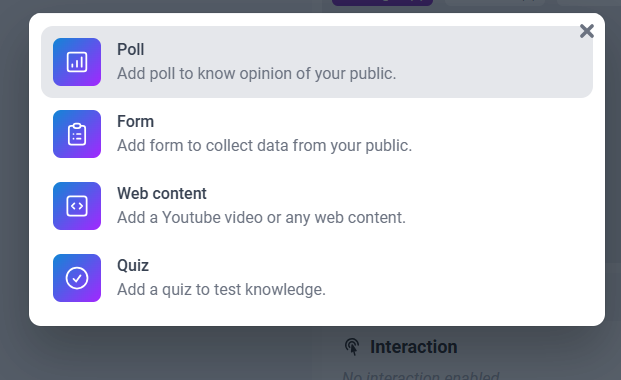
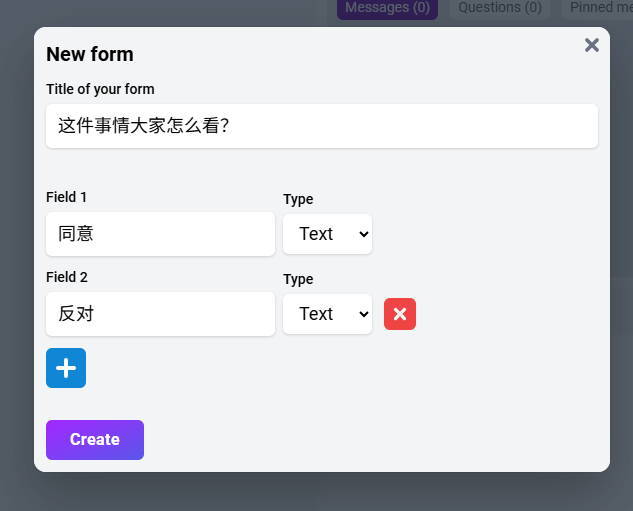
For example, add a Form.
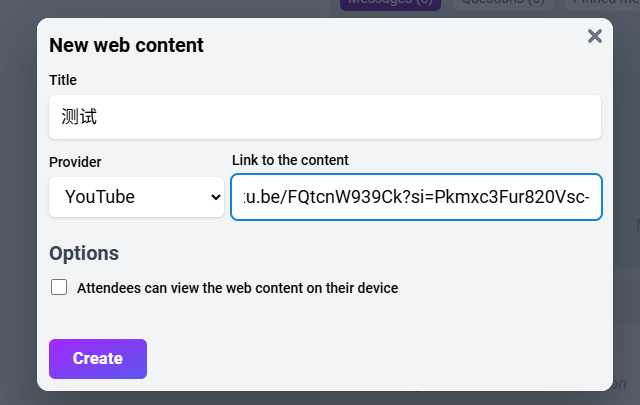
You can also add a YouTube video.
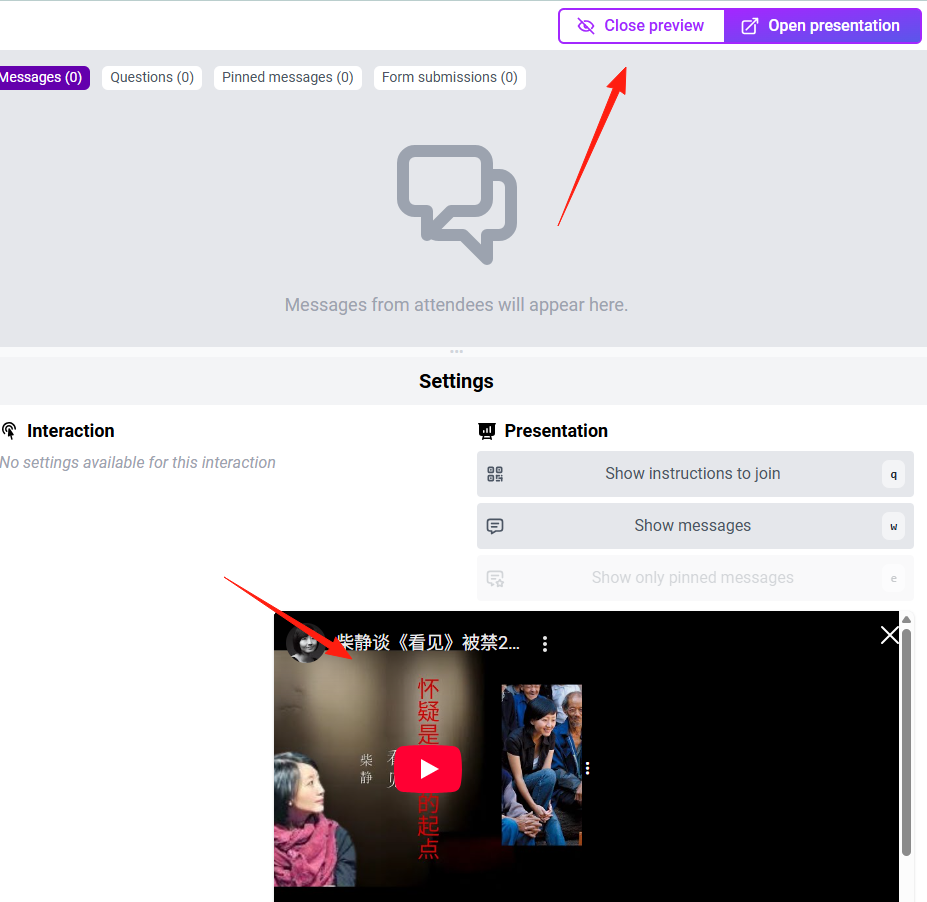
Click the "Preview" button in the top right corner. A pop-up window will appear showing the video content.
Share the link with your audience. They will need to enter an invitation code.
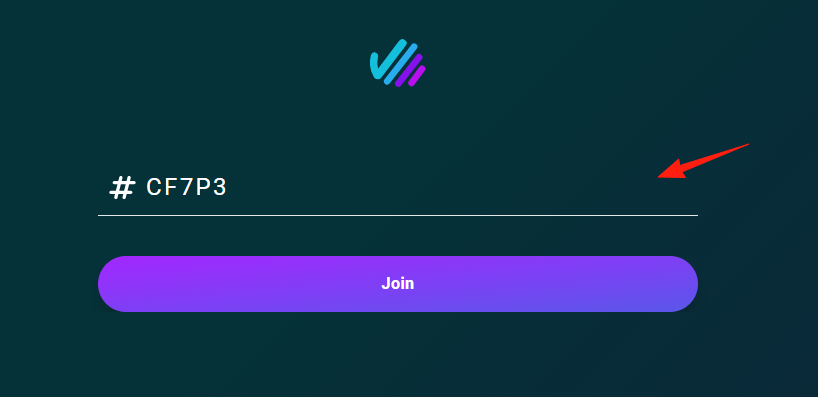
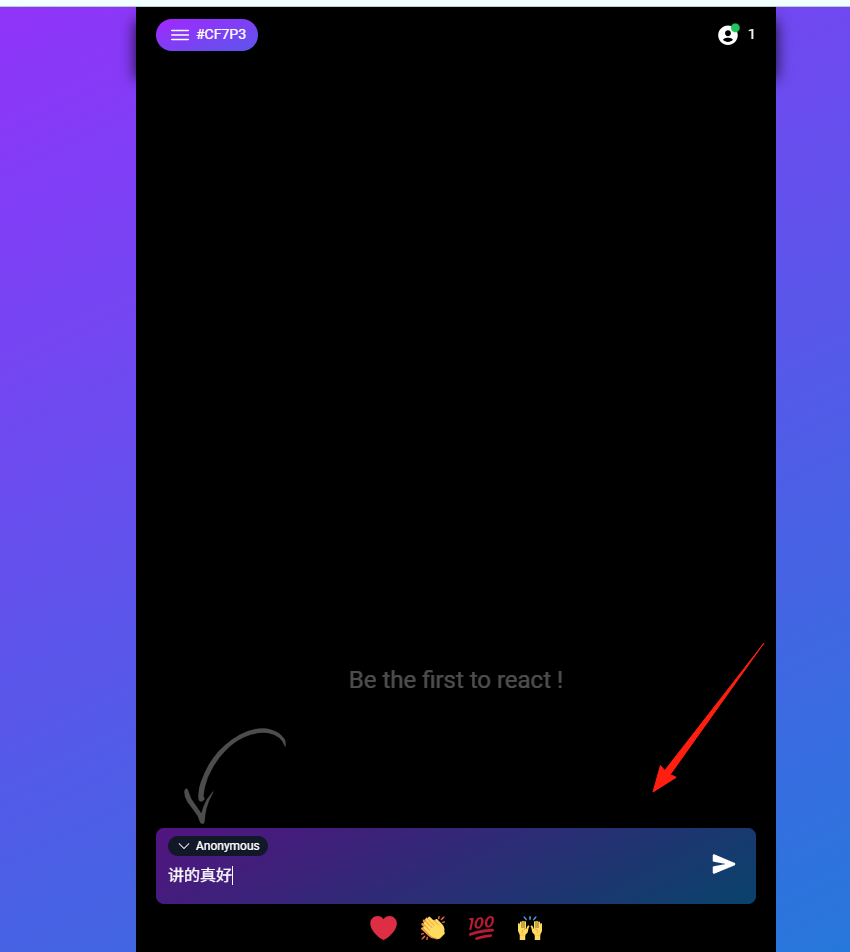
After entering, they can leave comments and interact.
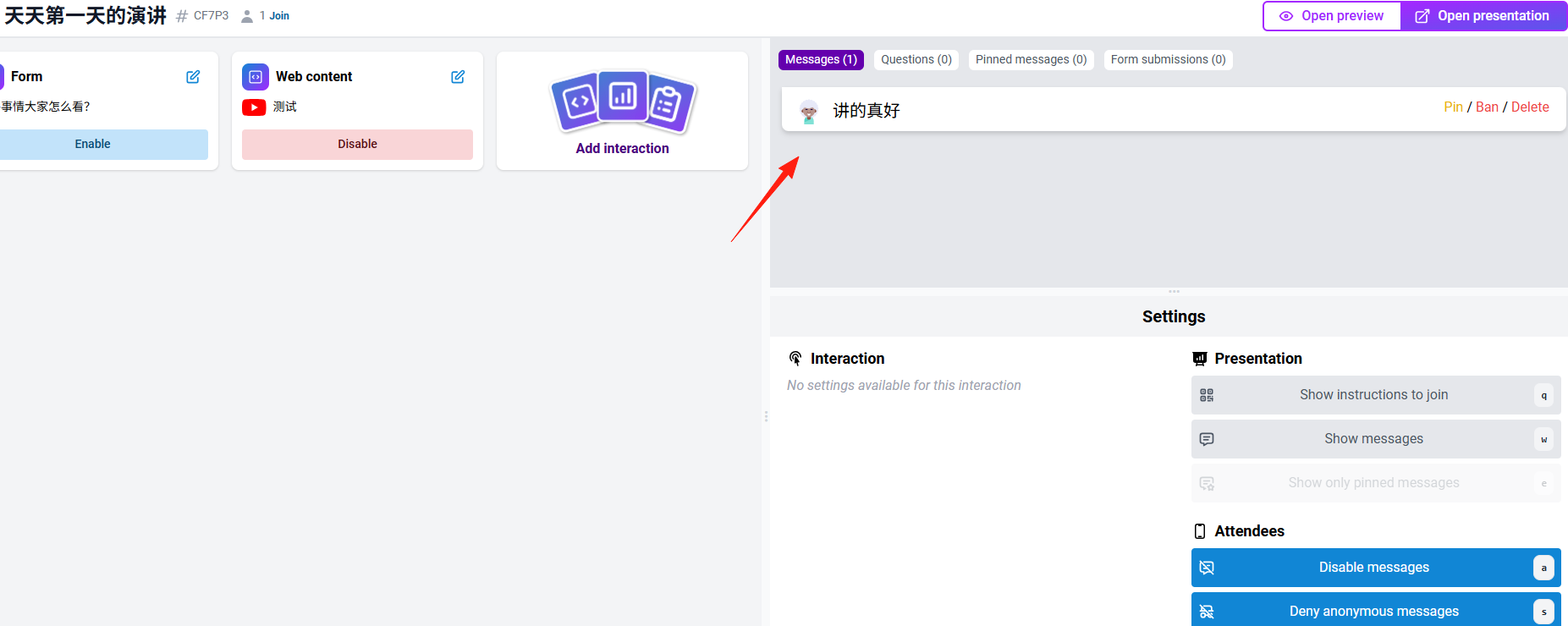
The comments are also visible on the main presenter interface.
Set the Form to "Enable".
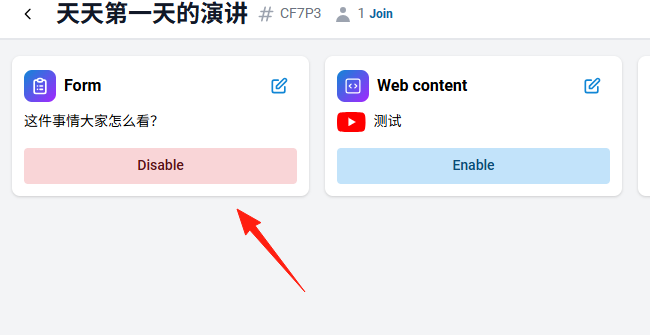
The audience will then see it on their client side.
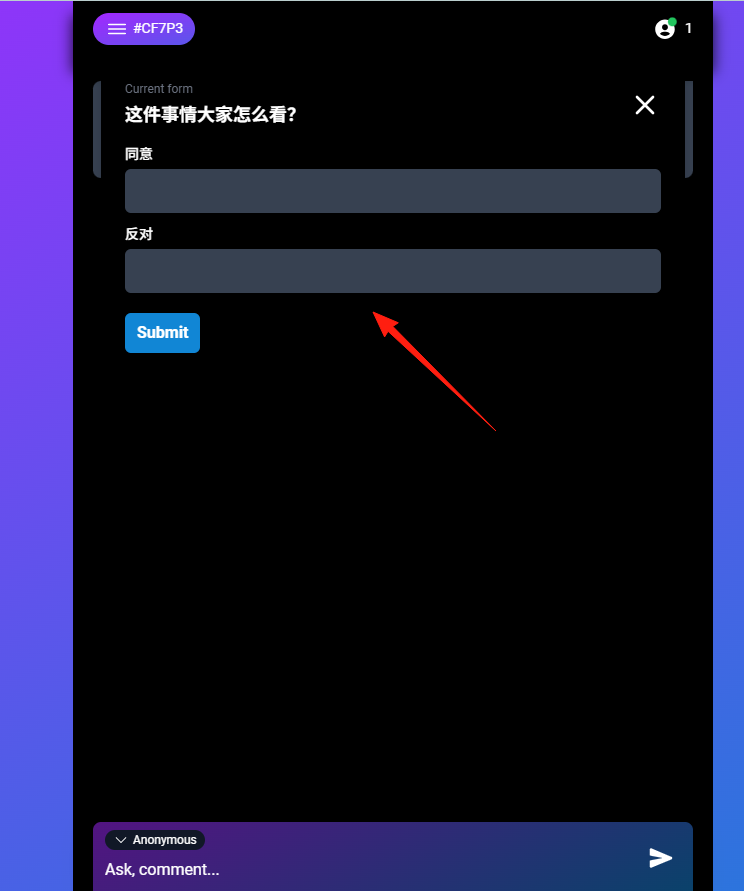
This allows the audience to ask questions at any time. Enable the "like" feature so everyone can upvote good questions. You can then address the highest-rated questions at the end of your presentation.
🔥 Summary
Claper's mission is to help presenters make their demonstrations unique and receive real-time feedback from their audience.
Whether you are a teacher, trainer, product manager, or salesperson, you can use it to make your presentations lively and fun.
Give it a try! The next time you present, just watch how actively your audience engages, and you'll know exactly how valuable this app is.
Pro Tip: For your first time, we recommend trying it out with a small group to get familiar before using it in a critical setting.