
Photoview: A Photo Management Tool Designed for Photographers
What is Photoview?
Photoview is a simple and user-friendly photo gallery designed for photographers. It aims to provide a quick and easy way to browse directories, supporting RAW file formats and EXIF parsing, common video formats, and featuring face recognition.
Tightly integrated with the file system. The website displays images found on the server's local file system; directories are mapped to albums. User Management. Each user is assigned a path on the local file system, and the photos within that path are accessible to that user. Sharing. Albums and individual media can be easily shared via public links, which can optionally be password-protected. Built for Photography. Photoview is built for photographers, supporting RAW file formats and EXIF parsing. Video Support. Supports various common video formats. Videos are automatically optimized for the web. Face Recognition. Automatically detects faces in photos and groups photos of the same person together. High Performance. Thumbnails are automatically generated, and photos are prioritized for loading when they become visible on the screen. In full-screen mode, thumbnails are displayed until the high-resolution image is fully loaded. Security. All media assets are protected by cookie tokens, all passwords are properly hashed, and the API uses a strict CORS policy.
https://appstore.lazycat.cloud/#/shop/detail/top.j0k3r.photoview
User Experience
After installing the application, initialization is required. Set the path to /photos.
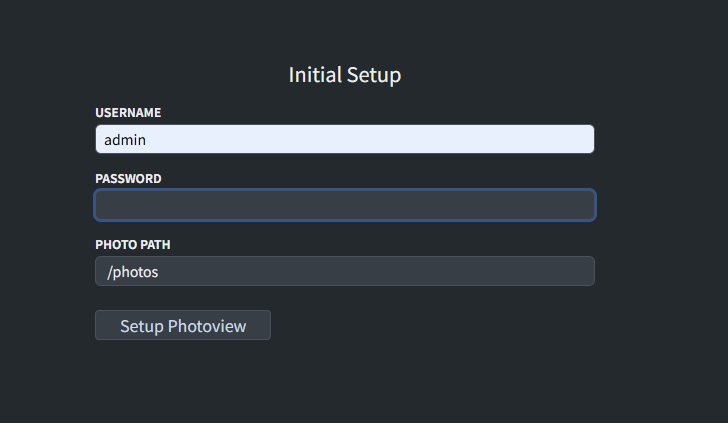
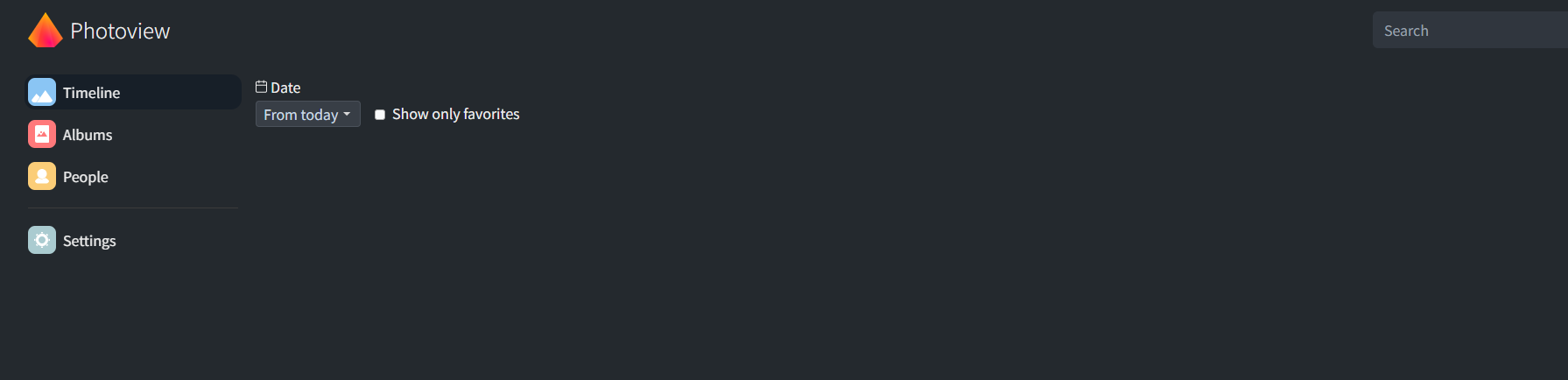
Note: I encountered an error in the browser during testing, but registration worked fine in the client. After that, logging in via the browser worked. The page after logging in:
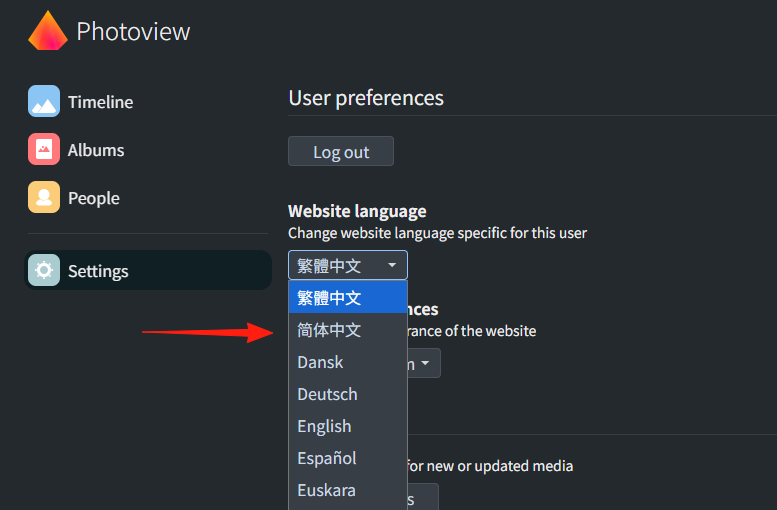
Change the language to Chinese in the Settings on the left.
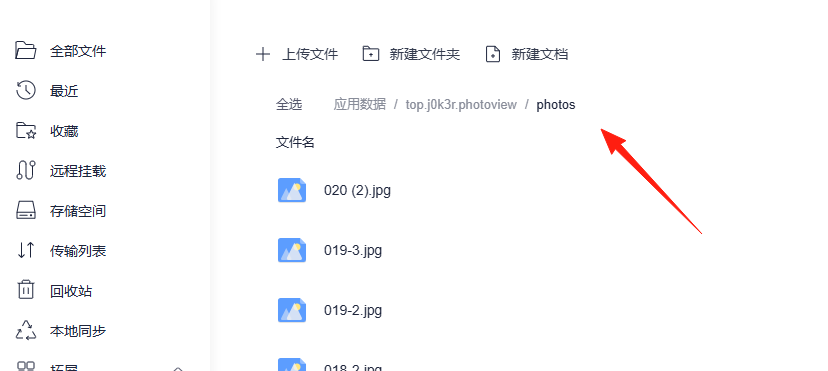
Upload some images under the application data path photos.
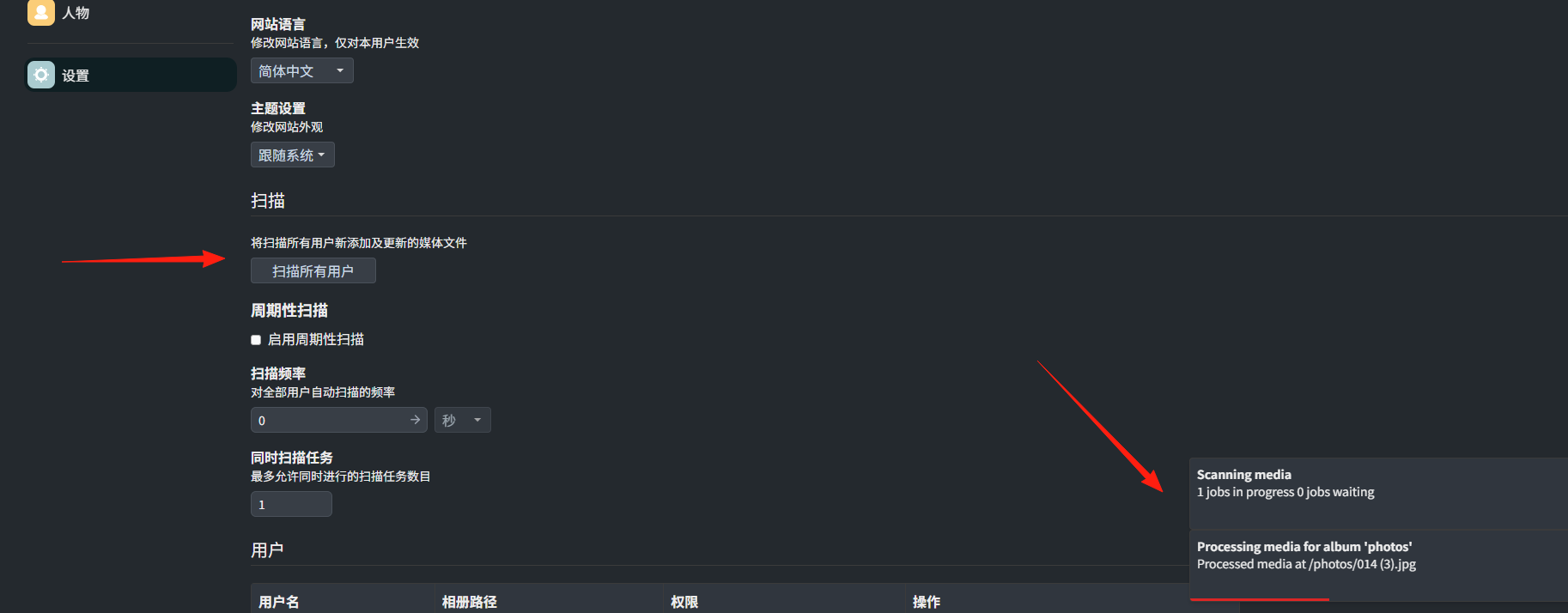
Click 'Scan' to see the progress display.
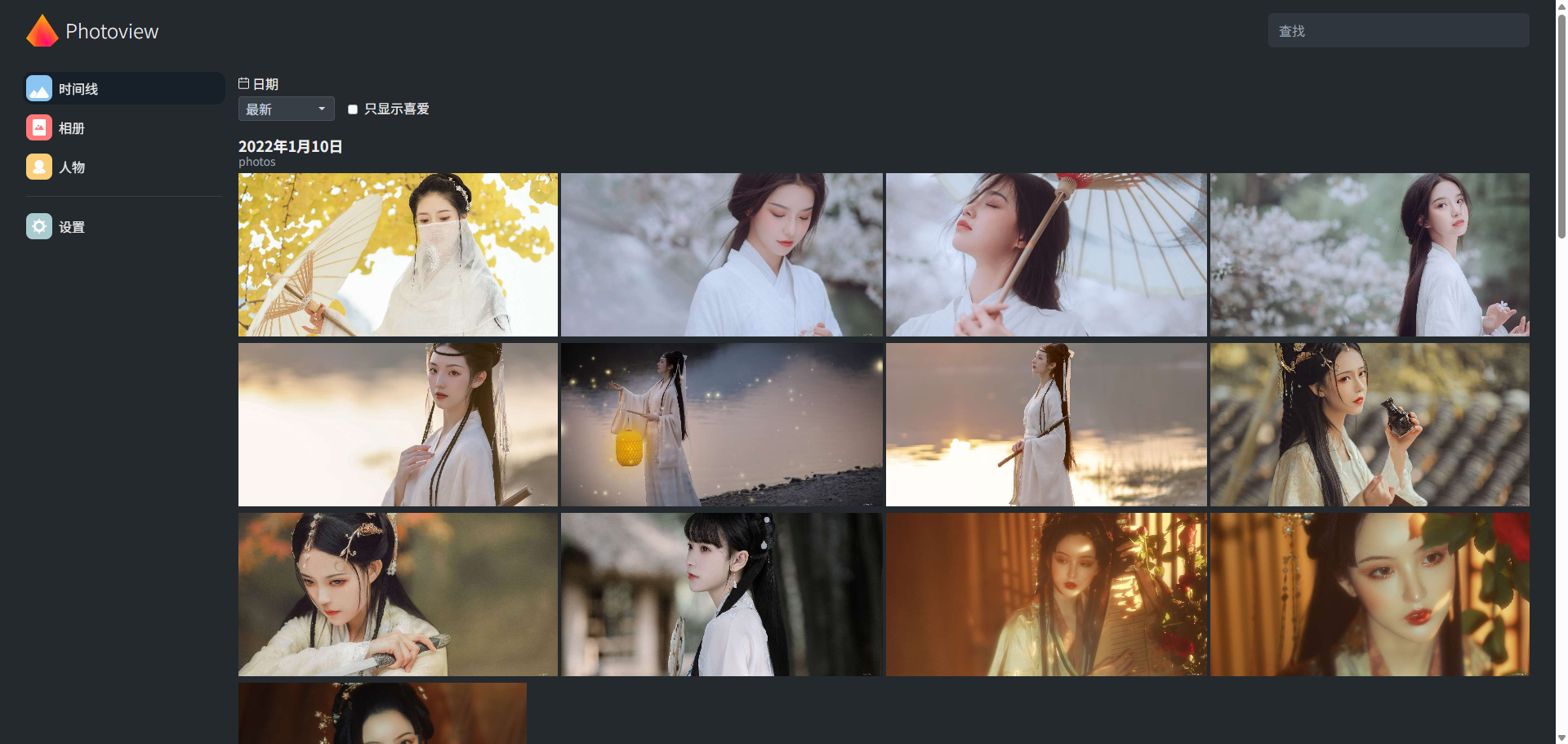
Return to the Timeline to see the images, which are grouped by the date they were taken.
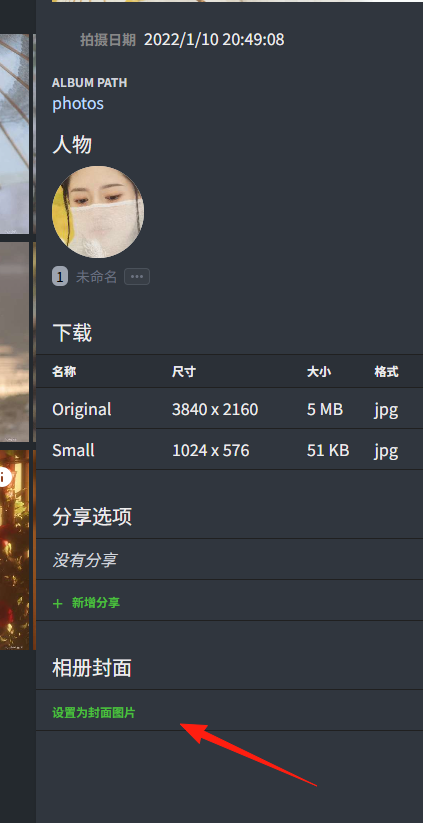
You can add images to favorites by clicking the icon in the bottom left corner. Clicking the top right corner reveals options like viewing details and setting the image as the album cover.
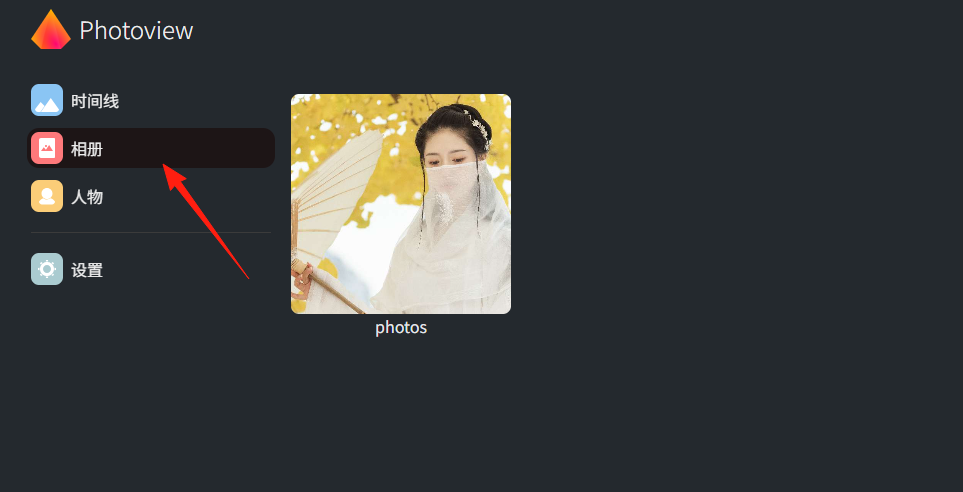
You can see the effect in the Albums view.
The People menu automatically recognizes faces.
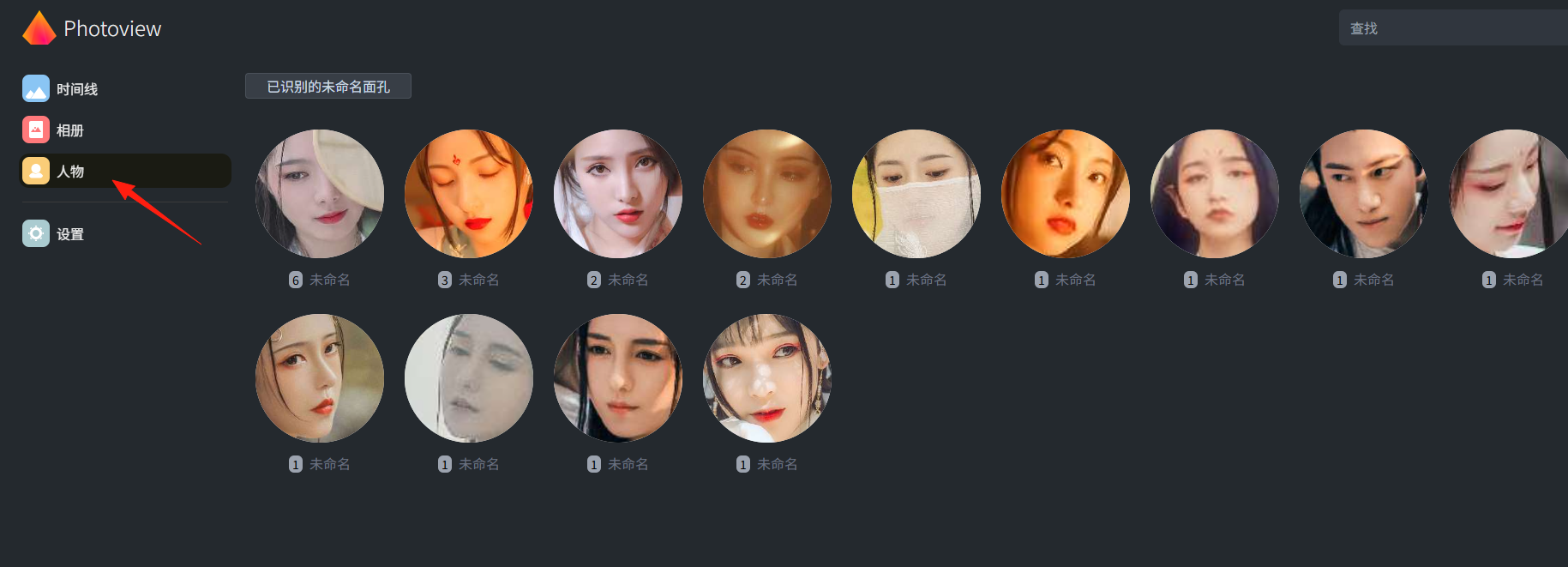
However, the recognition isn't always accurate. You can make corrections by clicking into a person's group.
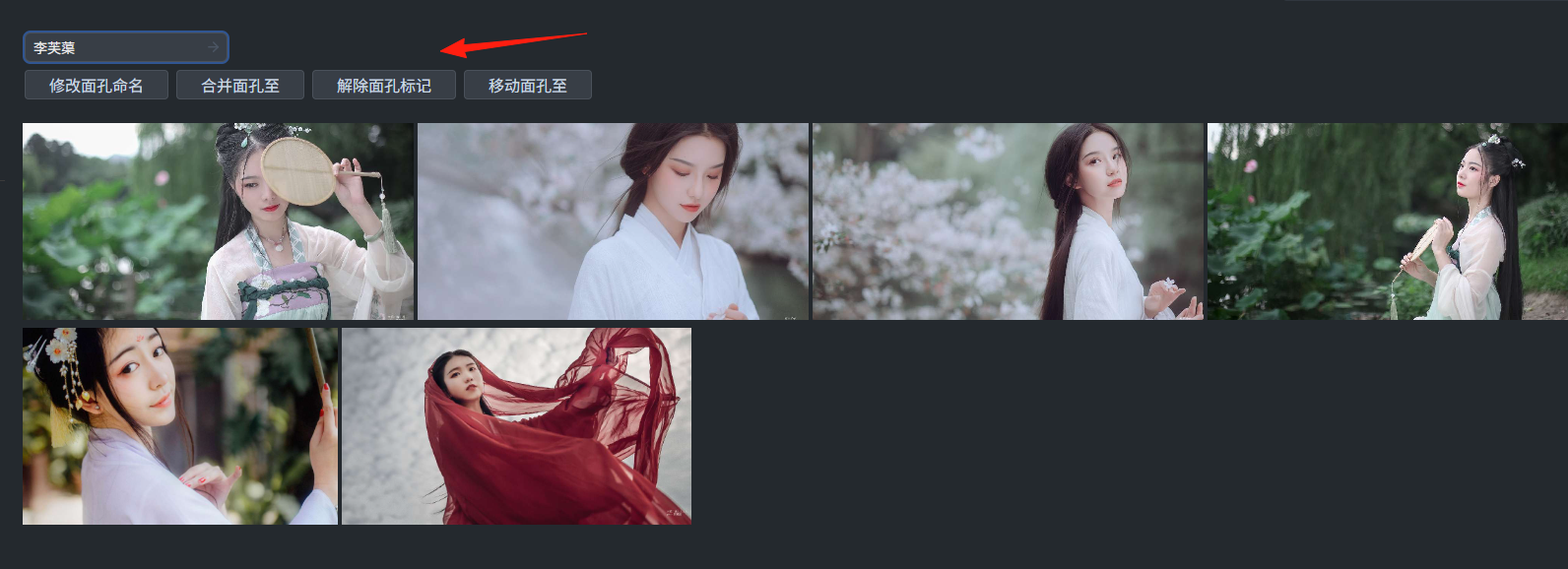
Clicking directly on a photo opens it in full-screen view.

These are the basic features. It's relatively straightforward and can serve as a handy backup tool for image management.