
Mikochi: A Minimalist Remote File Browser
What is Mikochi?
Mikochi is a remote file browser designed for self-hosted servers/NAS.
It allows you to browse remote folders, upload files, and perform actions like delete, rename, download, and stream files to VLC/mpv.
It features a web interface powered by JavaScript/Preact and an API built with Go/Gin. These features are continuously optimized to provide better performance and user experience.
https://appstore.lazycat.cloud/#/shop/detail/wcloud.gblw.app.mikochi
User Experience
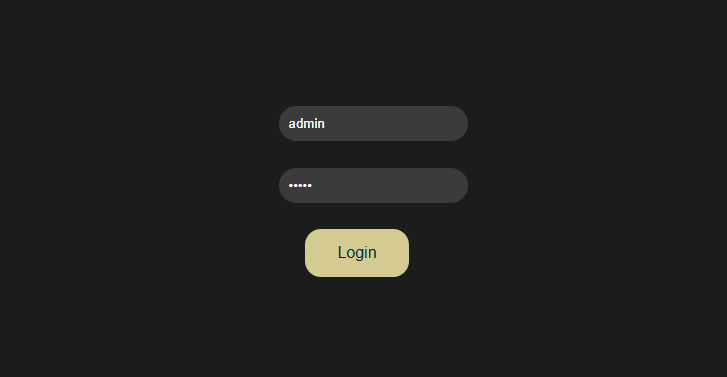
After the application is installed, it opens to the login page by default. The default credentials are admin/admin.
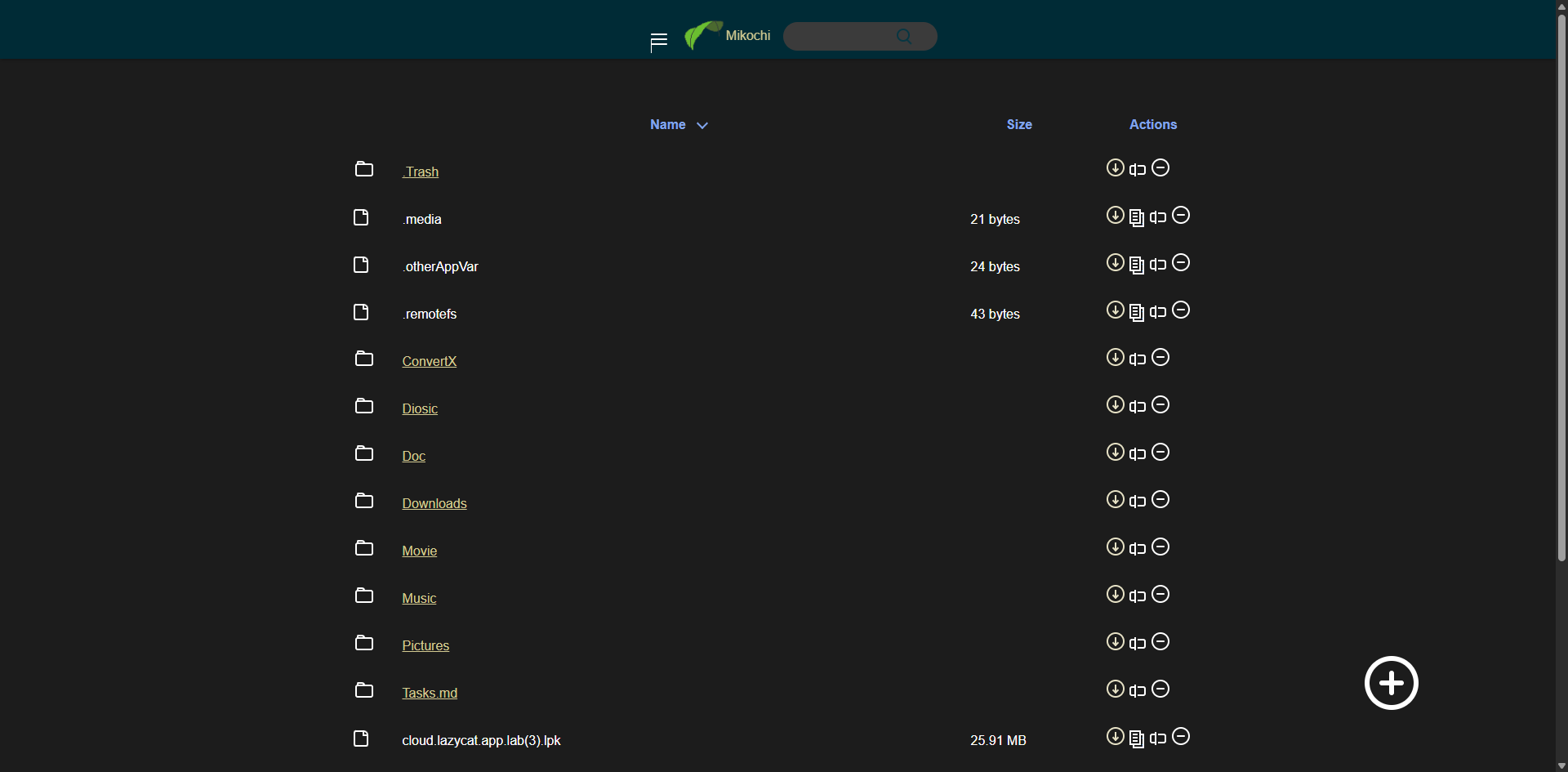
After logging in, you can access the main page and view the files in my Lazycat Cloud Drive.
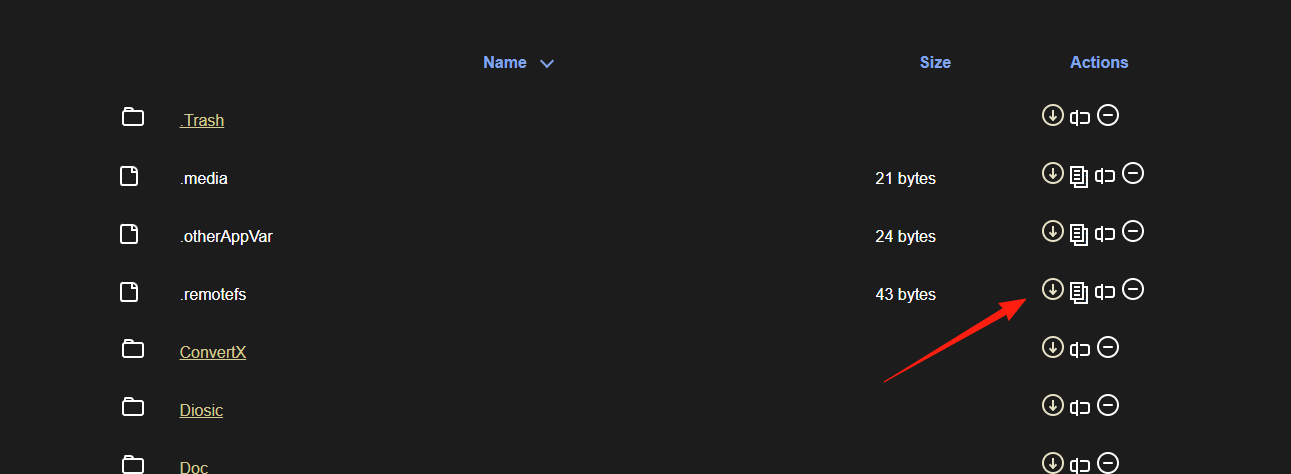
The four operation buttons on the right are: Download, Copy Link, Rename, and Delete.
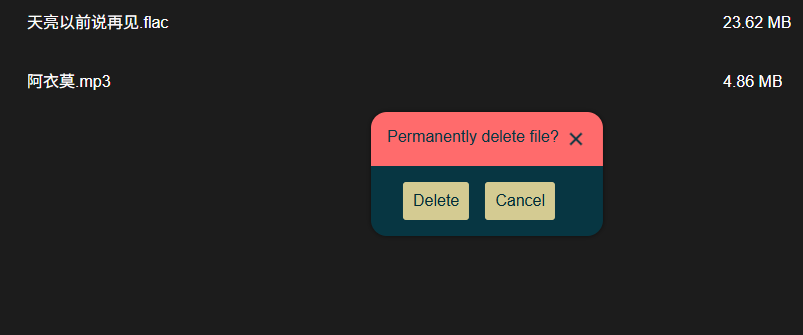
Please note: The delete action here permanently deletes the file; it will not be found in the Lazycat Cloud Drive recycle bin either.
The copied link can be used to open the file directly: https://mikochi.XXX.heiyu.space/api/stream/Pictures/%E5%A4%A9%E5%A4%A9%E6%82%A6%E8%80%B3%E5%90%AC/%E5%B0%81%E9%9D%A2%E5%9B%BE/003-3.jpg

These buttons for operating on individual files feel slightly more convenient than in the Lazycat Cloud Drive interface, as you don't need to click the checkbox first, saving one step.
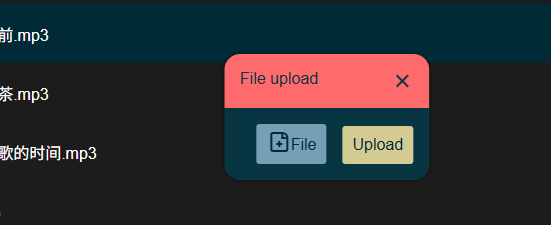
The + button in the lower right corner allows you to create a new folder or upload files.
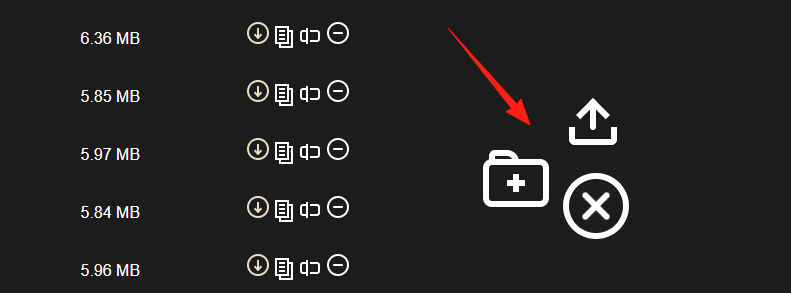
Create a new folder:
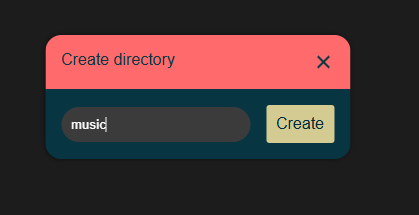
Upload files:
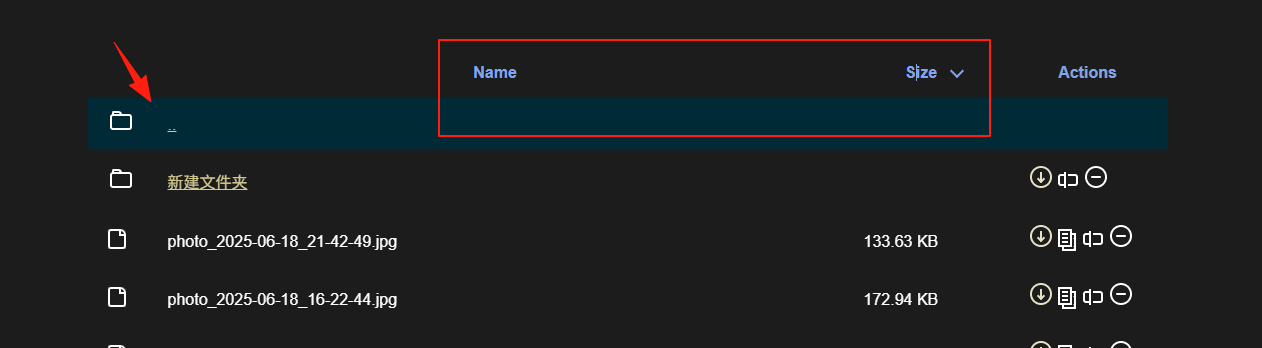
Click the folder icon in the upper left to navigate to the parent directory.
Clicking on "Name" and "Size" allows you to sort the list.
Summary
For basic CRUD (Create, Read, Update, Delete) operations, using this is quite convenient. It's suitable for quickly browsing and managing files.
Features like file preview and music playback are not supported here; the Lazycat Cloud Drive itself has better support for those.