
Traggo Experience: A Time Tracking Tool
What is Traggo?
Have you ever experienced this: you feel quite busy at the end of the day, but when asked what you specifically did, you can't quite put your finger on it.
Or perhaps you want to know exactly how much time you spent on coding, meetings, or slacking off, but the time tracking tools on the market are either paid or have overly complex features that give you a headache.
Traggo was born to solve this problem. It's a tag-based time tracking tool, without complex task management, only simple time entries and tags.
https://appstore.lazycat.cloud/#/shop/detail/xyz.mxue.traggo
Practical Usage Guide
Traggo is a "time ledger". Unlike traditional tools, it doesn't require you to pre-create projects or tasks.
In Traggo, there is no concept of tasks, only time entries with tags.
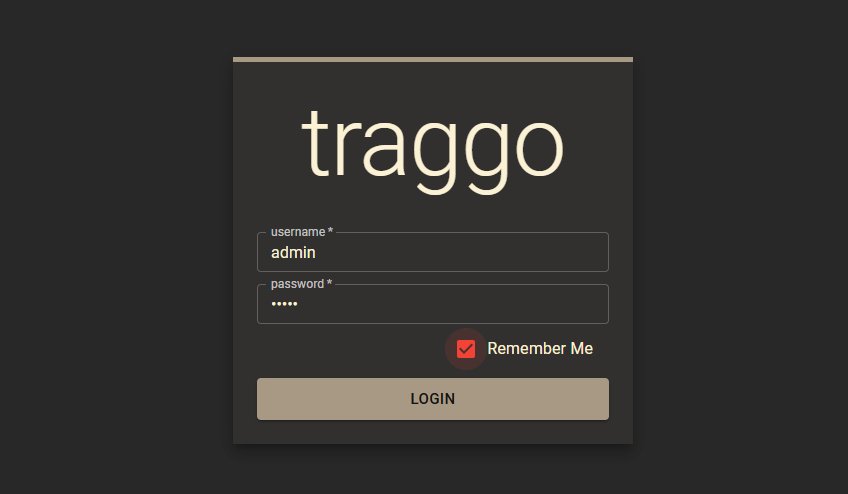
After the application is installed, it opens to the login page by default. The default credentials are: admin / admin
 The main page after login. Unfortunately, it does not support Chinese.
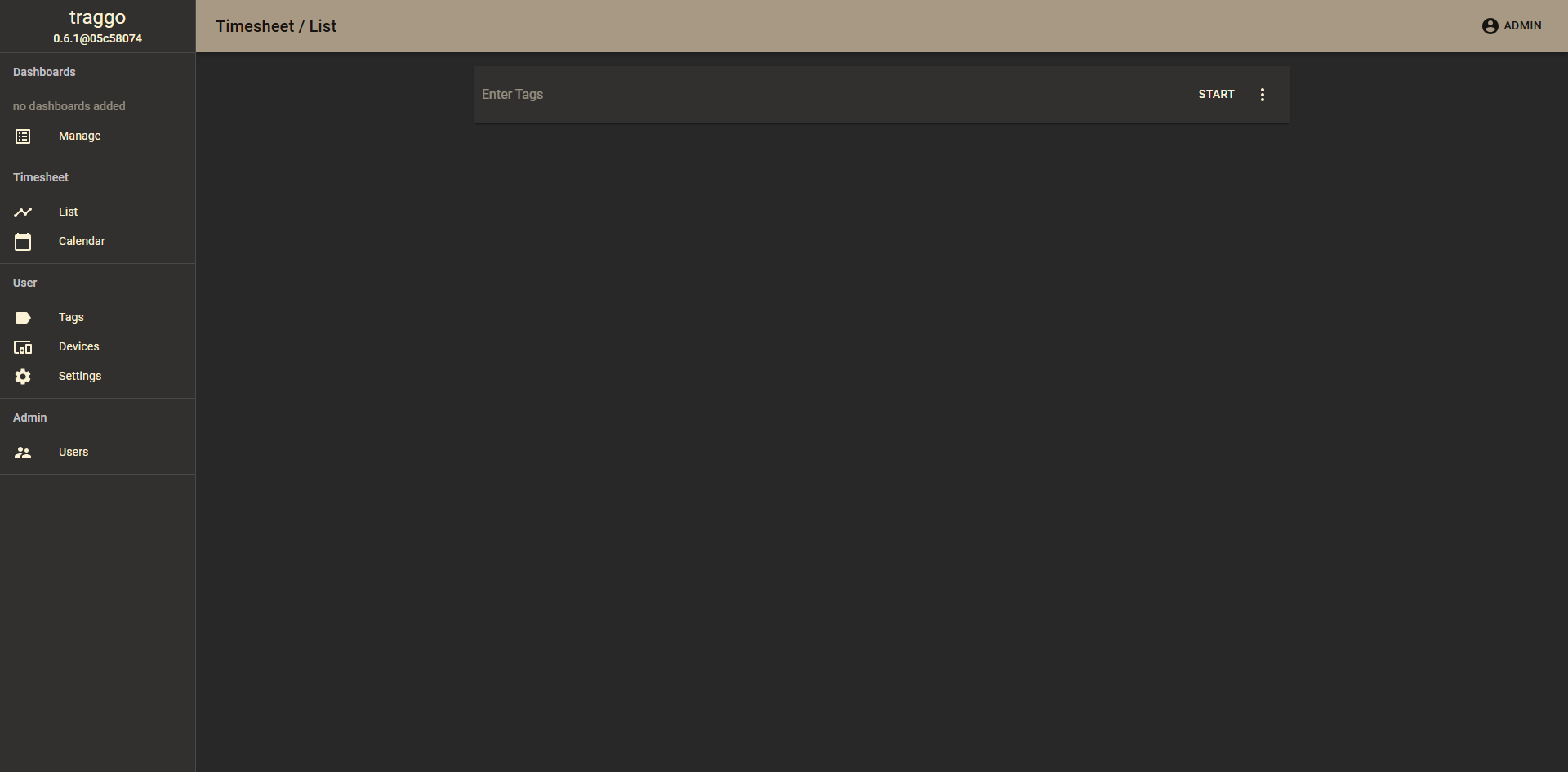
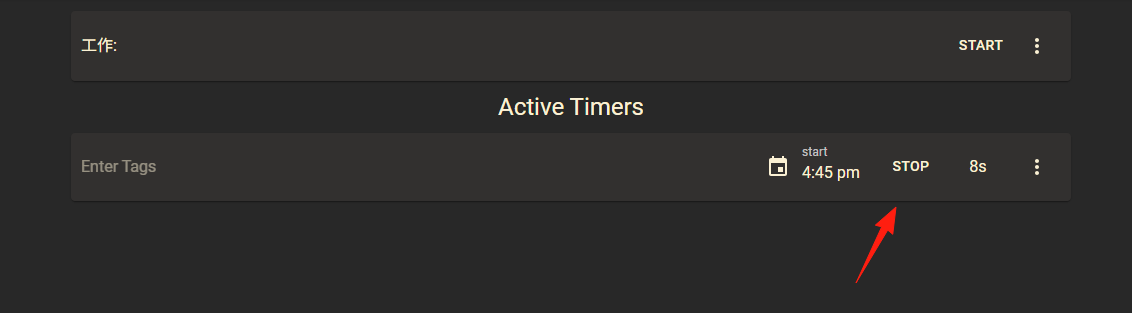
The interface is simple, with just a few main buttons:
- Start: Start the timer
- Stop: Stop the timer
- Create tags: Add tags to the current time entry
Type the tag directly and select to create a new one.
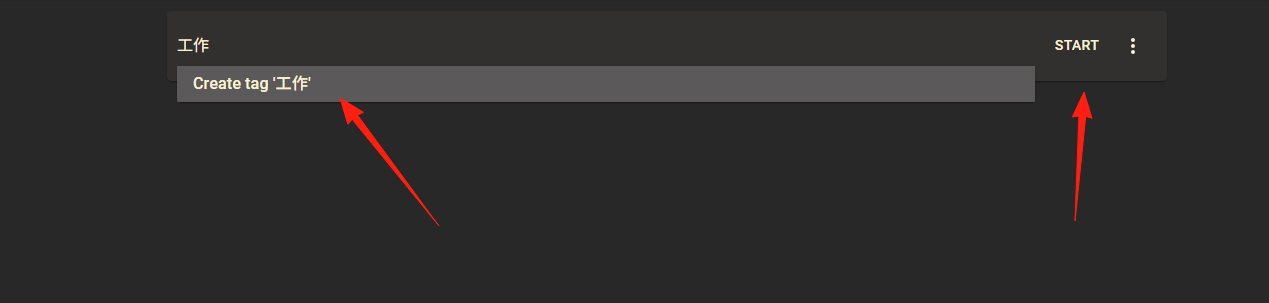
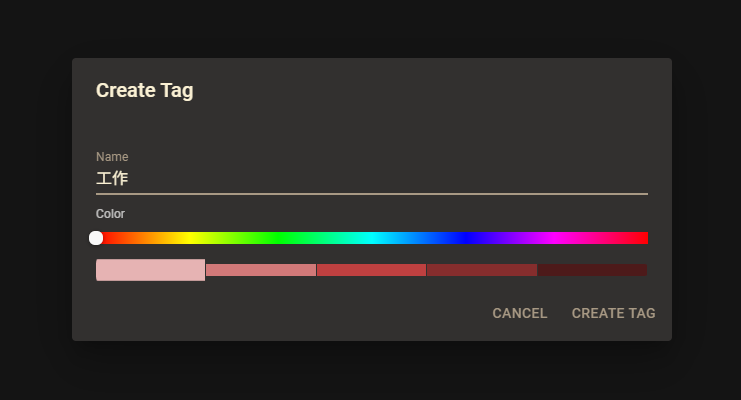 Click
Click Start to begin timing, and Stop to end timing.
Tag Design Tips
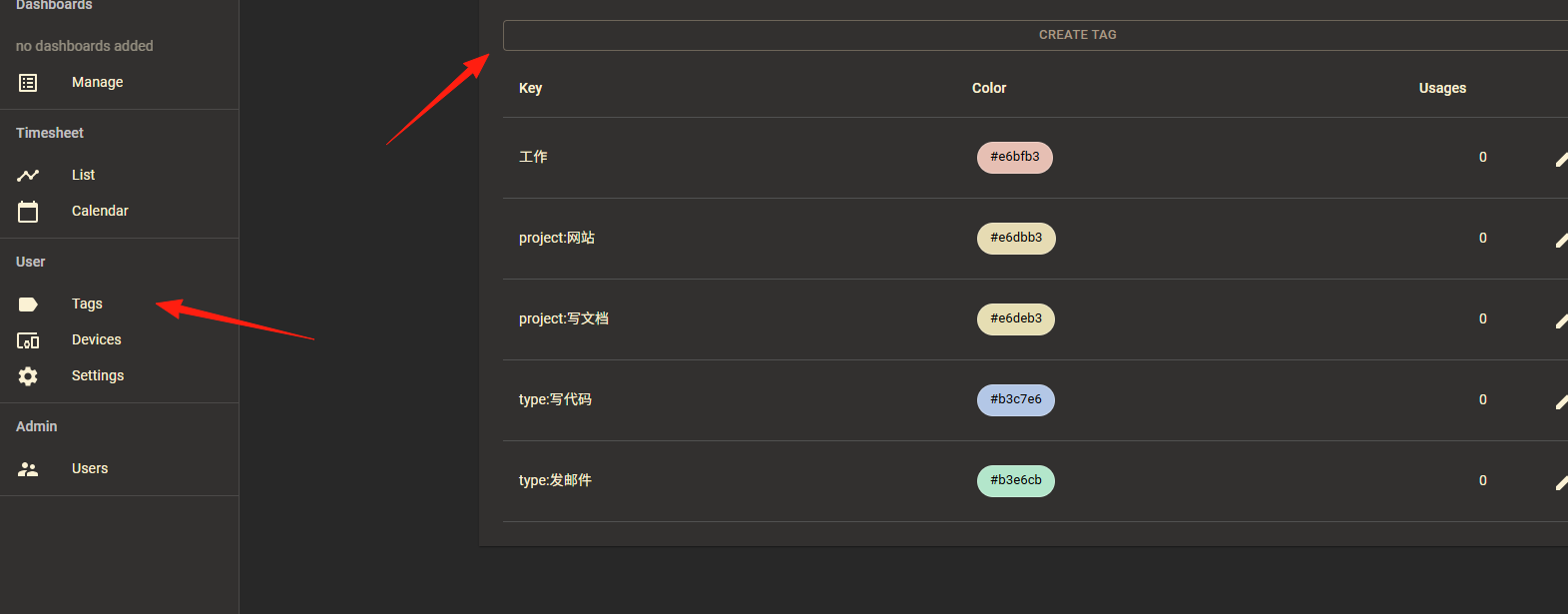
This is the essence of Traggo. How well you design your tags directly affects the effectiveness of later statistics.
Recommended Tag Structure:
# Project Dimension
project:website
project:mobile-app
project:documentation

# Work Type
type:coding
type:email
type:daily-report
type:bug-fixing
You can quickly create these under the Tags section.
Arriving at the office in the morning:
- Open Traggo
- Click
Start Timer - Add tags like
project:current-projectandtype:coding
During a meeting:
- Stop the current timer
- Start a new timer
- Add tags like
project:current-projectandtype:meeting
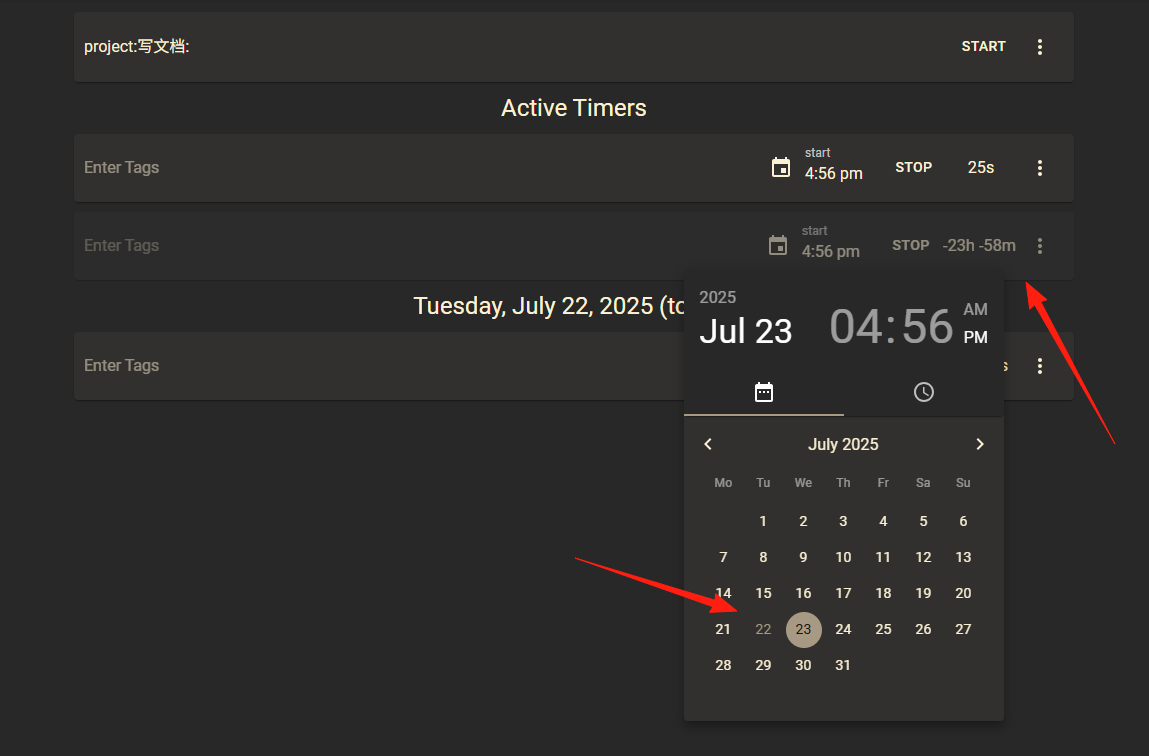
For each task, you can modify the time. If you set it to a future time, essentially creating a countdown task, it will display a negative number.
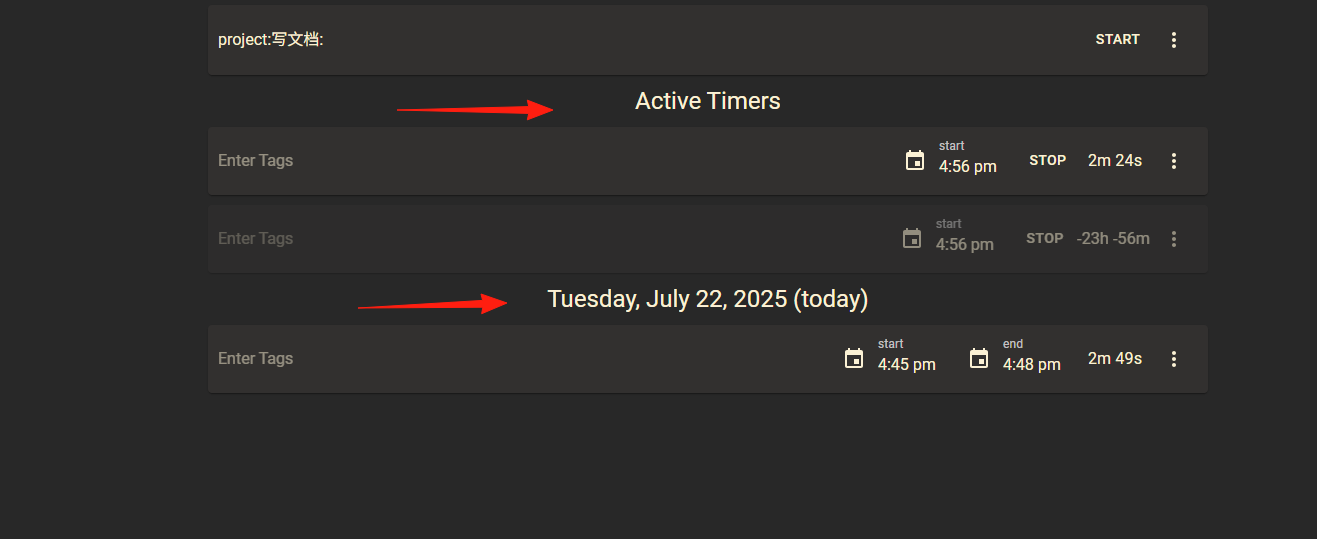
The top section shows the ongoing timer, and the bottom section shows the completed timers.
It's that simple. The key is to develop the habit and remember to operate it every time you switch work content.
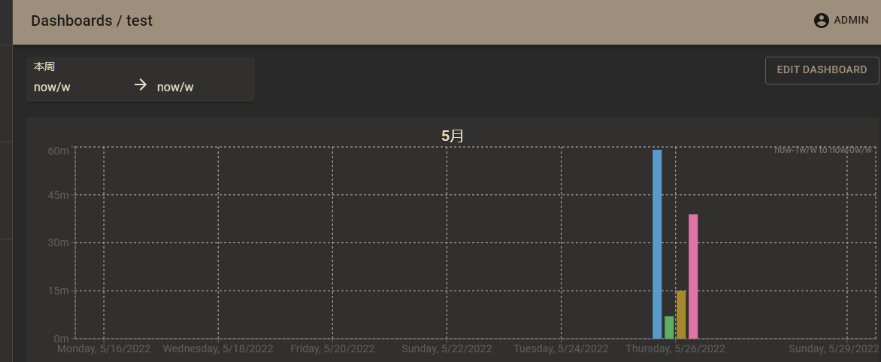
Traggo's statistics feature is quite powerful, allowing you to view time distribution across different dimensions:
- By Project: See which project consumed the most time.
- By Type: See the breakdown of time spent on coding, meetings, emails, etc.
- By Time: Compare this week with last week.
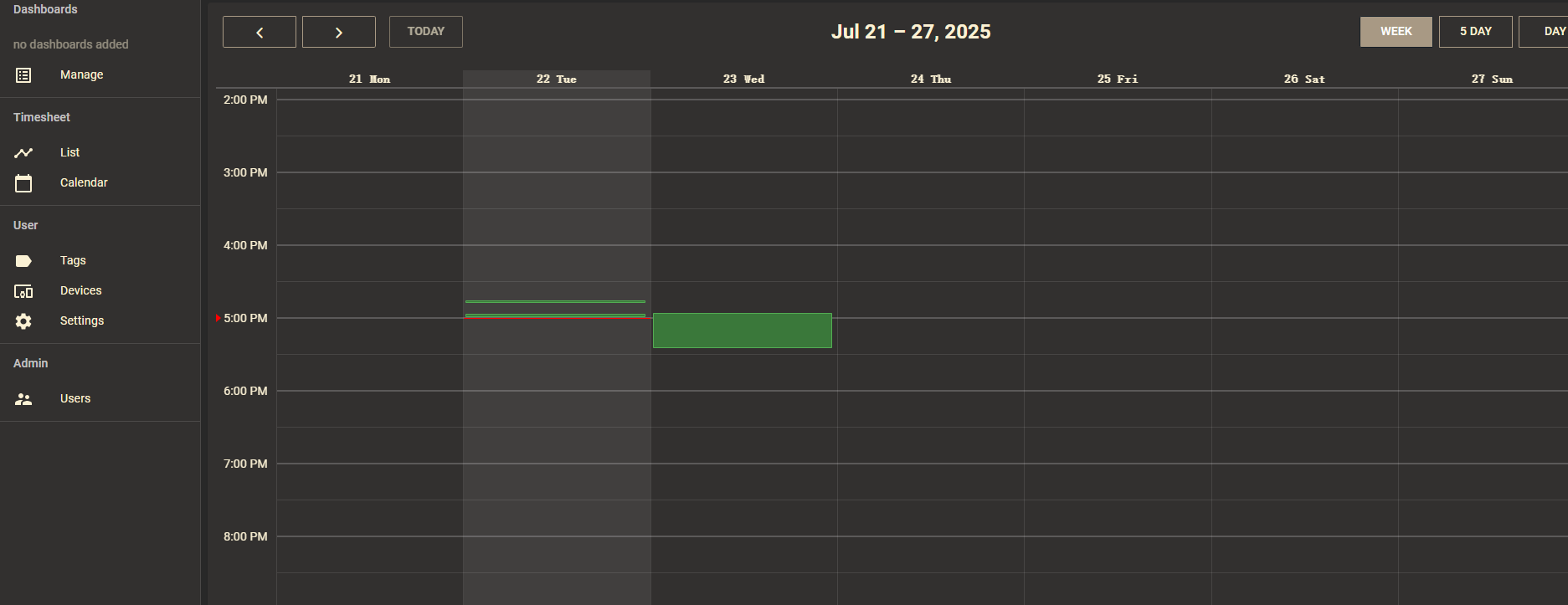 This data is very helpful for personal time management and can also be used to report workload to your manager.
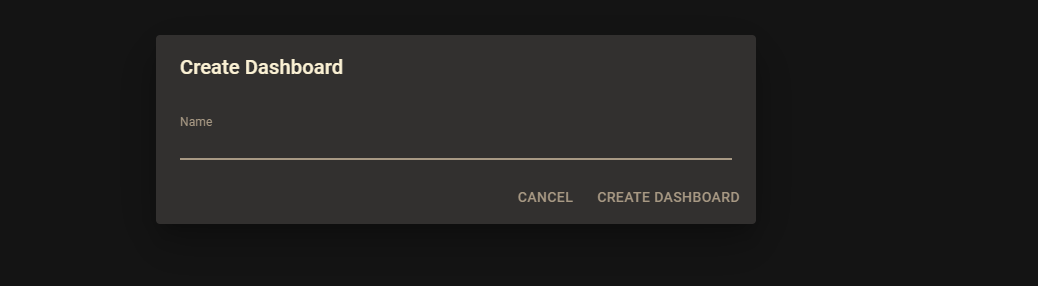
Create a new dashboard on the main Manage page.
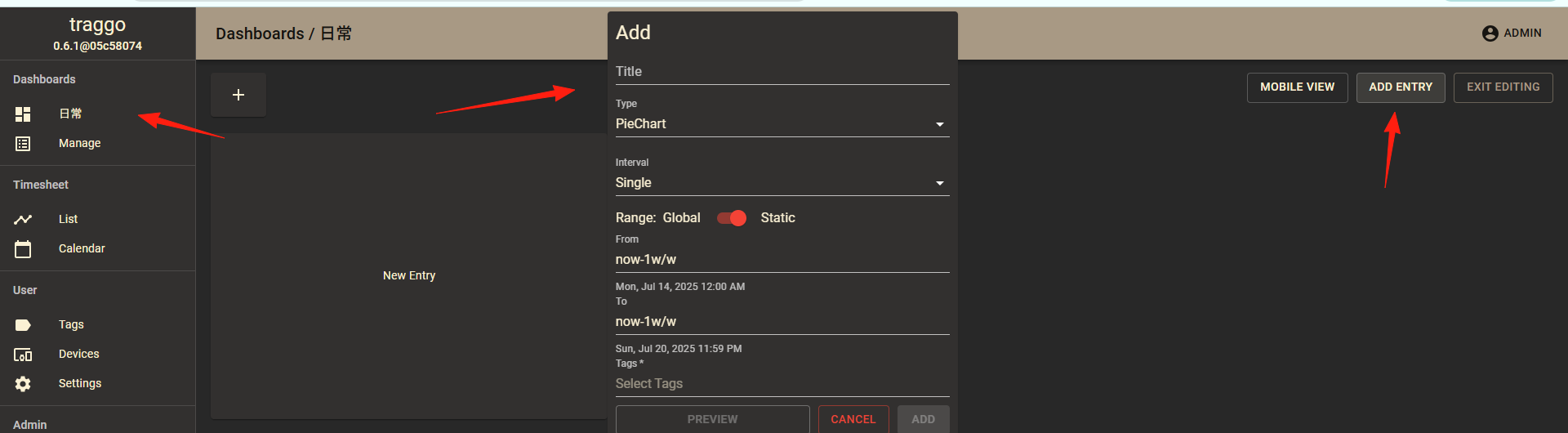
 Click on the dashboard you just added on the left, then click
 Add Entry. You can choose various chart types, for example: BarChart.
You can drag to change the position and size.
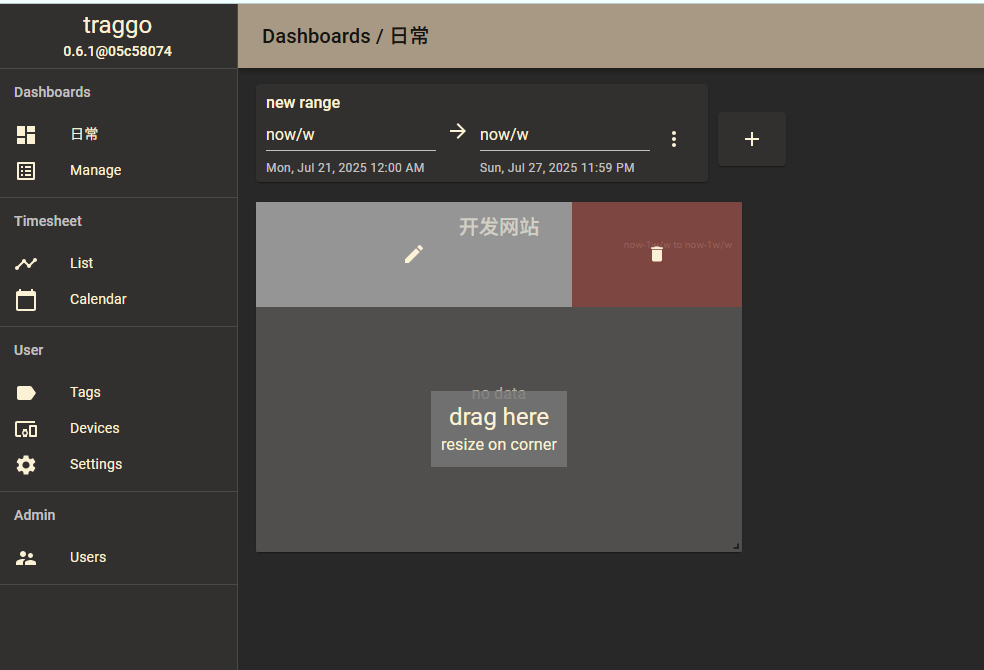
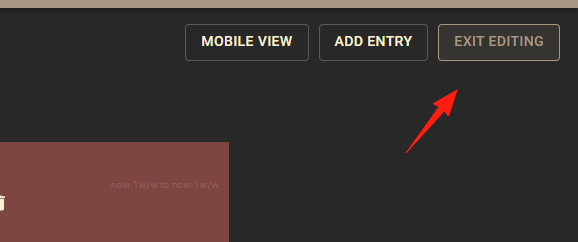
Click the button in the top right corner to exit edit mode.
Completed entries will appear in the table.
Summary
Traggo's biggest advantage is its simplicity. Unlike those complex project management tools, Traggo focuses on doing one thing: tracking your time.
Of course, even the best tool requires consistent use. You might forget to add tags at first, but once the habit is formed, you'll find this time data truly valuable.