
VoceChat Guide: Lightweight Chat Application
What is VoceChat?
VoceChat is a self-hostable personal cloud social media chat service.
With a size of just 15MB, it can be deployed on any server. Deployment is simple and requires minimal maintenance.
The frontend can be embedded into your own website. Users have full control over their data, and all transmissions are encrypted.
VoceChat draws inspiration from products and specifications like Slack, Discord, RocketChat, Solid, and Matrix. It is suitable for team internal communication, personal chat services, website customer support, and embedded website communities.
https://appstore.lazycat.cloud/#/shop/detail/lazycat.app.vocechat
How to Use
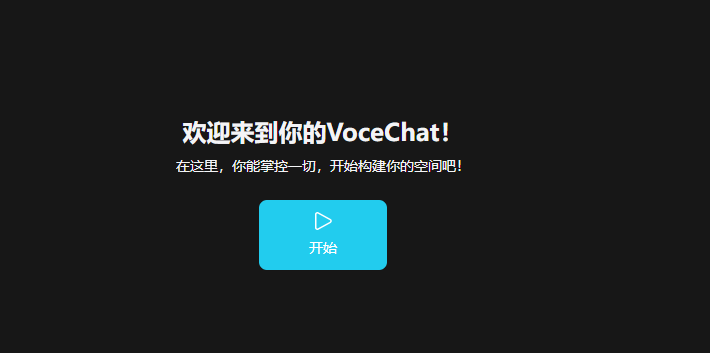
After installing the application, open it to see the start screen.
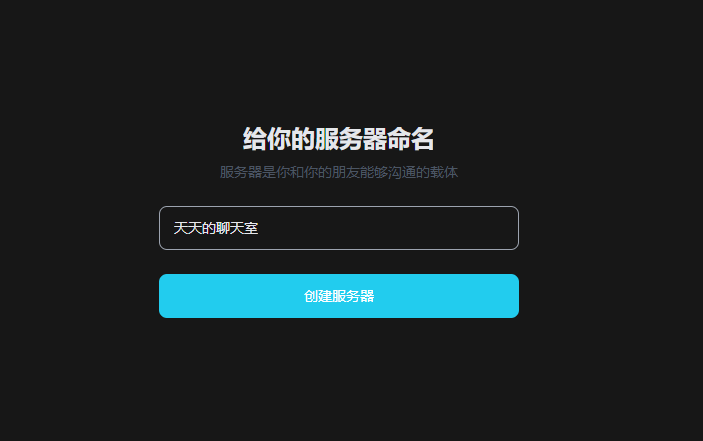
Name your server.
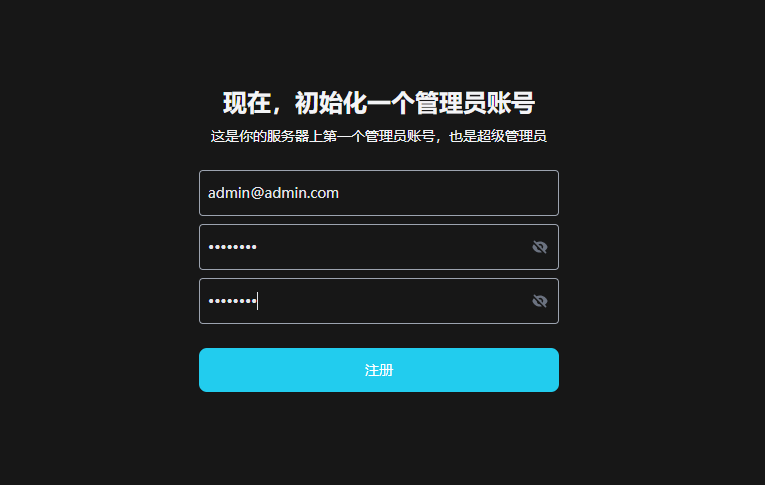
Initialize an administrator account.
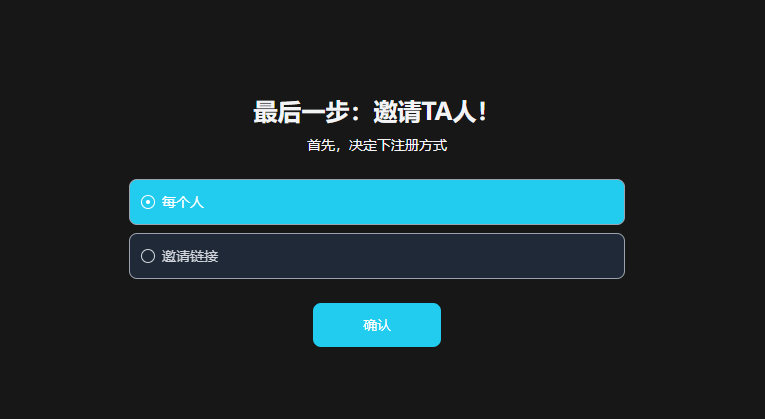
The invitation method defaults to [Everyone]. Otherwise, only invited users can register.
Generate an invitation link.
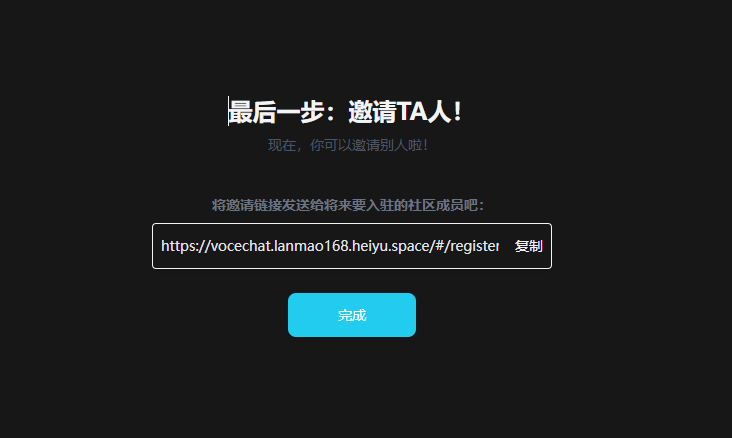
The basic setup is complete here. You can make further adjustments in the settings later. Click to enter.
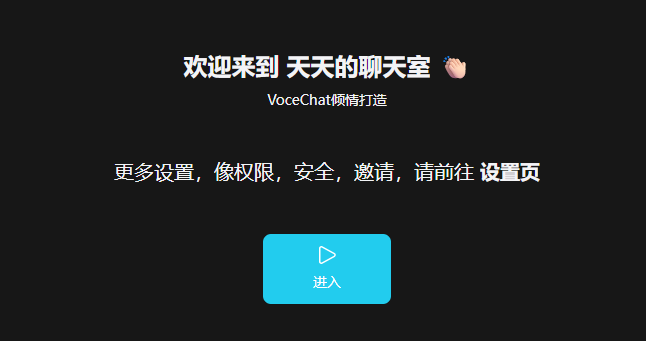
Main interface display.
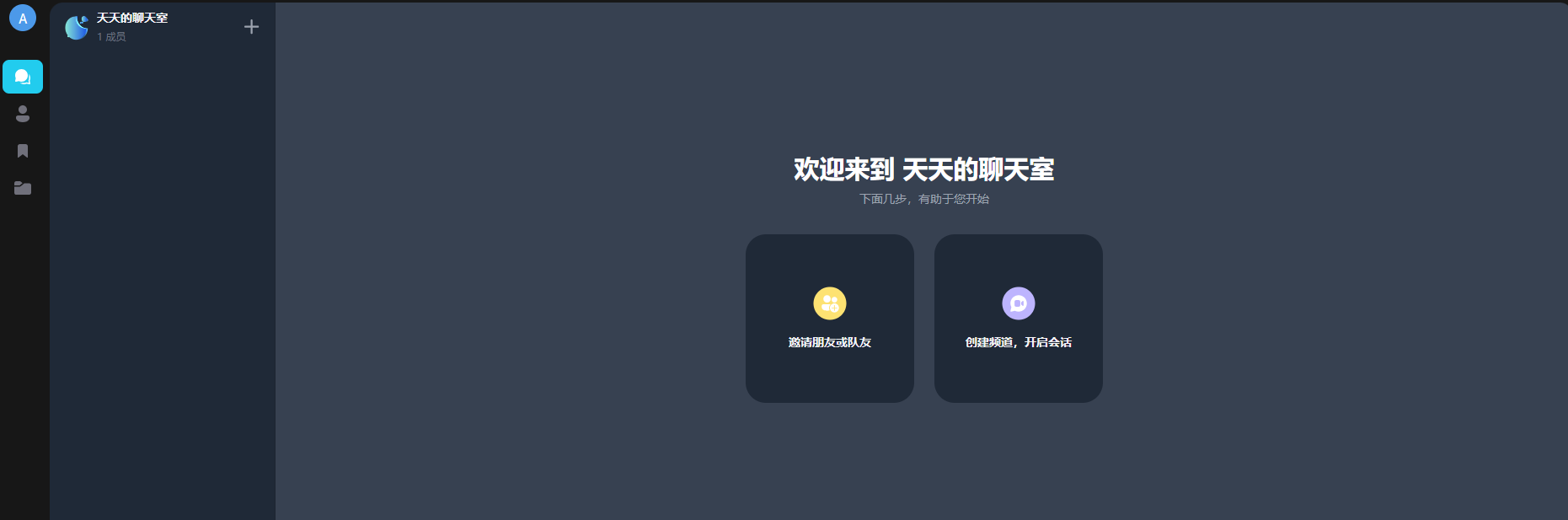
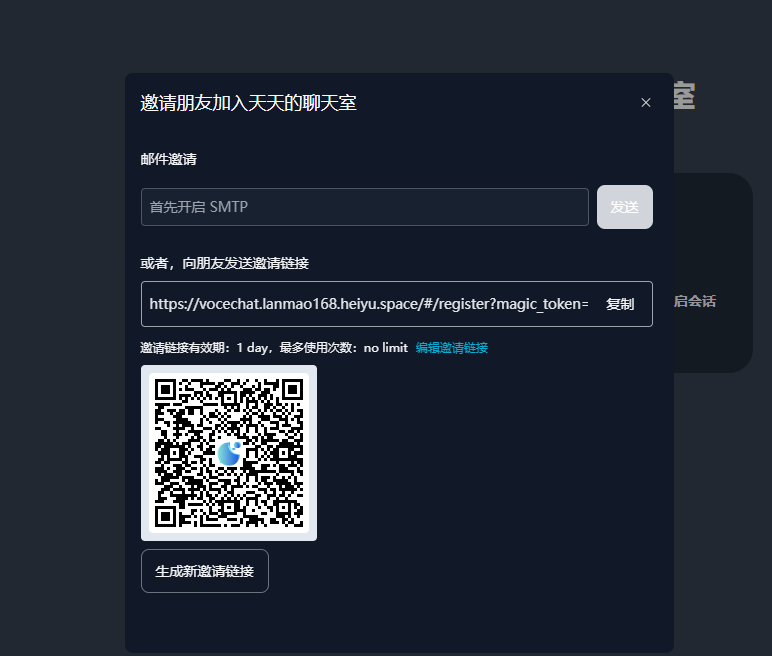
Click "Invite Friends".
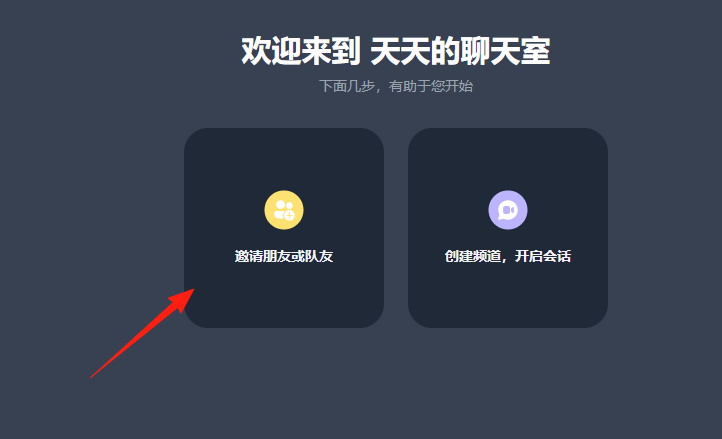
A link and QR code will be generated.
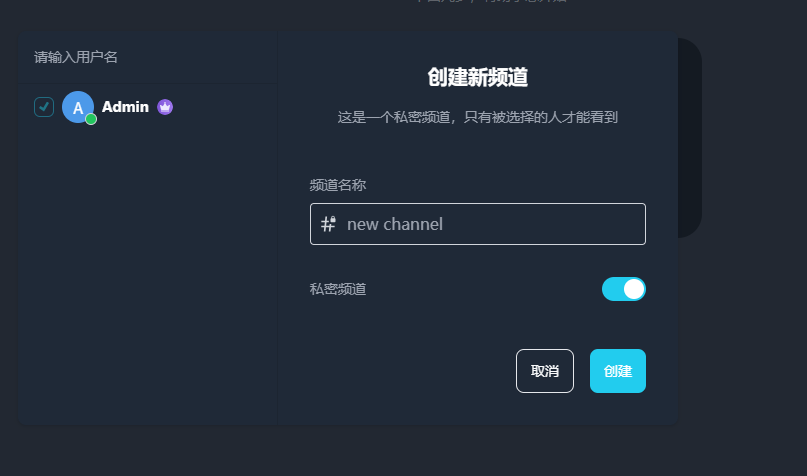
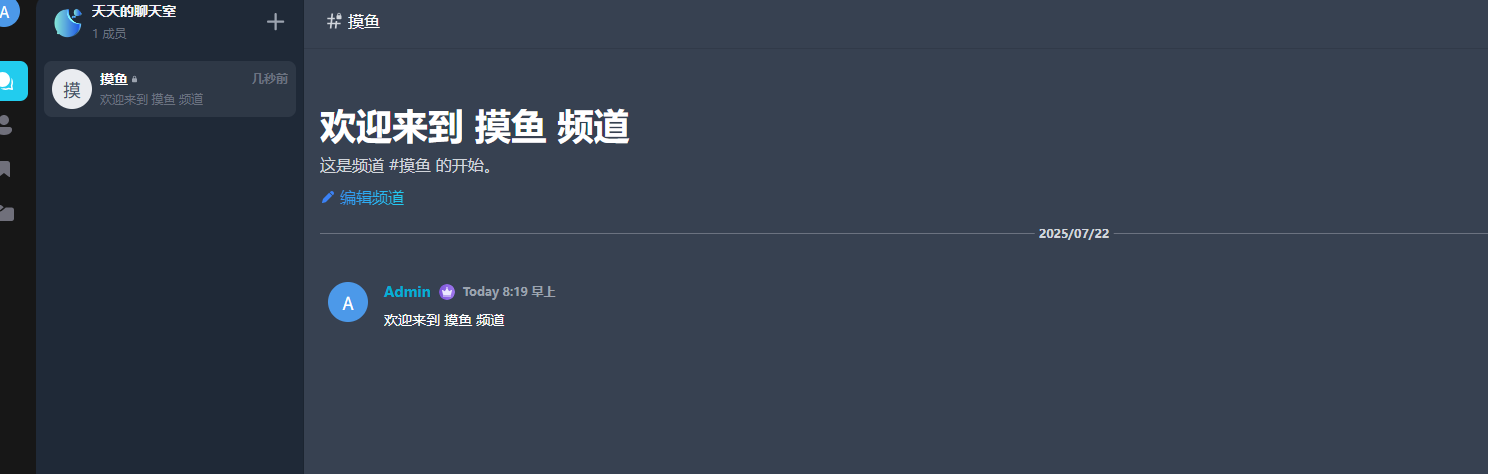
Click "Create Channel" to start a conversation. The design here is very similar to Discord.
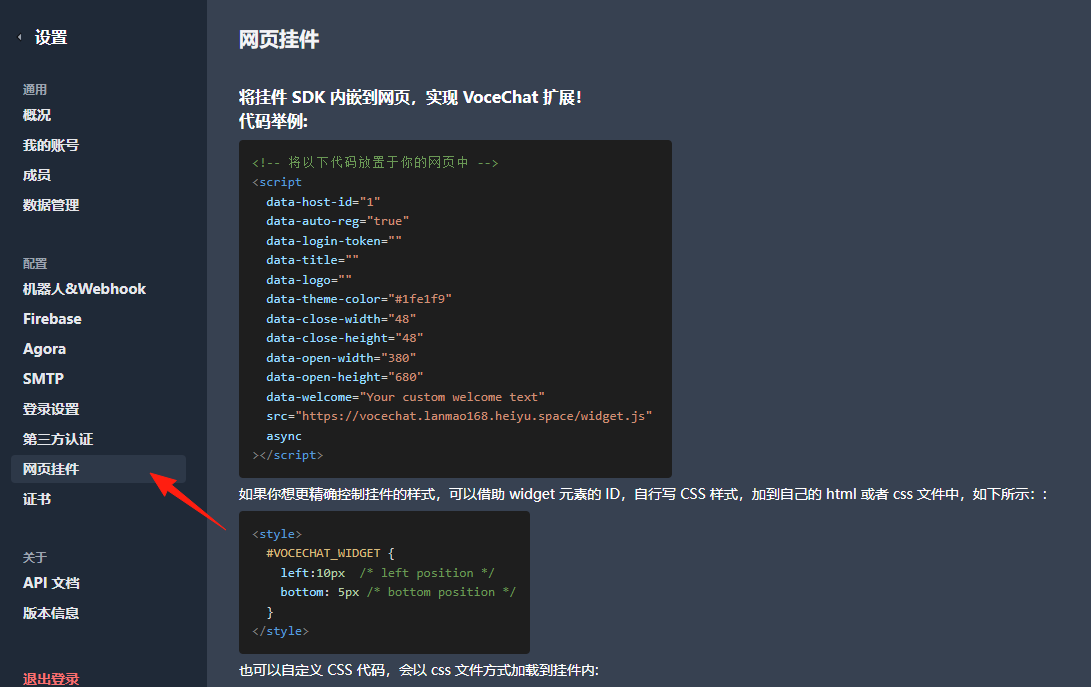
You can embed your chatroom via Settings -> Web Widget.
It also provides API interfaces for developers to integrate with.
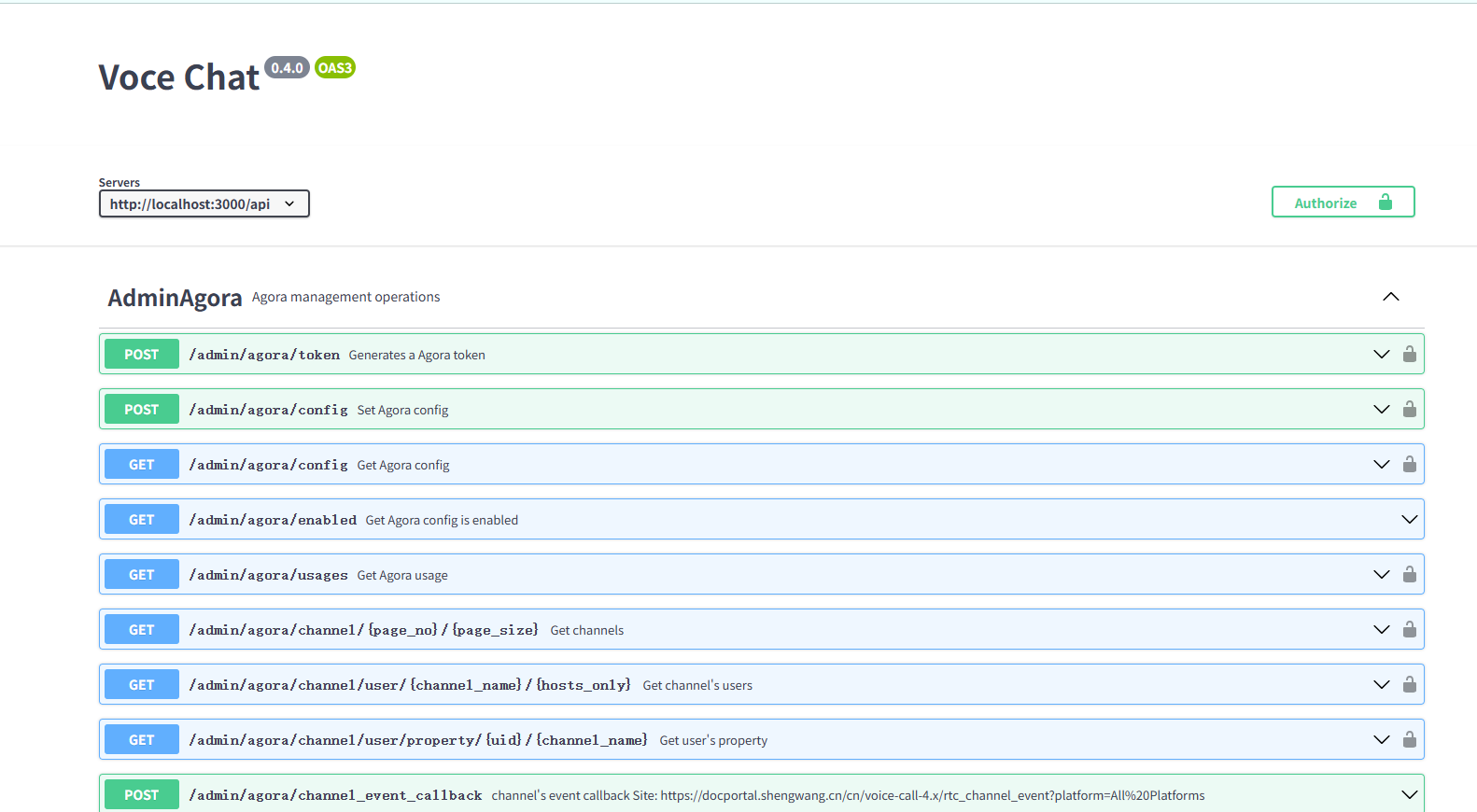
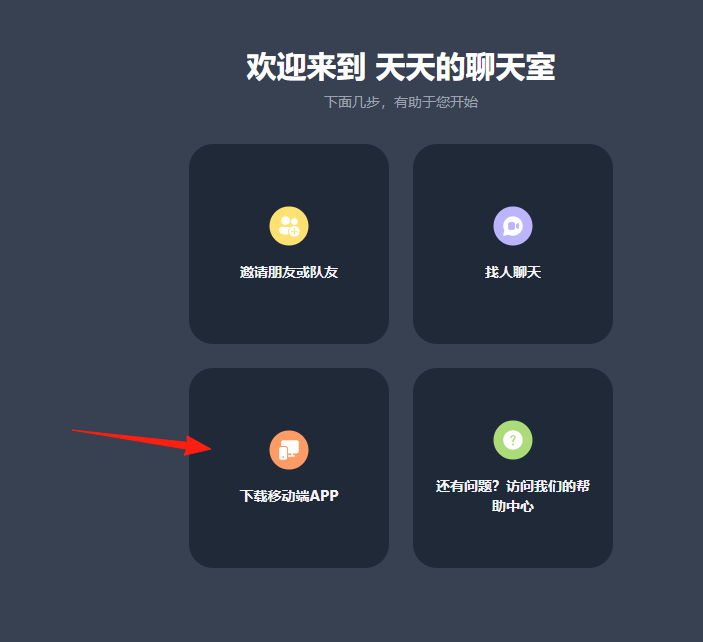
Click "Mobile App".
This is the one for Apple phones.
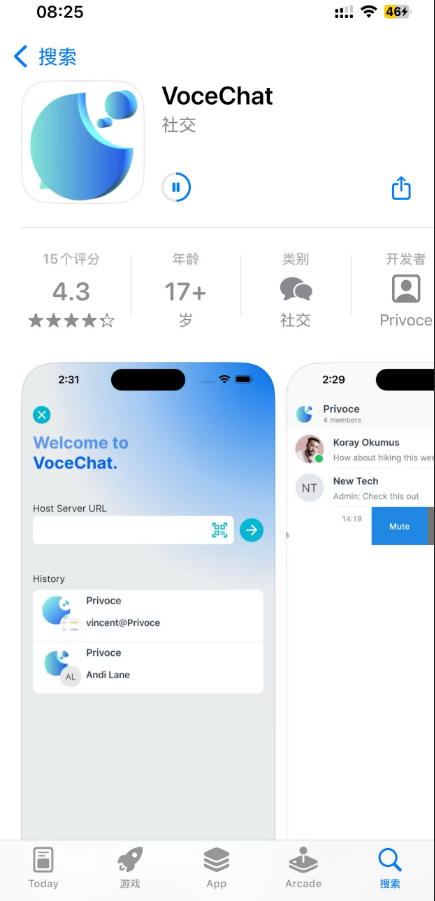
Paste the invitation link or scan the QR code on your mobile device to add the chat. Ensure you have completed the domain forwarding steps. LAN Forwarding Tool:
https://appstore.lazycat.cloud/#/shop/detail/cloud.lazycat.app.forward
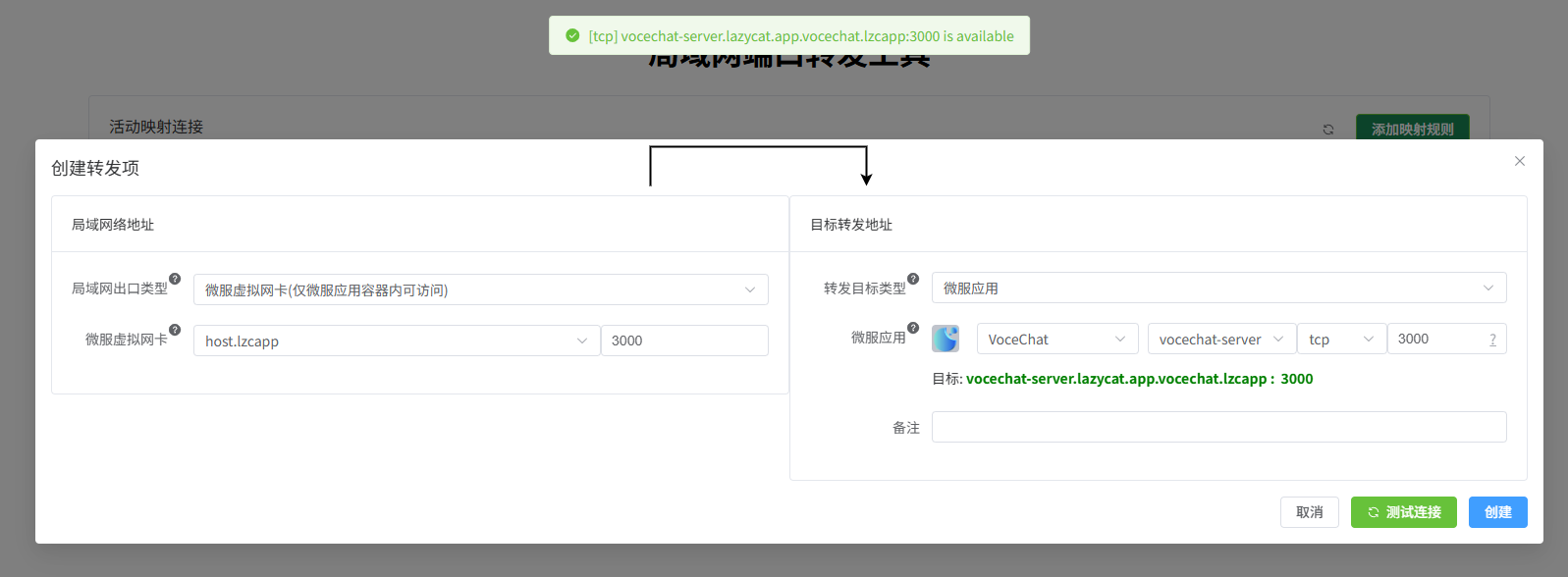
If it's accessible now, the configuration is correct.
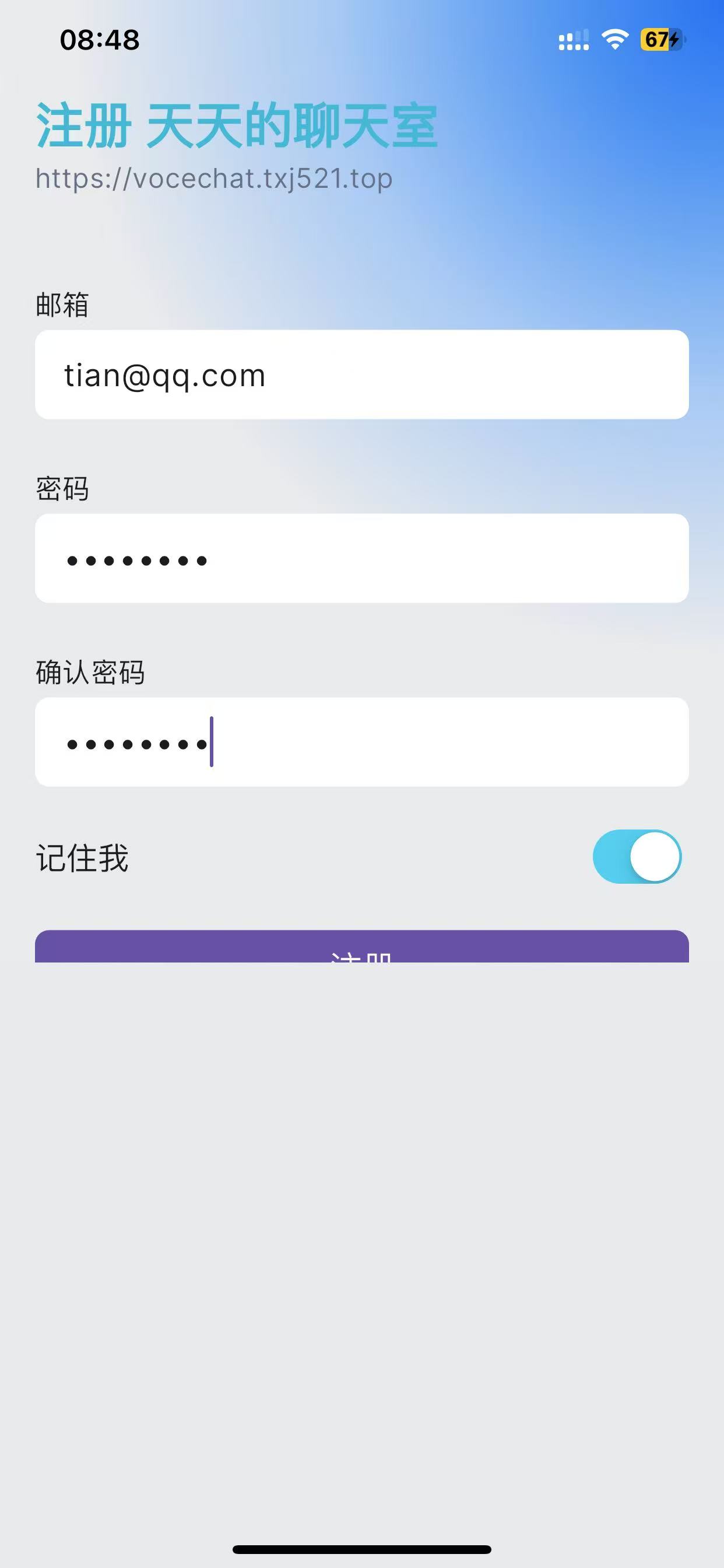
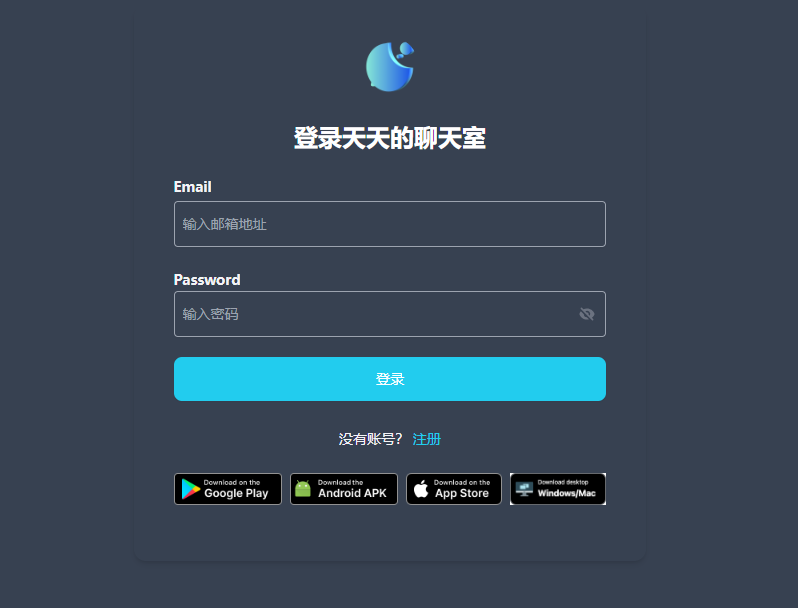 On the mobile client, replace the beginning part with your domain:
https://vocechat.txj521.top/#/register?magic_token=XXXXX
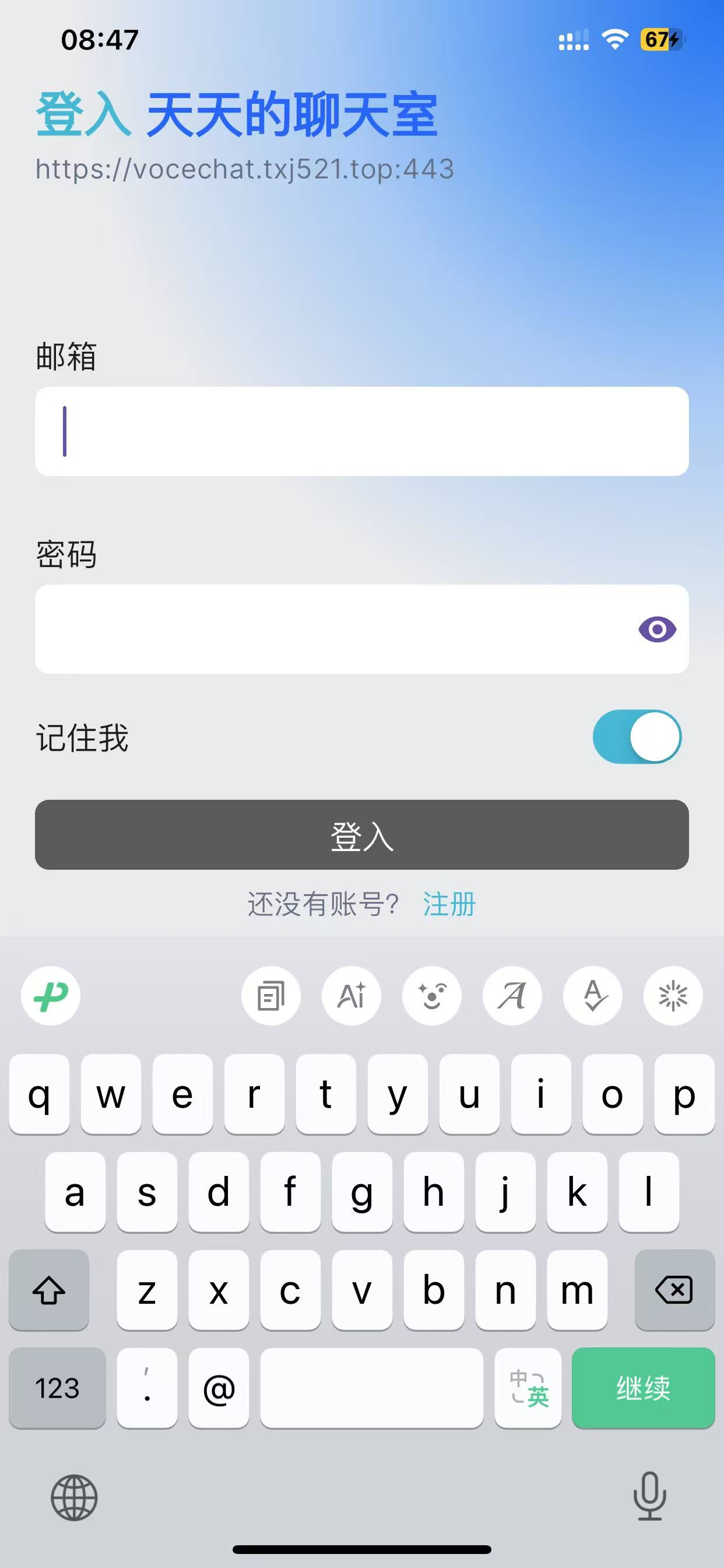
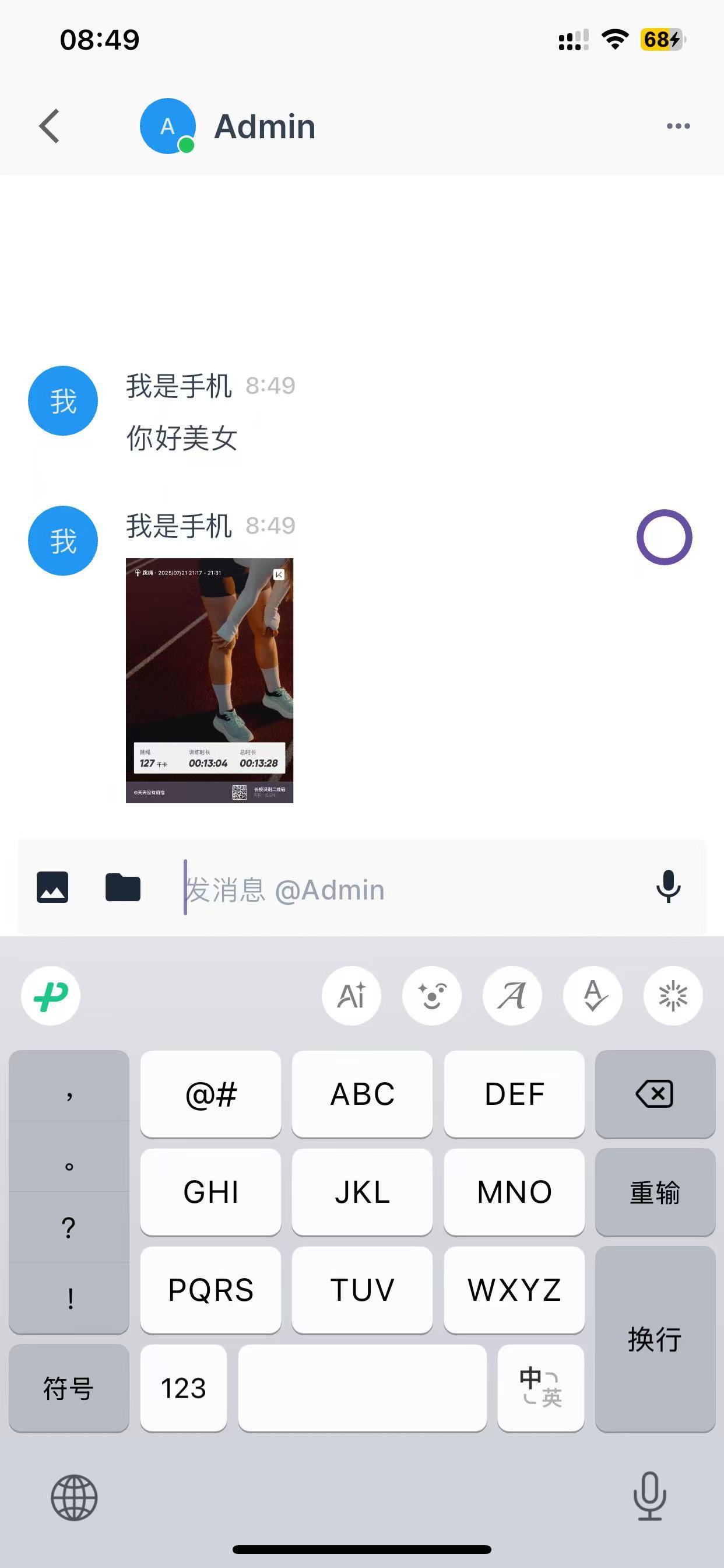
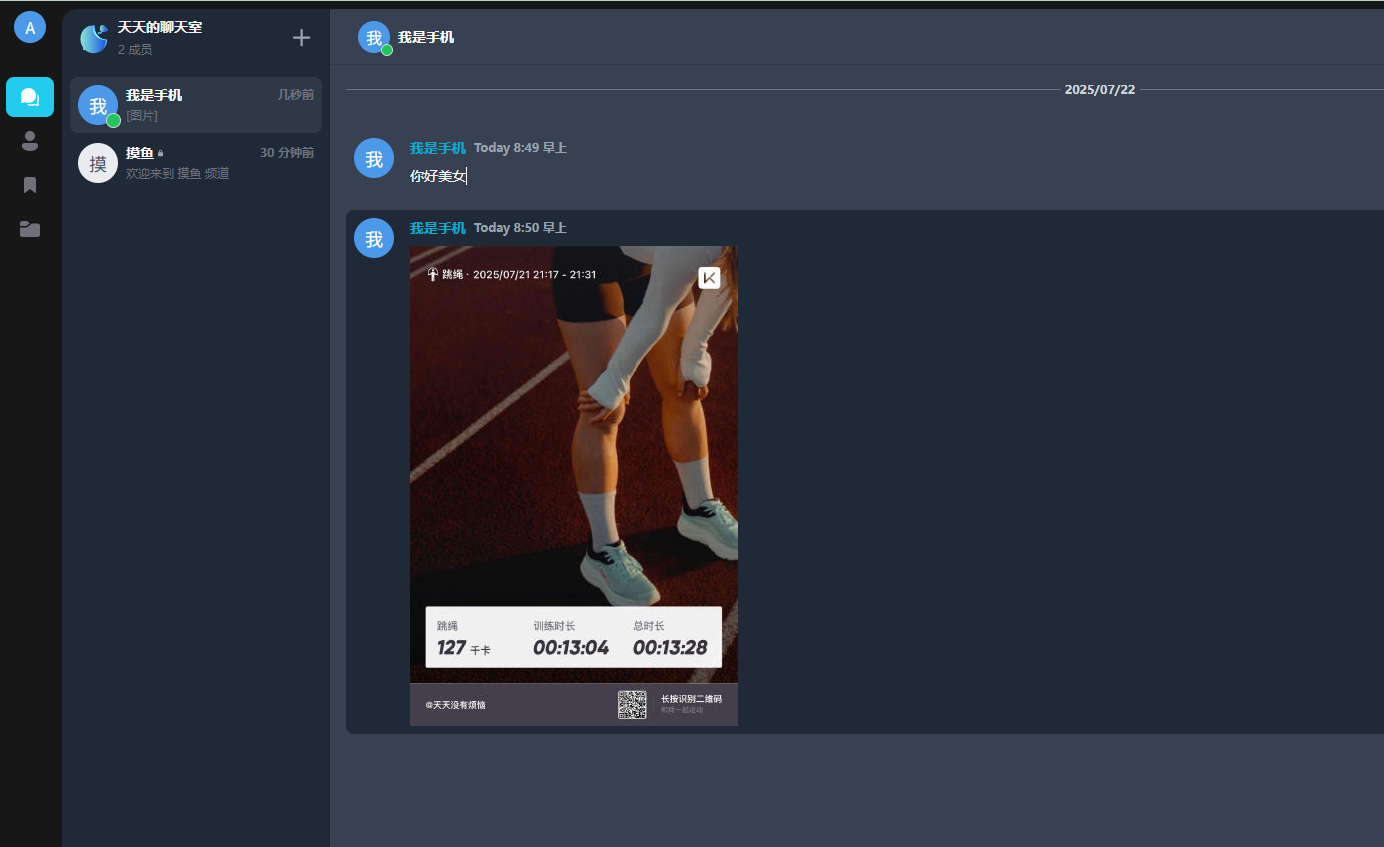
Send a message from the mobile app to a contact on the computer.
 The message can also be seen on the computer client.
That covers the basic usage of VoceChat. If anything is unclear, feel free to ask in the comments section.