
openlist Guide: How to Mount Baidu Netdisk
Previously we covered mounting [Alibaba Cloud Drive]. This time, let's supplement with the operations for Baidu Netdisk, which has some detailed differences compared to Alibaba.
https://appstore.lazycat.cloud/#/shop/detail/lazycat.community.app.openlist
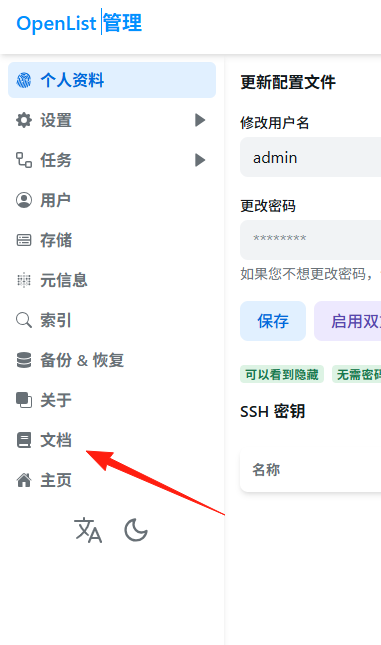
After logging into Openlist, first check the documentation, which usually contains the operational methods.
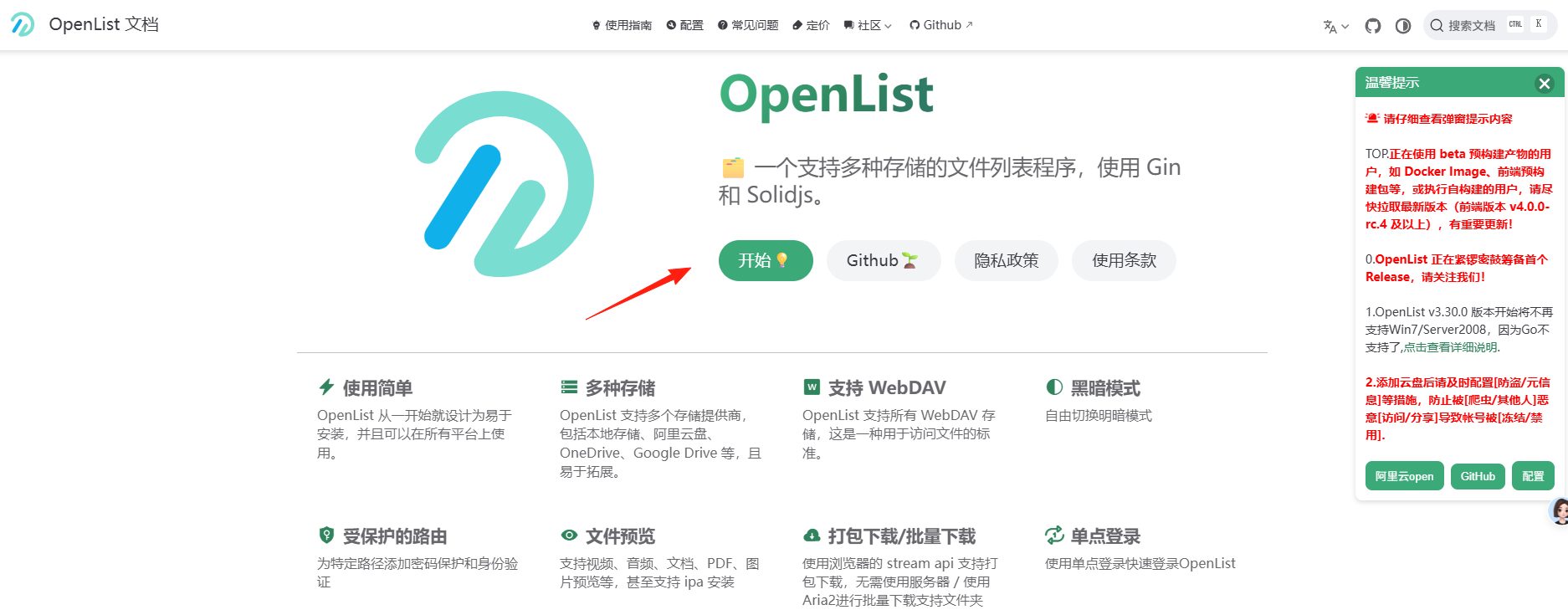
Navigate to the official Openlist documentation, switch to Chinese, and click Start.
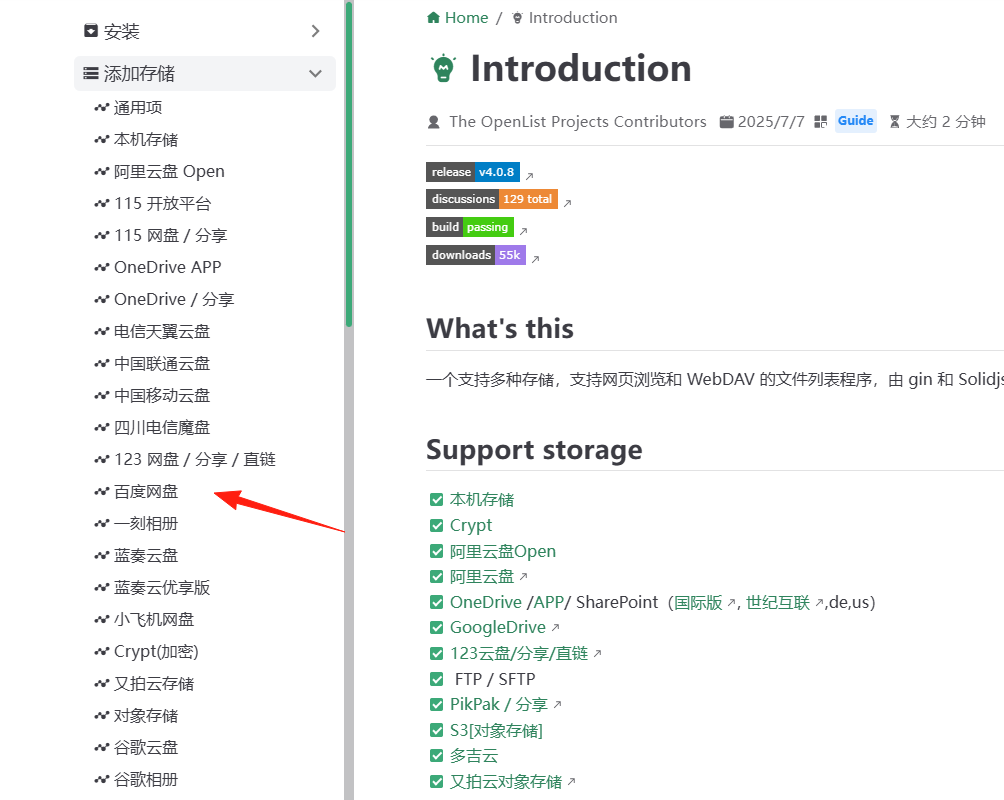
Find Baidu Netdisk under [Add Storage] on the left side.
Scroll down to see a link for obtaining the token.
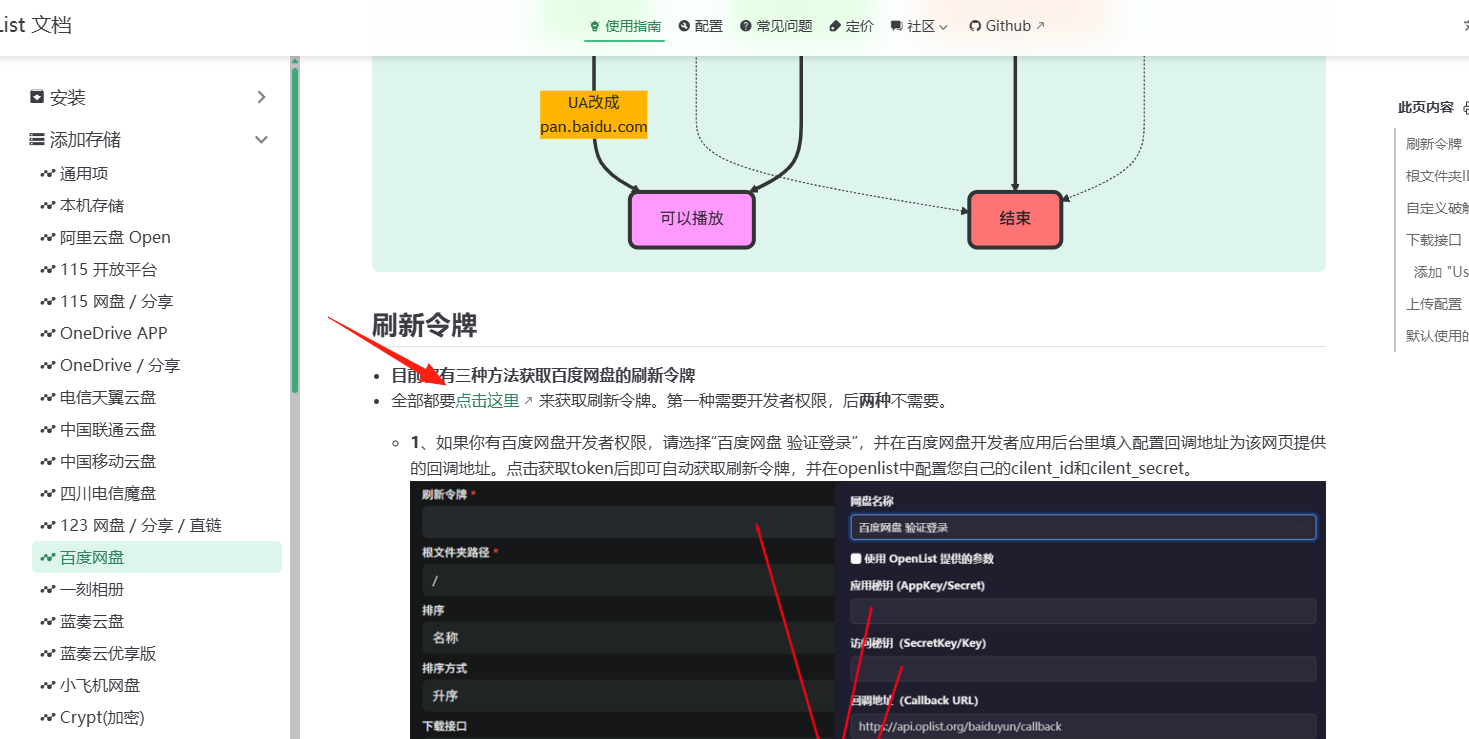
Clicking the link leads to this page.
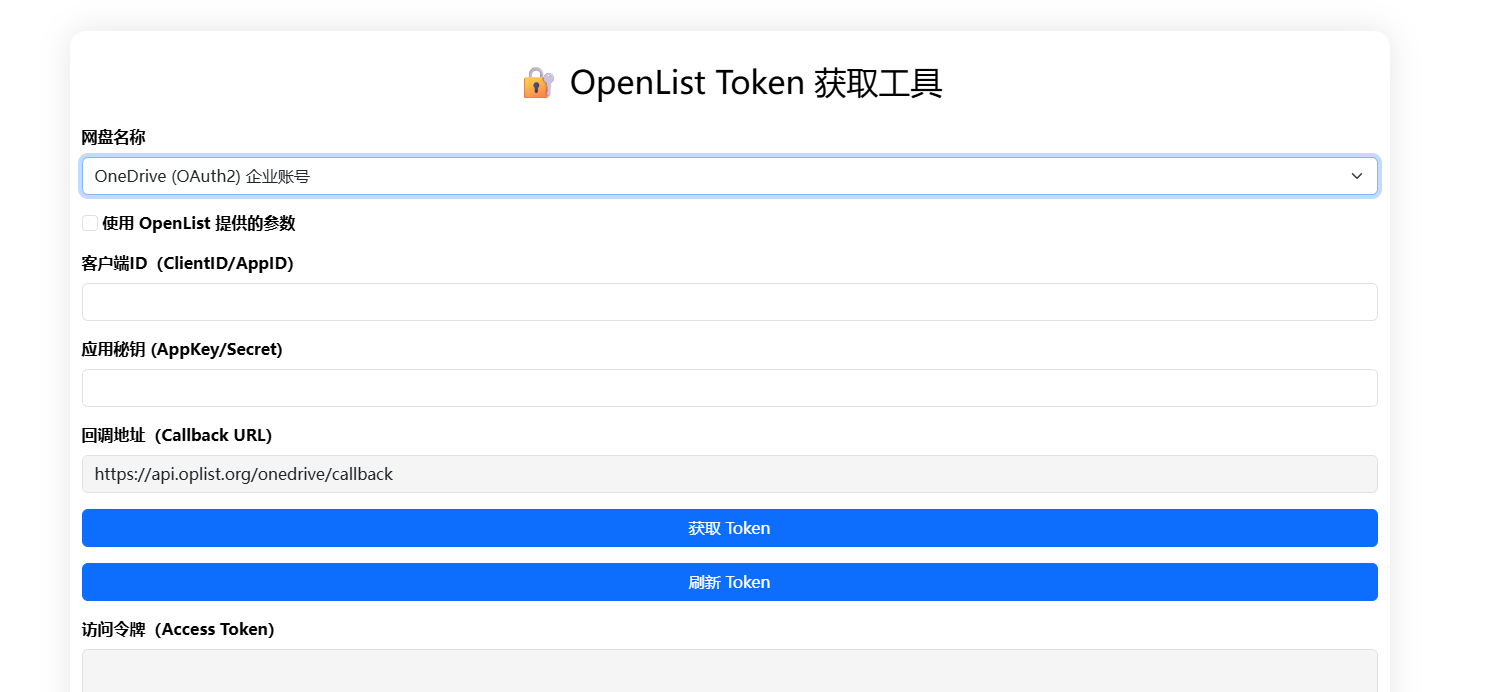
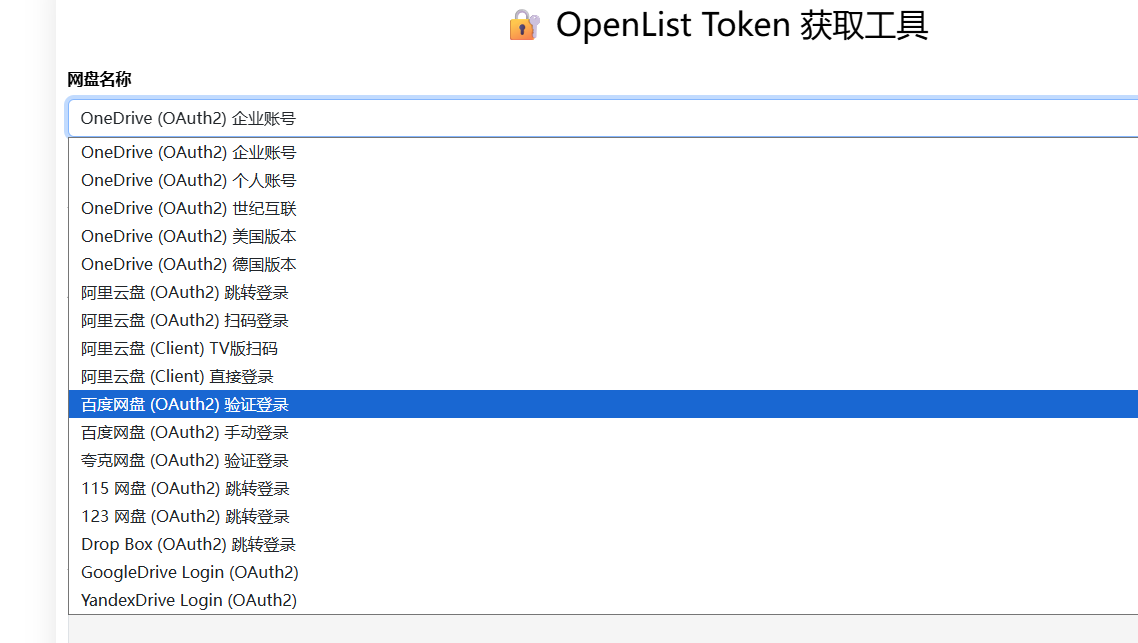
For Disk Name, select Baidu Netdisk.
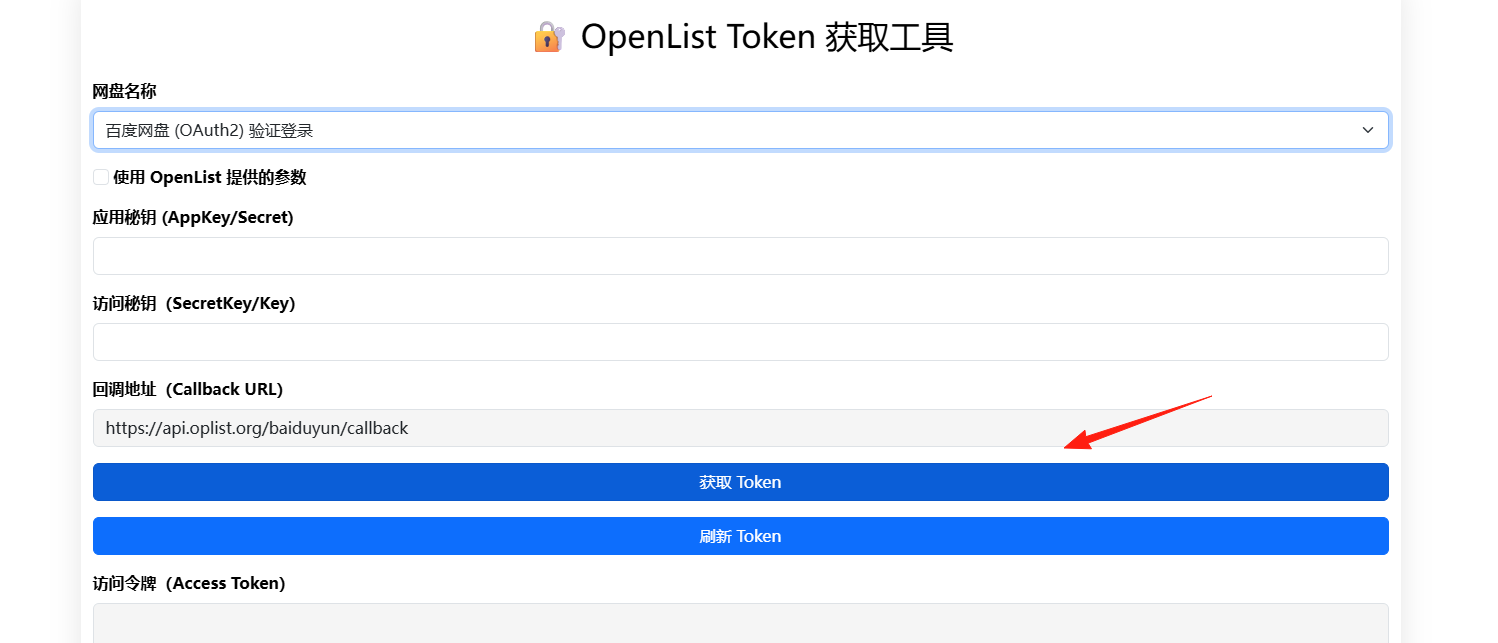
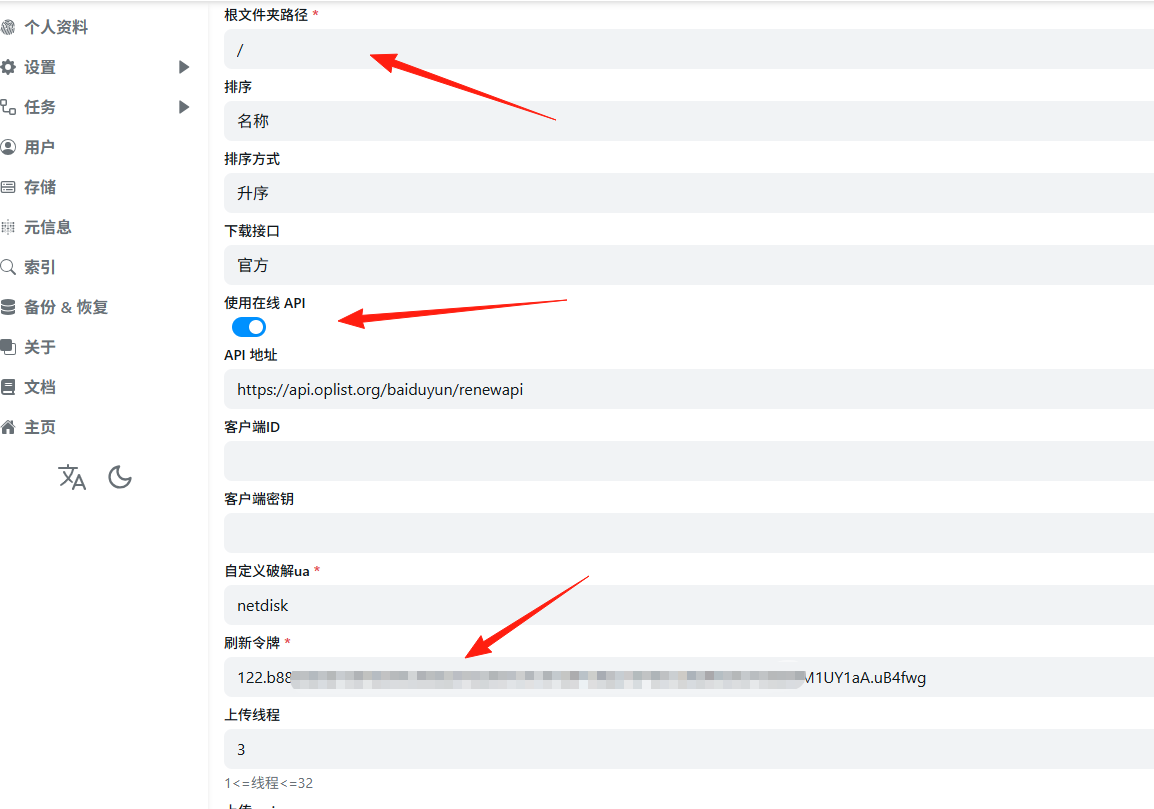
Click Get Token.
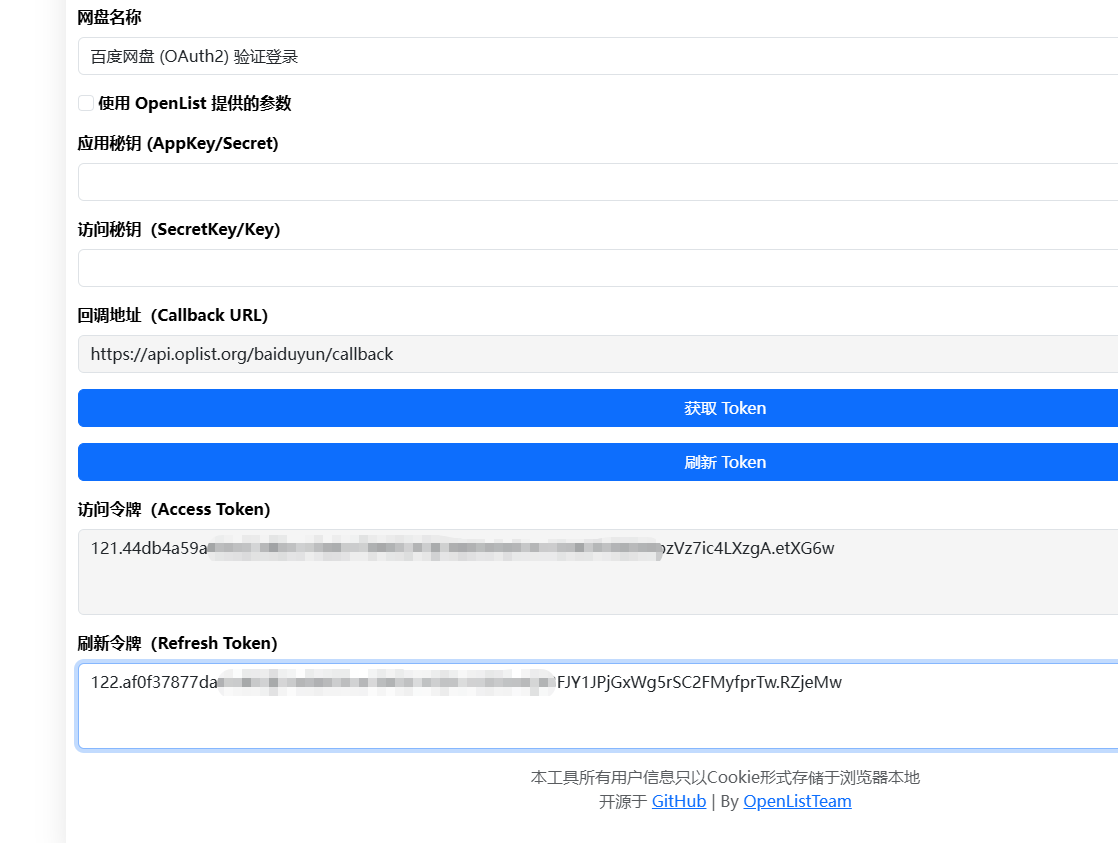
Return to Openlist, click [Storage] on the left, then Add.
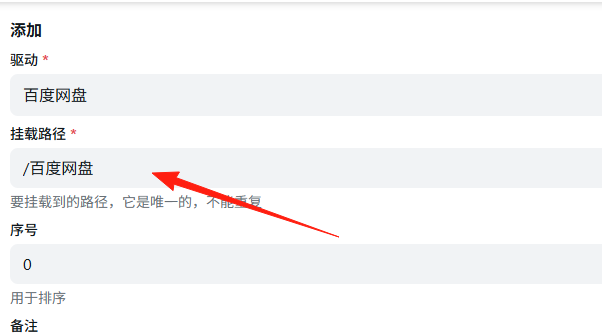
Note: For [Root File Path], just use /. This is different from Alibaba Cloud Drive.
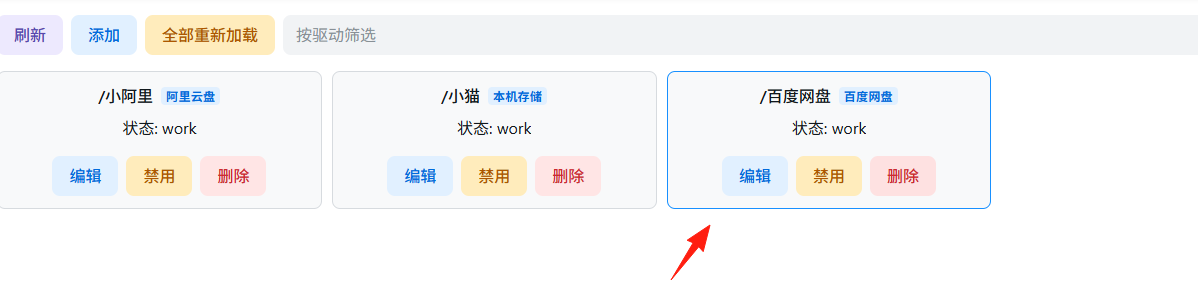
Click Add, and you will see Baidu Netdisk listed.
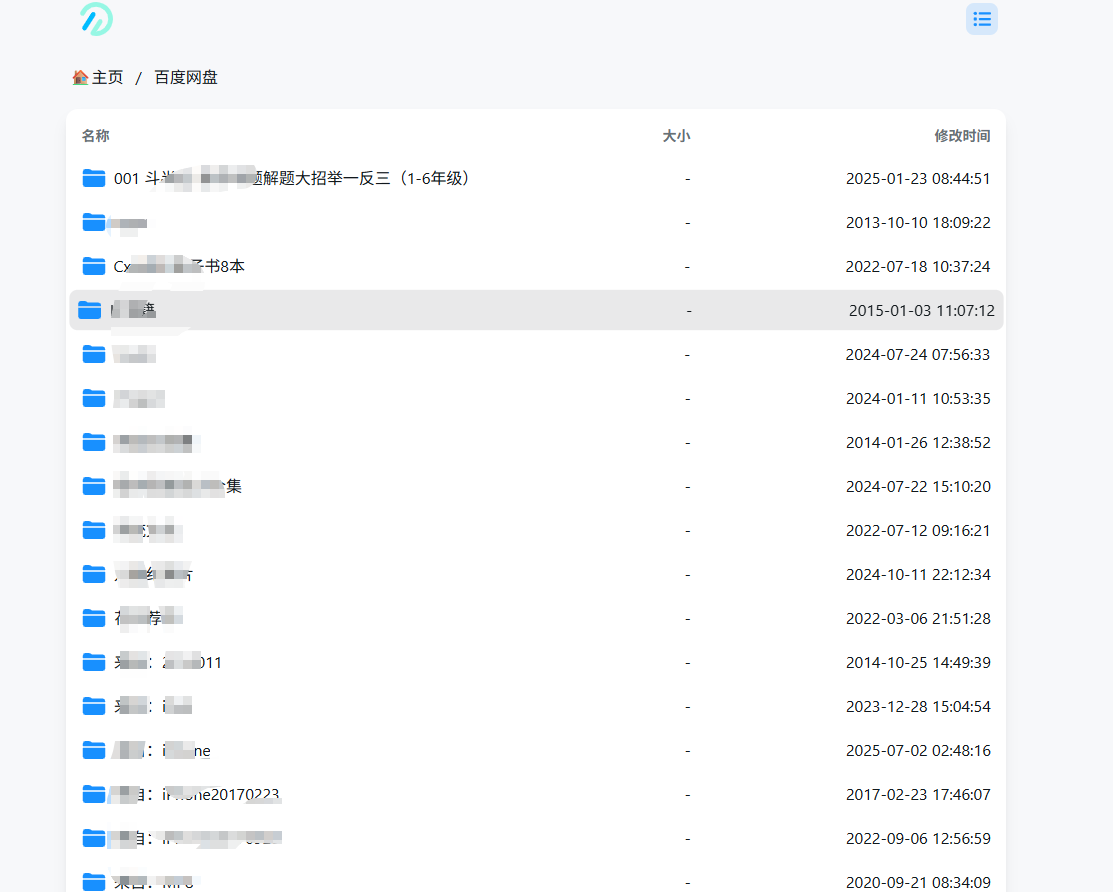
Return to the homepage and enter Baidu Netdisk.
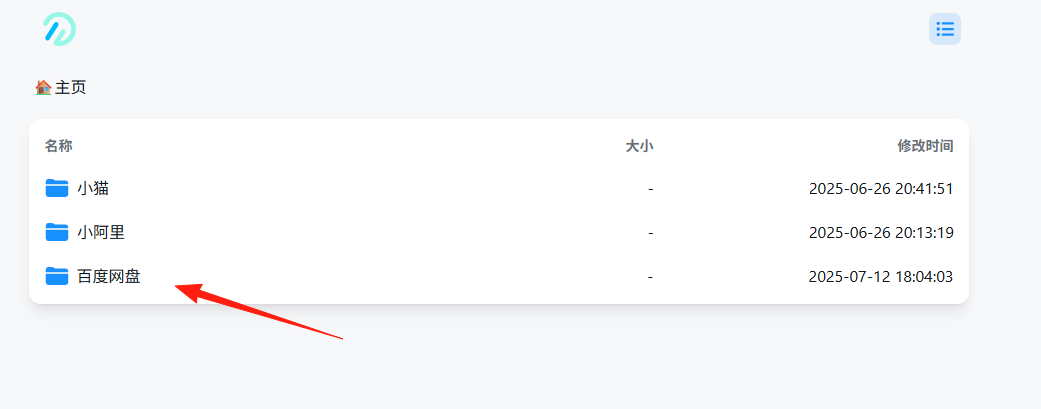
If you can see the files in the netdisk, it means the configuration was successful. Unlike Alibaba Cloud Drive, you don't need to place files in a shared directory. You can see them directly here.
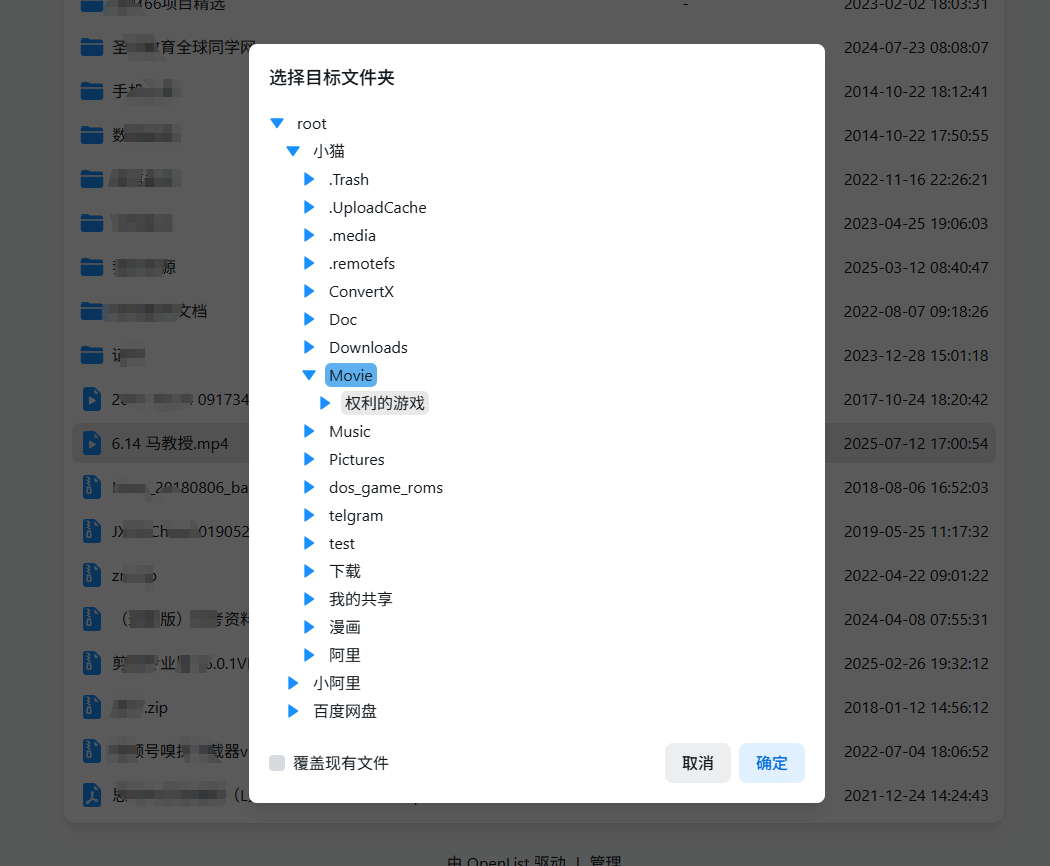
I directly moved a 1.5GB video from Baidu Netdisk to Lazycat Cloud Drive.
You can see the file has been transferred. The capacity is gradually increasing, indicating the transfer is in progress.
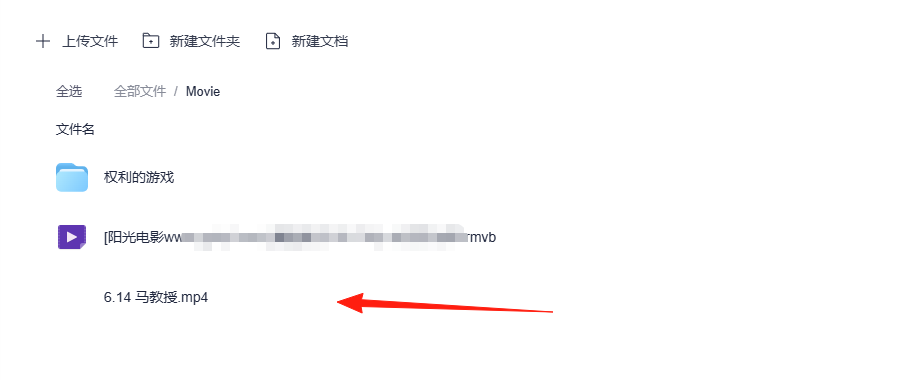
You can gradually move your data from Baidu Netdisk to Lazycat.
The above is the process for adding Baidu Netdisk. Common netdisks can generally be added by following the tutorials step by step.