
ArchiveBox Tutorial: Your Personal Web Time Machine
🤔 Why Do You Need ArchiveBox?
Imagine these scenarios:
- You bookmarked an excellent technical article, but when you click on it months later, it returns a 404 error.
- Resources on a website suddenly disappear, and you can't find a backup anywhere online.
- You want to save important web content but worry the site might shut down at any time.
- You need to research the historical changes of a website but don't have access to a time machine.
ArchiveBox is the solution to these problems! It is a powerful, self-hosted internet archiving solution for collecting, preserving, and viewing websites offline. It supports saving web pages in various formats like SingleFile, PDF, screenshots, HTML, and more.
https://appstore.lazycat.cloud/#/shop/detail/cloud.lazycat.app.archivebox
Simply put, it acts like your personal "time machine," allowing you to save entire web pages completely and revisit them anytime.
🚀 How to Use It?
After installing it from the Lazycat Store, the homepage looks like this:
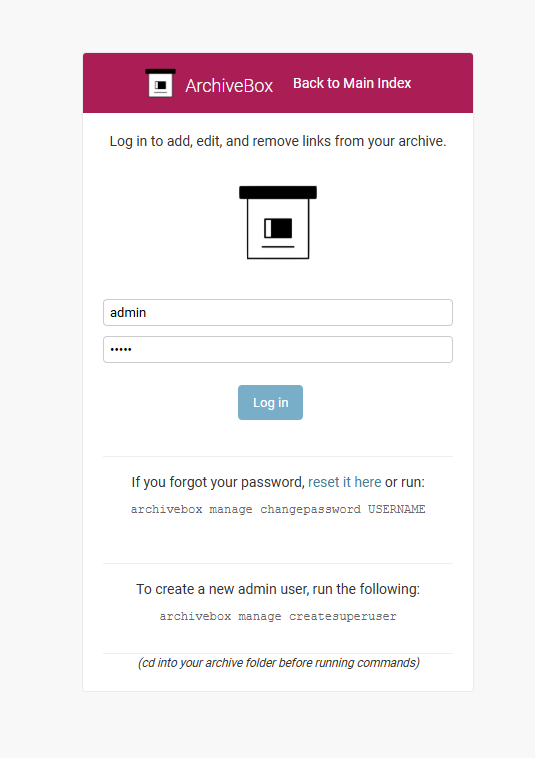
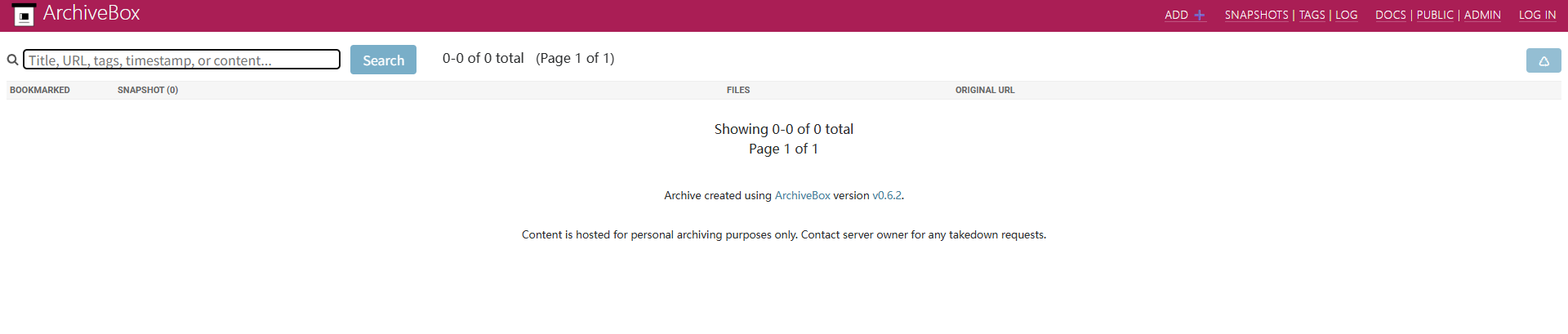 There is a default user
 admin. You can log in directly.
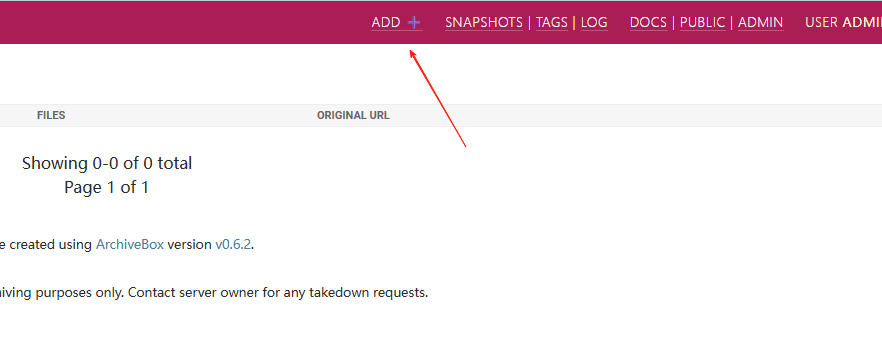
 After logging in, you can see the functional menu on the left.

Click "Add" at the top to create a new task.
Enter the URL you want to archive.
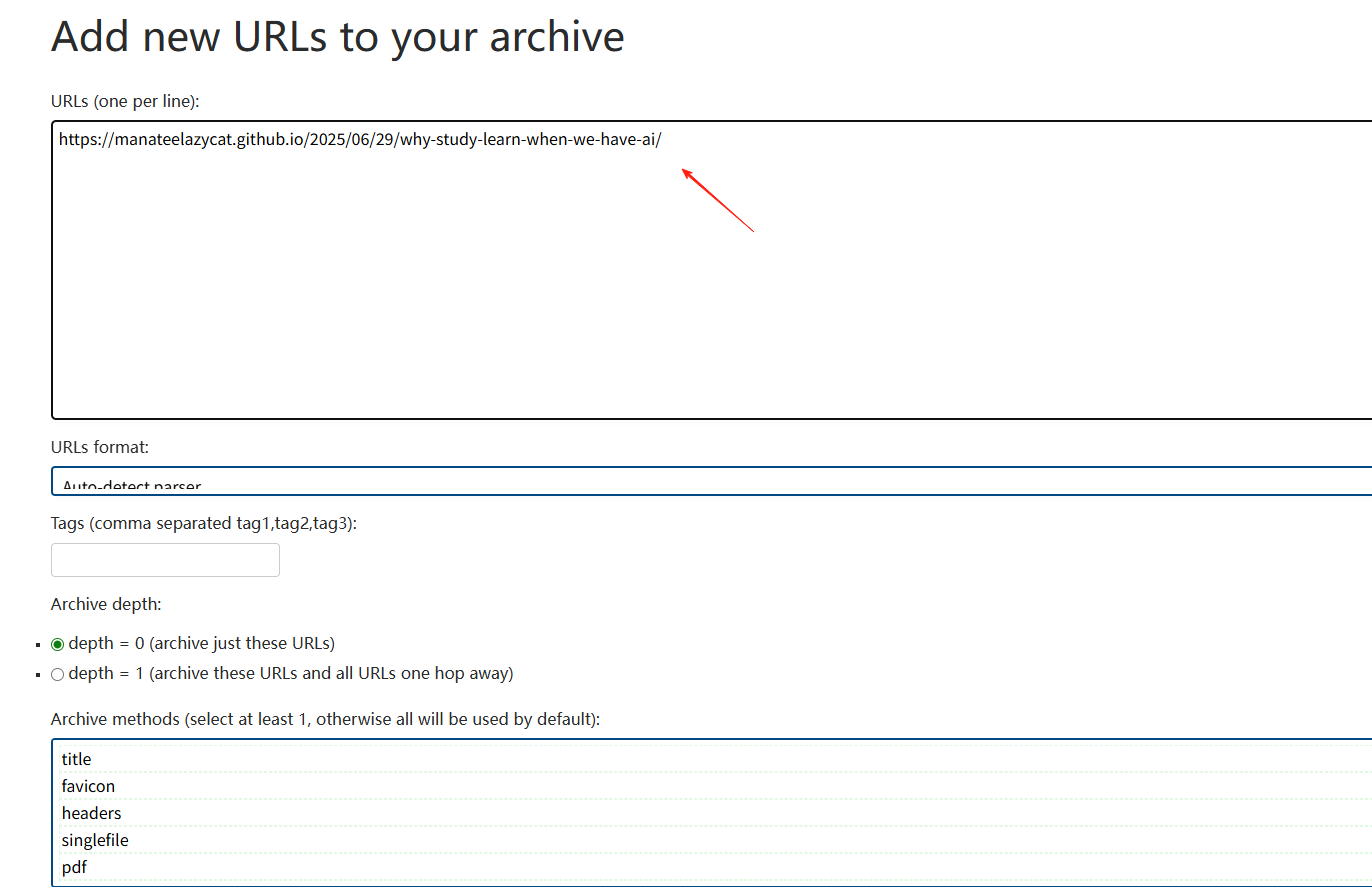
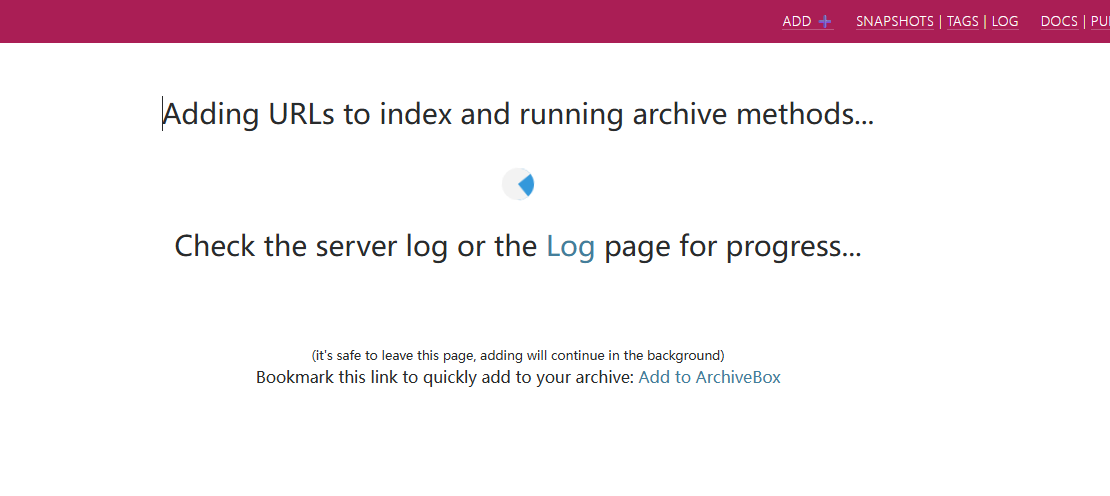
Click "Add," and you'll see it has started running.
After execution, you will see the results.
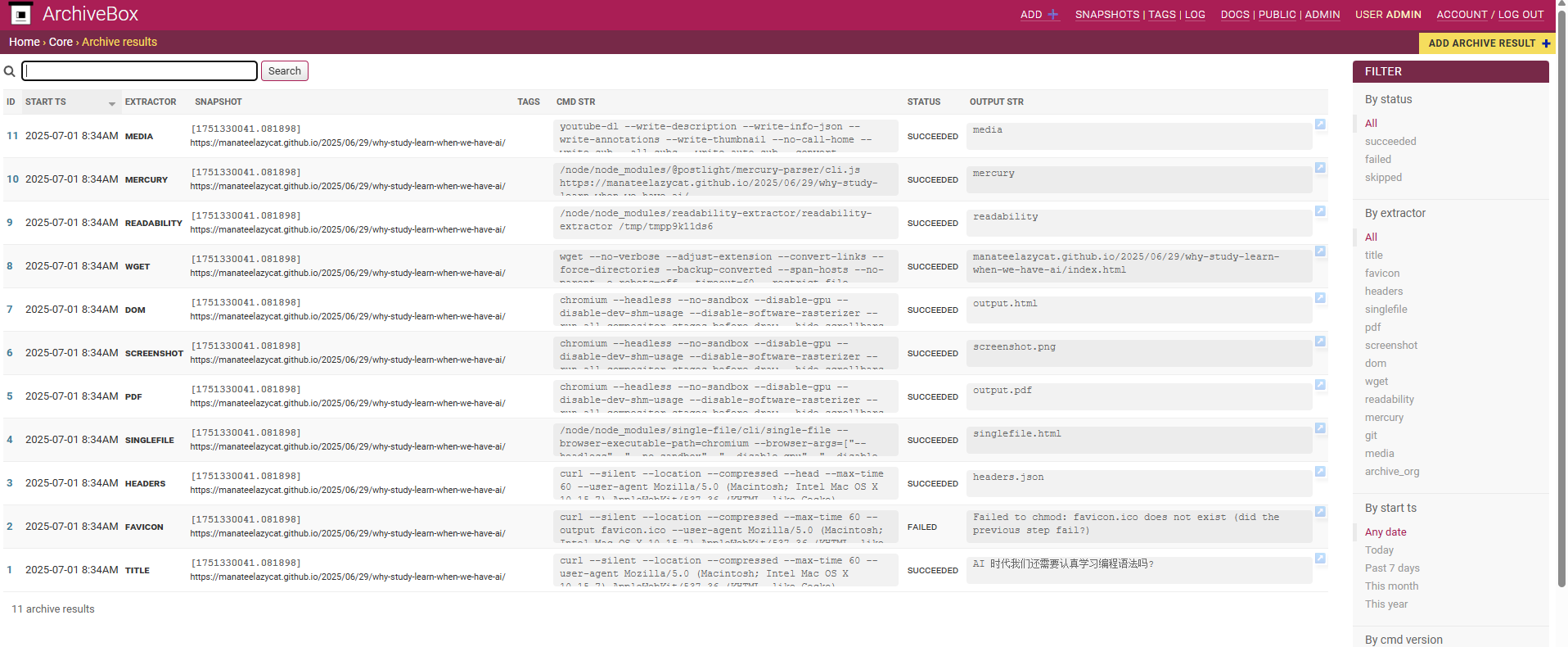
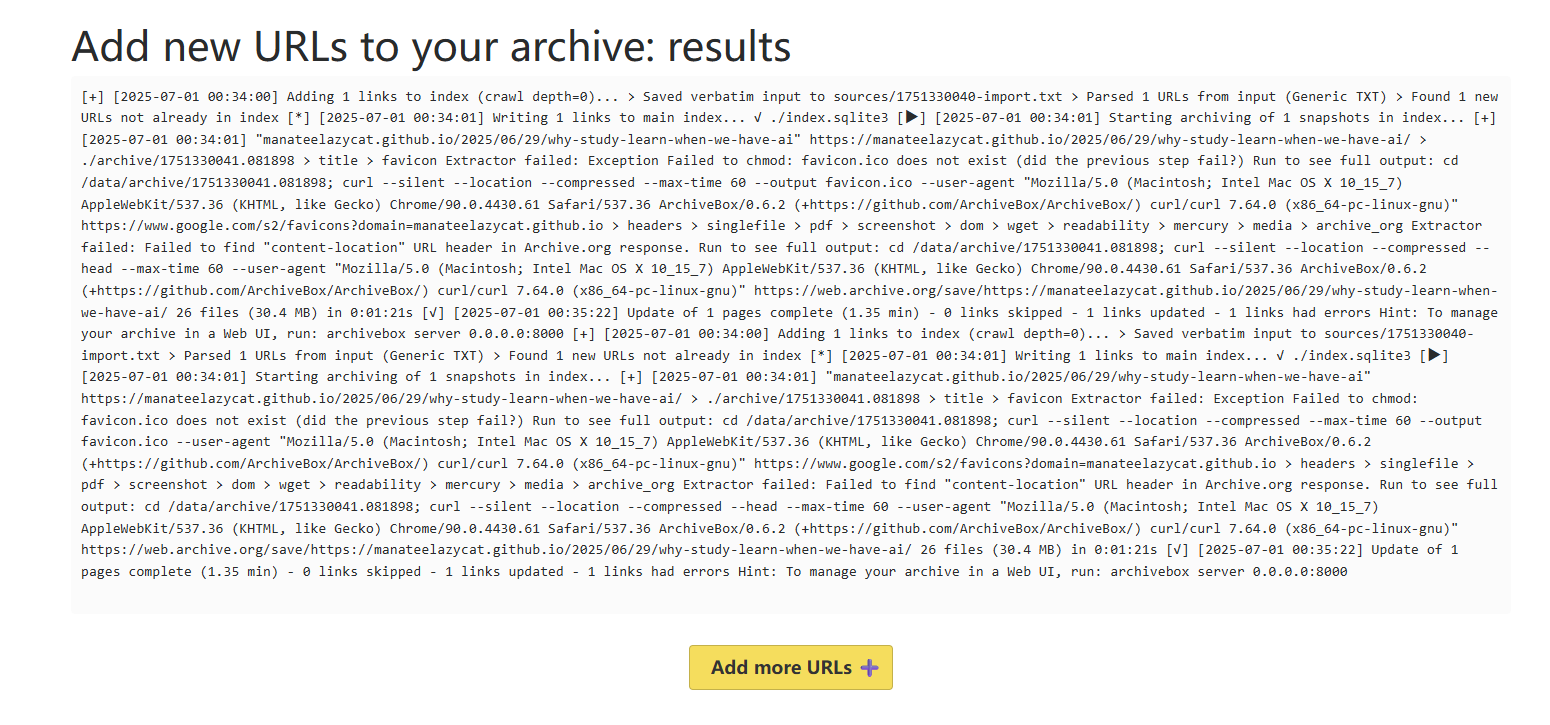 You can see the operations performed on the Log page.
Returning to the homepage, you'll see the article has been saved.
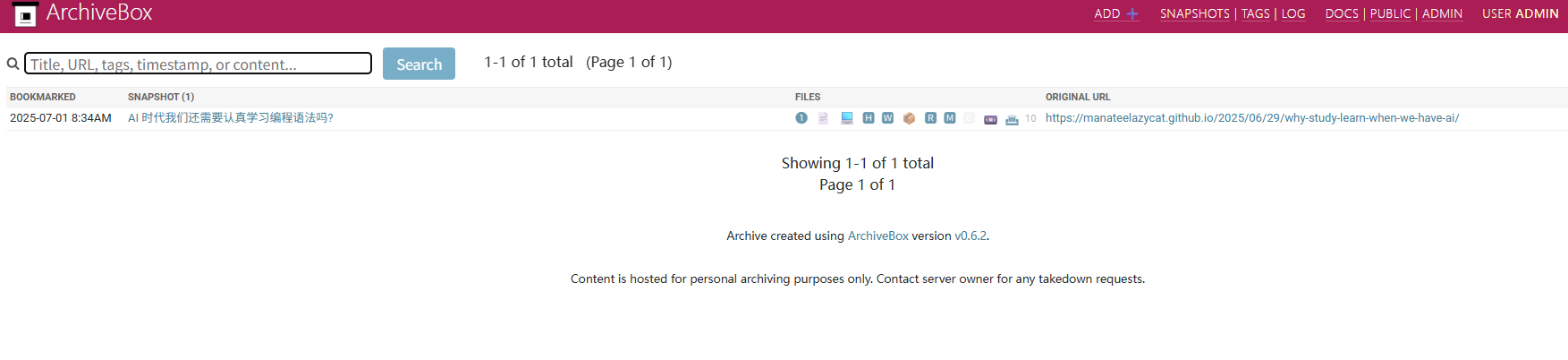
Click on it to view the details.
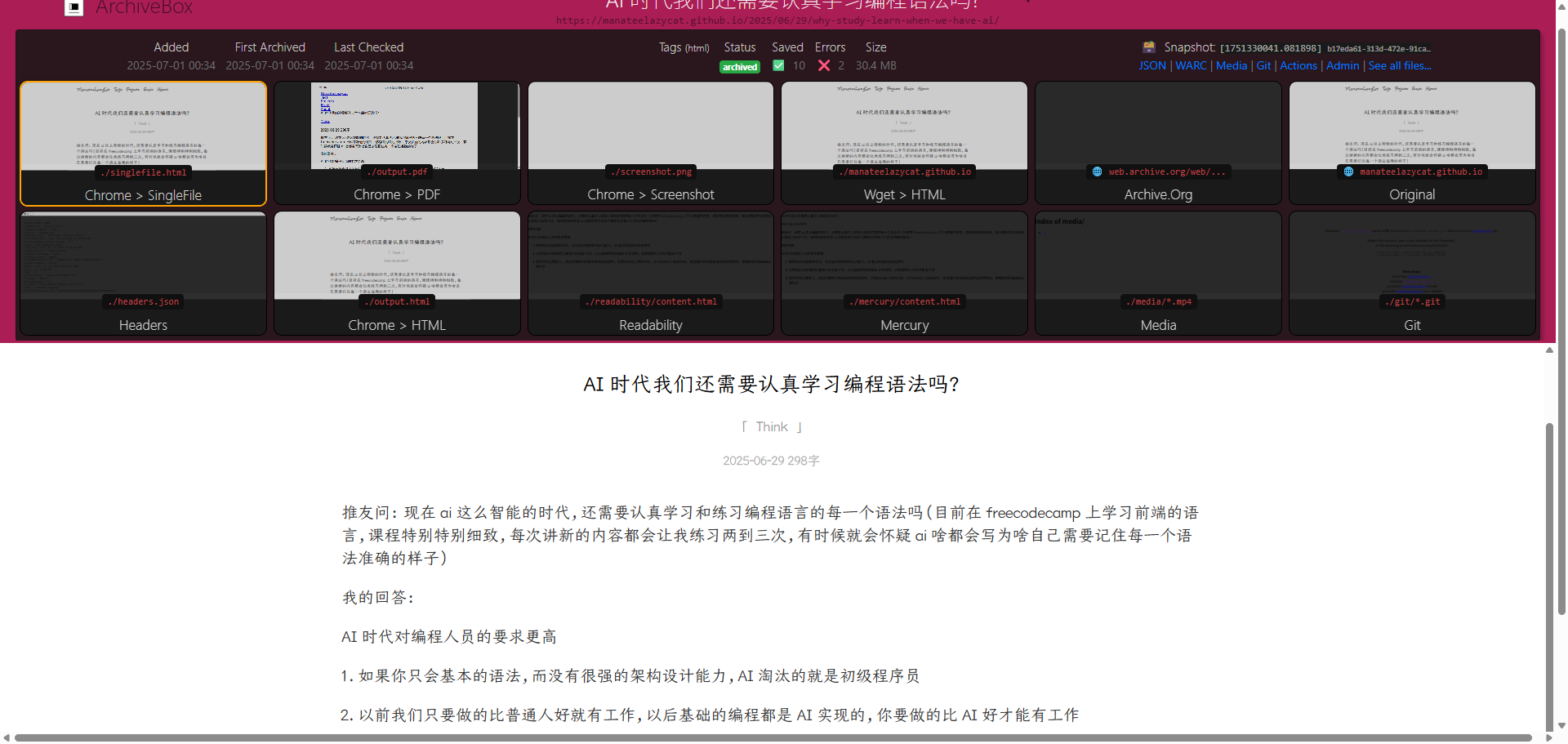
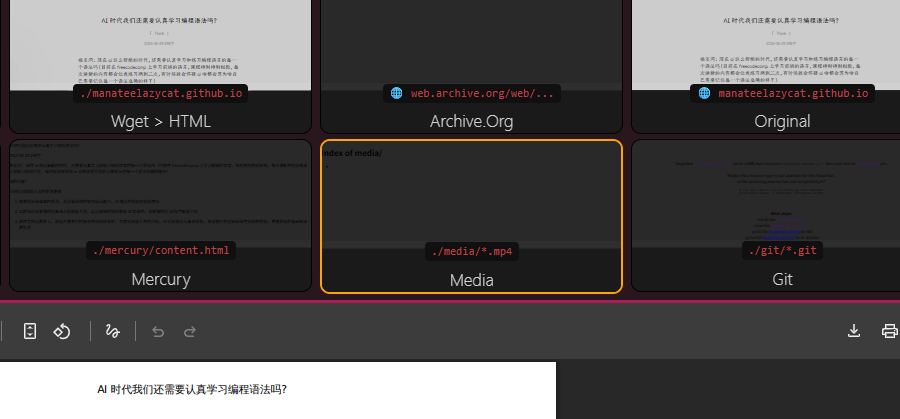
ArchiveBox doesn't just simply save an HTML file and call it a day. It:
- Saves the complete HTML page (including CSS and JS)
- Generates a PDF file for easy printing and sharing
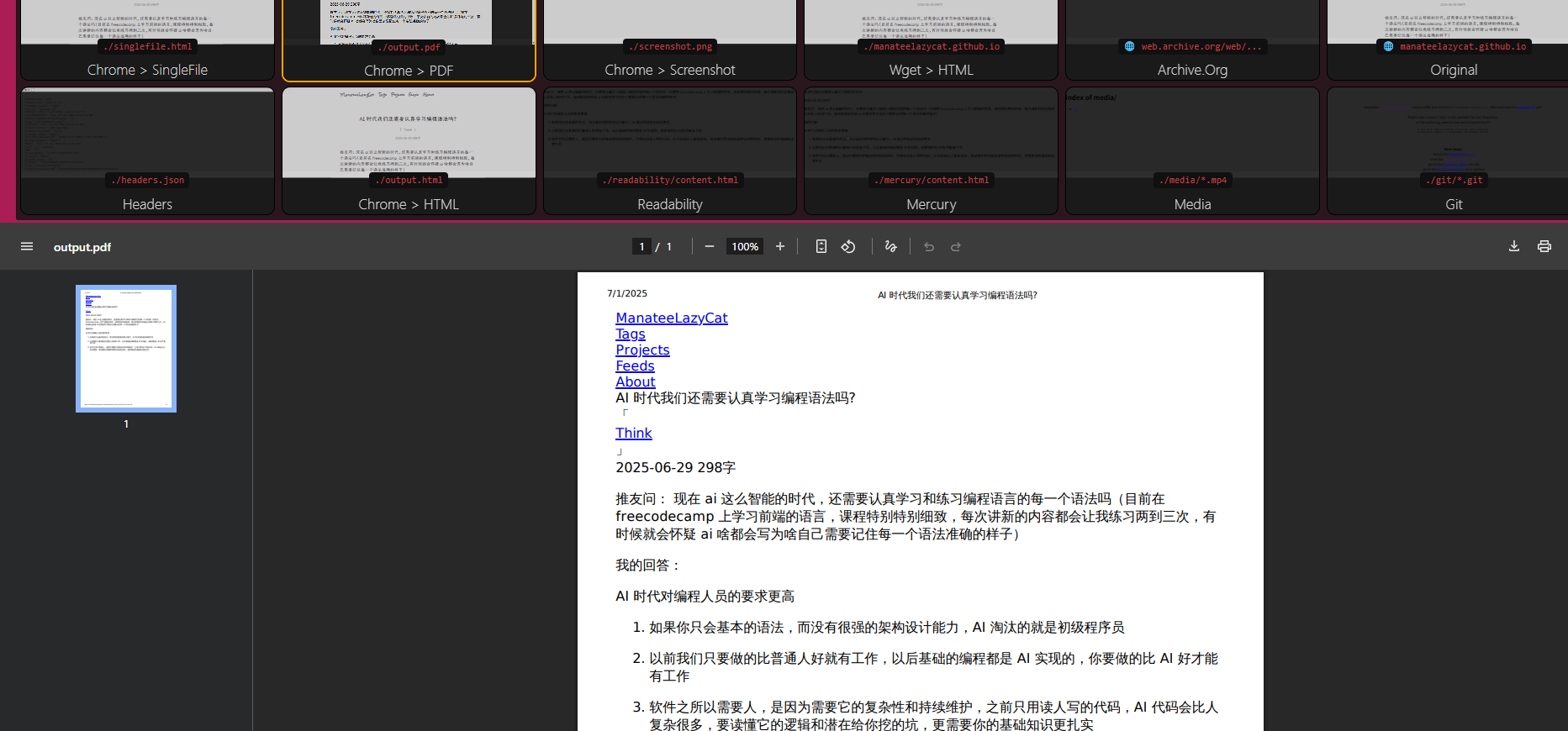
- Captures webpage screenshots for a visual reference of the page style
- Saves in SingleFile format, containing all content in a single file
- Can even save media files like videos and audio
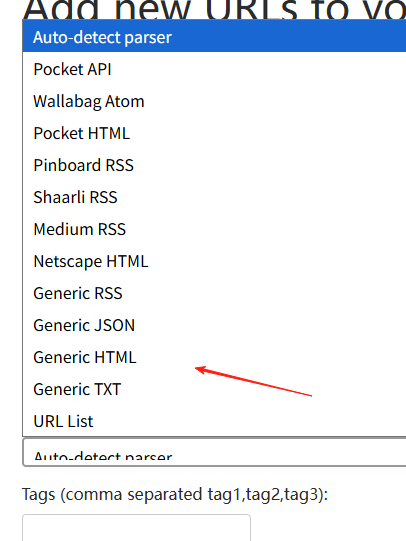
If you want to save all your browser bookmarks:
- Export your bookmarks from the browser (usually as an HTML file).
- Import them using ArchiveBox:
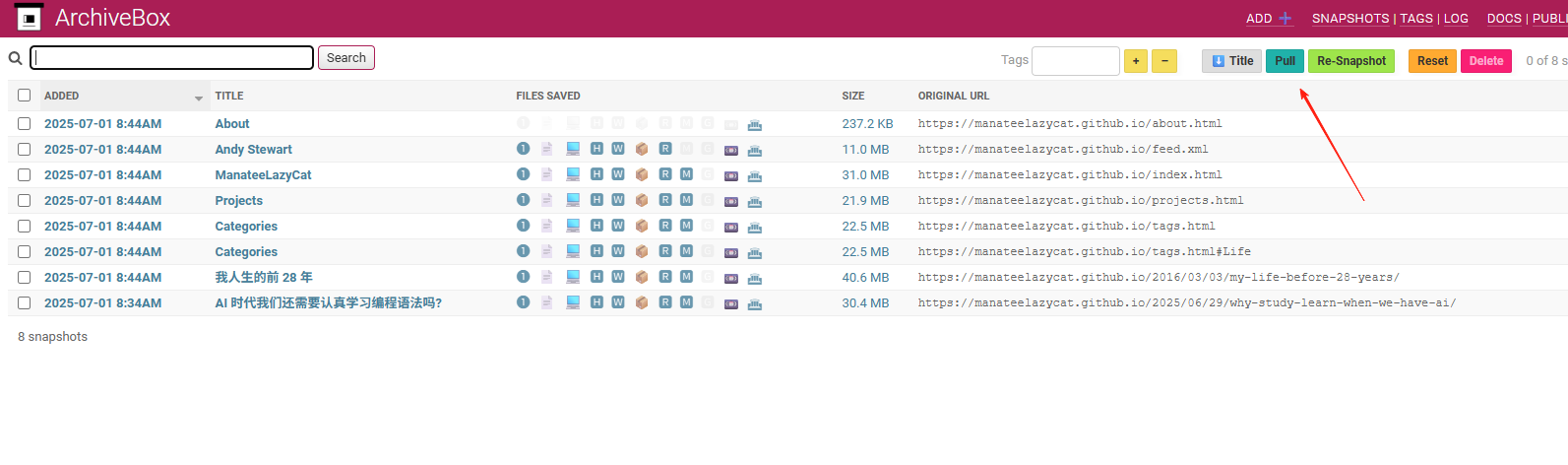
If any captures fail during the process, you can click "Pull" to let it continue.
Backing Up Your Archive
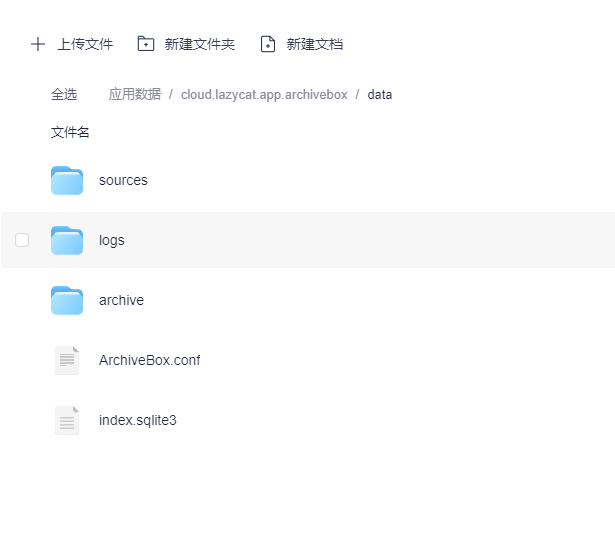
All ArchiveBox data is stored in the data directory. If you're concerned about data loss, regularly back up this directory:
🎉 Summary
ArchiveBox is like giving the internet its own "time machine."
With ArchiveBox, your important content will always be preserved under your control.