
OpenList User Guide: The Ultimate Cloud Storage Aggregator
Foreword
A major event recently shook the cloud storage circle: the well-known open-source project AList was acquired by a commercial company, causing widespread concern among users.
The original core developers have stepped up and created a new project called OpenList, essentially a "rebirth" of AList.
https://appstore.lazycat.cloud/#/shop/detail/lazycat.community.app.openlist
What is OpenList?
Imagine you have Baidu Netdisk, Alibaba Cloud Drive, 115 Wangpan, Quark Netdisk... a bunch of cloud storage accounts. Isn't it troublesome to open several different apps just to find a file?
OpenList solves this problem! It integrates all your cloud storage services into a single interface. It's like moving items scattered across different rooms into one large warehouse, making everything visible at a glance.
Practical Guide: Step-by-Step Tutorial to Master OpenList
🔧 Step 1: Basic Setup
-
Install via Lazycat Store:
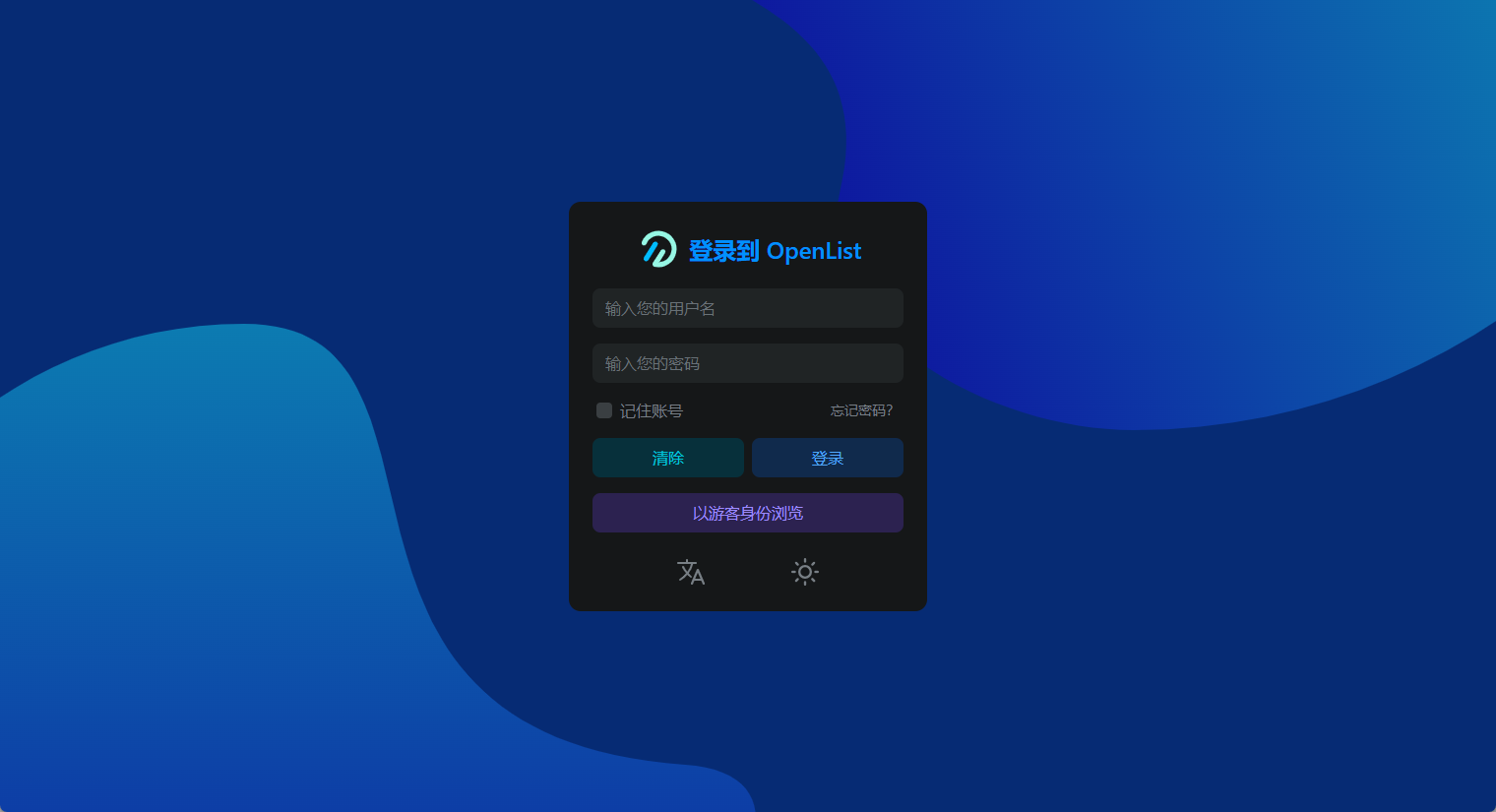
-
First Login: Username
admin, password is alsoadminInitially, no cloud storage is mounted, so the display will be empty.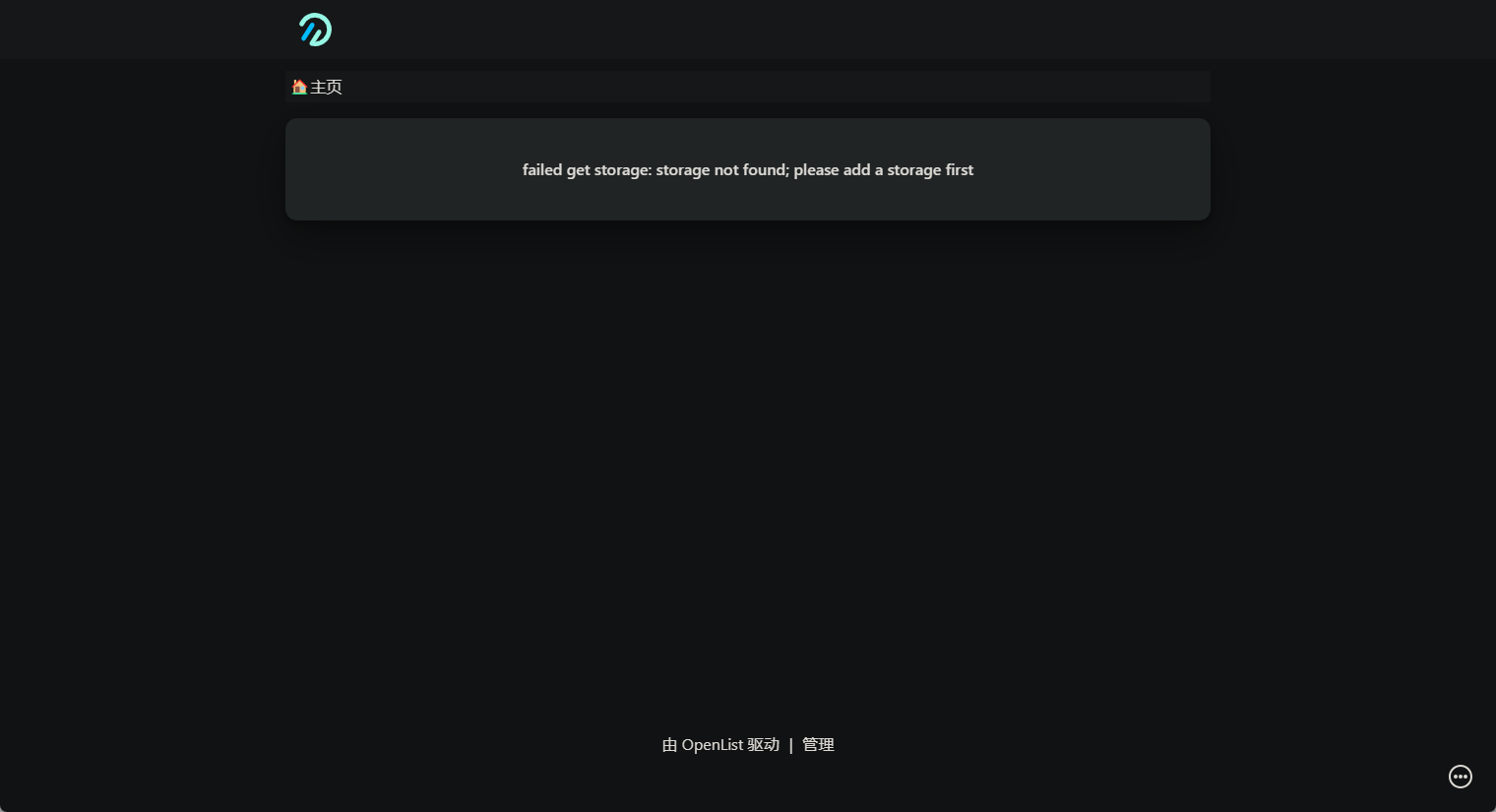
-
Change Password: Immediately change to a memorable password in the settings after logging in.
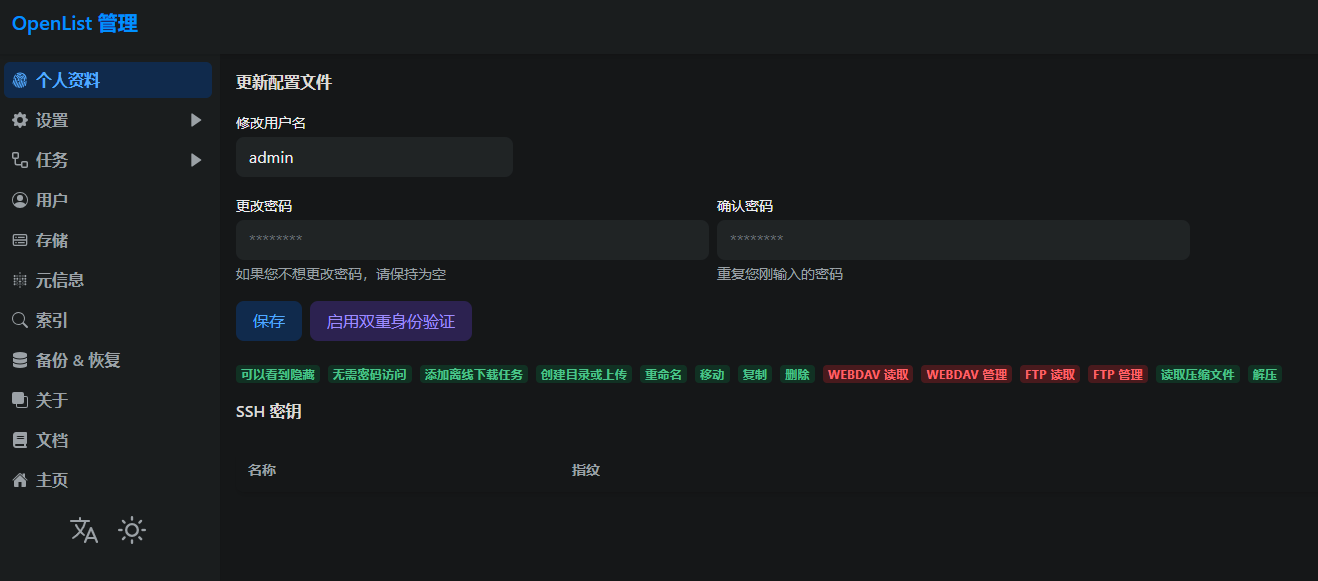
📁 Step 2: Add Cloud Storage
This is the most crucial step! Using Alibaba Cloud Drive as an example:
-
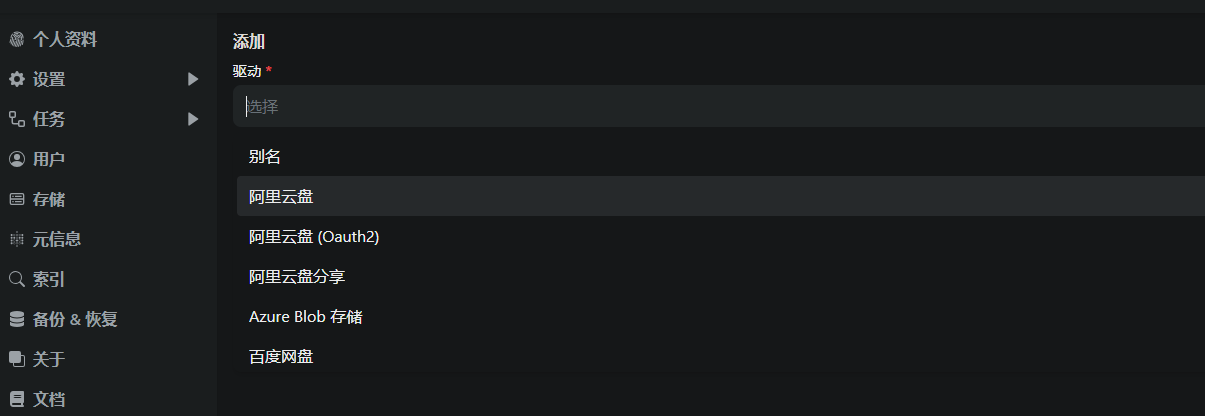
Click "Storage" in the left menu → "Add"
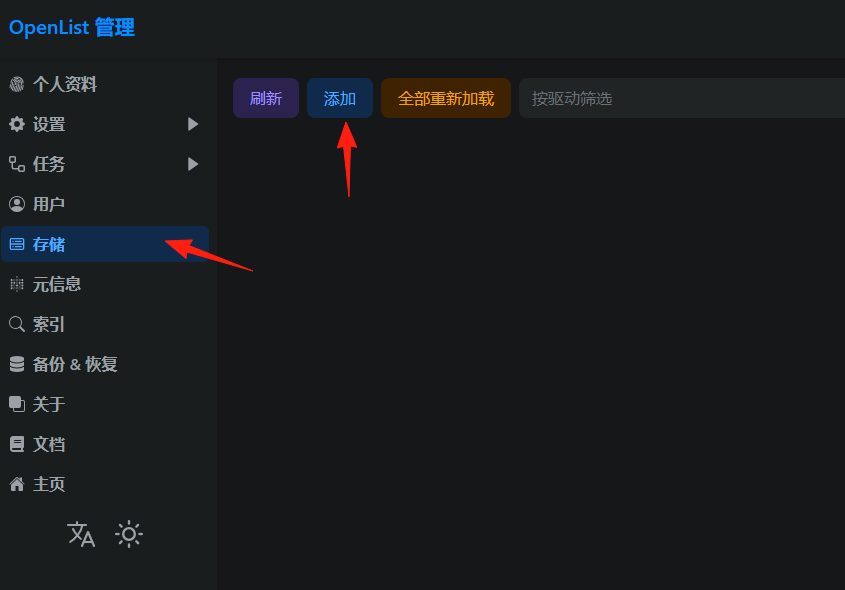
-
Select Driver Type: Alibaba Cloud Drive
-
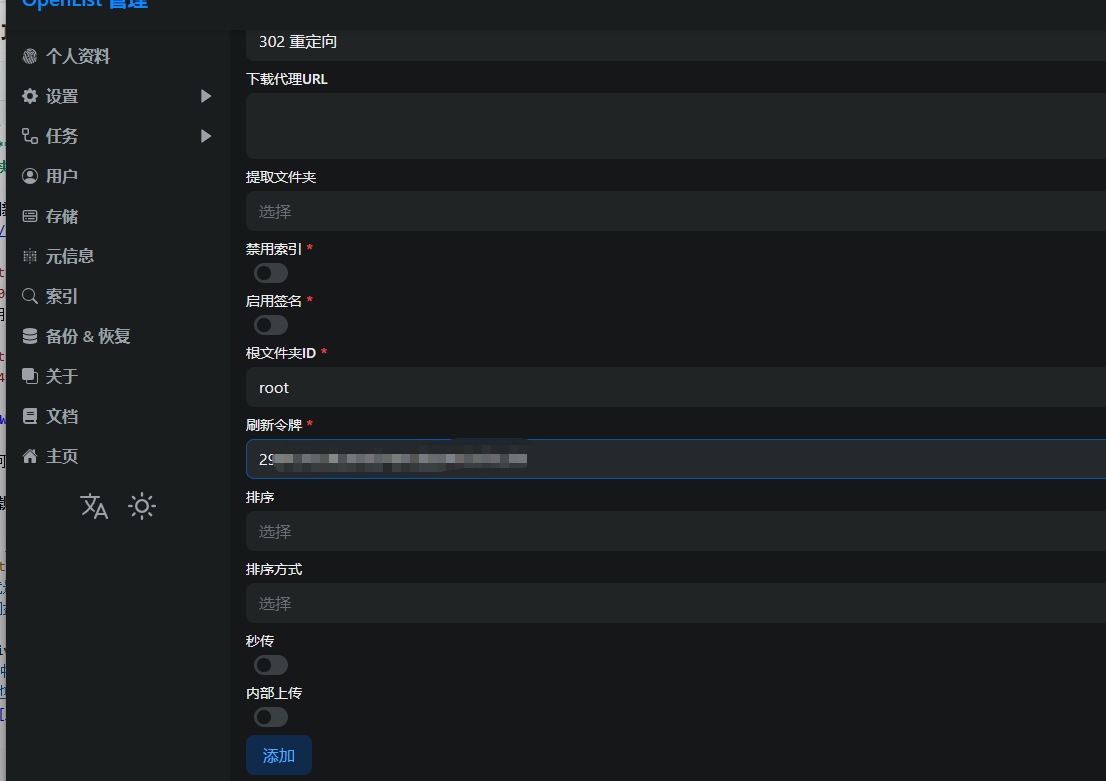
Fill in the necessary information:
- Mount path:
/AliDrive(You can customize the name) - Refresh token: Needs to be obtained from Alibaba Cloud Drive (See below for how to get it)
- Root folder ID:
rootby default
How to get the Alibaba Cloud Drive Refresh Token: Open https://api.oplist.org/ in your browser.
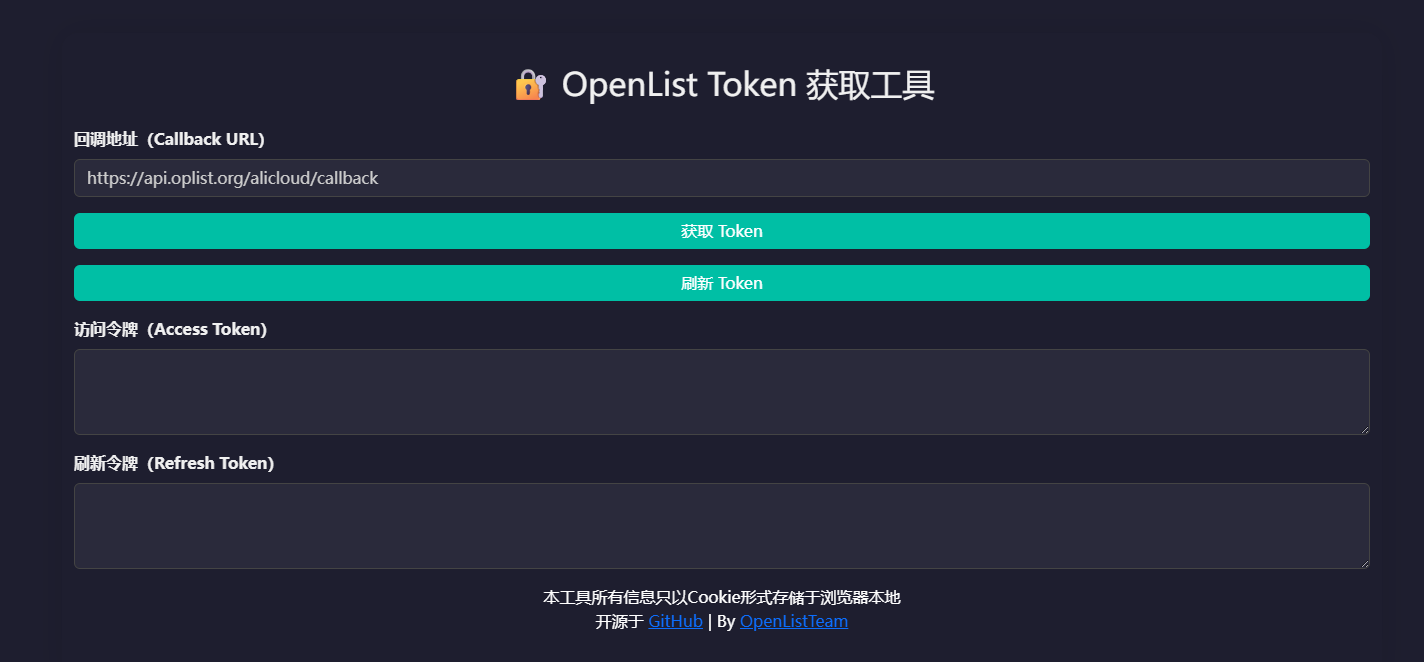
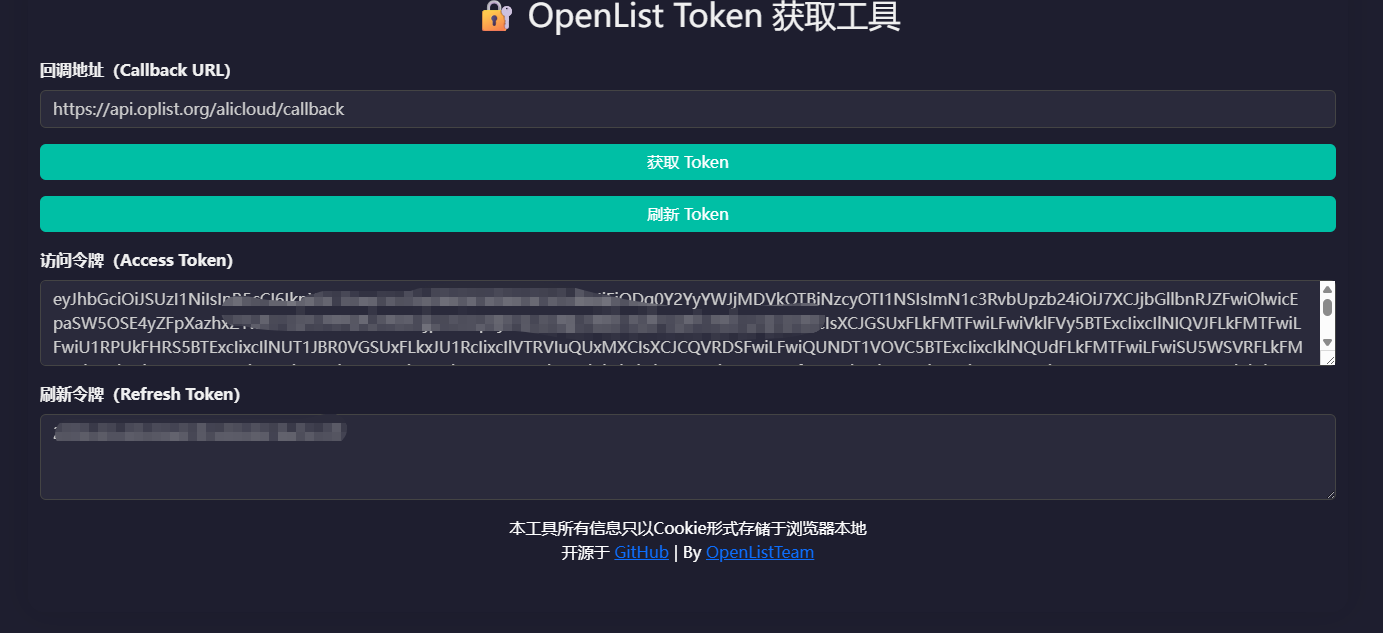
Click "Get token", scan the QR code with the Alibaba Cloud Drive app. Upon success, you will receive 2 tokens.
Paste your refresh token into the OpenList configuration, then save.
Alibaba Cloud Drive only exposes the "backup" folder externally, so you need to move your files there.
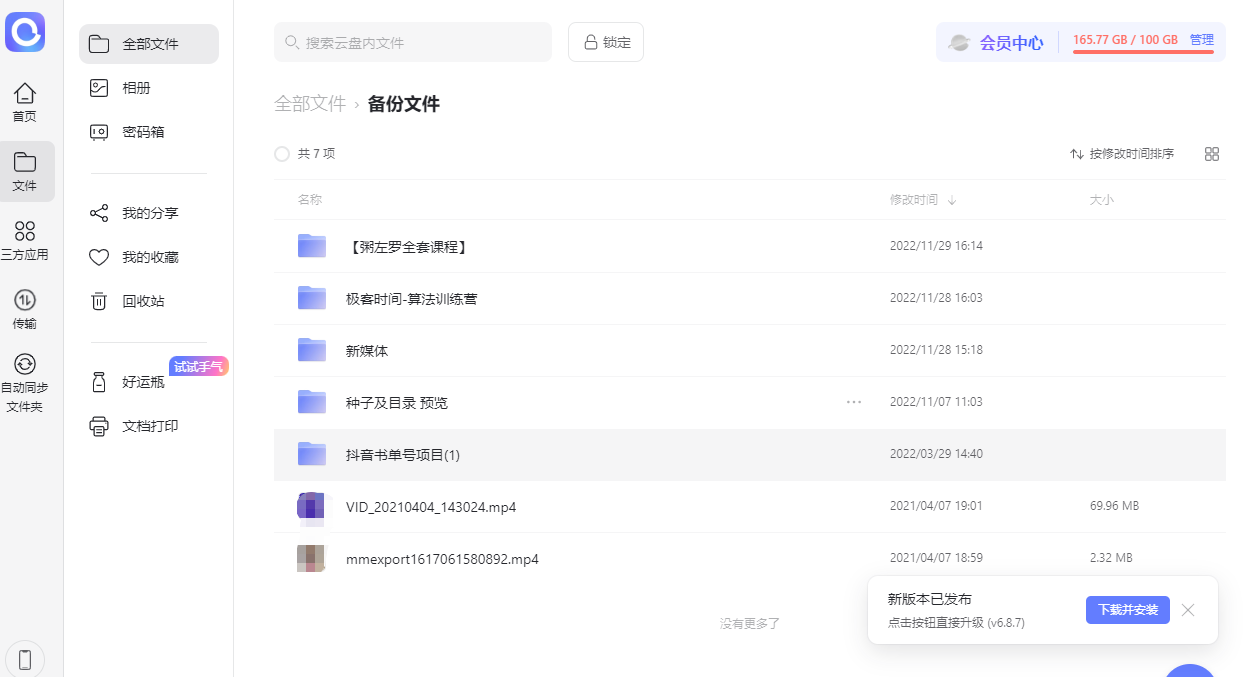
Return to the OpenList homepage, and you should see your drive.
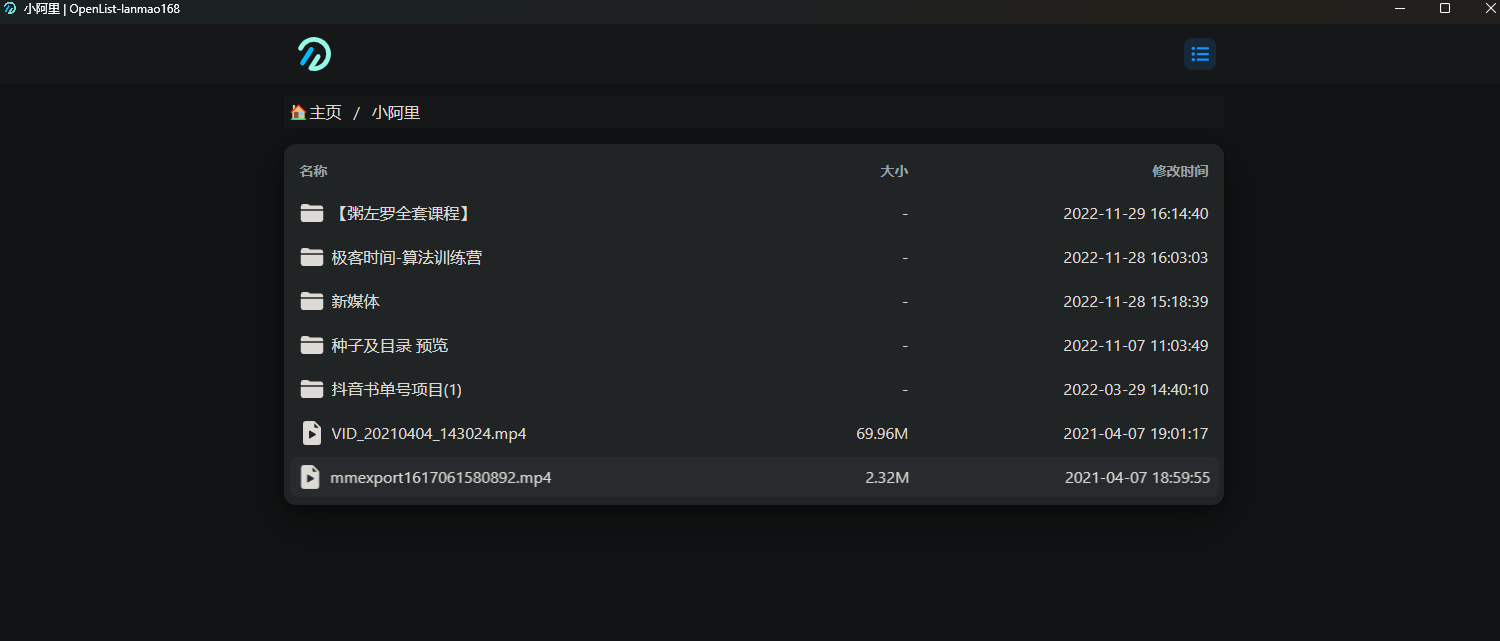
- Mount path:
Adding Lazycat Cloud Drive
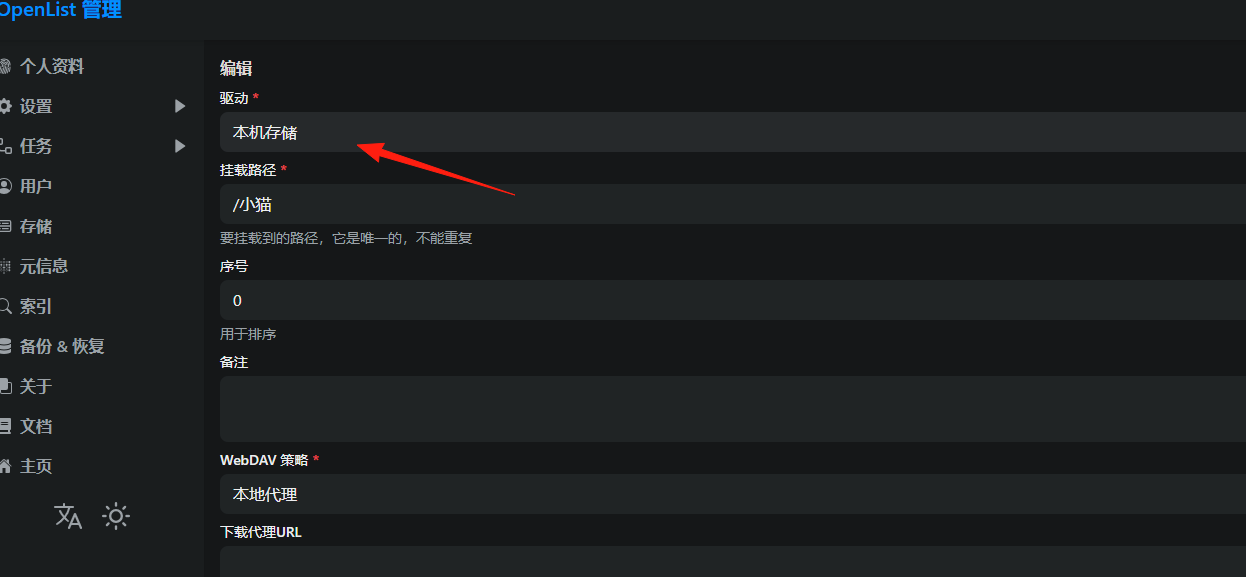
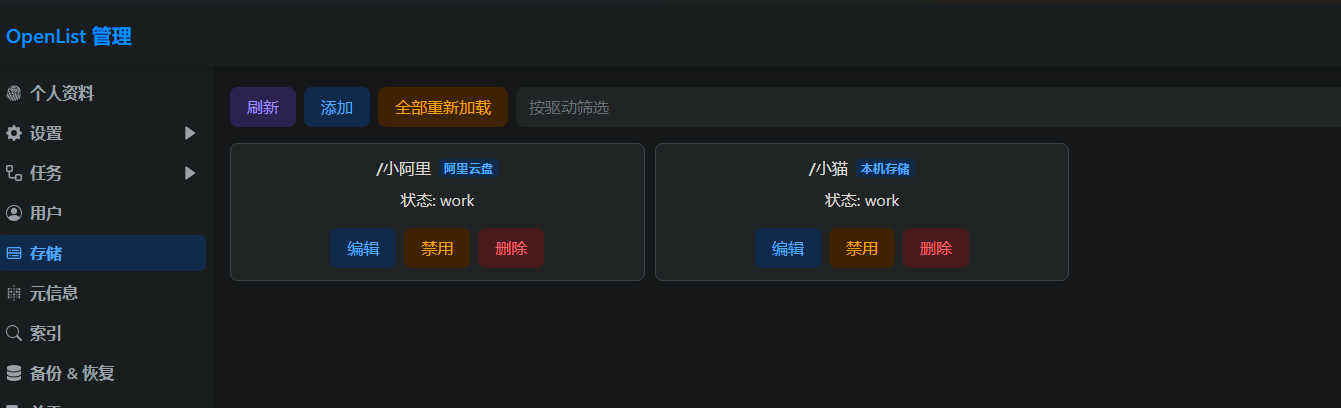
As it's not included by default currently, you need to add it manually. The "Driver" should be set to "Local Storage".
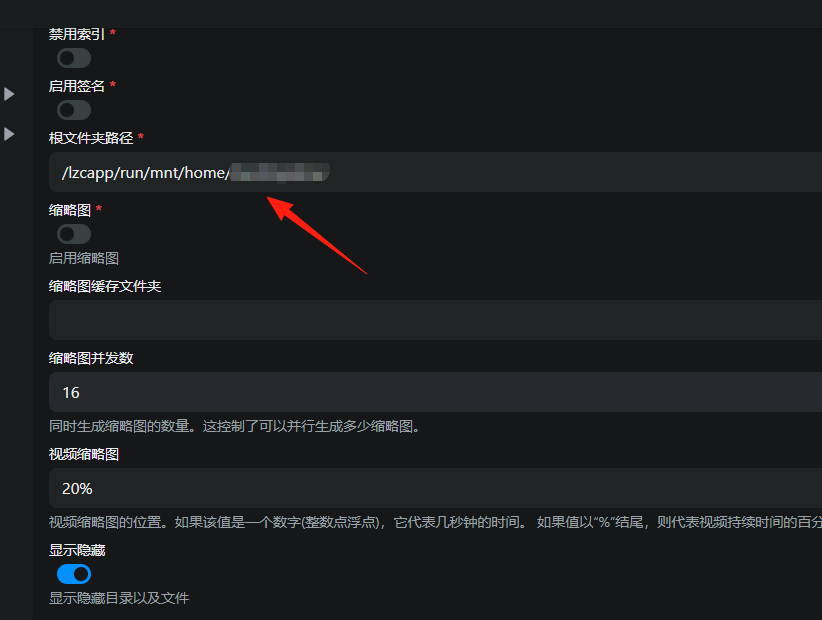
For the Root folder path, select your Lazycat Cloud Drive directory: /lzcapp/run/mnt/home/
After saving, it should look like this:
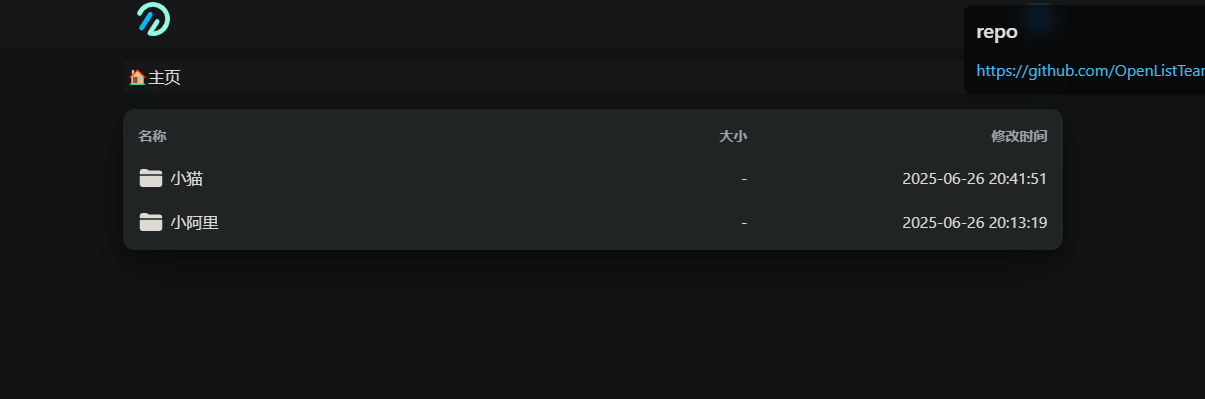
Return to the homepage to check.
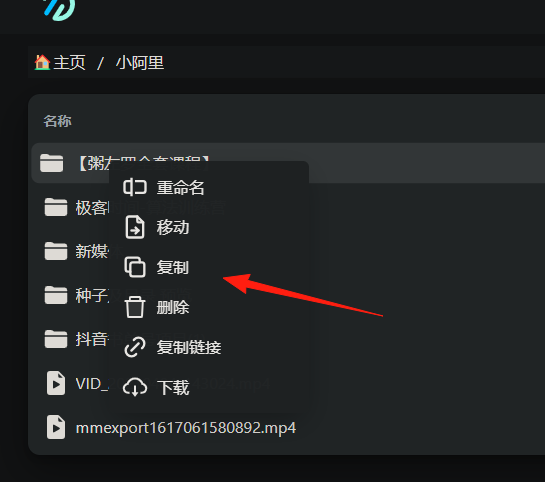
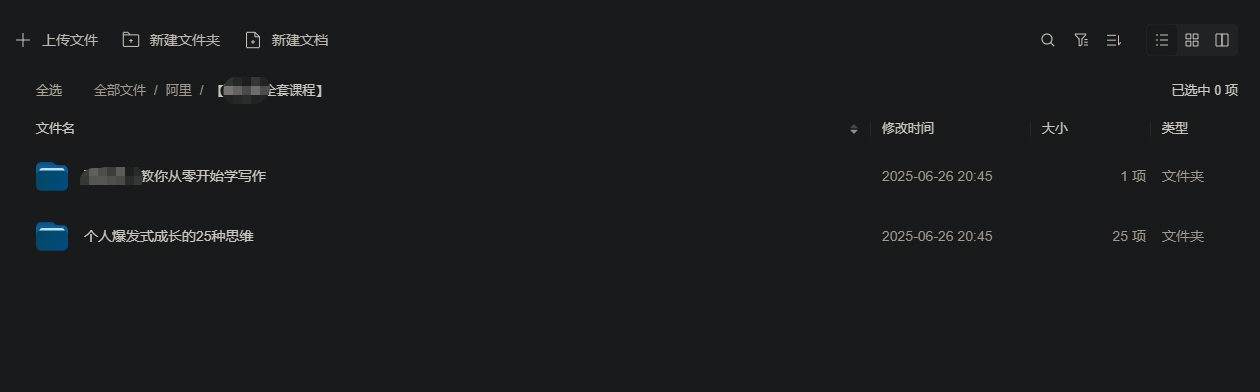
At this point, you can happily start copying. Go into your Alibaba Cloud Drive and copy any file.
Paste it into your Lazycat Cloud Drive directory.
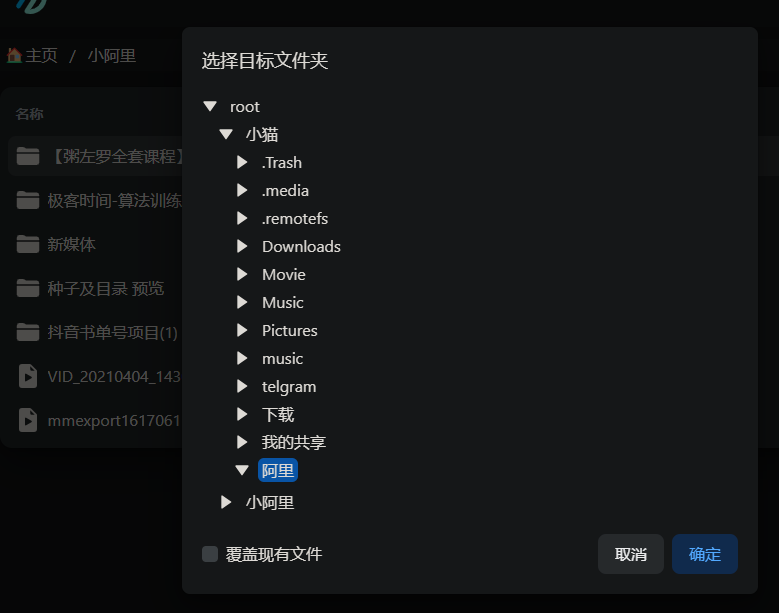
Enter your Lazycat Cloud Drive, and you'll see the file is now copying.
Summary
If you're struggling with file management, I highly recommend trying OpenList.
Just follow this guide step-by-step, and even beginners can get started easily!
Remember, tinkering has its risks, and backups are essential. Have fun exploring, but don't forget to regularly back up your important data