
Teable User Guide - From Beginner to Expert
🎯 Before We Begin
Still managing data with Excel? Still struggling with spreadsheet collaboration? Today, I want to recommend a game-changing tool - Teable!
https://appstore.lazycat.cloud/#/shop/detail/cloud.lazycat.app.teable
🤔 What Exactly is Teable?
Don't be intimidated by technical jargon; let's put it in plain terms:
Teable is a super-powered online spreadsheet tool. Think of it as:
- Excel + Database =
- A smart spreadsheet that supports real-time multi-user collaboration
- A data management powerhouse with built-in AI capabilities
Teable is an AI-driven multi-dimensional table that enables everyday users to build powerful data applications and batch-process AI generative tasks.
🛠️ Comprehensive Practical Usage Guide
Step 1: Quick Start
After opening the homepage, you first need to log in.
 It integrates with Lazycat's OIDC; we click the button below.
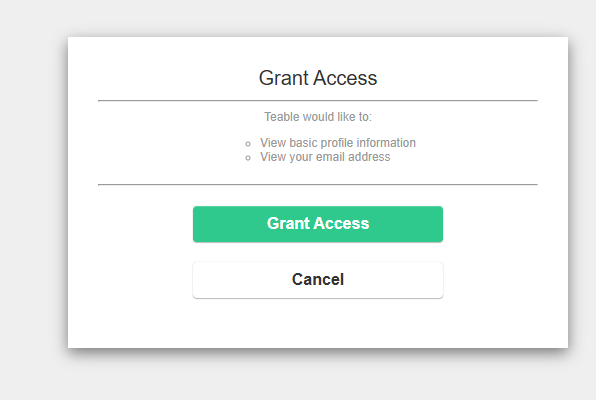
After authorization, you go straight in – very convenient.
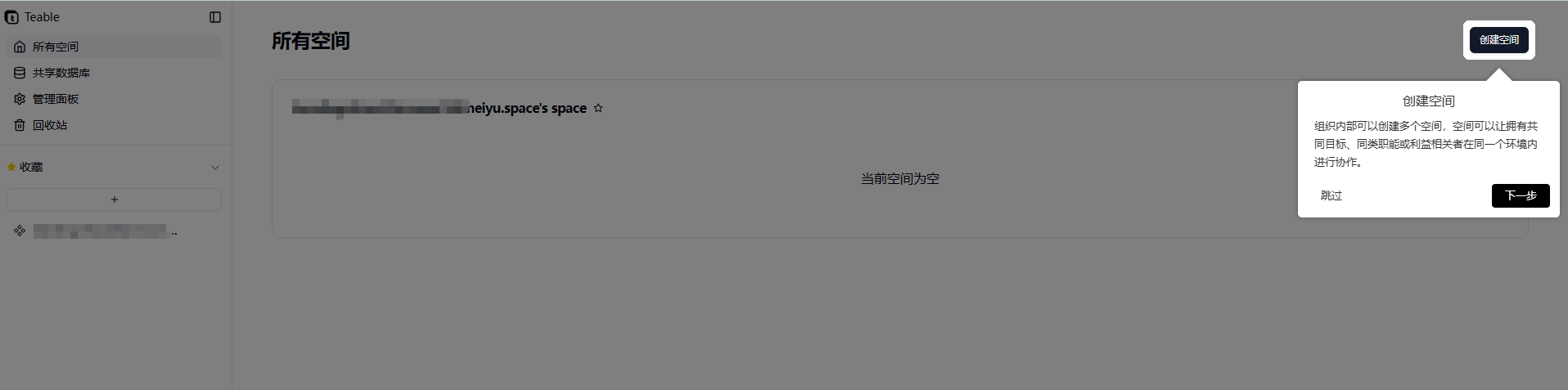
1. Create Your First Database
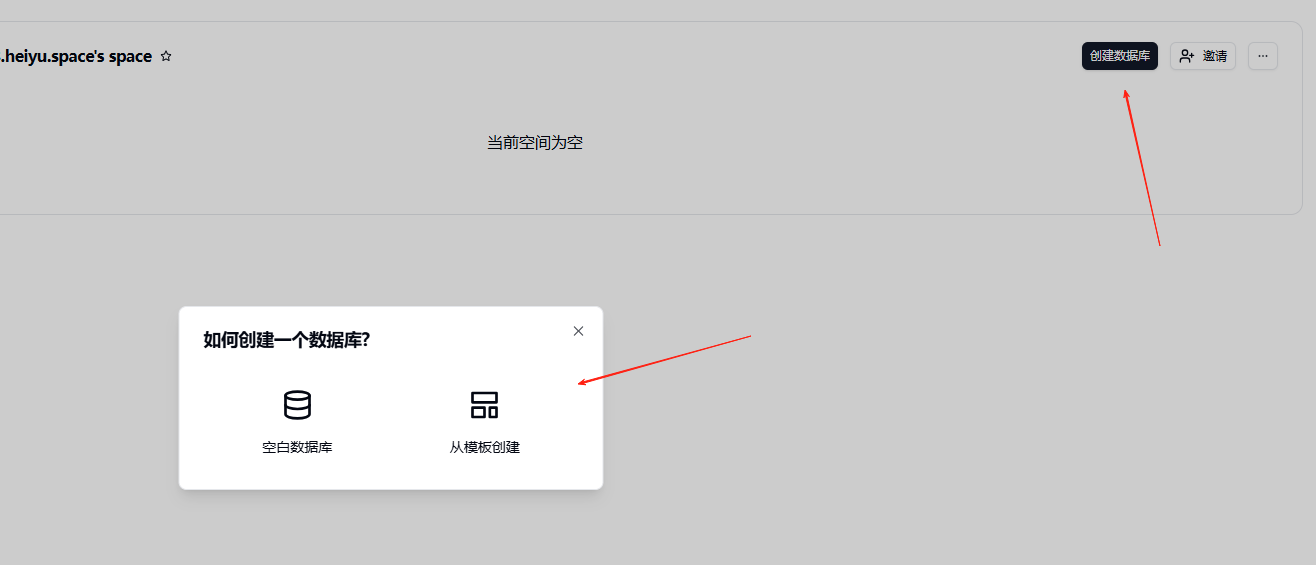
Once inside Teable, you'll encounter the concept of a "Database." For users unfamiliar with databases, you can think of an "App" as analogous to an Excel workbook, where each workbook can contain multiple sheets.
Hands-on Steps:
-
Click "New Database"
-
Give your database a memorable name, like "My Customer Management"
-
Choose a template or start from blank
The template center is empty – not sure if it's a bug.
 Let's use a blank database. After creation, it looks like this:
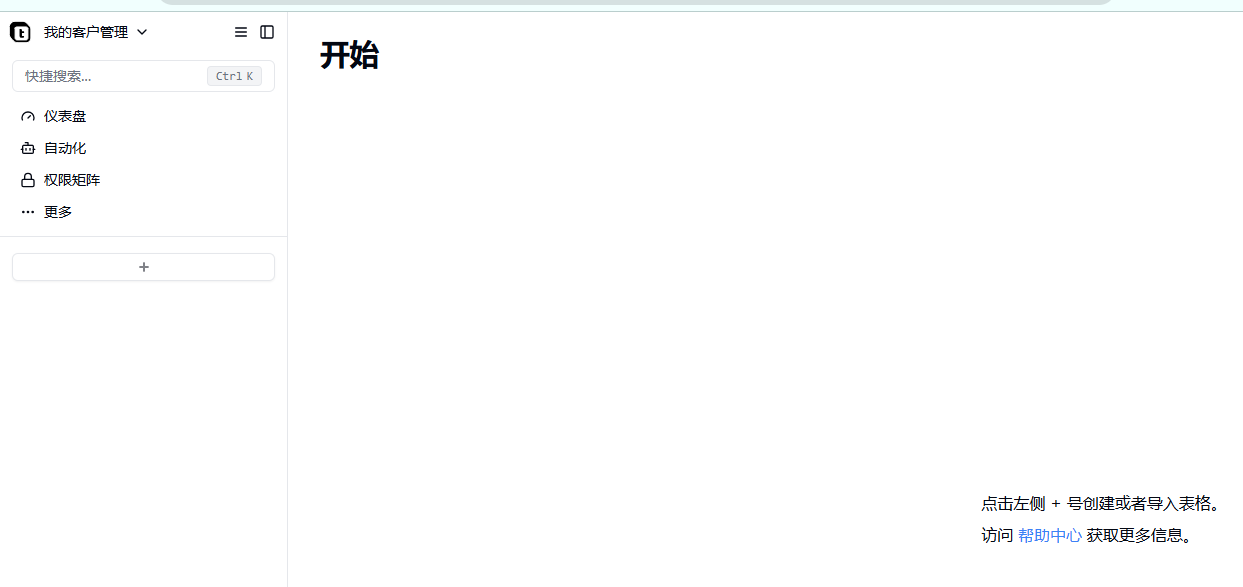
2. Create Your First Table
Tables are where you actually store data, for example:
- Customer Information Table
- Product Inventory Table
- Employee Attendance Table
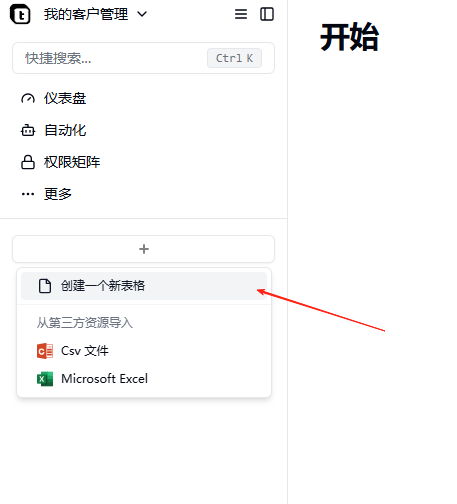

You can also import Excel files from your computer.
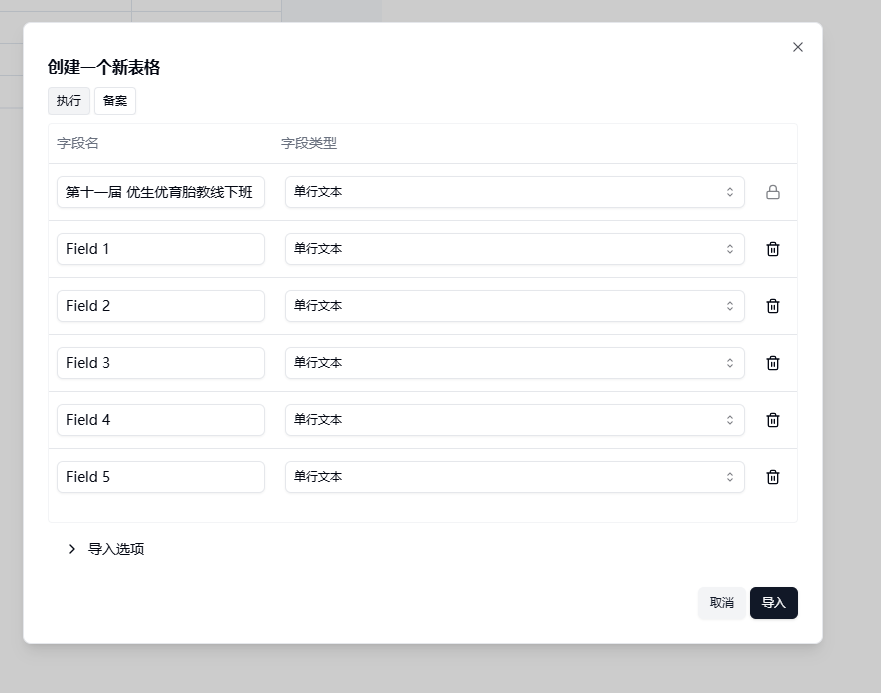
Step 2: Data Management Techniques
1. Field Type Selection
Teable supports various field types; choosing the right one makes your work much more efficient:
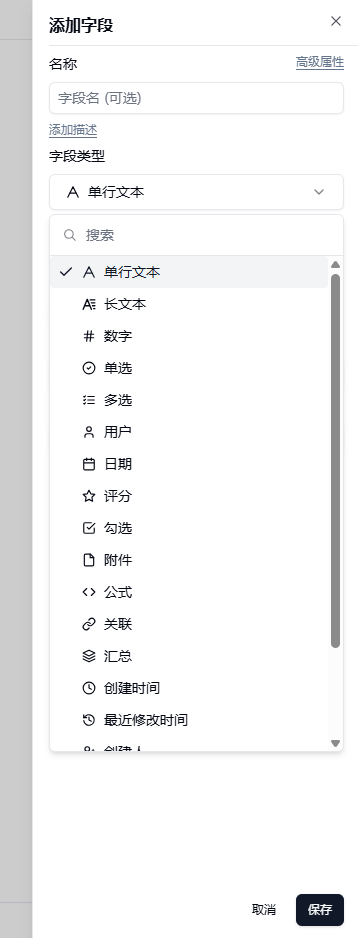
- Single-line text: Suitable for names, titles
- Long text: Suitable for notes, descriptions
- Number: Suitable for prices, quantities
- Date: Suitable for birthdays, deadlines
- Select: Suitable for statuses, categories
- File: Can directly upload images, documents
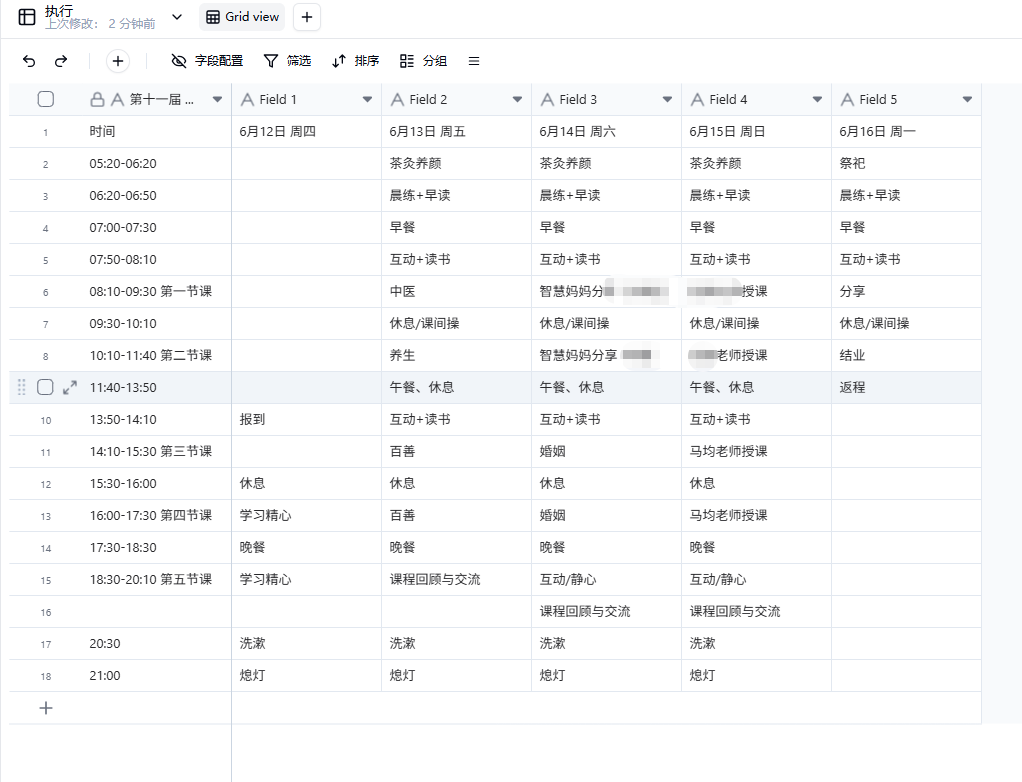 Pro Tip: Think carefully about what data each field will hold when creating the table, as changing it later can be troublesome.
2. Clever Use of View Functions
Views are like putting different "lenses" on the same set of data:
- Grid View: Most commonly used, like Excel
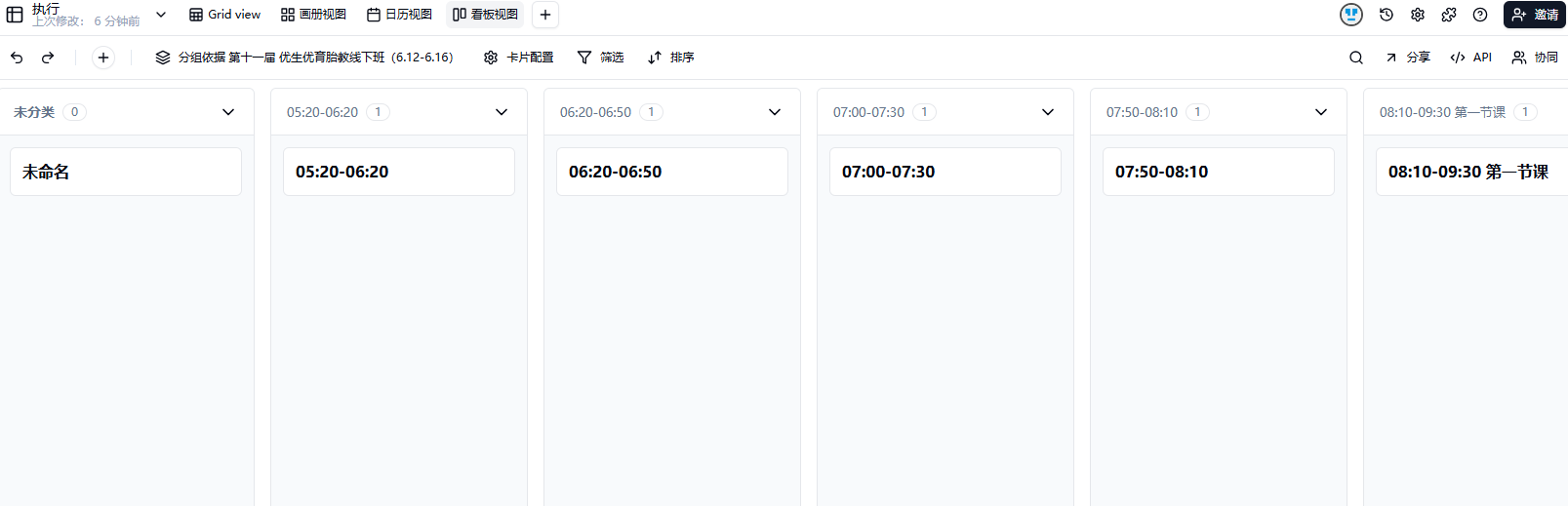
- Kanban View: Ideal for project management, provides an overview at a glance
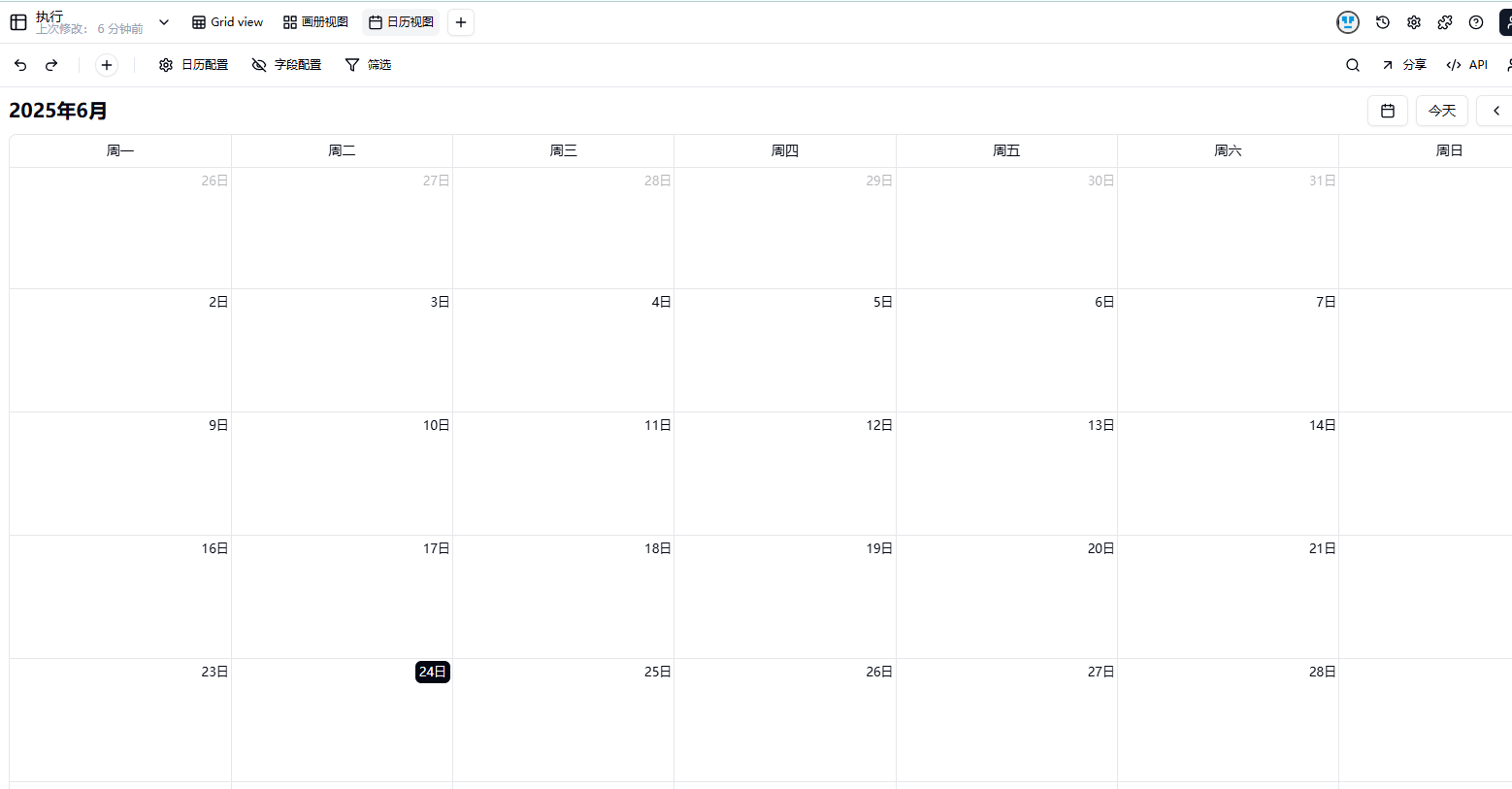
- Calendar View: Suitable for time management
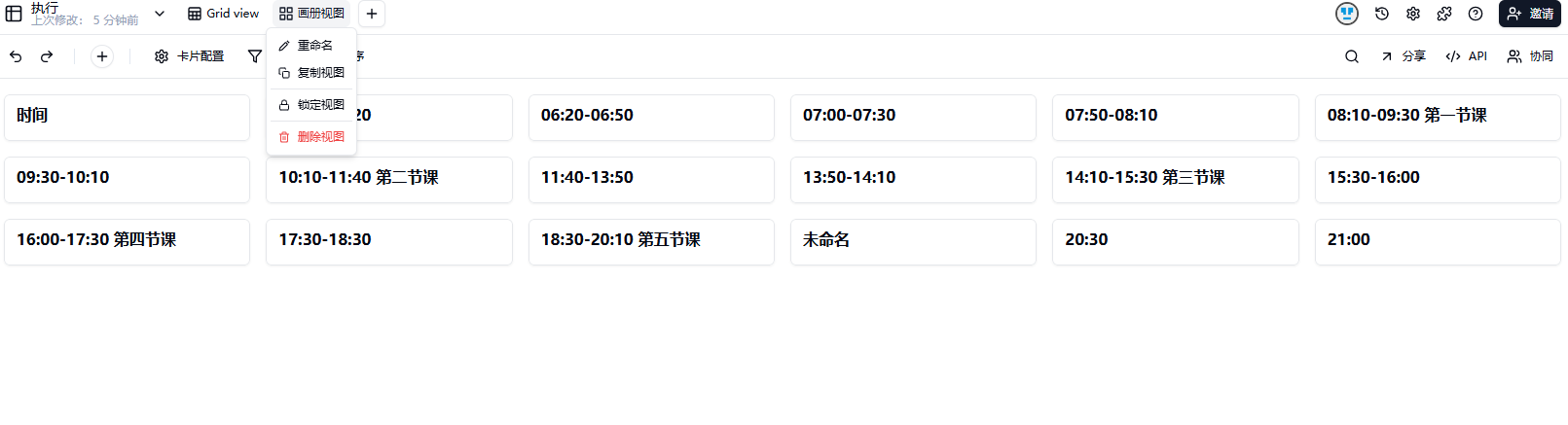
- Gallery View: Suitable for displaying images
 Practical Scenarios:
- Use Kanban View to track progress for project management
- Use Calendar View to schedule events for activity management
- Use Gallery View for a more intuitive product showcase
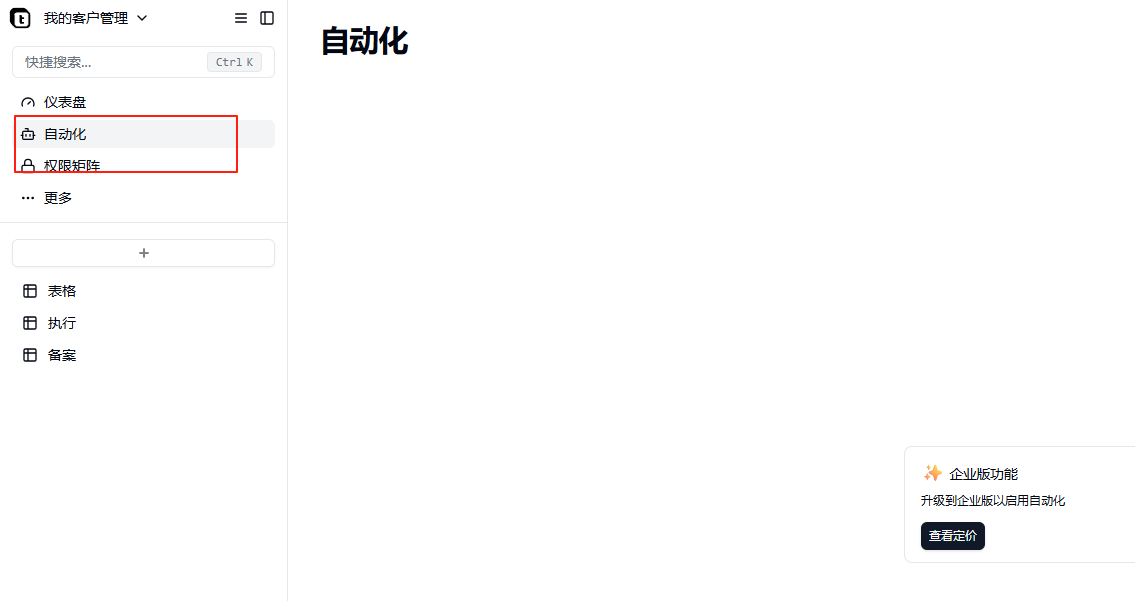
These two features on the left are also powerful, but require payment to use.
🎯 Summary
Teable makes data management as simple as building with blocks. Whether you are:
- An individual user: Managing personal projects, finances
- A small team: Collaborative office work, project management
- An enterprise user: Business systems, data analysis
You can find a suitable solution in Teable.
🔗 Other Links
- Online Experience: Visit teable.cn to try it immediately
- GitHub Address: https://github.com/teableio/teable
- Official Documentation: help.teable.cn