
n8n Hands-On Guide 18: How to Backup Workflows to GitHub with One Click
The previous article covered GitHub configuration. In this one, we'll continue by looking at how to back up my workflows.
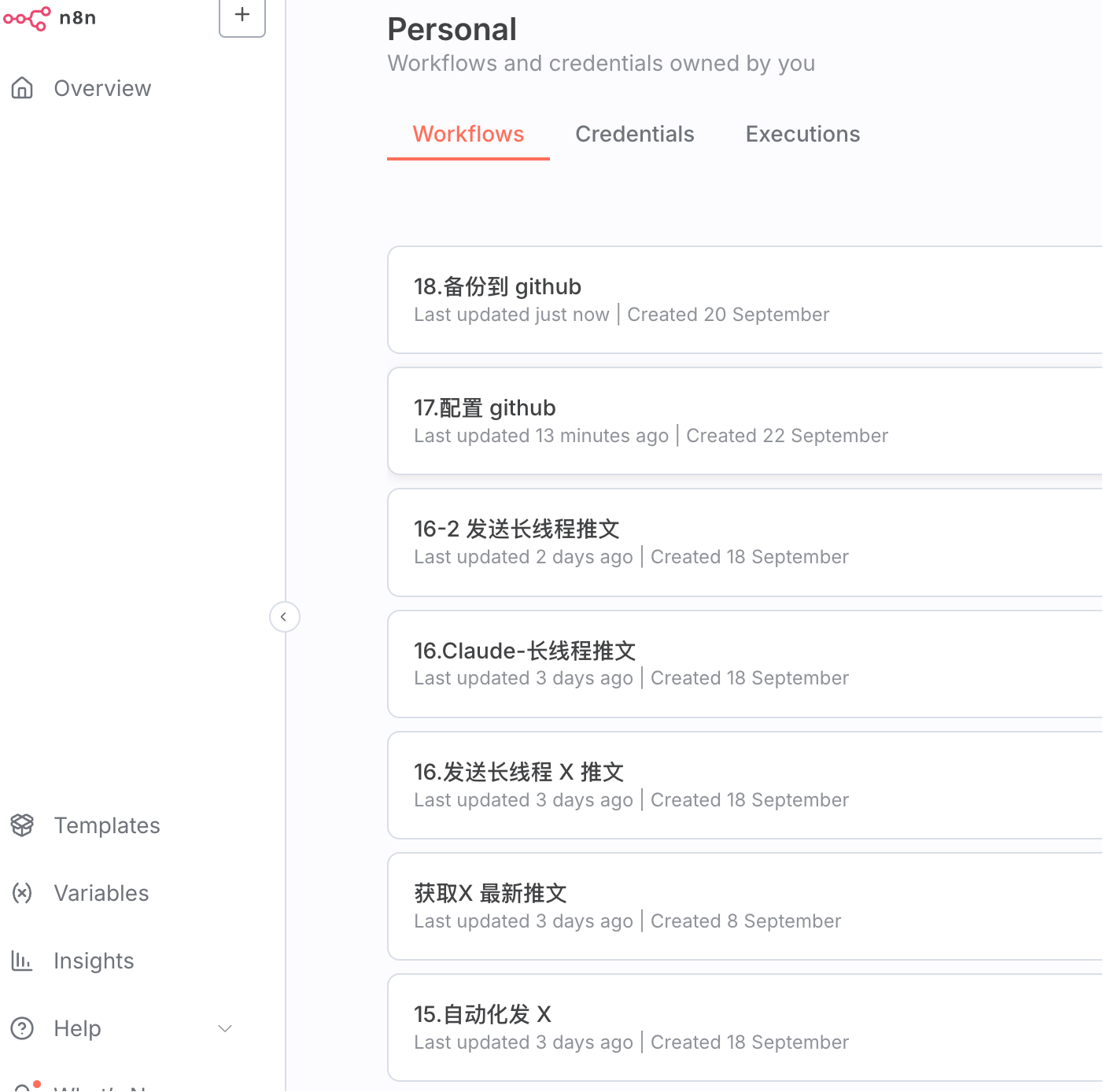
These are my current workflows. The ultimate goal is to be able to back them up to a GitHub repository with a single click.
https://appstore.lazycat.cloud/#/shop/detail/cloud.lazycat.app.n8n
Workflow Setup
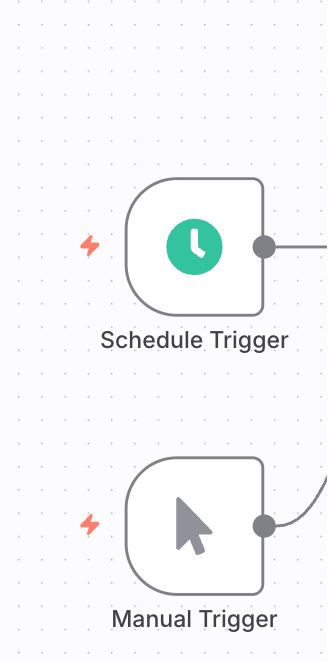
If you want scheduled automatic backups, you can add a Schedule trigger. For now, I'll use a manual trigger.
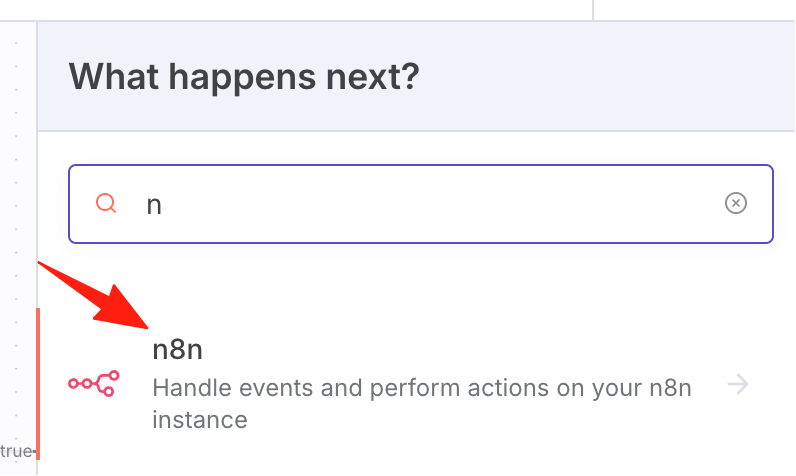
Next, retrieve all n8n workflows. Search for "n8n" on the right side.
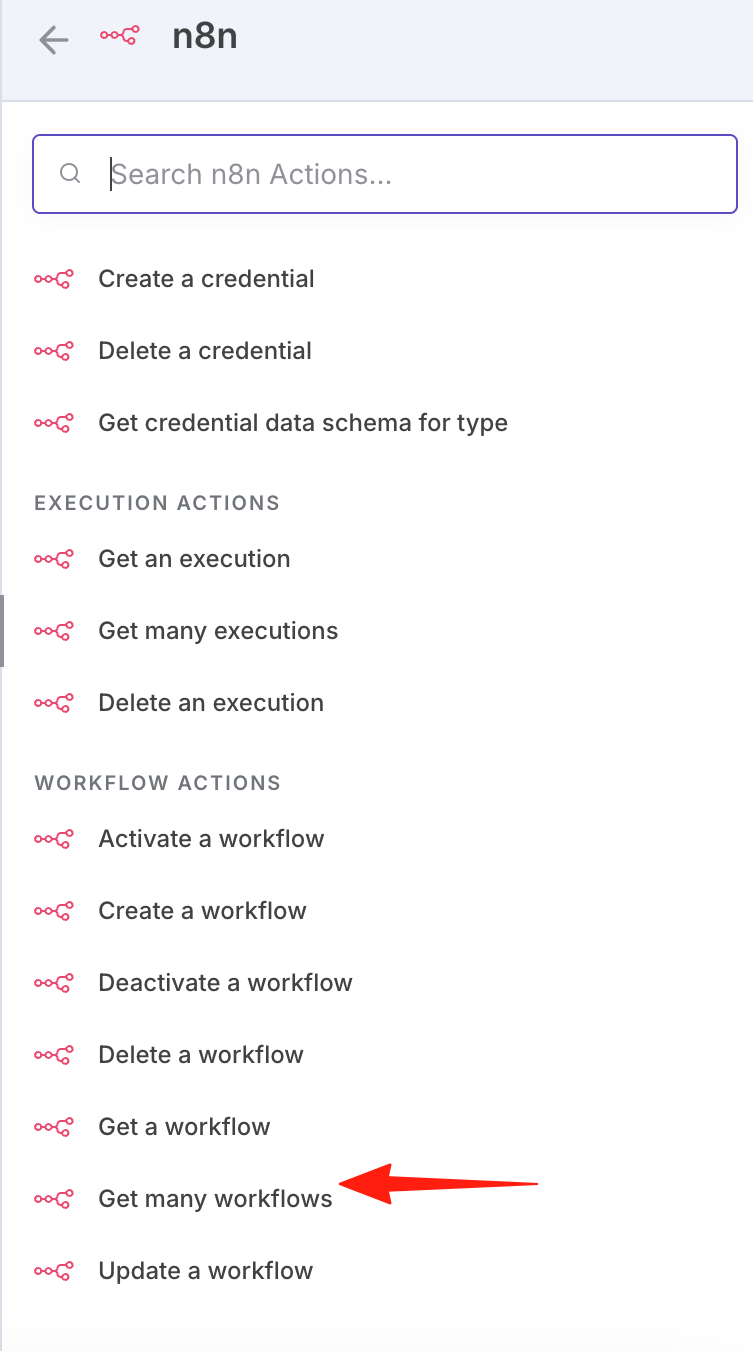
Select "get many workflows".
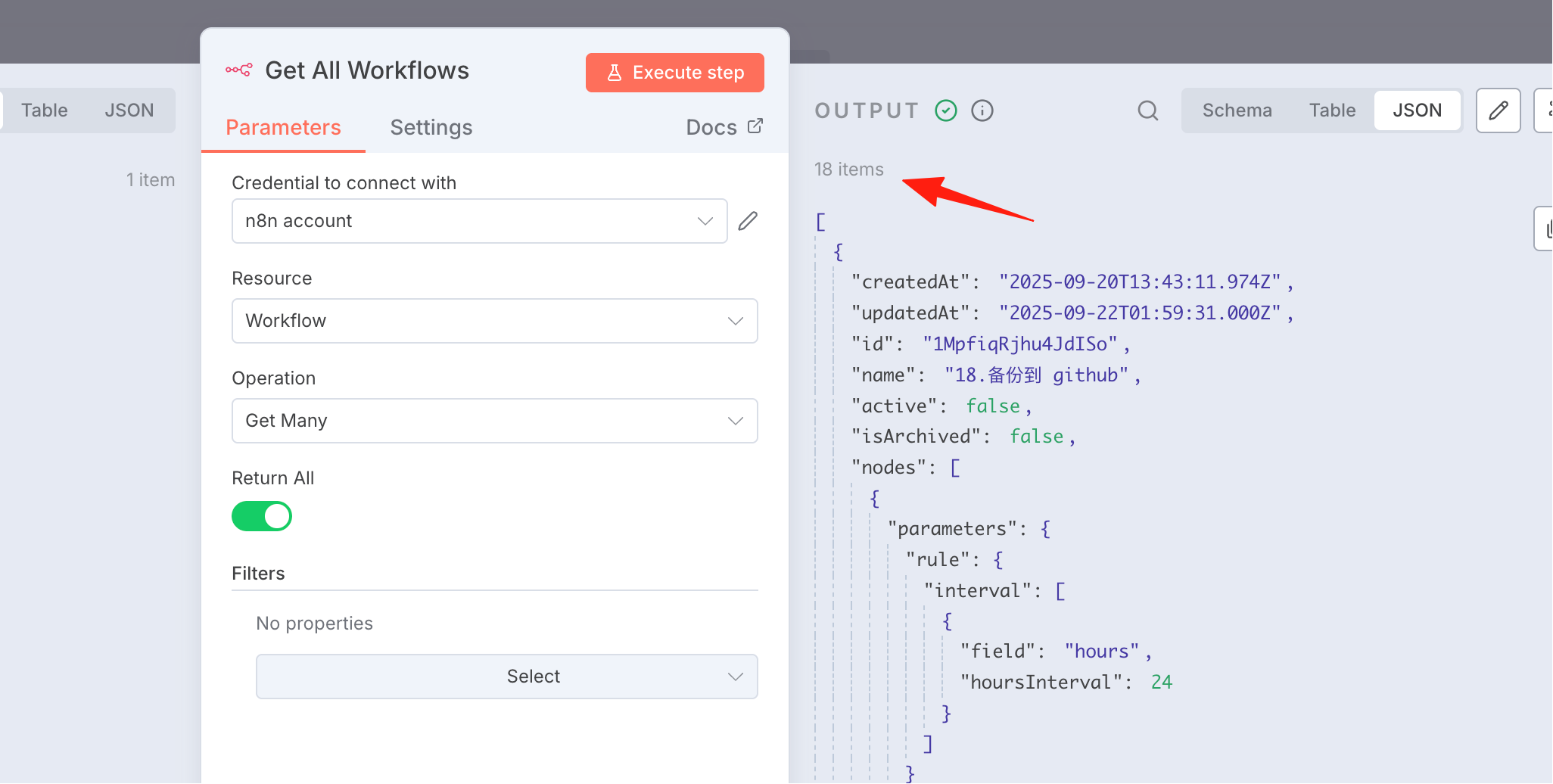
Click execute. You can see 18 workflows have been retrieved on the right side.
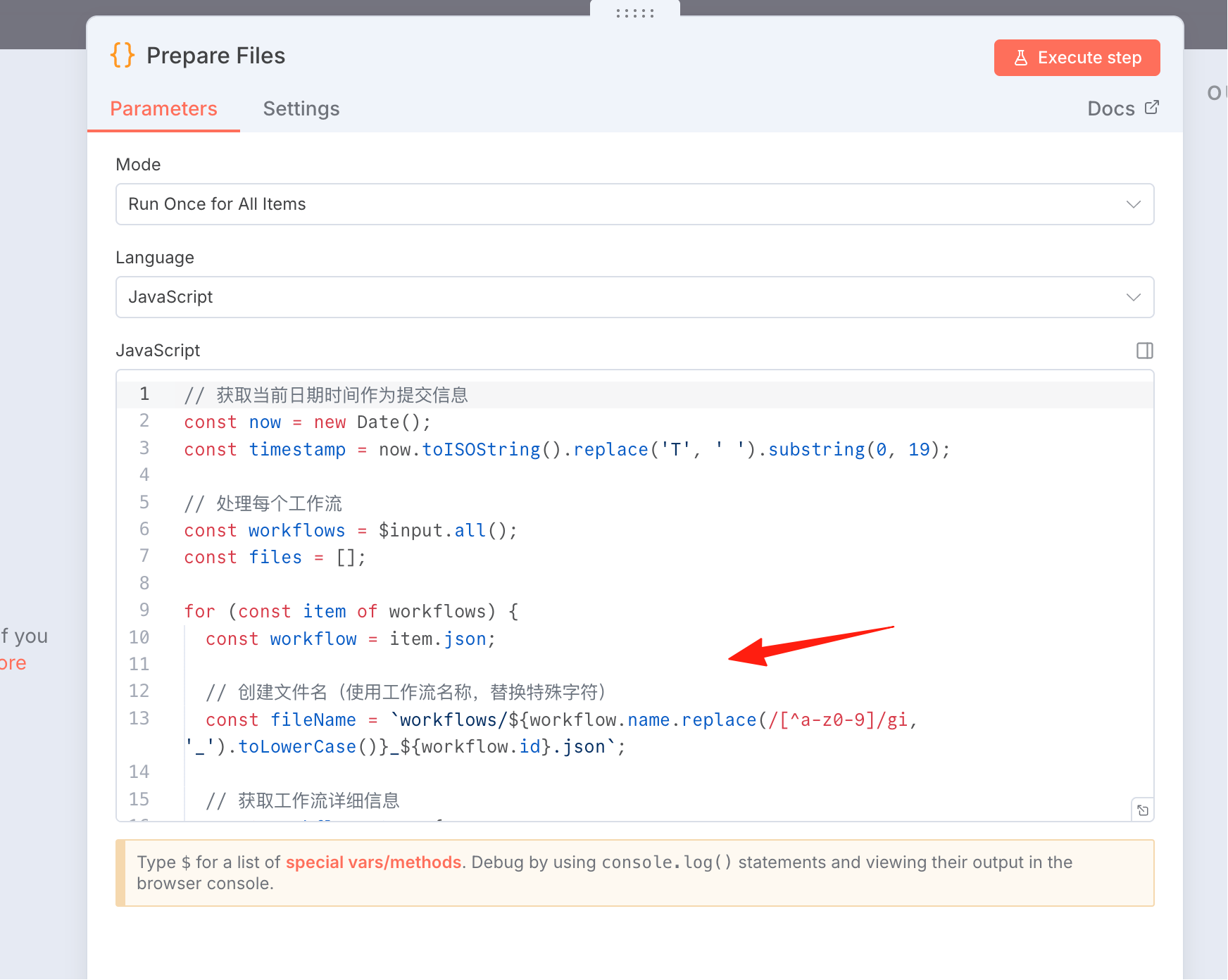
Before committing the code, I processed the data to avoid errors with things like filenames.
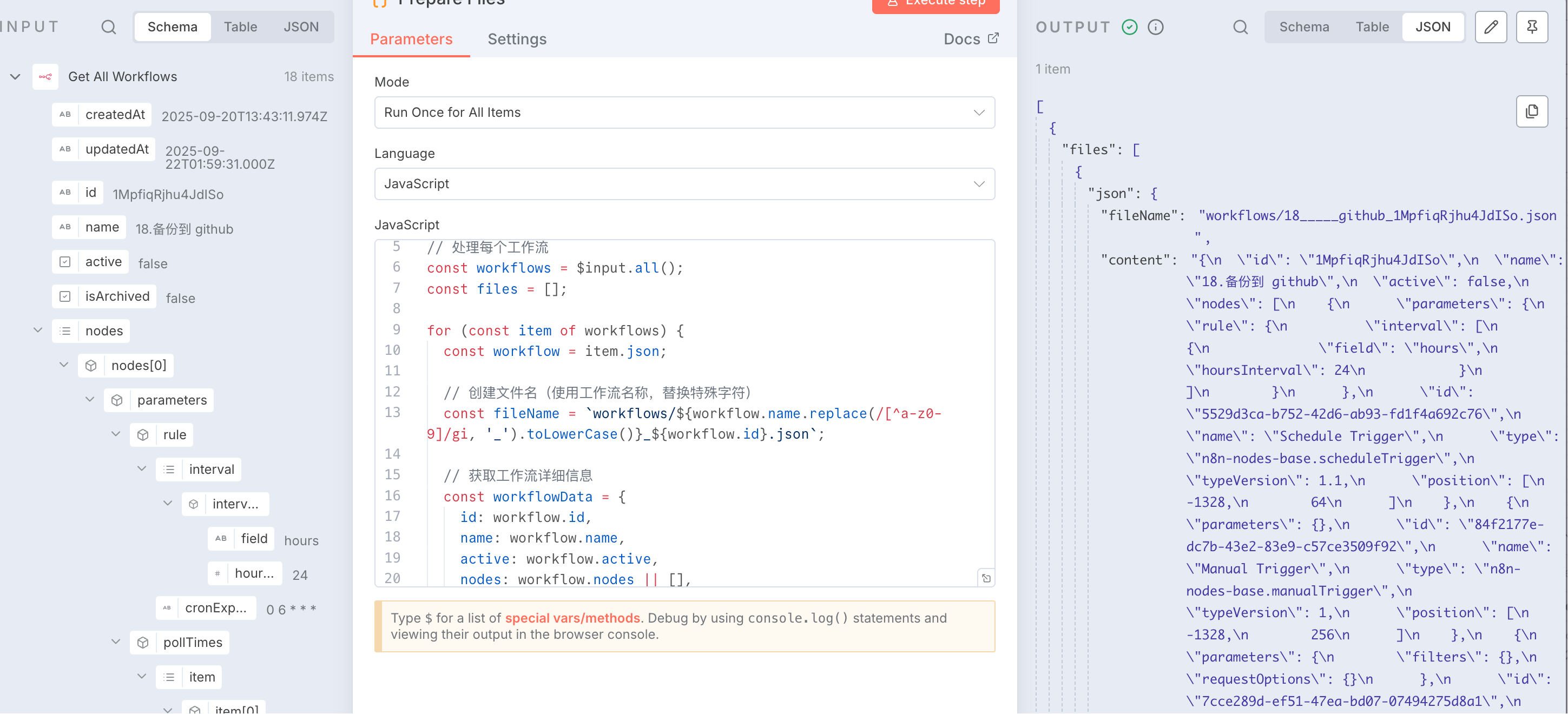
Execute to see the result.
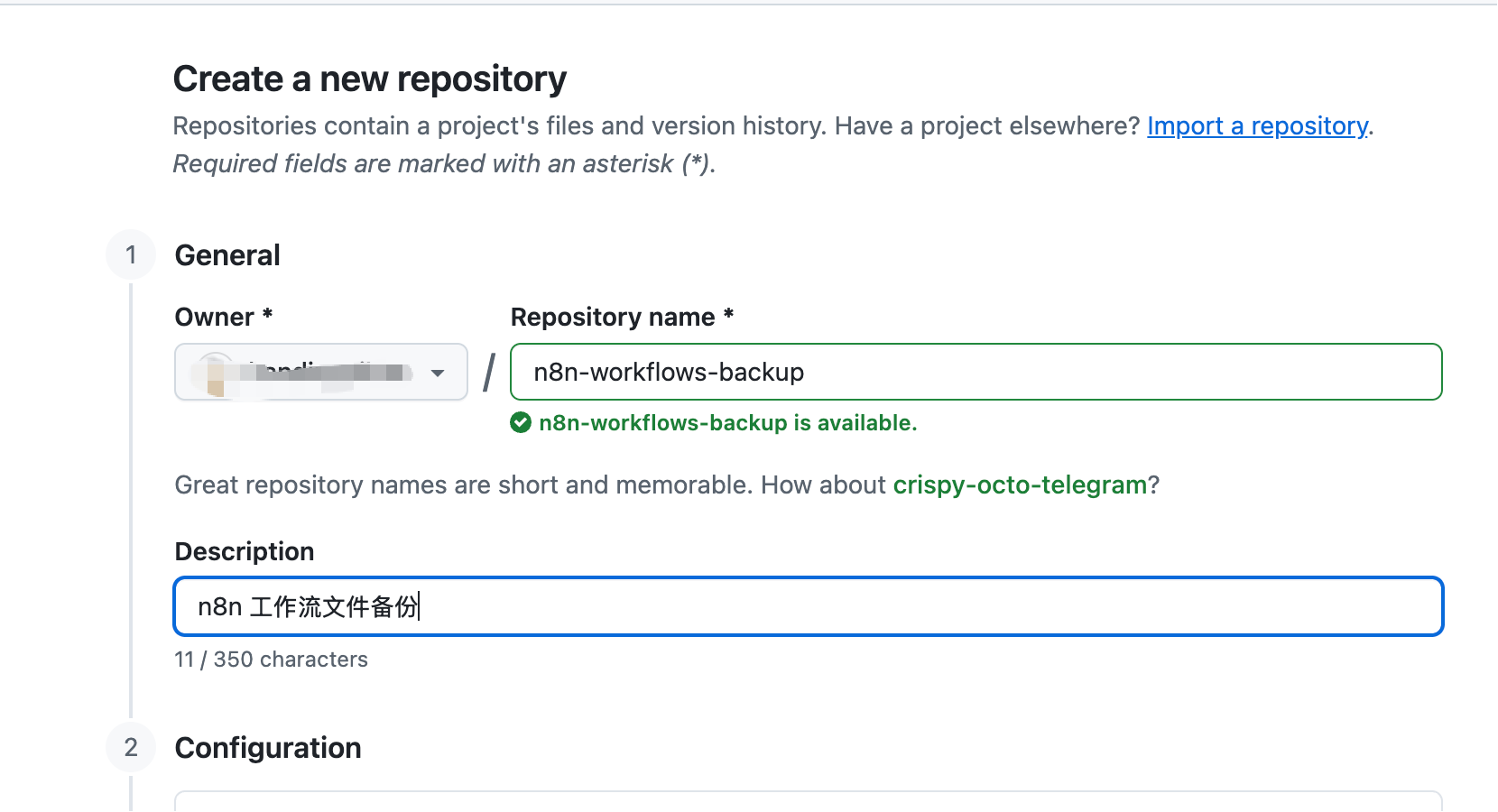
In the GitHub repository, I pre-created an n8n-workflows-backup directory to store the JSON files.
Connect to the GitHub repository.
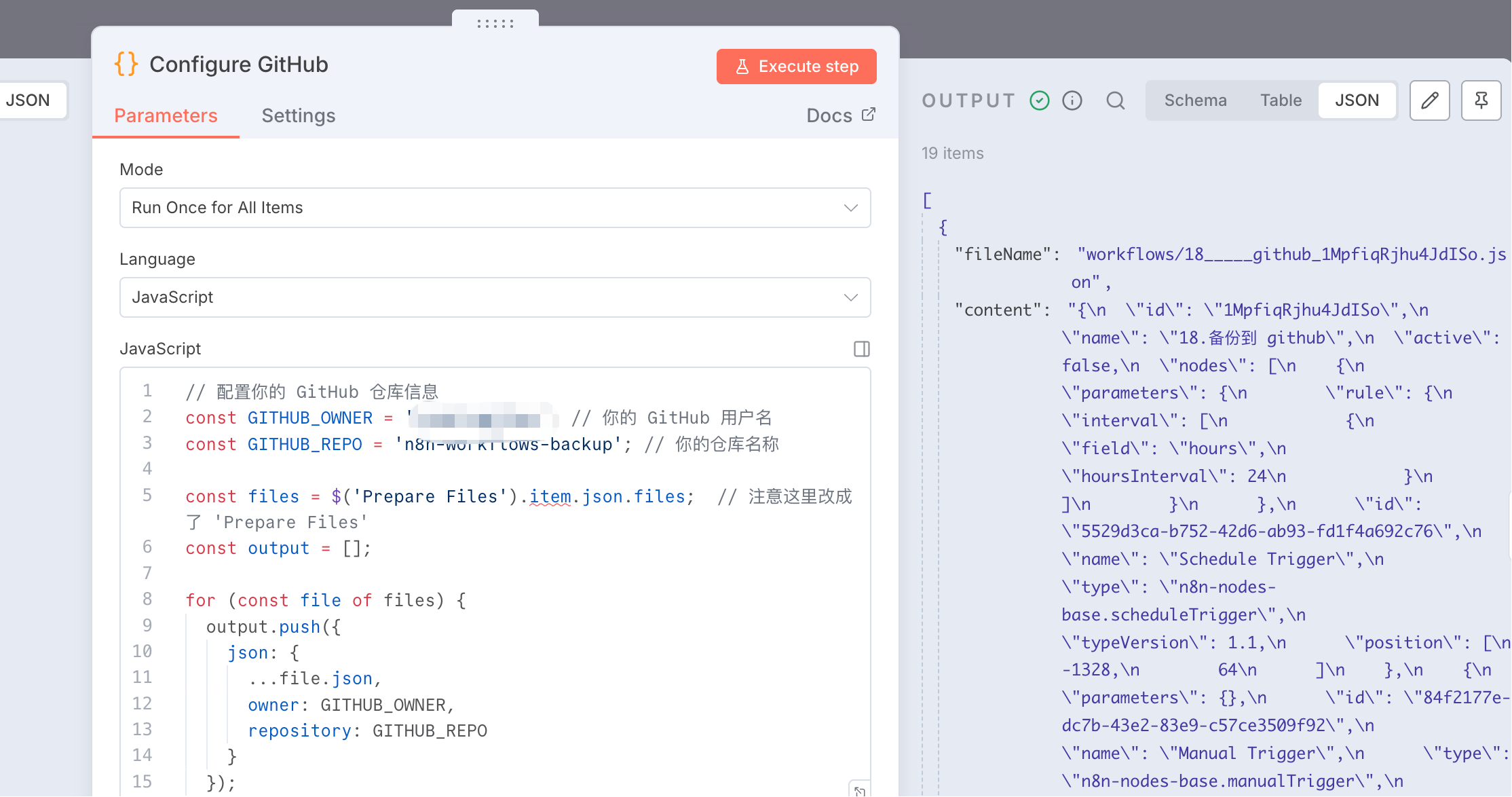
Now it's time to add a GitHub node. For configuration, you can refer to the previous guide. Upload the file only if it doesn't already exist.
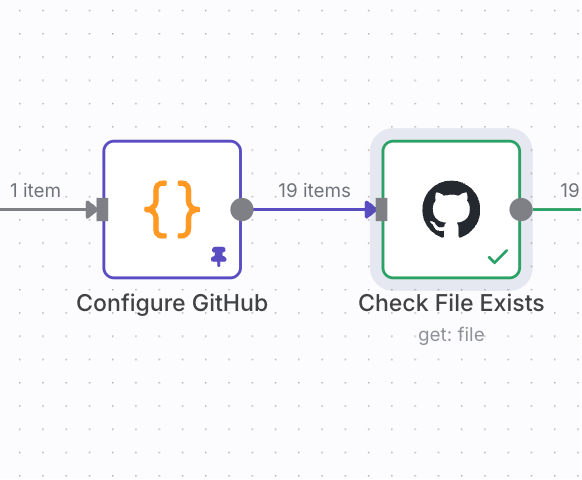
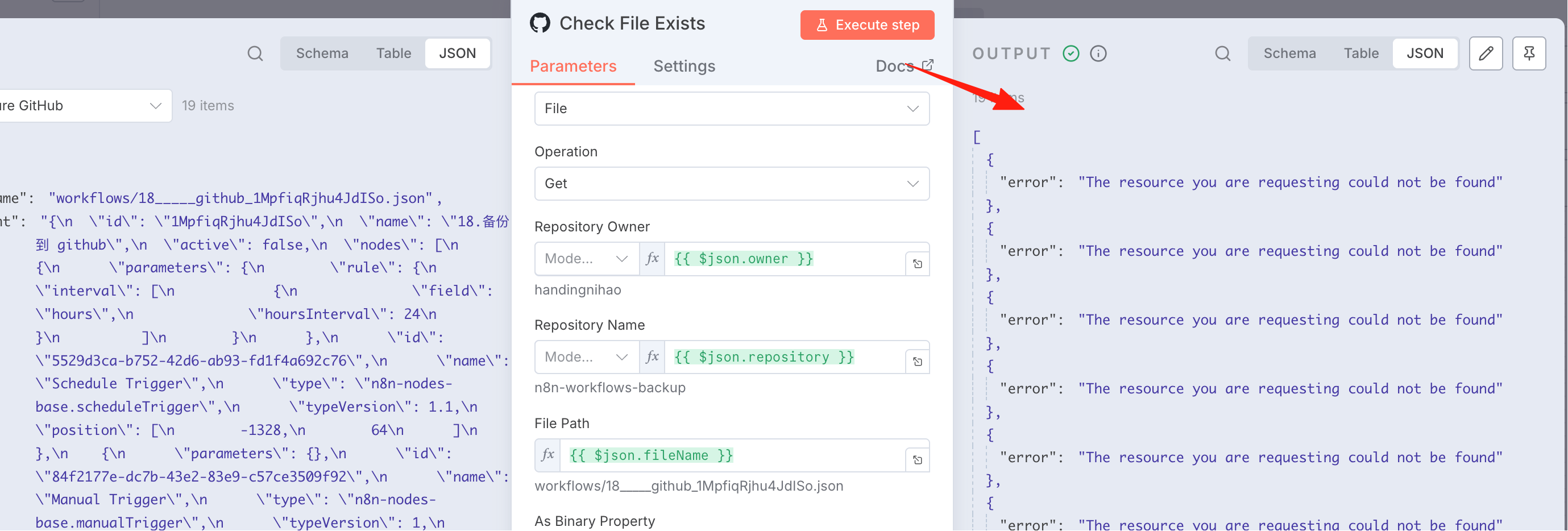
If the file exists, update it. The process flow is shown in the diagram below.
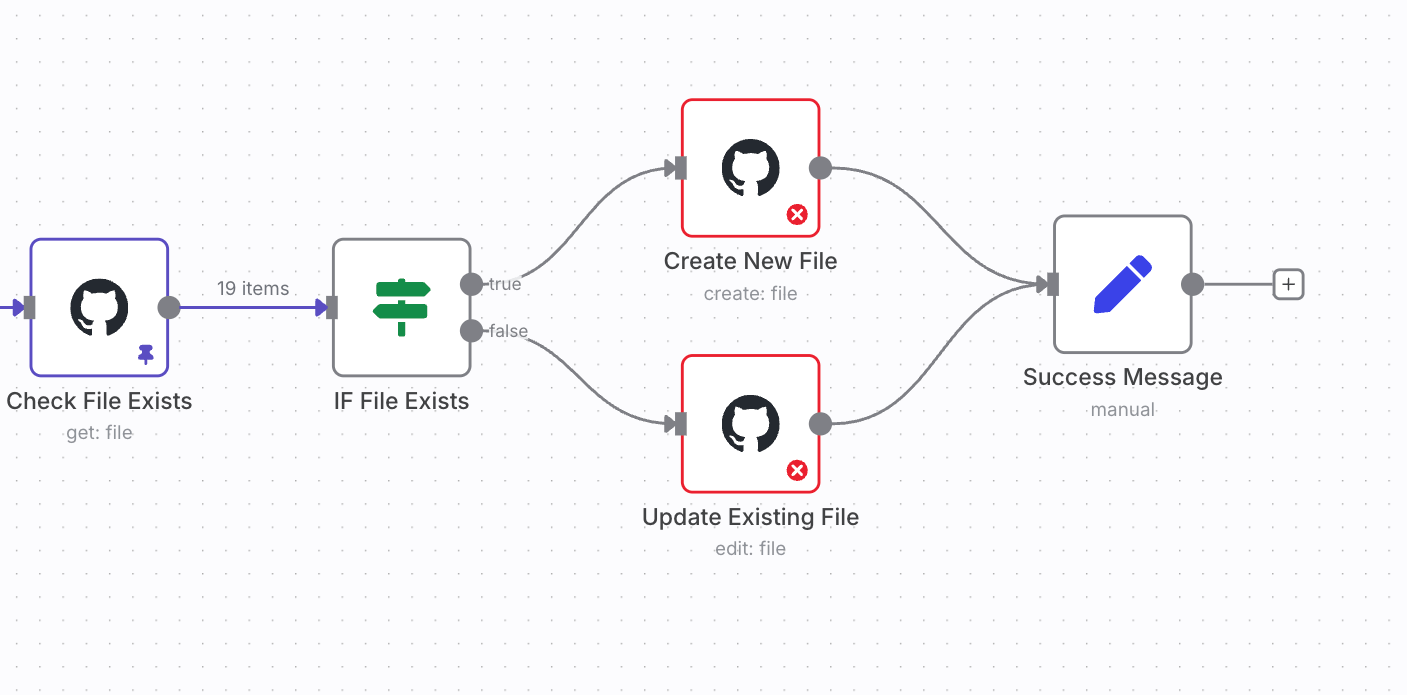
Select "File" as the source type, choose the correct username and repository name. Pay attention to the node names from previous steps, as they are case-sensitive.
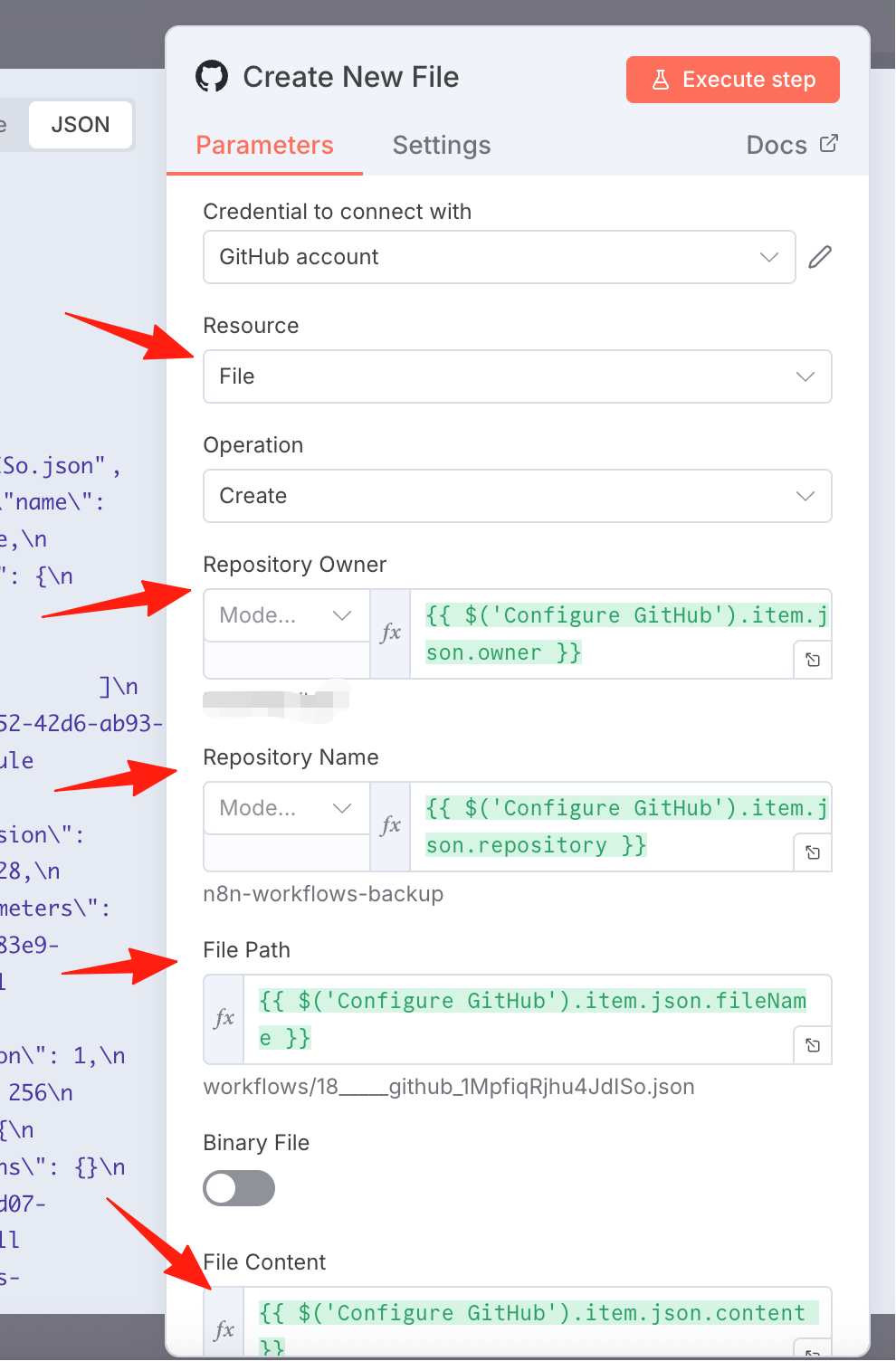
After clicking execute, you can see the output on the right side.
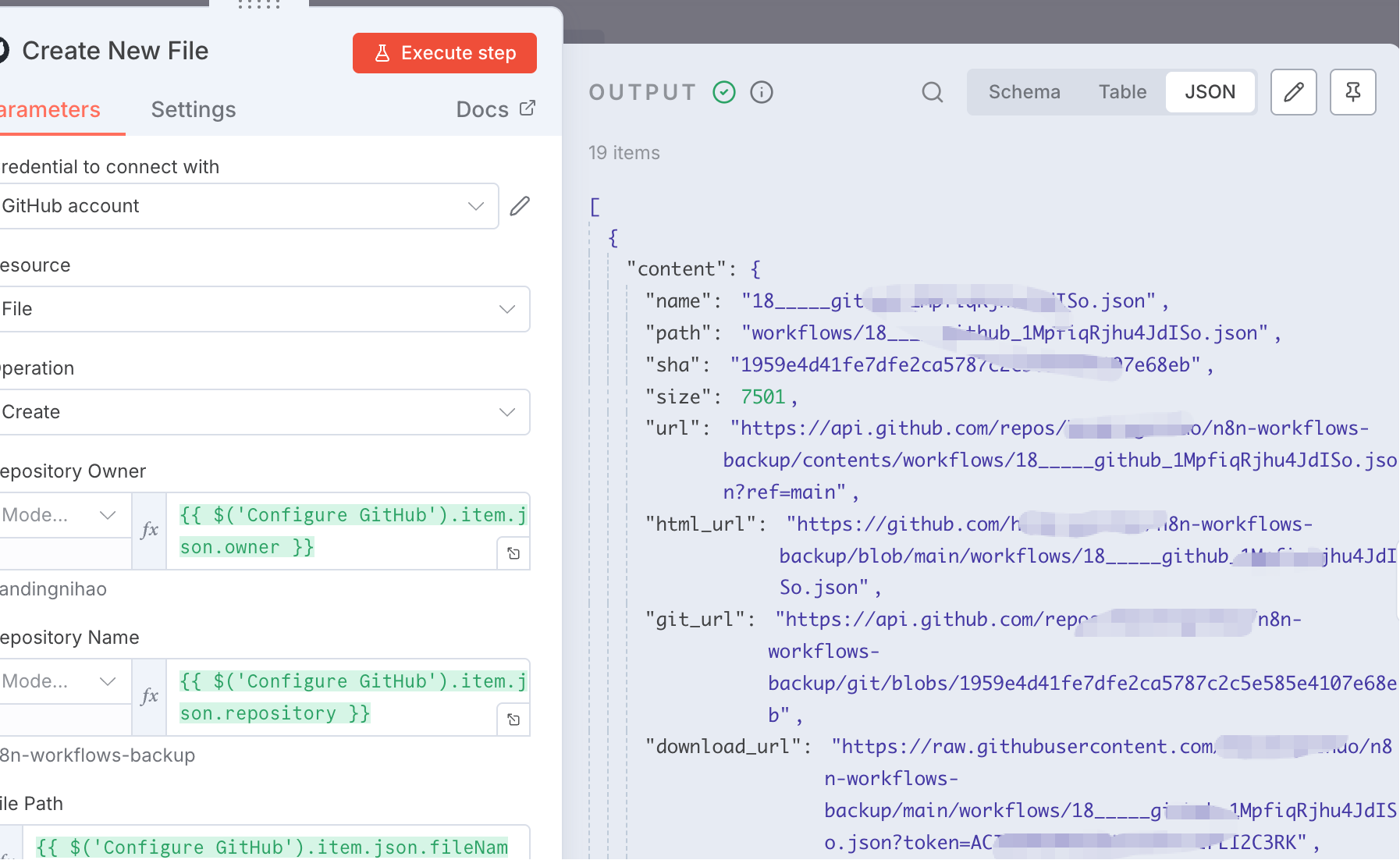
Returning to the GitHub repository, you can see the JSON files have been uploaded.
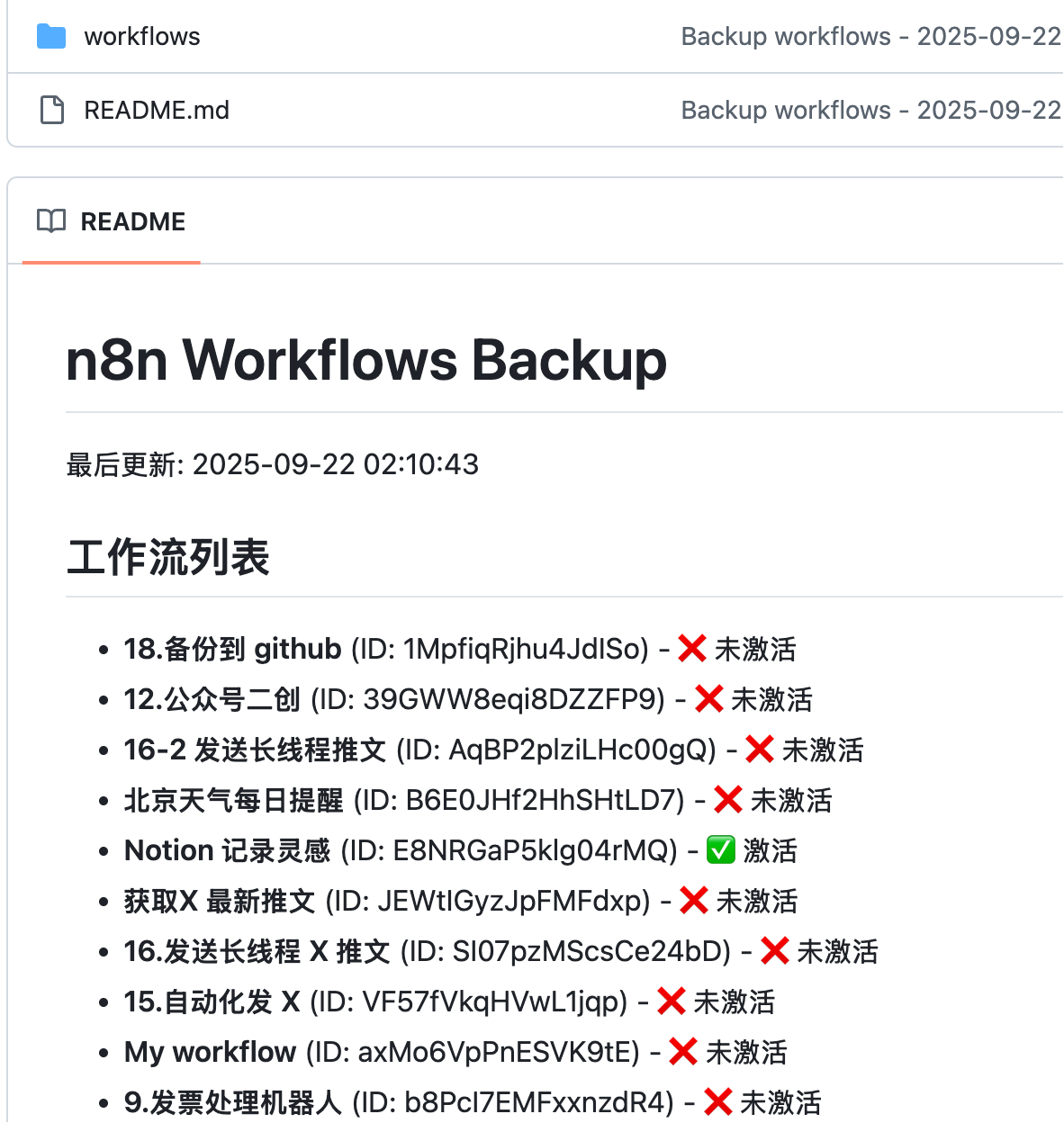
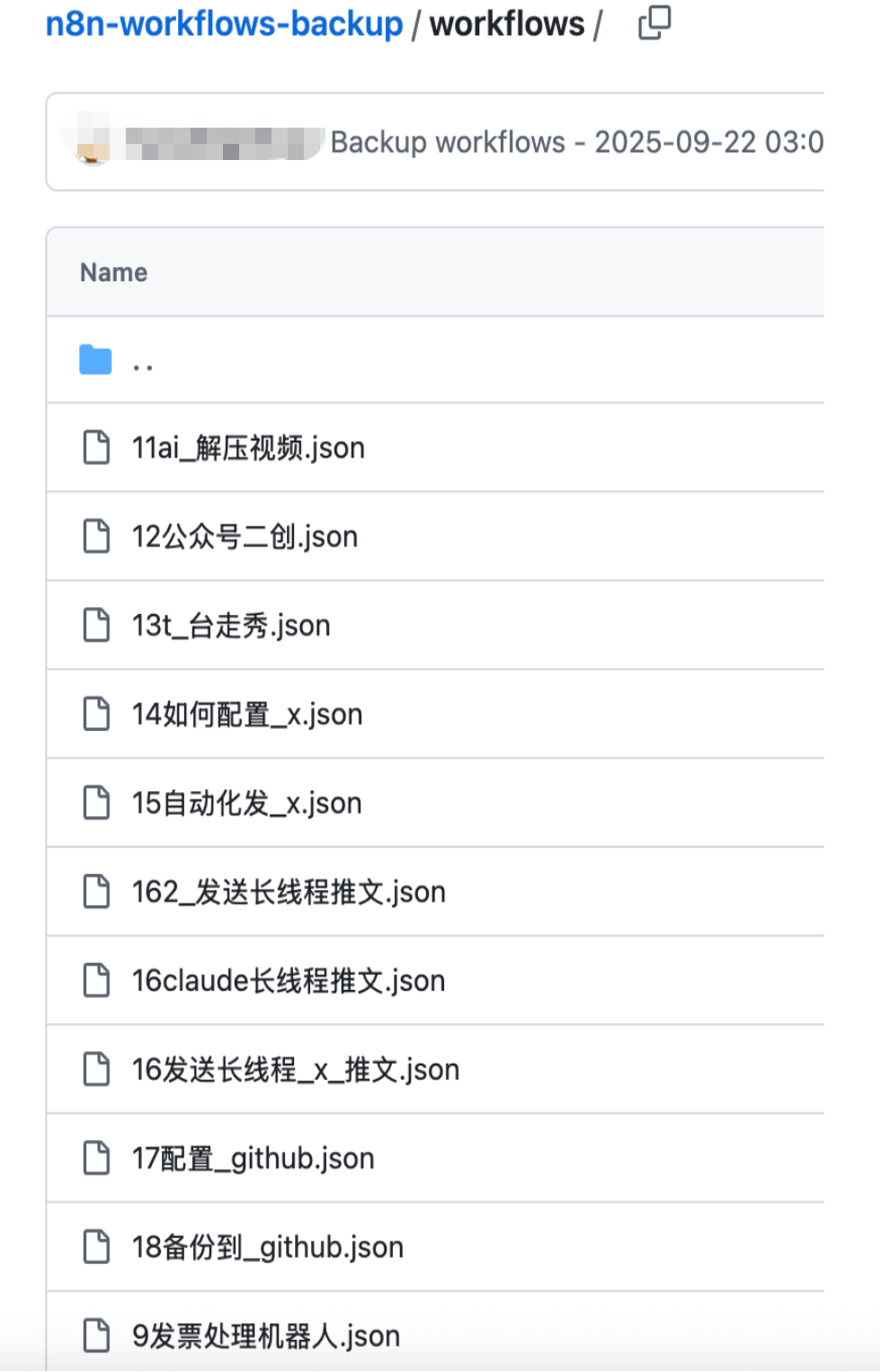
With this workflow, you don't have to worry about losing your created workflows. You can simply schedule regular commits of the latest JSON files to GitHub.