n8n Configuration Guide 17: How to Add GitHub Credentials
A Pain Point
After going through the previous workflow series, I now have many workflows in my Lazy Cat n8n. This presents a problem:
How do I back up these workflow files? If I accidentally uninstall n8n and the data gets deleted, it would be devastating.
One way is to export the JSON file each time and save it locally.
But this method is quite cumbersome. I want to set up an n8n workflow to automatically sync all my workflows to GitHub with one click.
To achieve this functionality, the first step is to configure GitHub credentials. This guide will first explain how to do that.
https://appstore.lazycat.cloud/#/shop/detail/cloud.lazycat.app.n8n
How to Do It
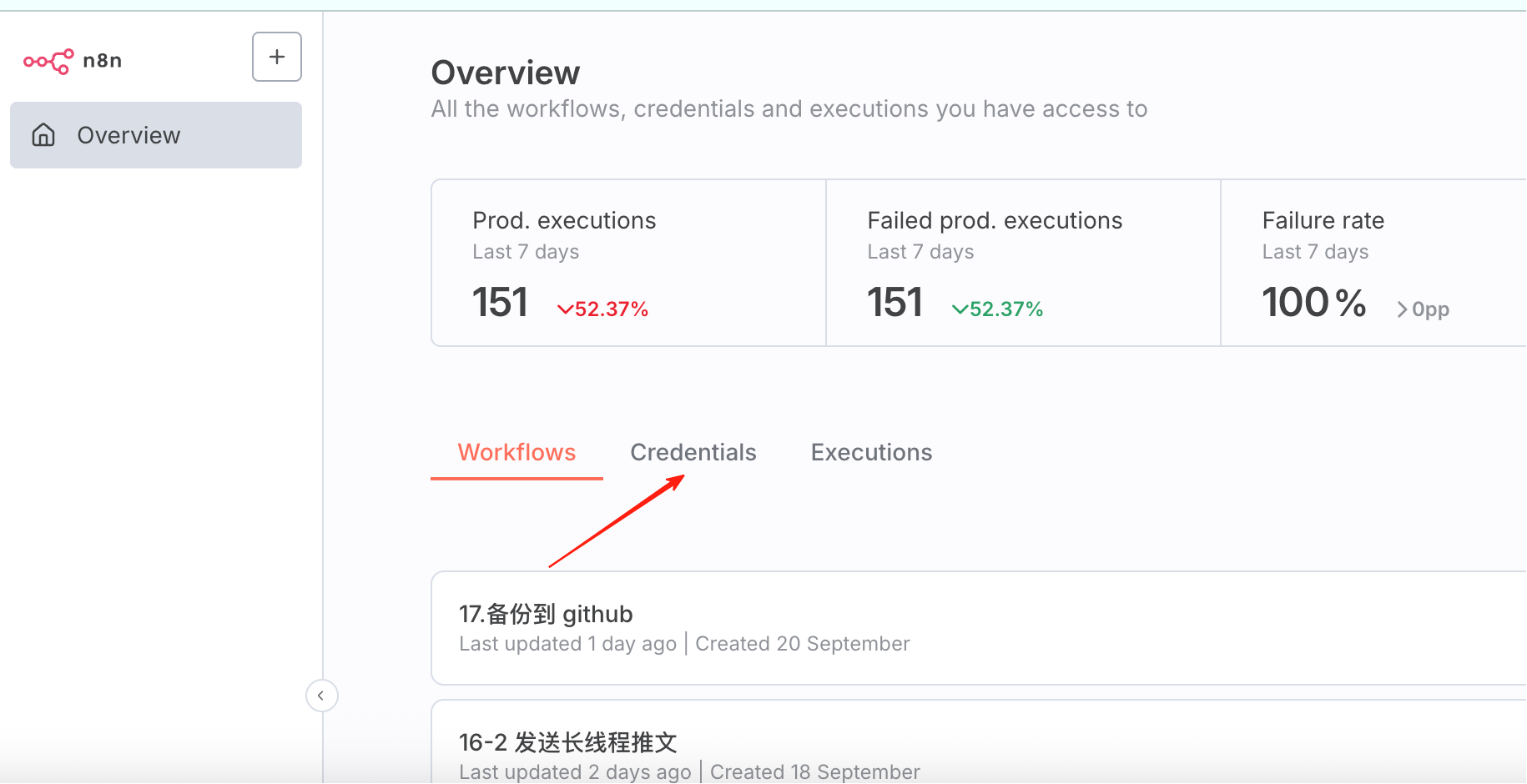
Open n8n, and in the overview, you can see the Credentials section.
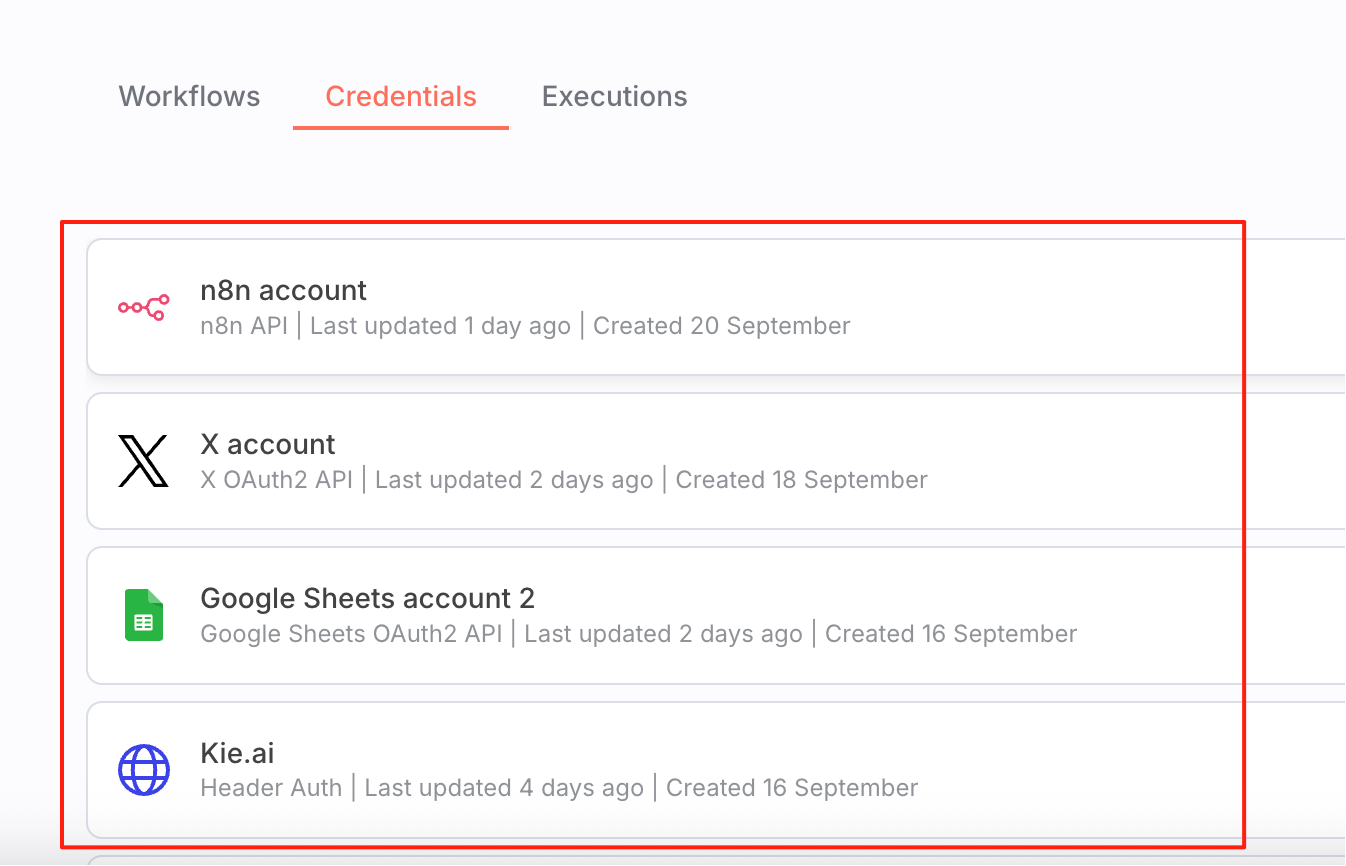
This contains all the credentials created by our previous workflows. They only need to be added once and can be reused later.
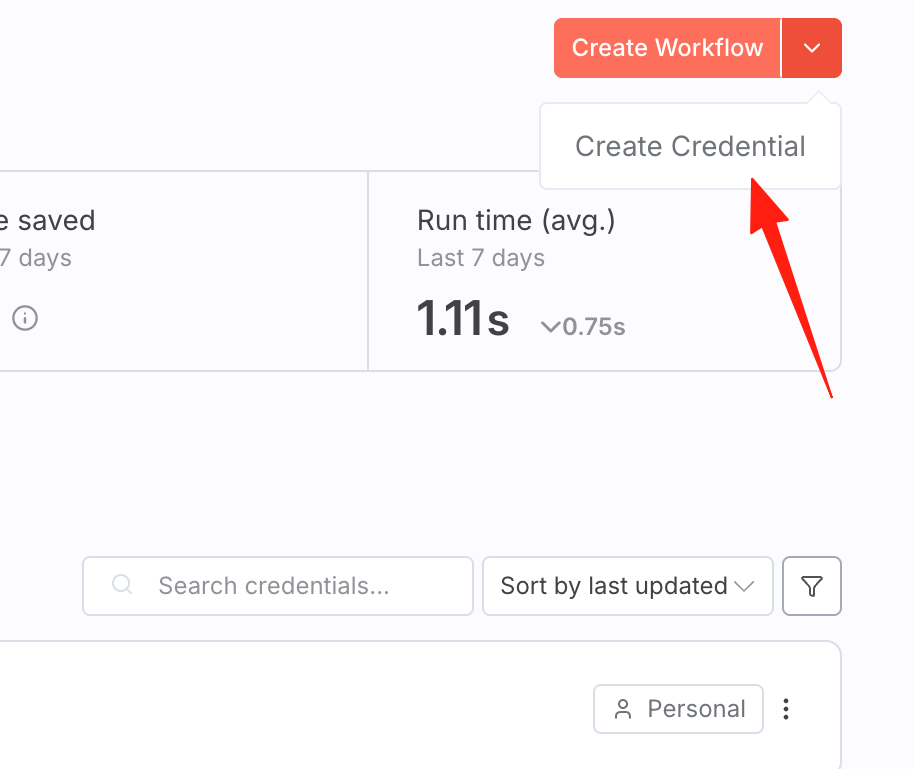
So, we just need to add a GitHub credential. Click the top-right corner, select 'New Credential' from the dropdown.
Search for 'git', and you will see these options:
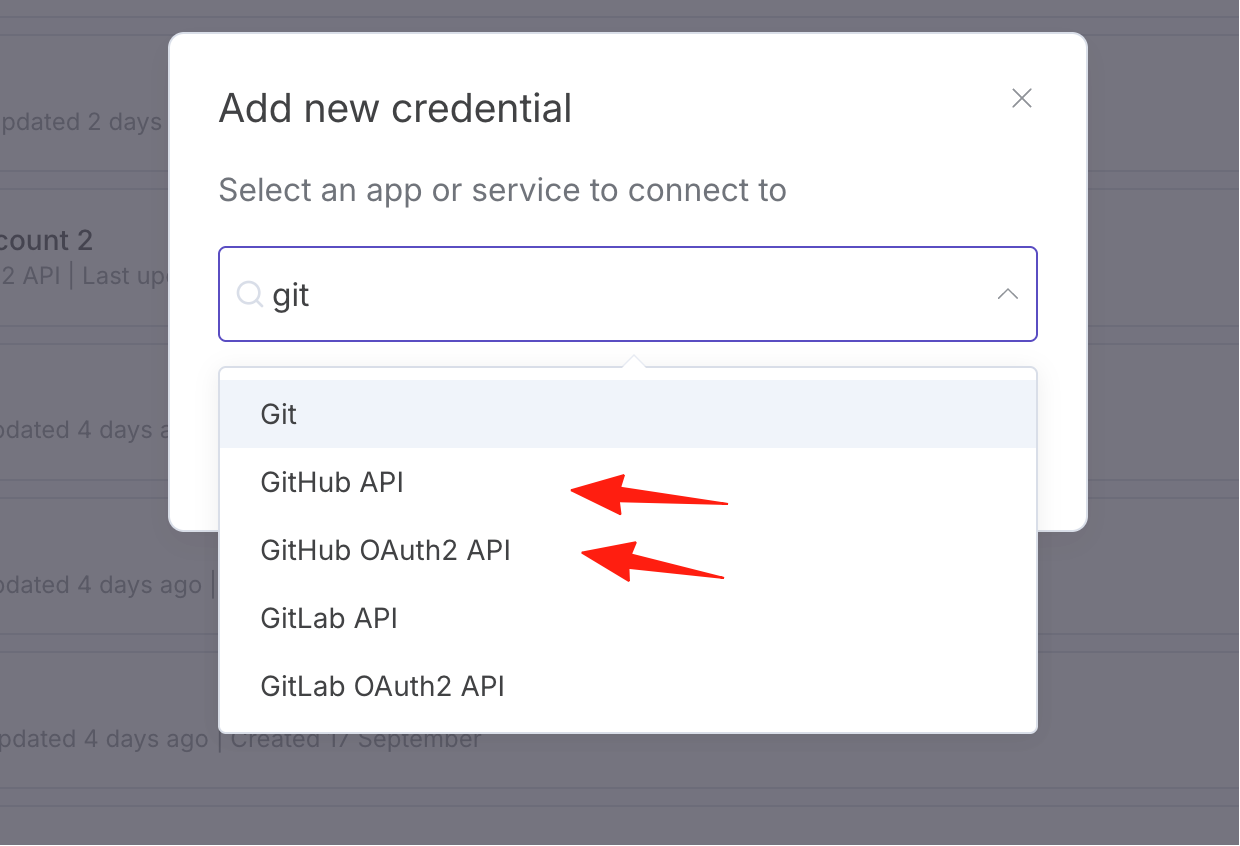
If you select GitHub API: You need to enter a Personal Access Token.
If you select GitHub OAuth2 API: There will be a "Connect" or "Authorize" button. Clicking it will redirect you to GitHub for authorization.
You can simply understand it as: GitHub API is simpler to configure, while OAuth2 is more complex to configure but more secure.
Here, I choose GitHub API.
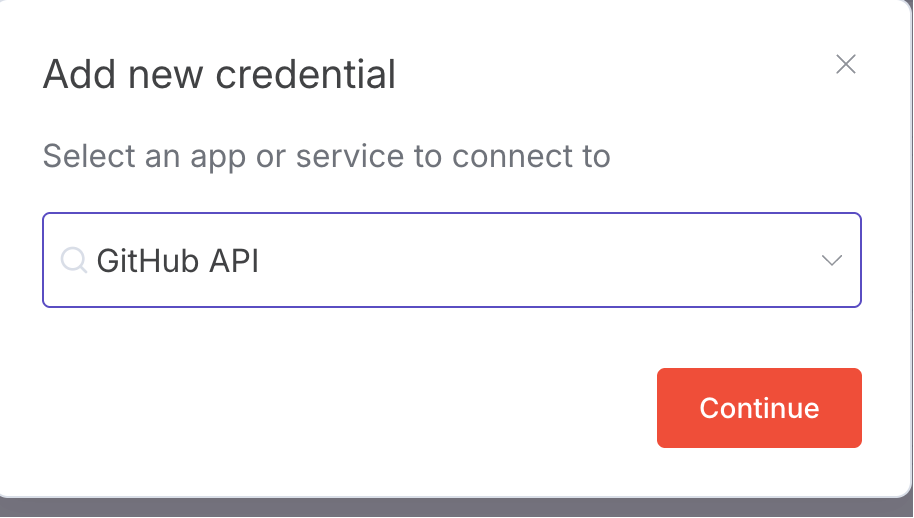
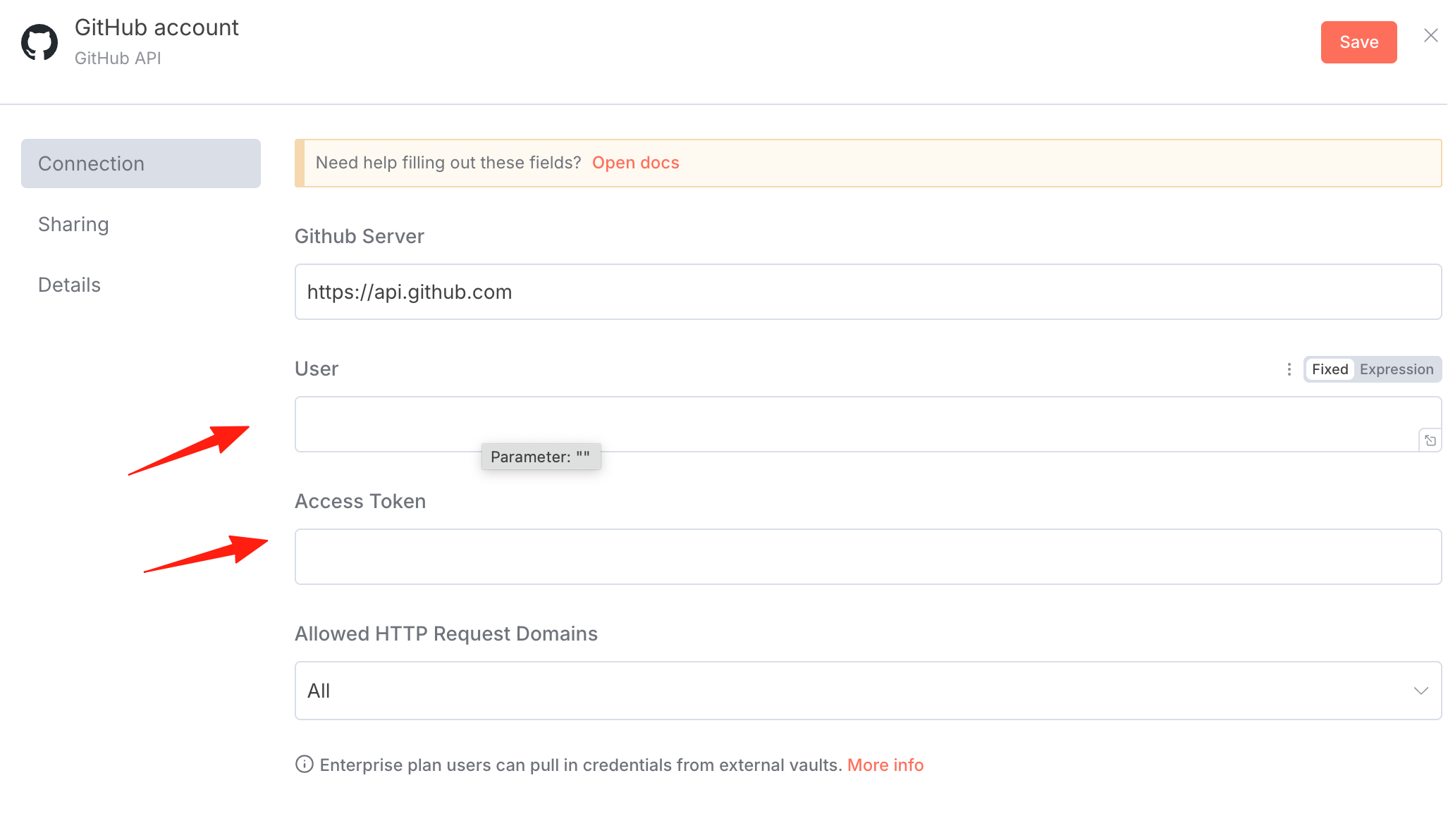
You can see that you need to enter your User and Access Token.
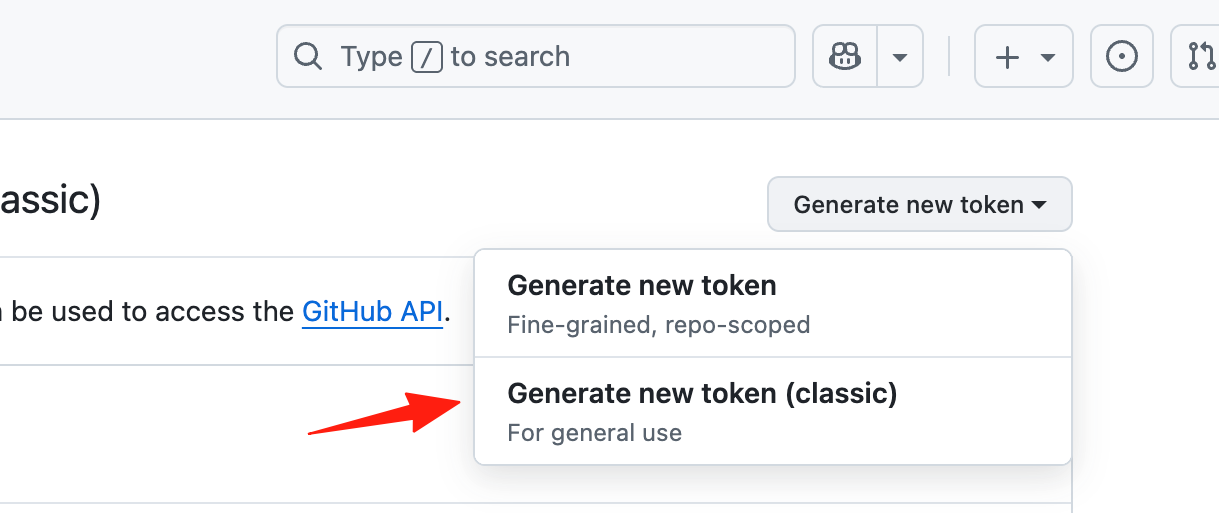
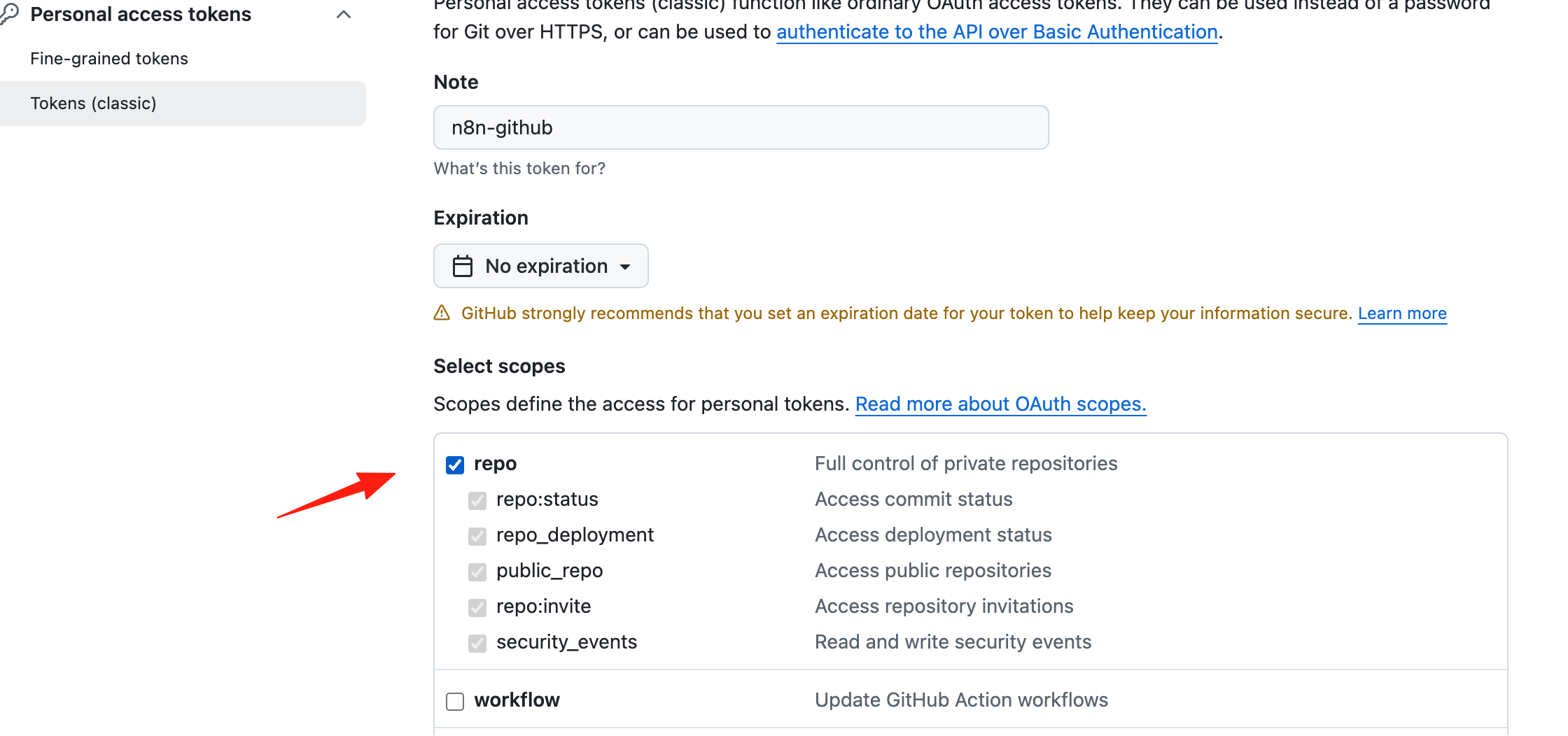
Open GitHub's Settings/Tokens page.
Click Generate new token (classic).
Check the repo permissions.
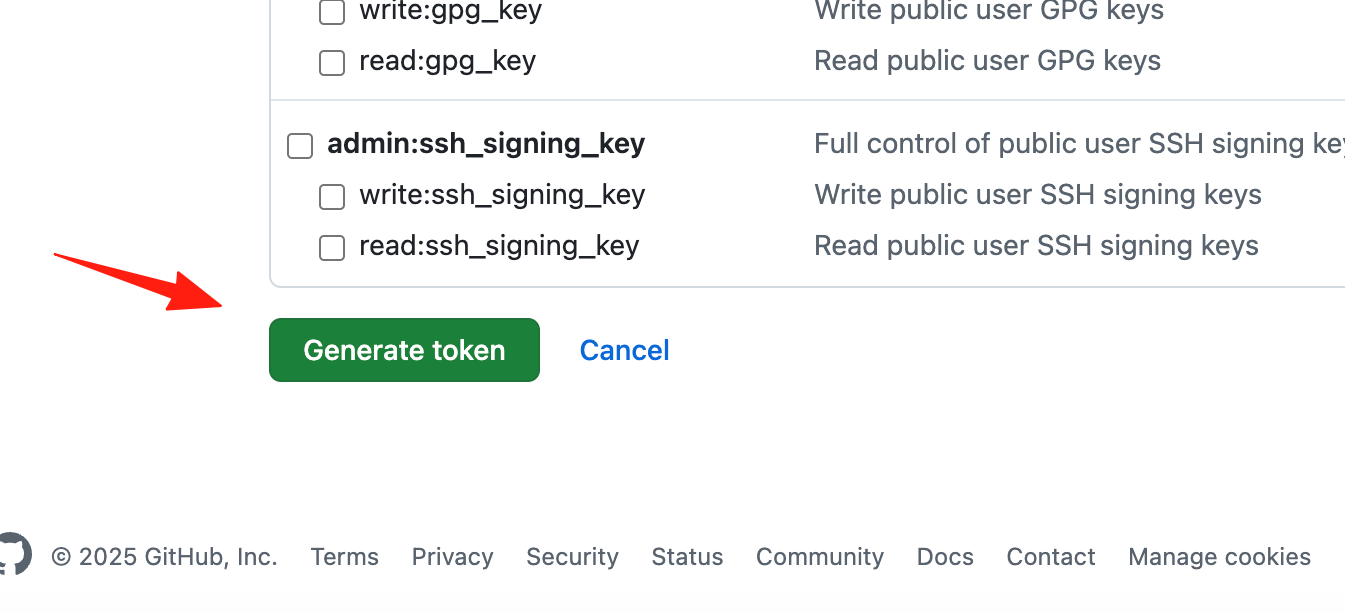
Generate the token and copy it.
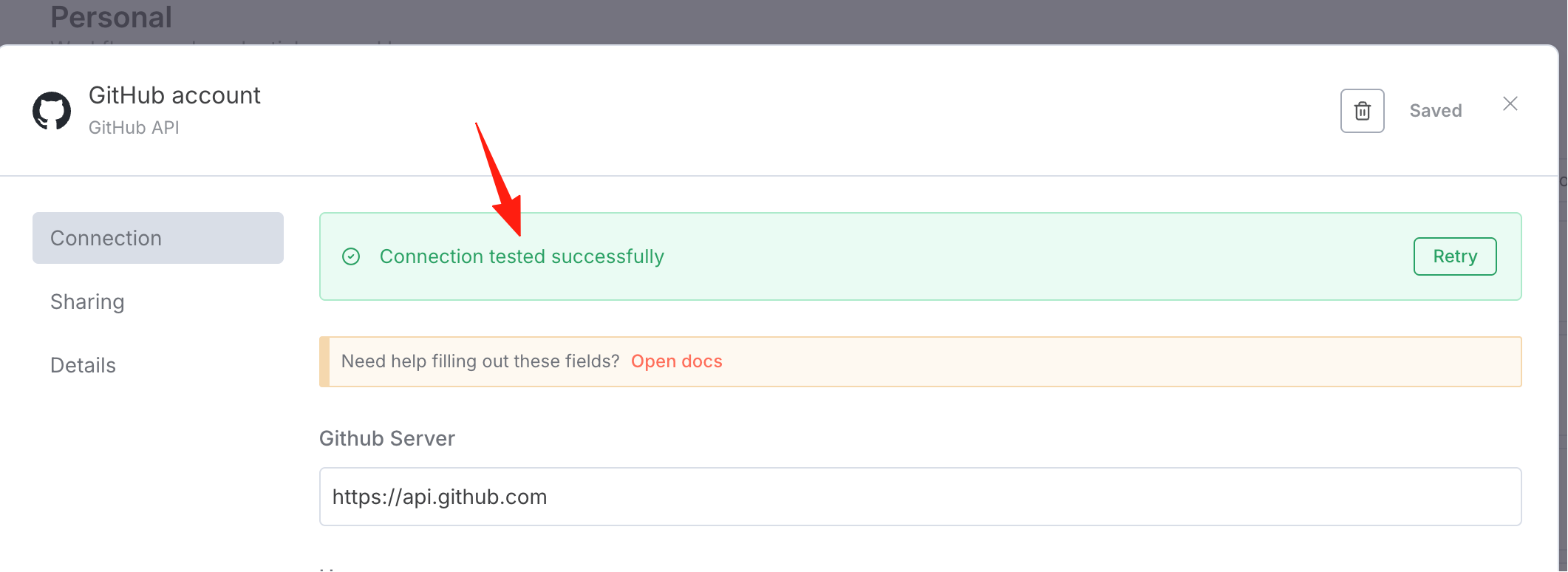
Return to n8n, paste your token. The User is your GitHub username.
After saving, it will automatically connect. A success message will appear upon successful connection:
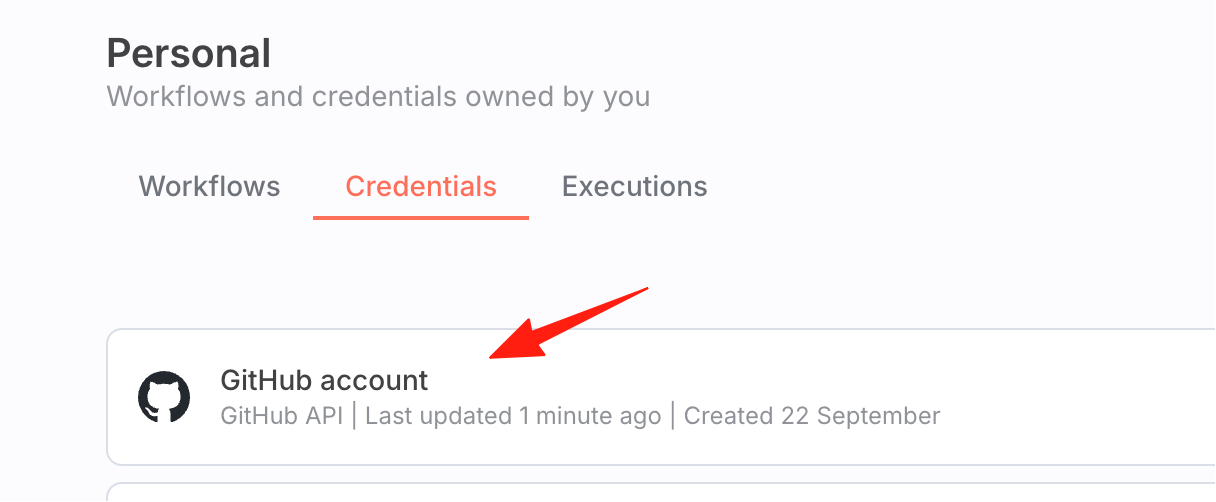
You can also see it on the Credentials page.
Let's verify if the connection is working properly.
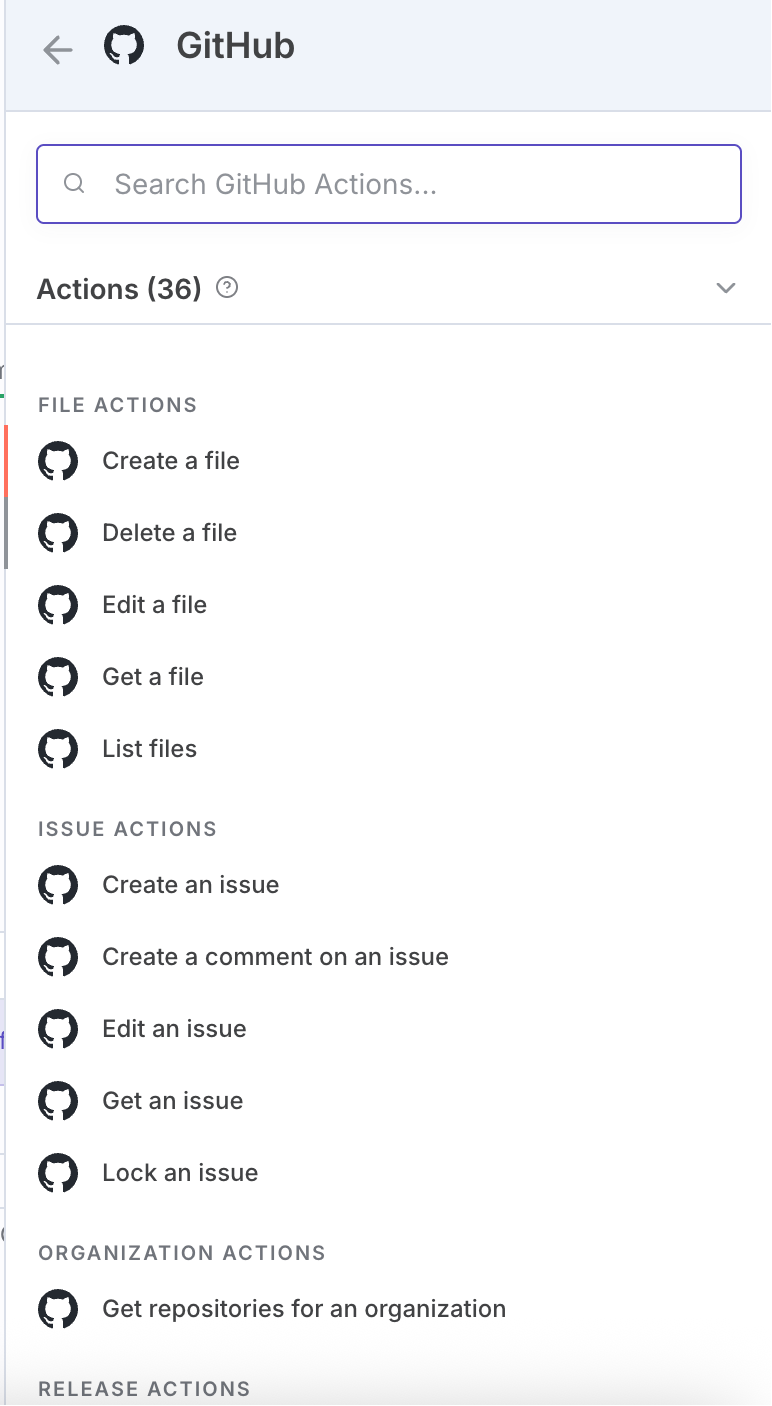
Create a new Manual Trigger node, then add a node to list all repositories.
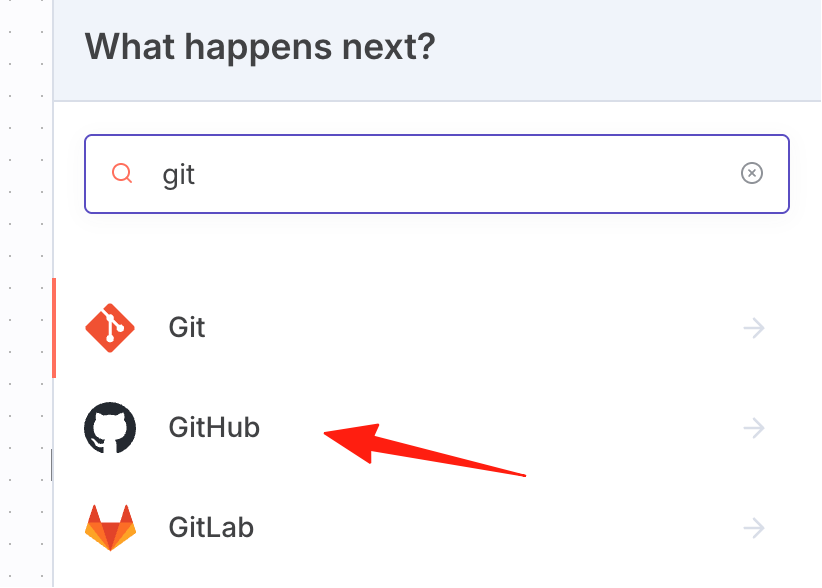
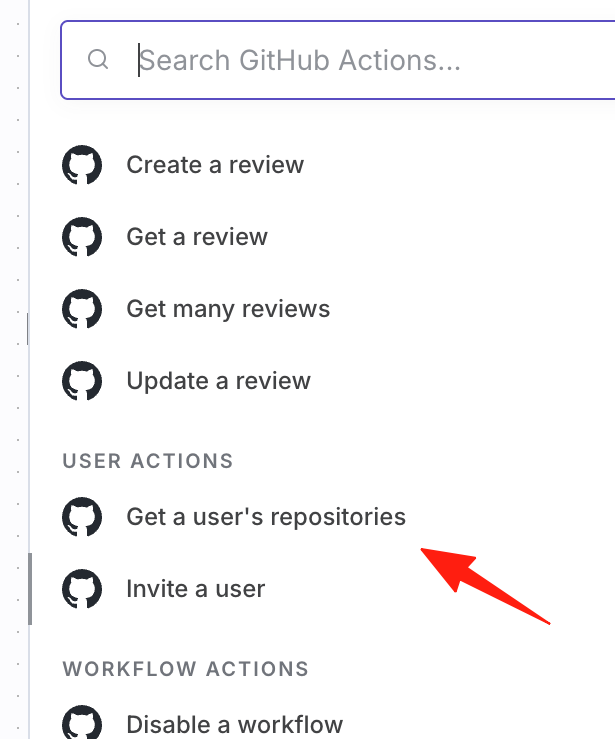
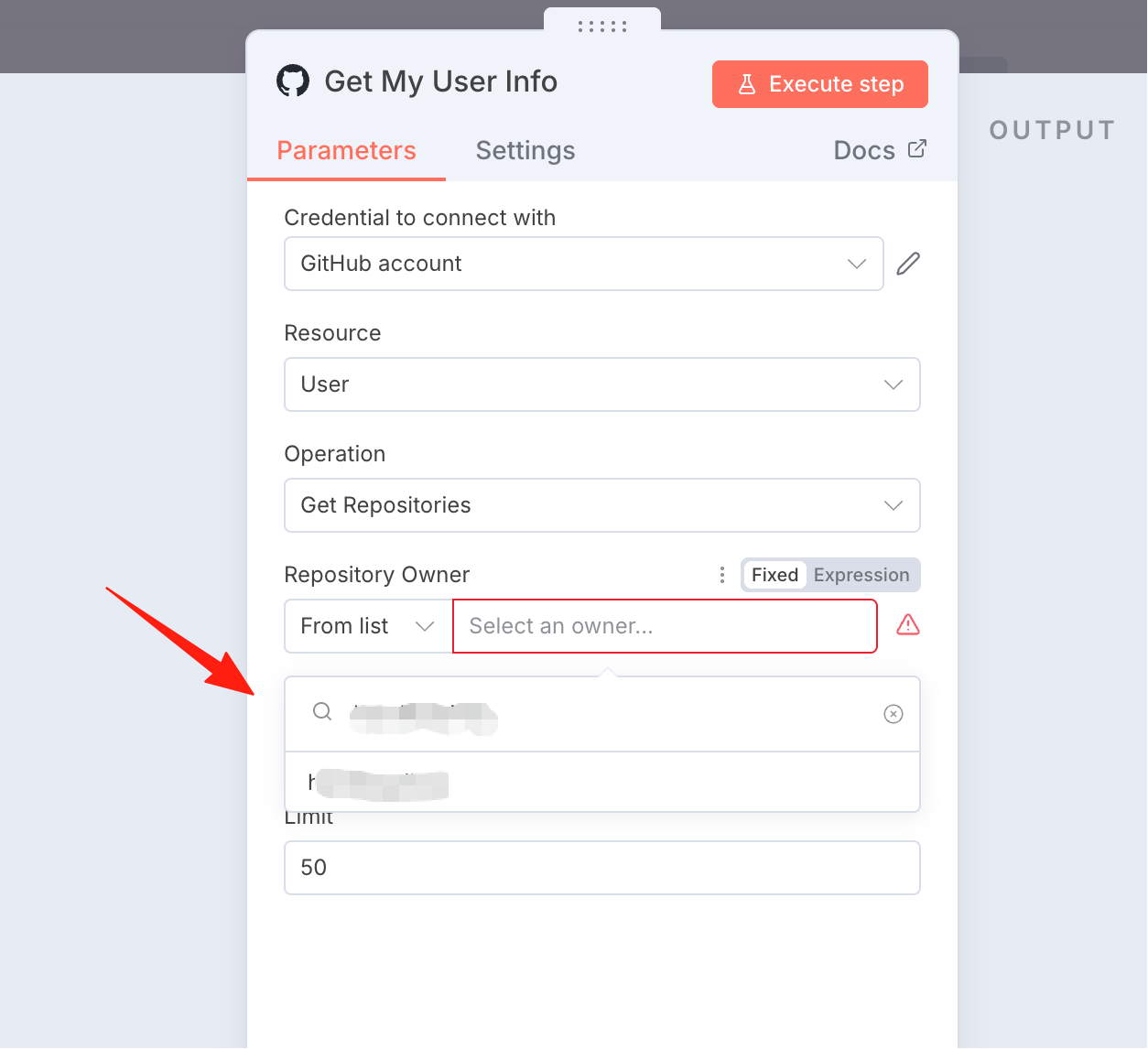
Search here and select your GitHub username.
Click Execute. You can see that my repository data has been successfully retrieved.
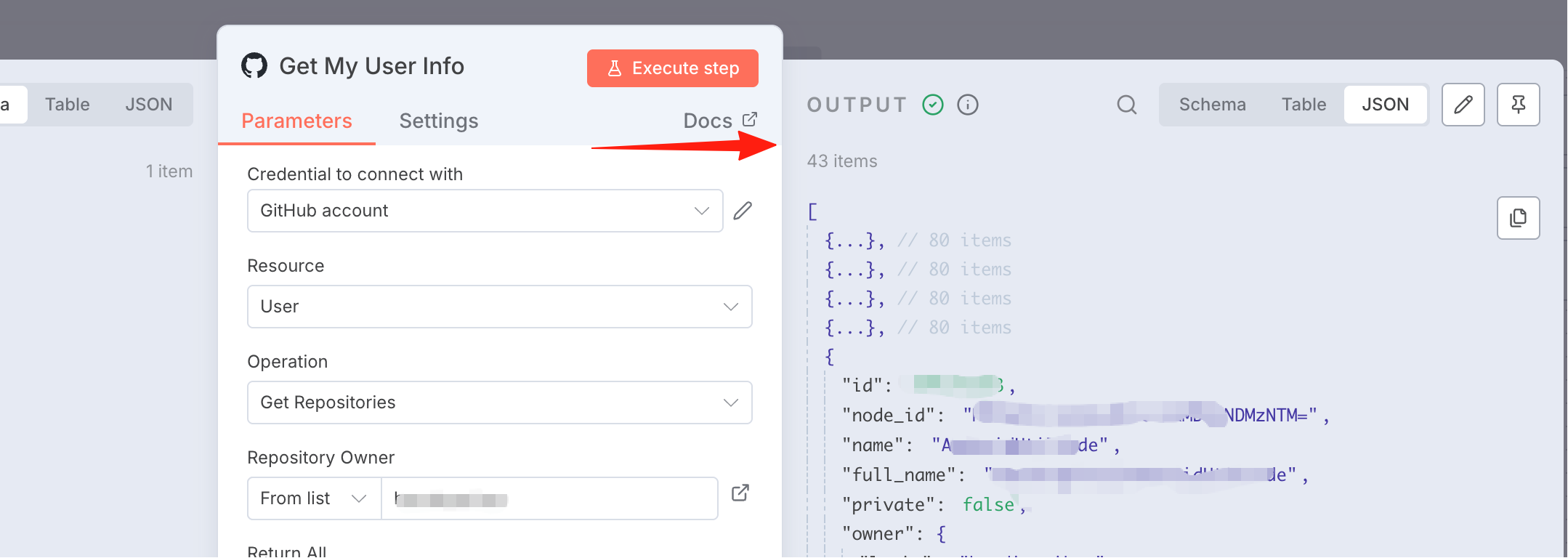
With the GitHub configuration in place, you can actually do many things. For example, daily CRUD operations can all be completed within n8n.