
Flowise: The Ultimate Tool for Building AI Applications in 5 Minutes, Even for Beginners
What Can Flowise Do For You?
Imagine you want to build an AI assistant that can read your company documents, or create a smart customer service chatbot. Previously, this required programmers to write lots of code. Now, with Flowise, you just need to drag, drop, and connect functional modules like building blocks.
Flowise is perfect for these tasks:
- 📚 Enterprise Knowledge Base Q&A: Upload company documents to turn the AI into your corporate encyclopedia instantly.
- 🤖 Smart Customer Service Bot: Integrate it into your website to automatically answer customer questions.
- 📄 PDF Document Assistant: Upload papers or reports, and let the AI extract key information for you.
- 🔄 Workflow Automation: Hand off repetitive tasks to AI, like automatically writing weekly reports or summarizing meeting notes.
- 🎯 Multi-Model Collaboration: Assign different tasks to different AI models—one for searching, one for summarizing, and one for translation.
https://appstore.lazycat.cloud/#/shop/detail/wcloud.gblw.app.flowise
After installing the application, use these login credentials: lazycat / 123456
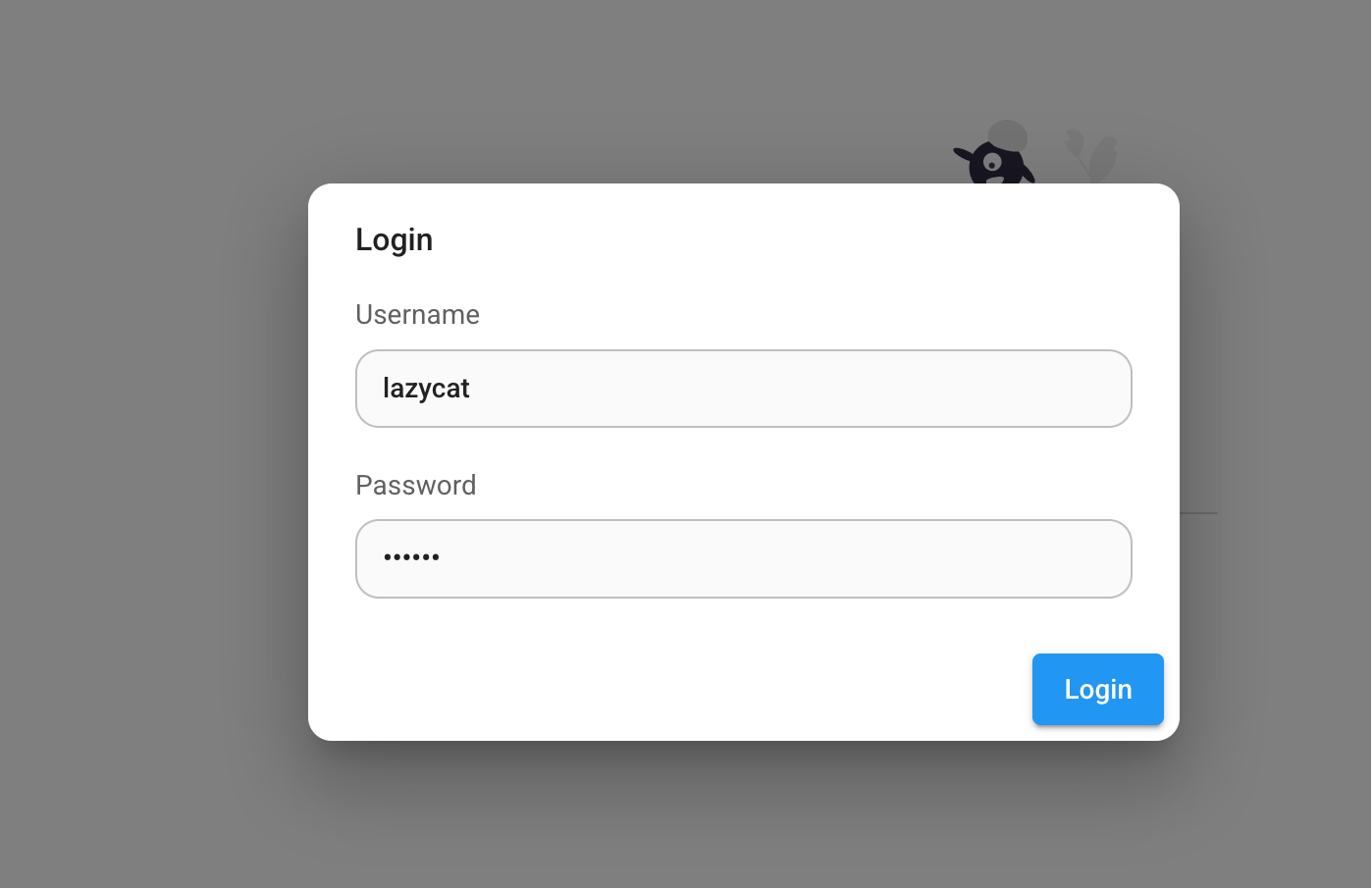
Hands-on Example: Building a Company Knowledge Base
Let's walk through a practical example: creating an AI assistant that can answer product-related questions.
Step 1: Create a New Workflow
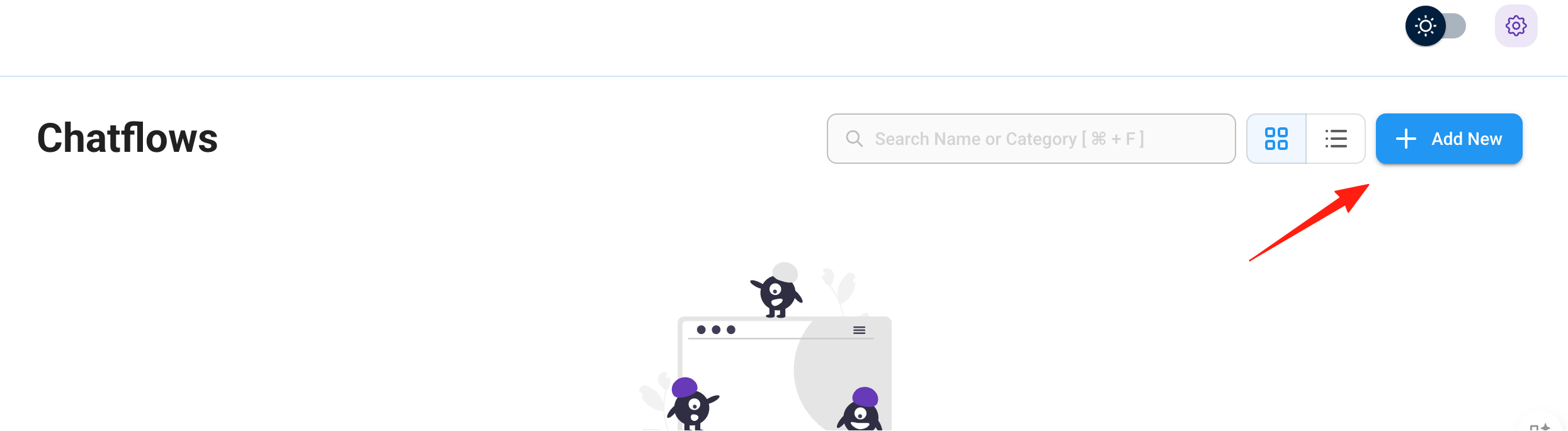
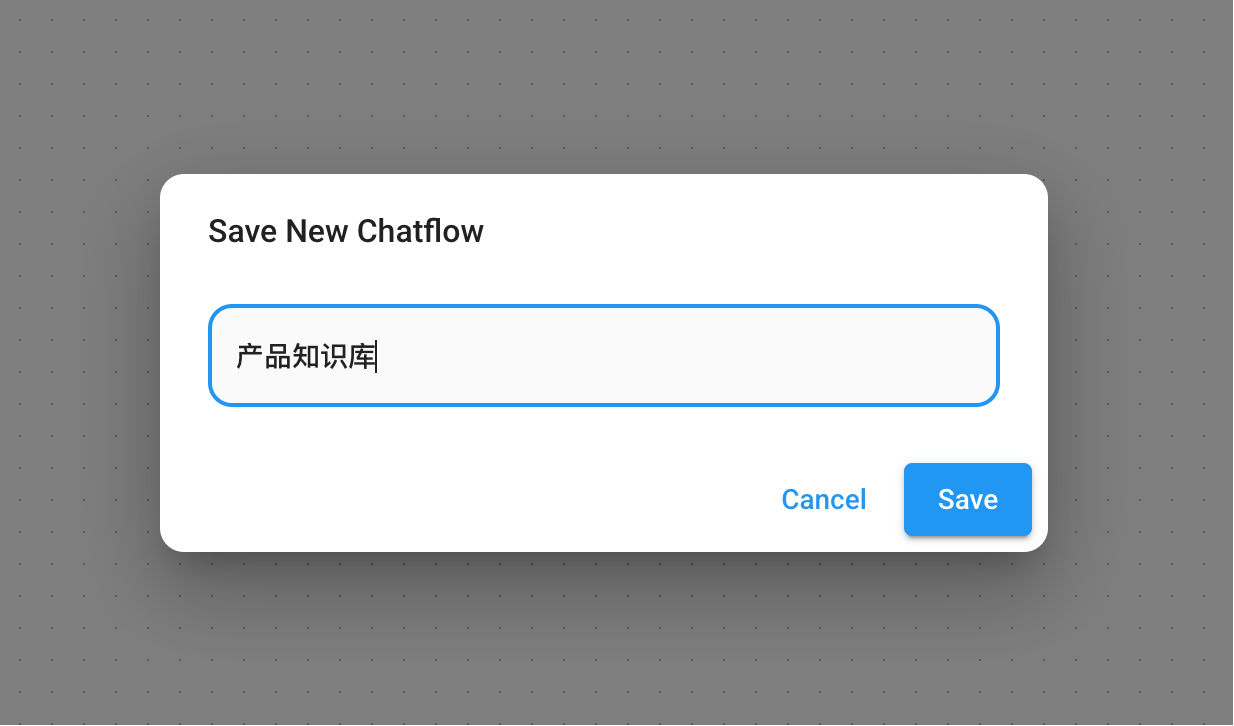
After entering Flowise, click "Chatflows" → "Add New". Give your project a name, like "Product Knowledge Base".
Step 2: Drag and Drop Components
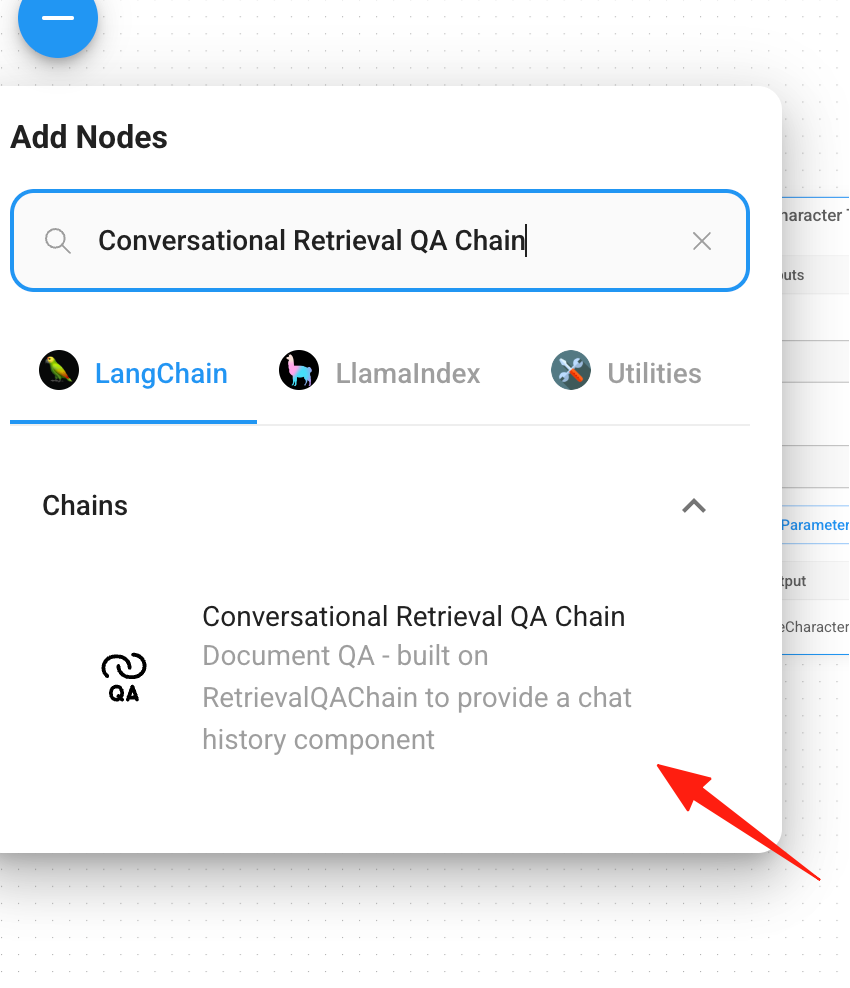
Click the + on the left to see the node popup.
LangChain: Focuses on LLM workflows and agents, suitable for complex AI applications.
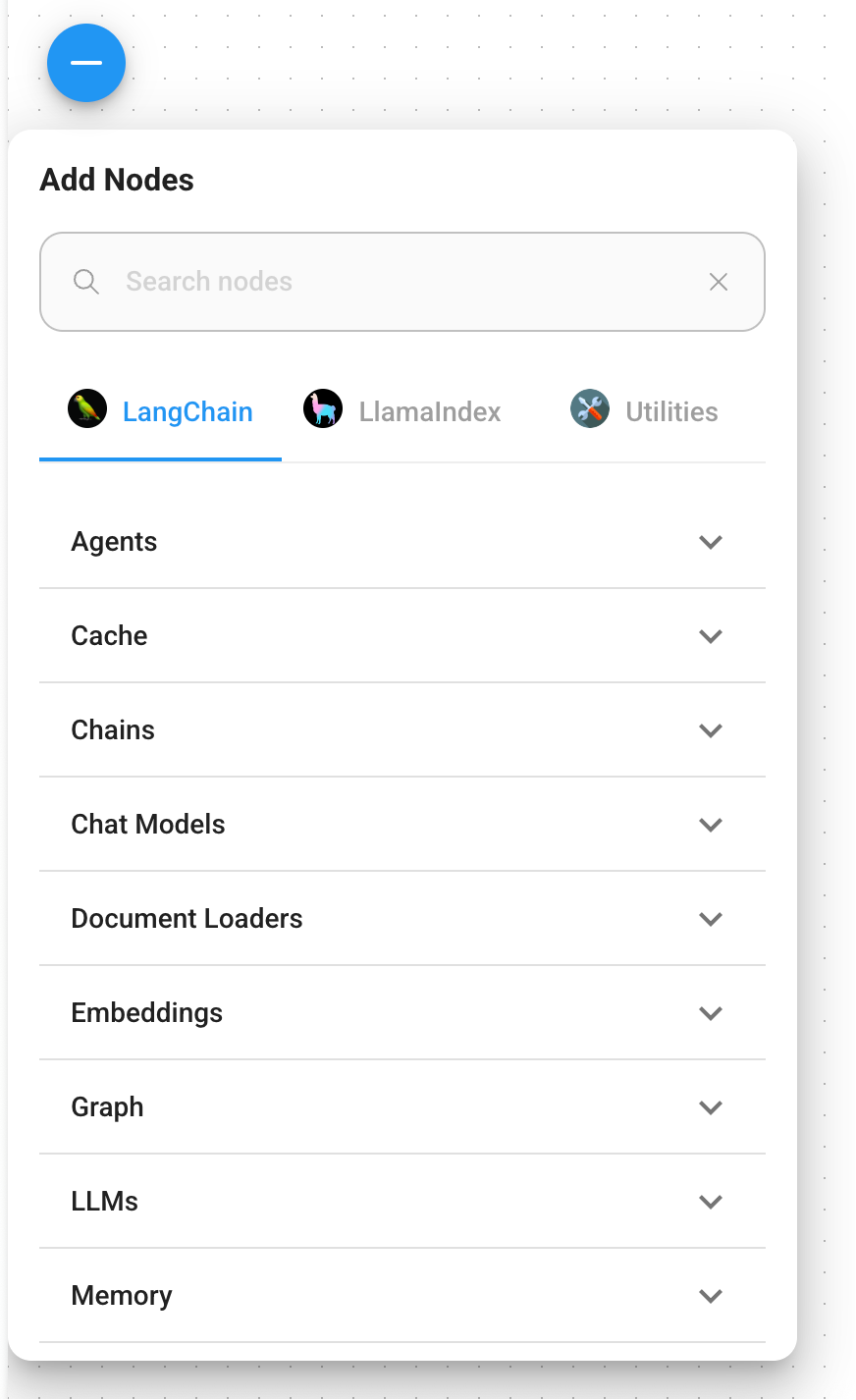
LlamaIndex: Specializes in data ingestion and knowledge base Q&A, ideal for RAG scenarios.
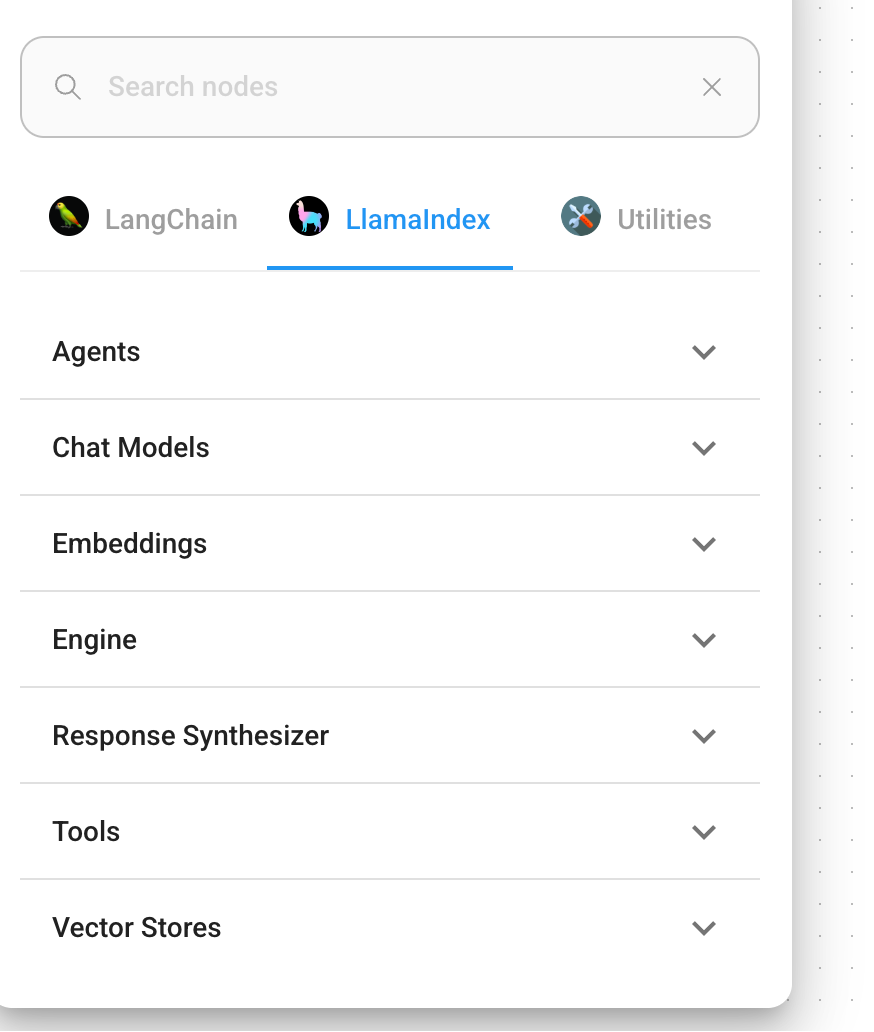
Utilities: General-purpose tools for auxiliary data processing and workflow construction.
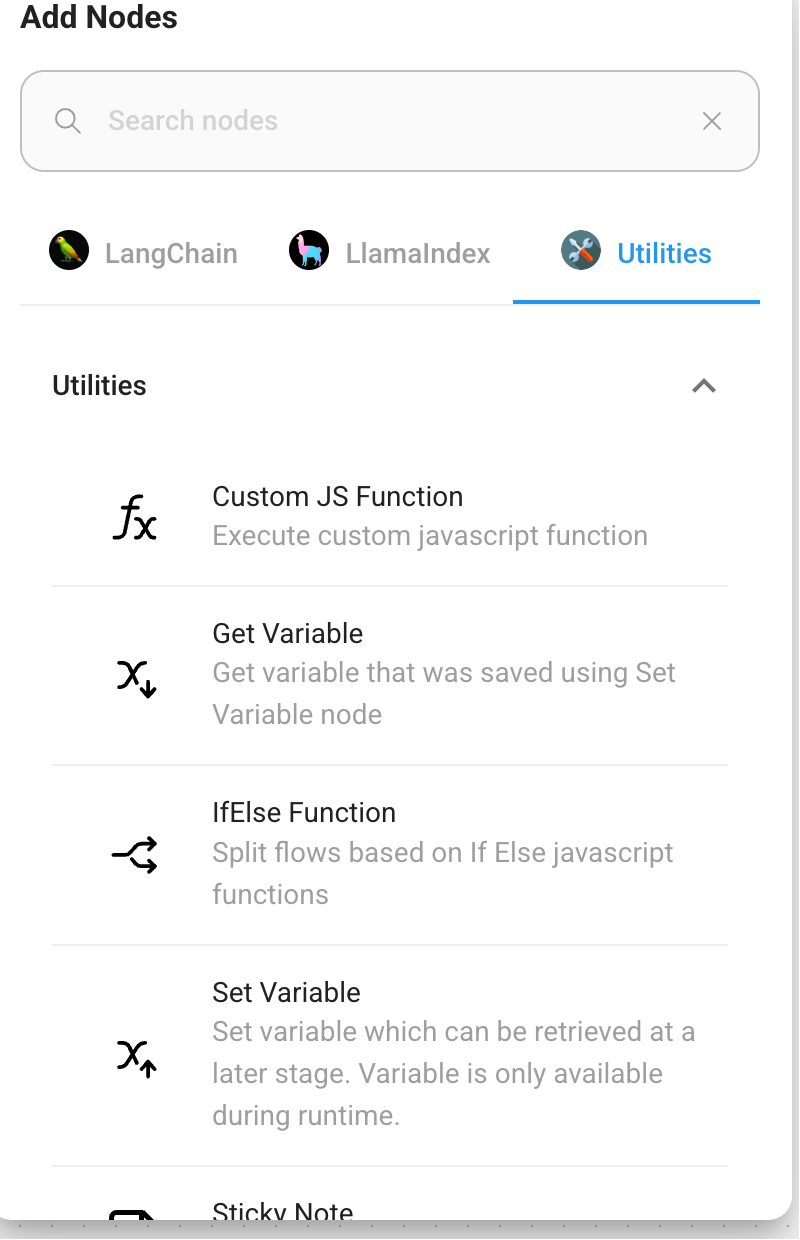
You'll need these core components:
Document Loader: Search for "PDF" and drag in a PDF File component.
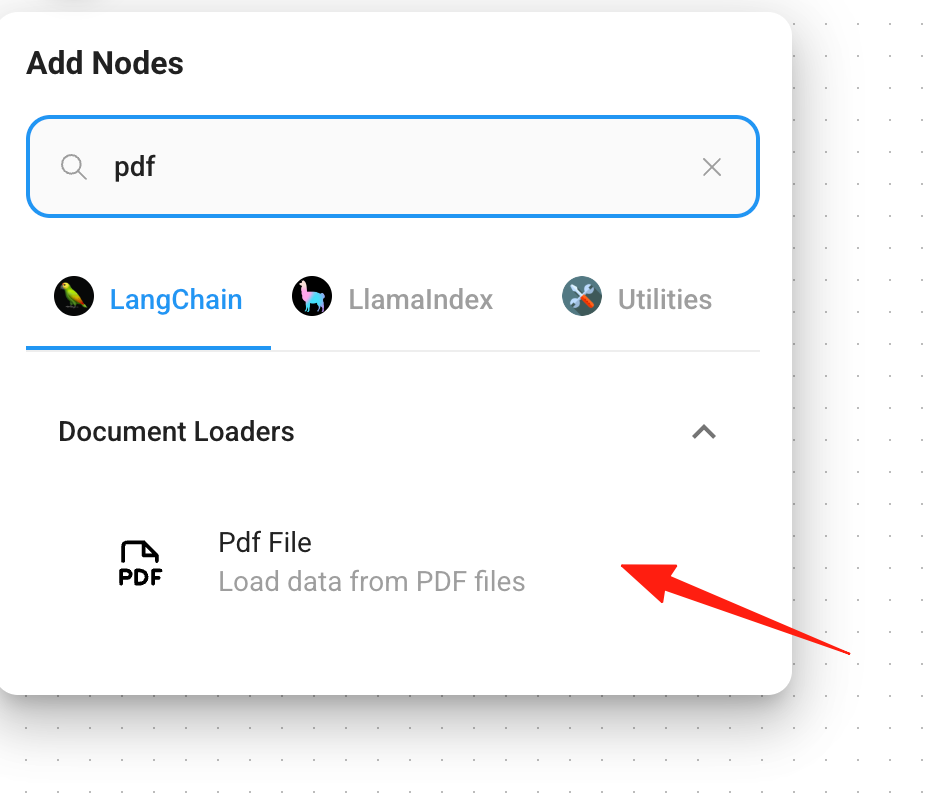
Text Splitter: Search for "Text Splitter" and select Recursive Character Text Splitter (chops long documents into smaller chunks).
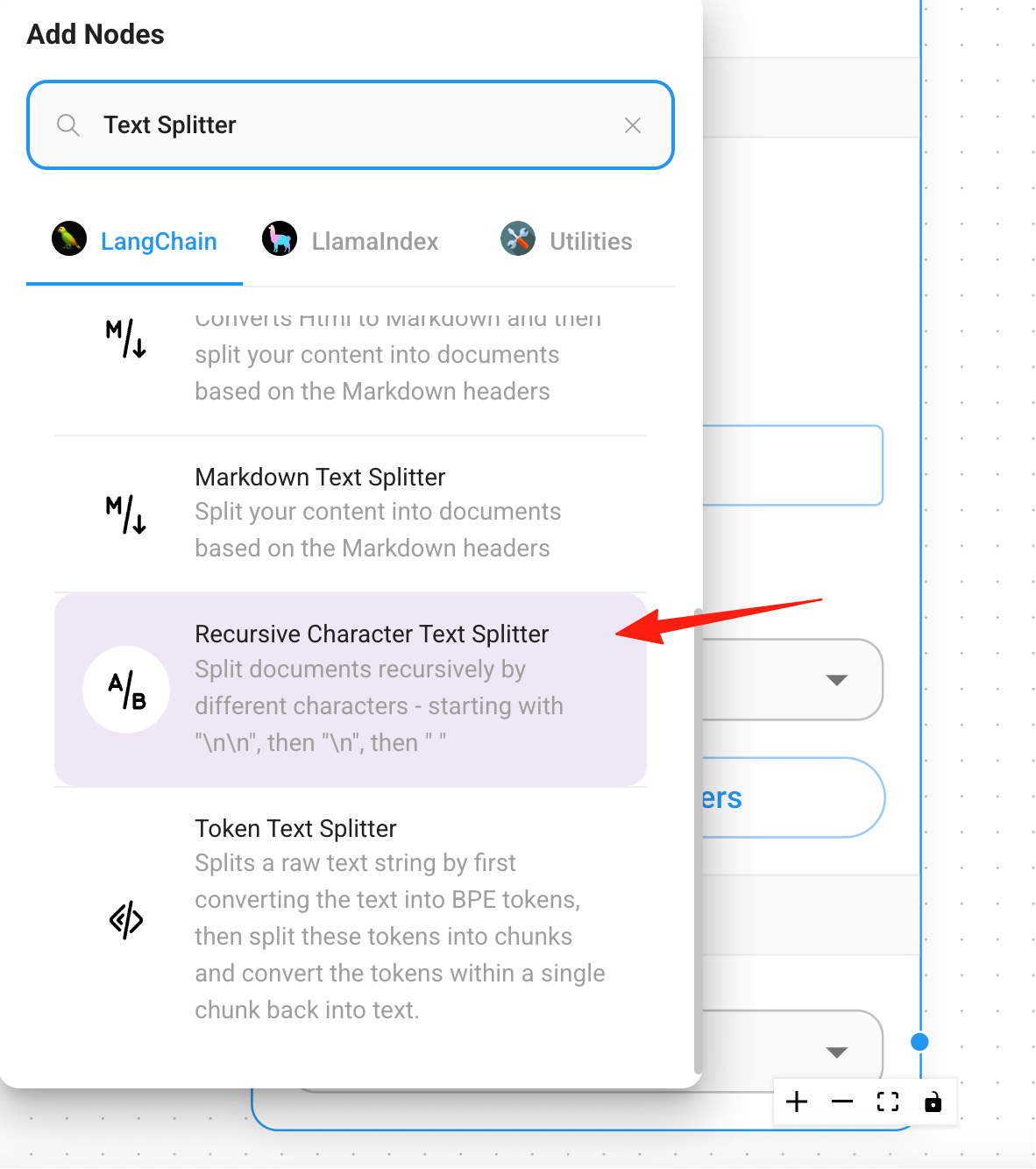
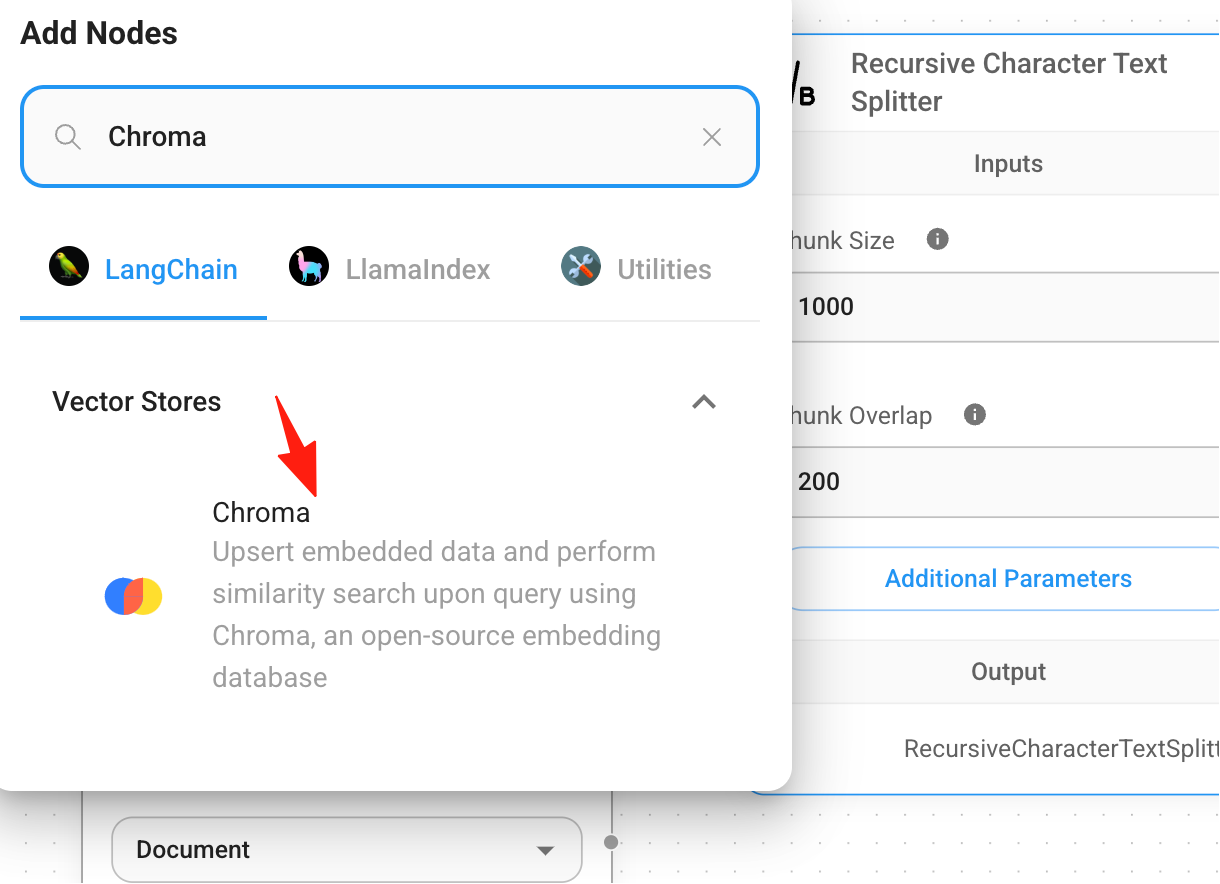
Vector Database: Search for "Pinecone" or "Chroma" (choose Chroma for a free option).
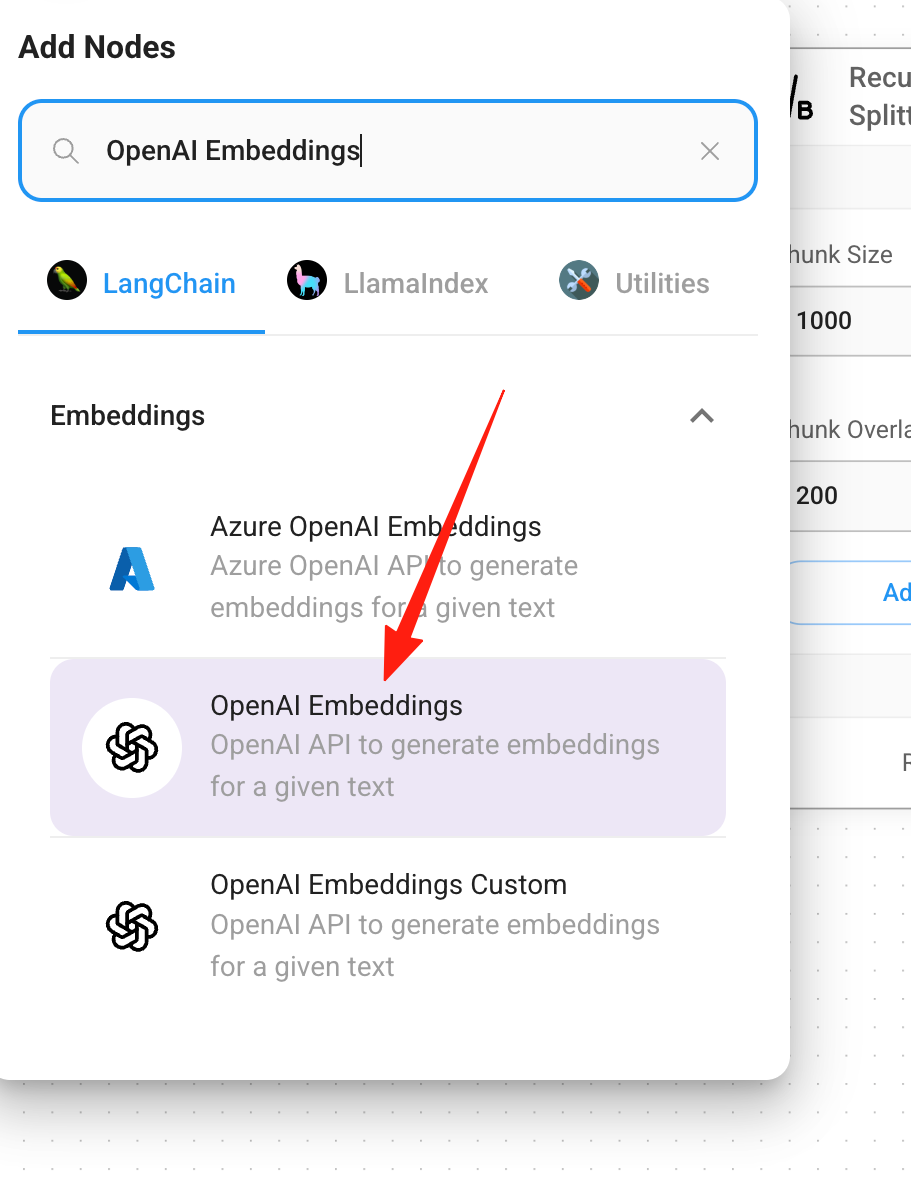
Embeddings Model: Search for "OpenAI Embeddings" (converts text into a format AI can understand).
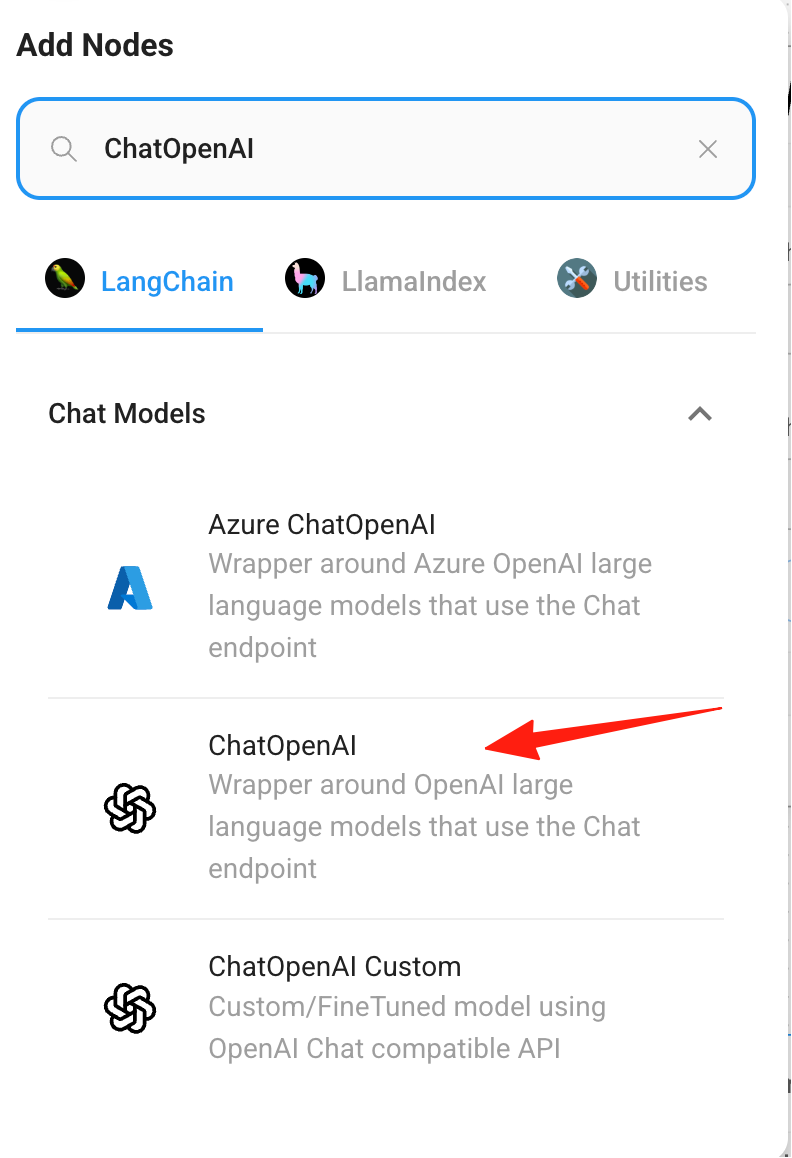
Chat Model: Search for "ChatOpenAI" (the brain responsible for answering questions).
Chain: Search for "Conversational Retrieval QA Chain" (connects all the above components).
Step 3: Connect the Components
Connect the components in this order:
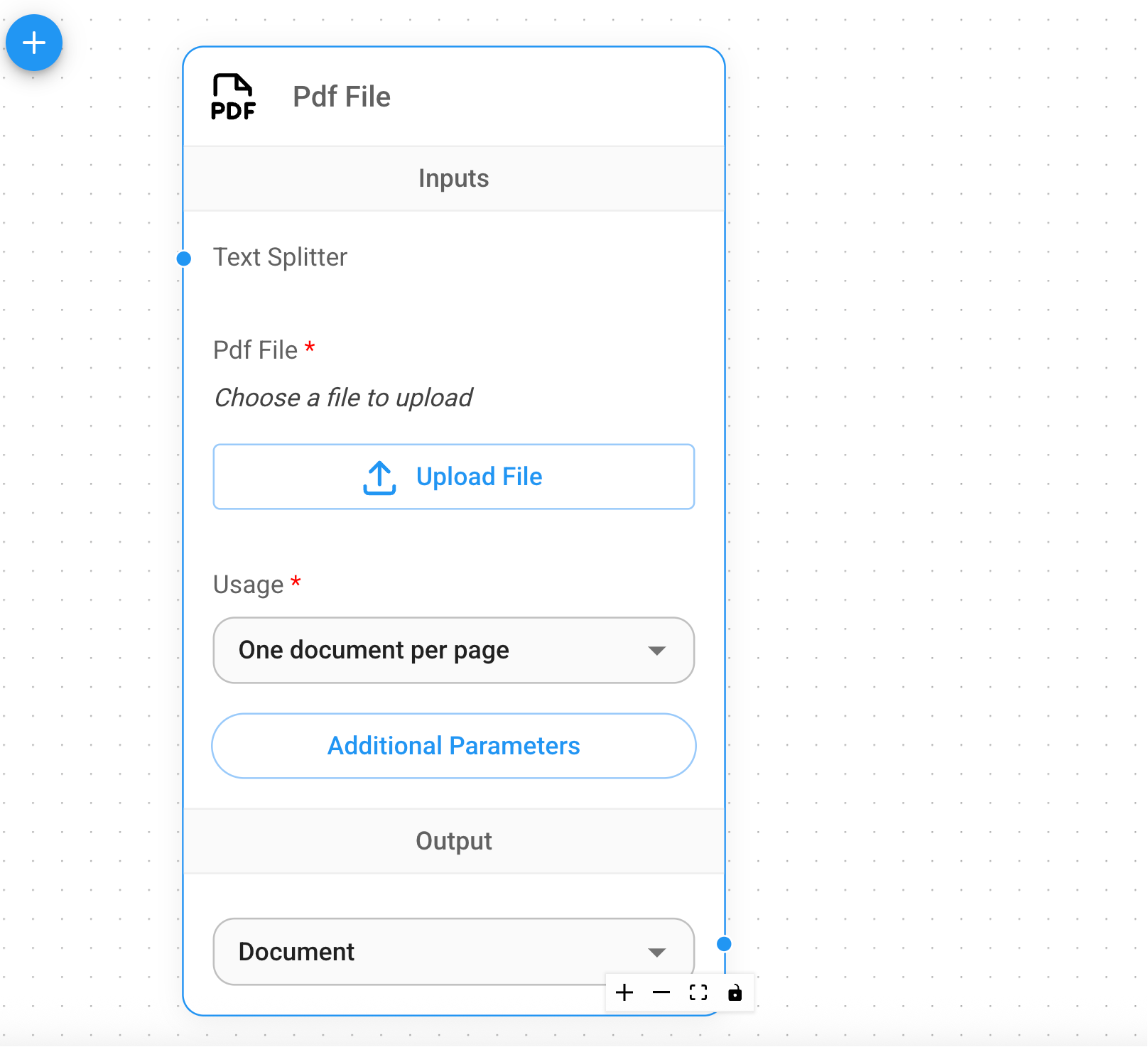
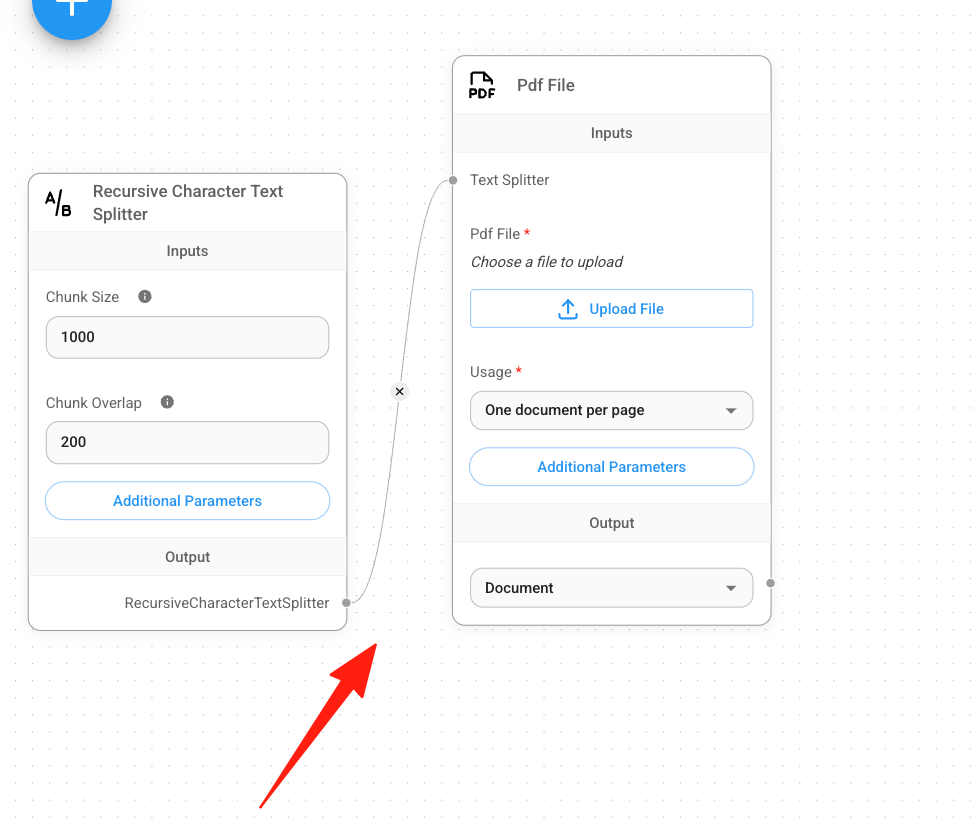
- Text Splitter → PDF File → Vector Store
Logically, you "read the PDF first, then split," but in Flowise's node design, the Pdf File node supports "injecting a Text Splitter." Therefore, you need to connect the Text Splitter to the "Text Splitter" input of the Pdf File node.
-
OpenAI Embeddings → Vector Store
- Drag a connection from the
Pdf Filenode's "Document" output port to the "Document" input port in theChromanode's Inputs. - Drag a connection from the
OpenAI Embeddingsnode's output port to the "Embeddings" input port in theChromanode's Inputs.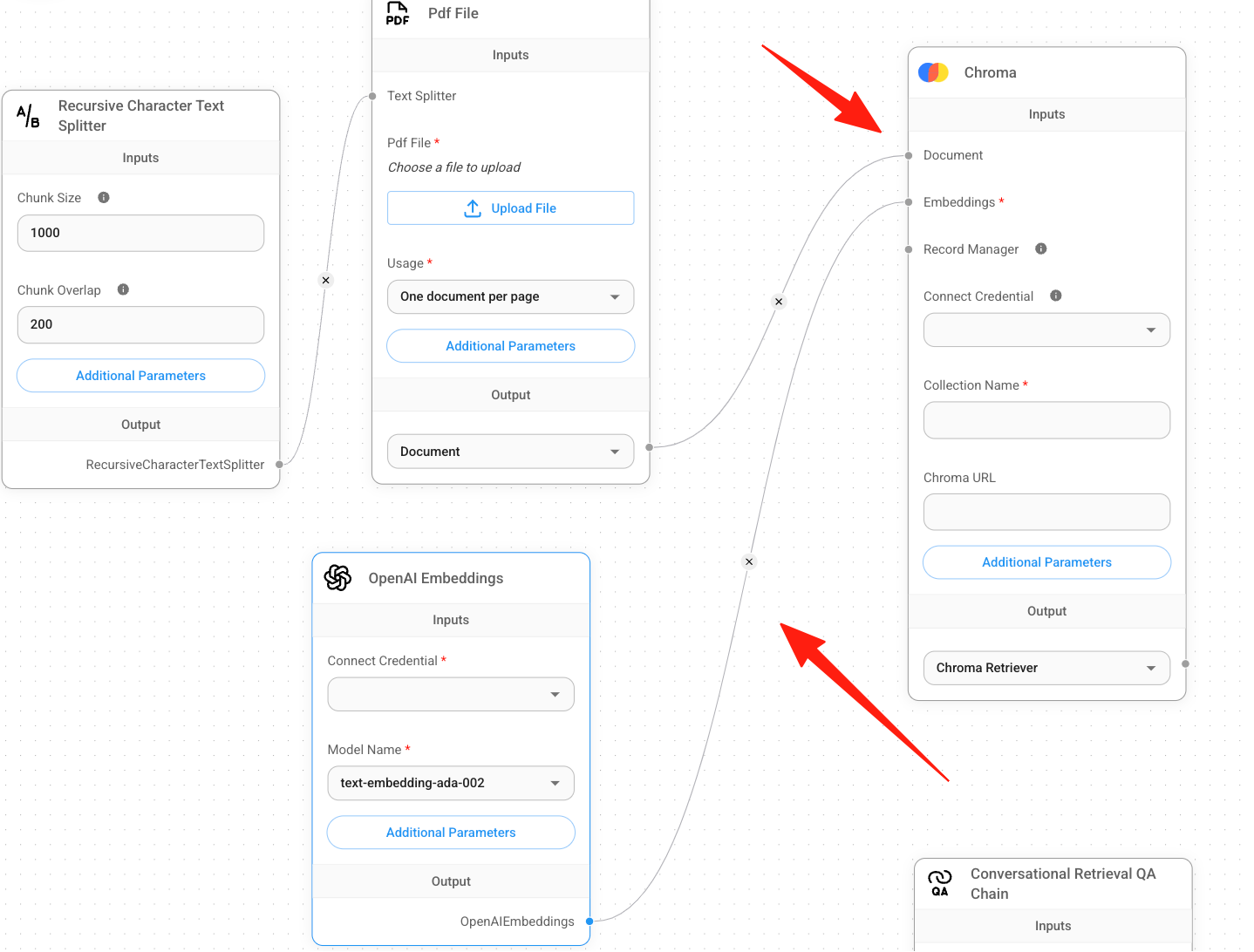
- Drag a connection from the
-
Chroma → Conversational Retrieval QA Chain
-
ChatOpenAI → Conversational Retrieval QA Chain
- Connect the "Chroma Retriever" output from the
Chromanode to the "Vector Store Retriever" input of theConversational Retrieval QA Chain. - Connect the output of the
ChatOpenAInode to the "Chat Model" input of the same chain.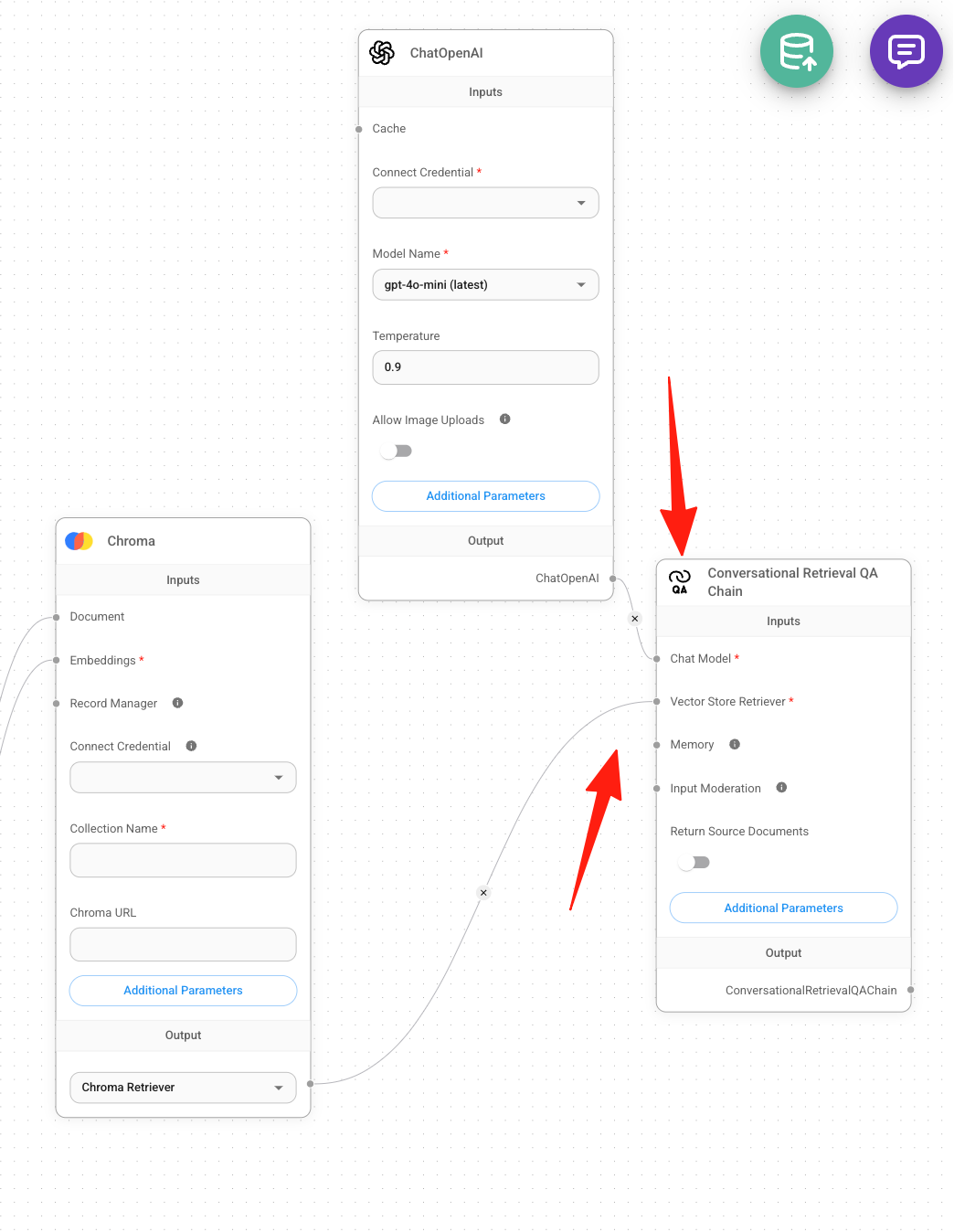
- Connect the "Chroma Retriever" output from the
Now you can perform retrieval-based Q&A in the chat using the content from your uploaded PDF.
Step 4: Configuration
Double-click each component to fill in the configuration:
- PDF File: Upload your PDF document.
- OpenAI Components: Enter your API Key (Alternatively, you can use domestic models like Tongyi Qianwen or Wenxin Yiyan if you don't have one).
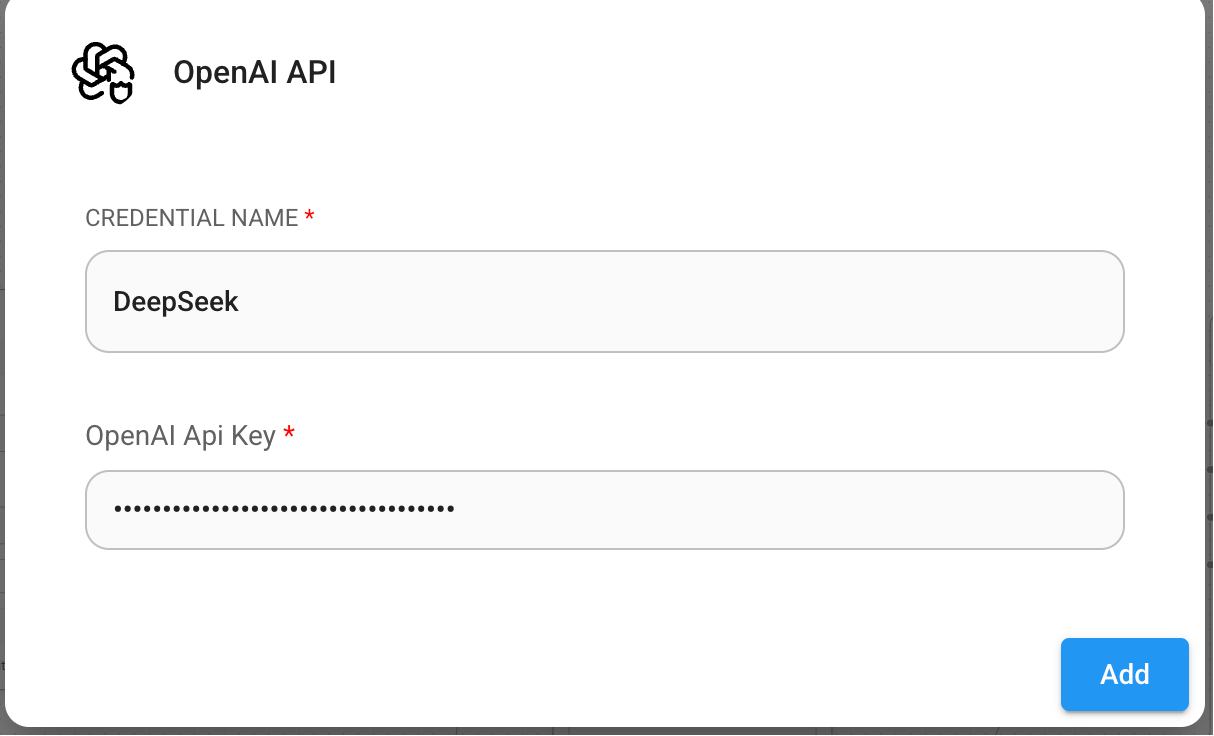
- Text Splitter: Set Chunk Size to 1000 and Chunk Overlap to 200 (this defines the size and overlap of text chunks).
Step 5: Test the Chat
Click the chat icon in the top right corner and ask a question, like "What are the main features of the product?"
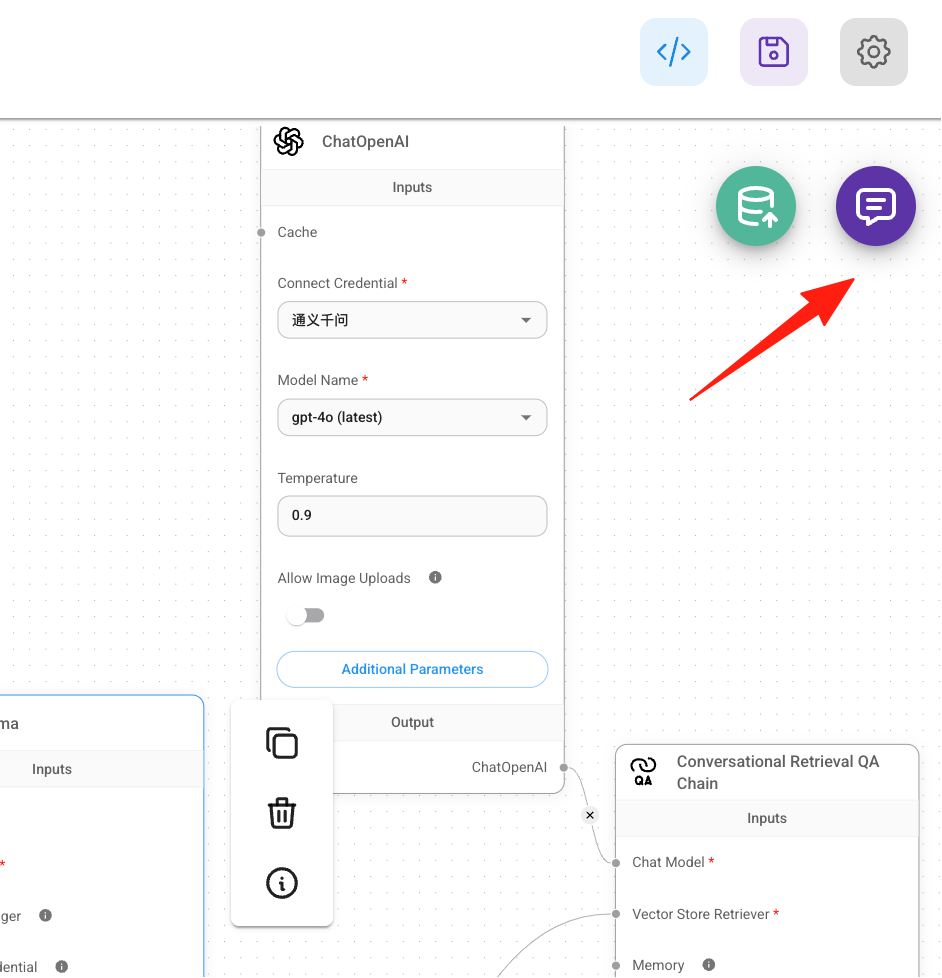
Your first knowledge base is now built!
Integrate into Your Application
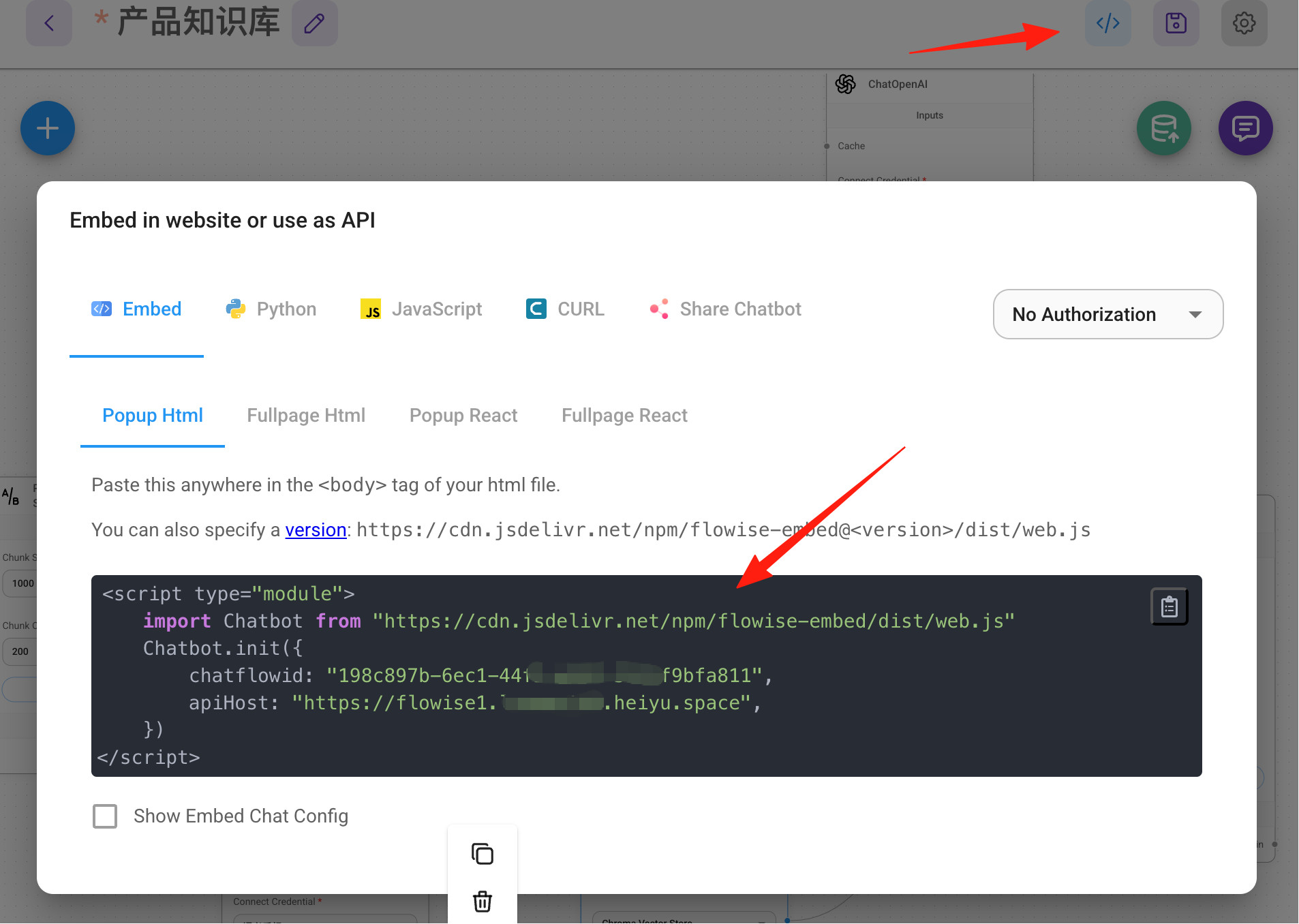
Flowise automatically generates APIs, making it easy to integrate into your website or app:
Final Thoughts
The greatest value of Flowise lies in democratizing AI application development. You don't need to know Python or how to call APIs. As long as you can drag and drop and have ideas, you can build practical AI tools.
- Official Documentation: docs.flowiseai.com (In English, but the illustrations are clear)
- GitHub: github.com/FlowiseAI/Flowise (Check the Issues section to solve 90% of problems)
- Video Tutorials: Search for "Flowise tutorial" on YouTube; there are also many Chinese tutorials on Bilibili.