
n8n Hands-On Guide 9: Building an Invoice Processing Bot (Part 1)
What Can This Workflow Do?
For finance professionals who frequently process reimbursement invoices, manually entering invoice information is tedious.
This workflow automatically recognizes invoice images, extracts key information, stores it in a spreadsheet, and finally sends an email notification.
- Traditional Method: Accountants manually review each invoice → Manually input invoice number, date, amount → Then verify the tax rate.
- Current Process: AI automatically recognizes → JSON data cleaning → Directly enters Google Sheets, eliminating manual entry. The system automatically sends an email (with clearly formatted HTML) to ensure the relevant person receives it promptly.
https://appstore.lazycat.cloud/#/shop/detail/cloud.lazycat.app.n8n
Practical Steps
Open n8n and create a new workflow.
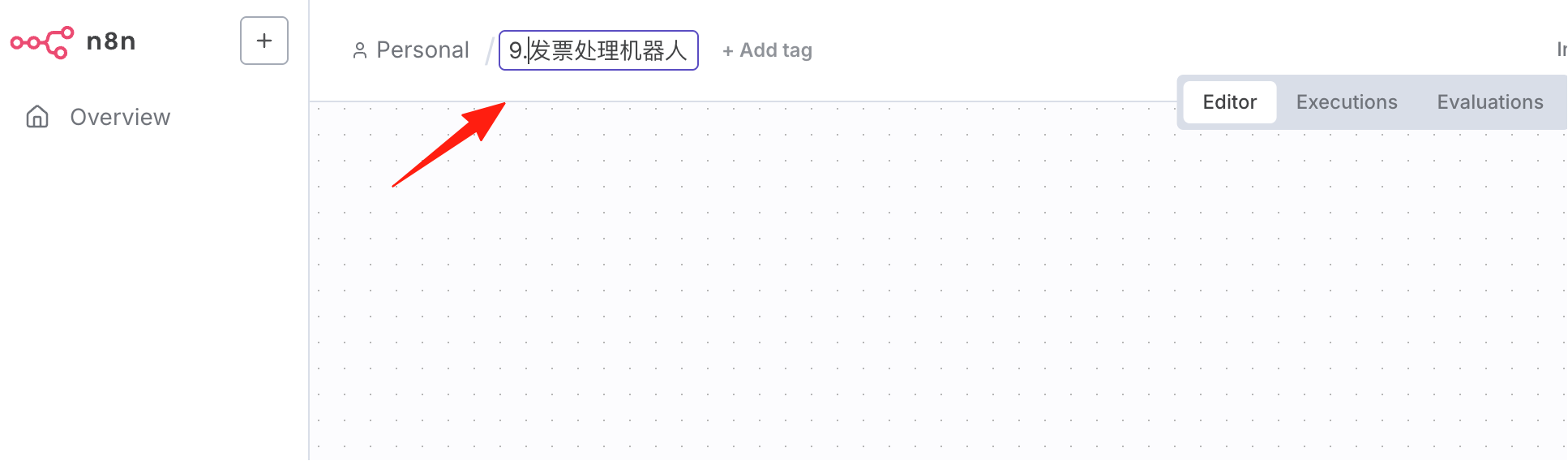
First, Add All Nodes
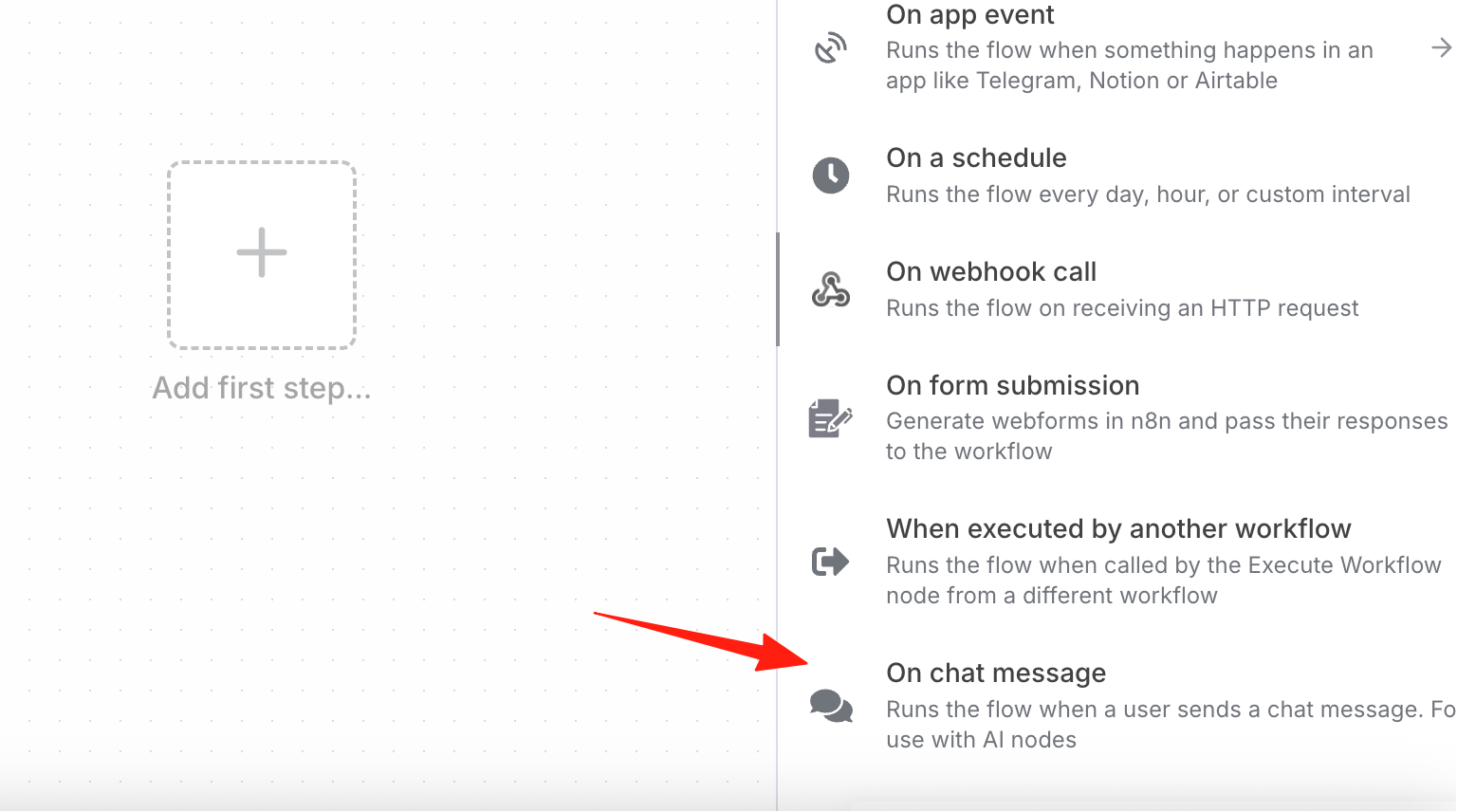
Step 1: I want to trigger via chat, so create a new 'On Chat Message' node.
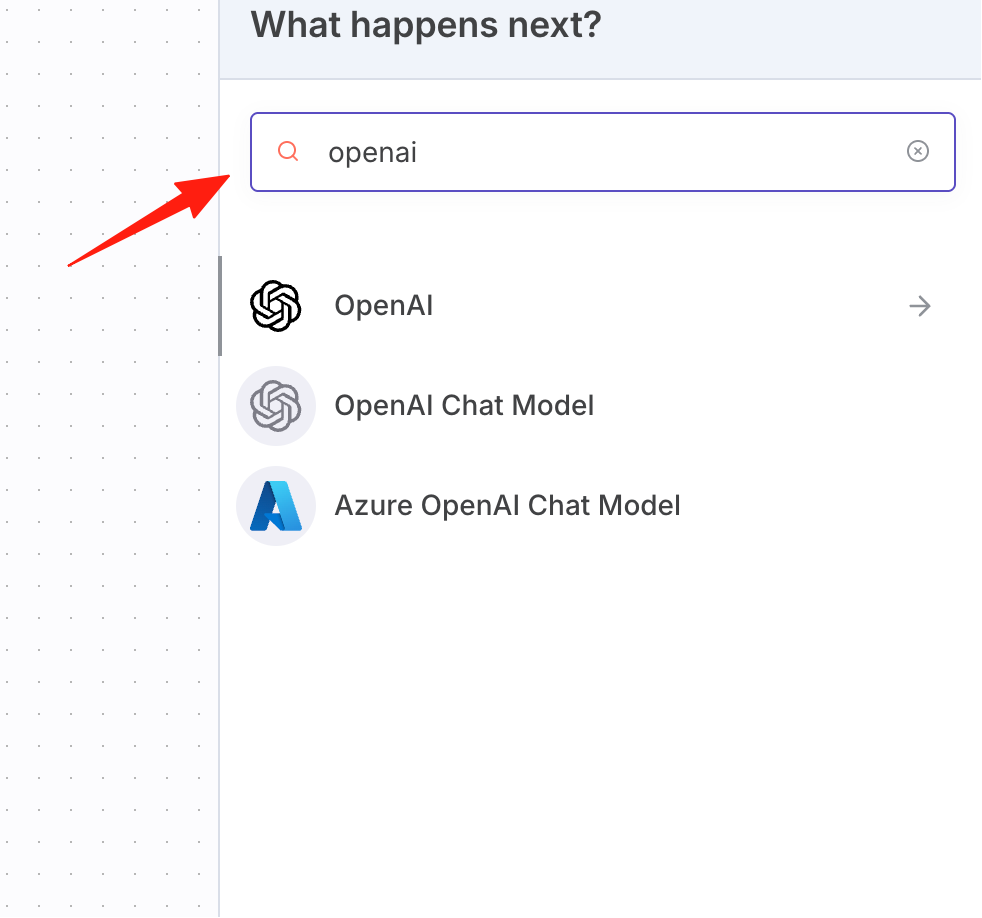
Step 2: Search for OpenAI.
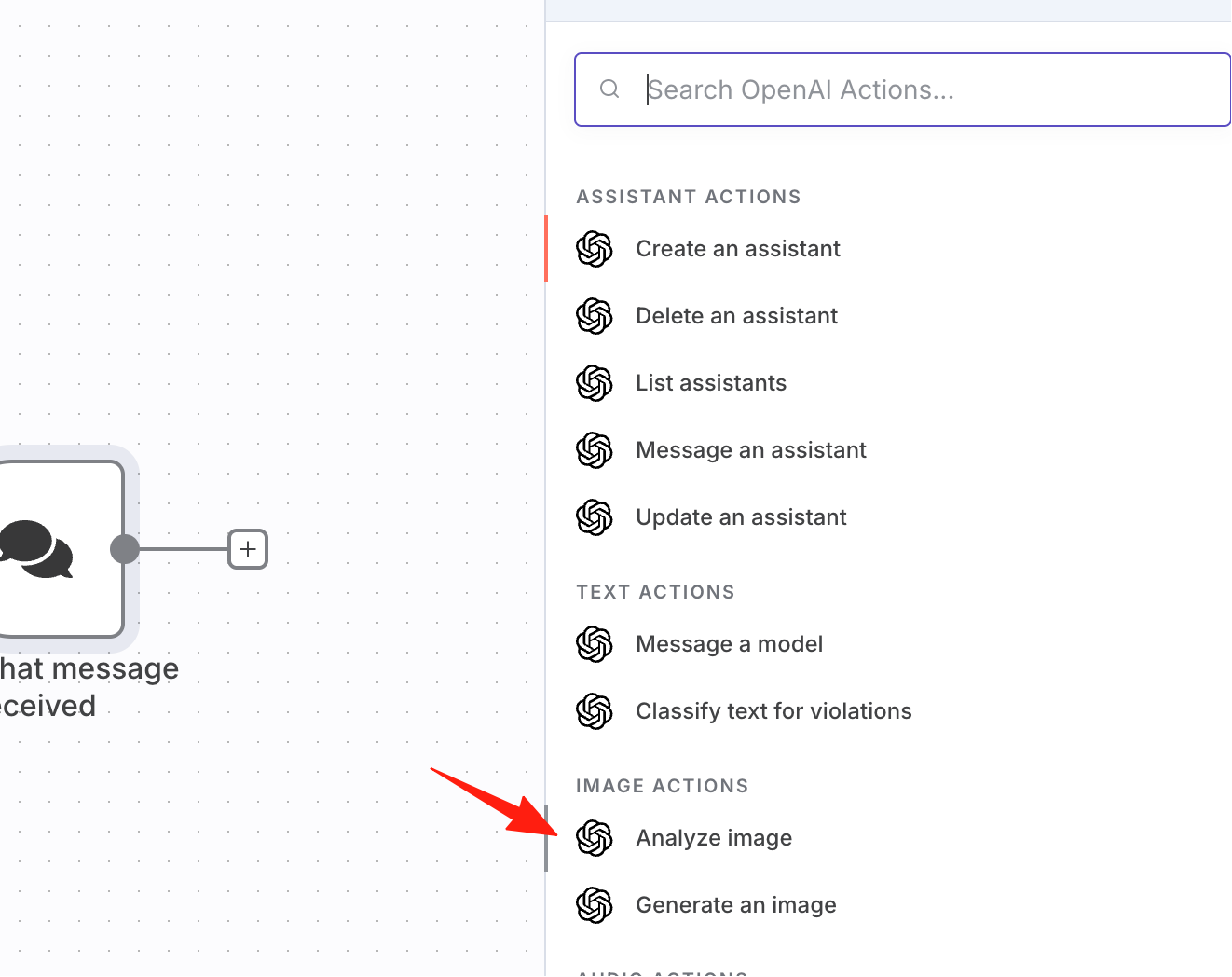
Select this node for analyzing images:
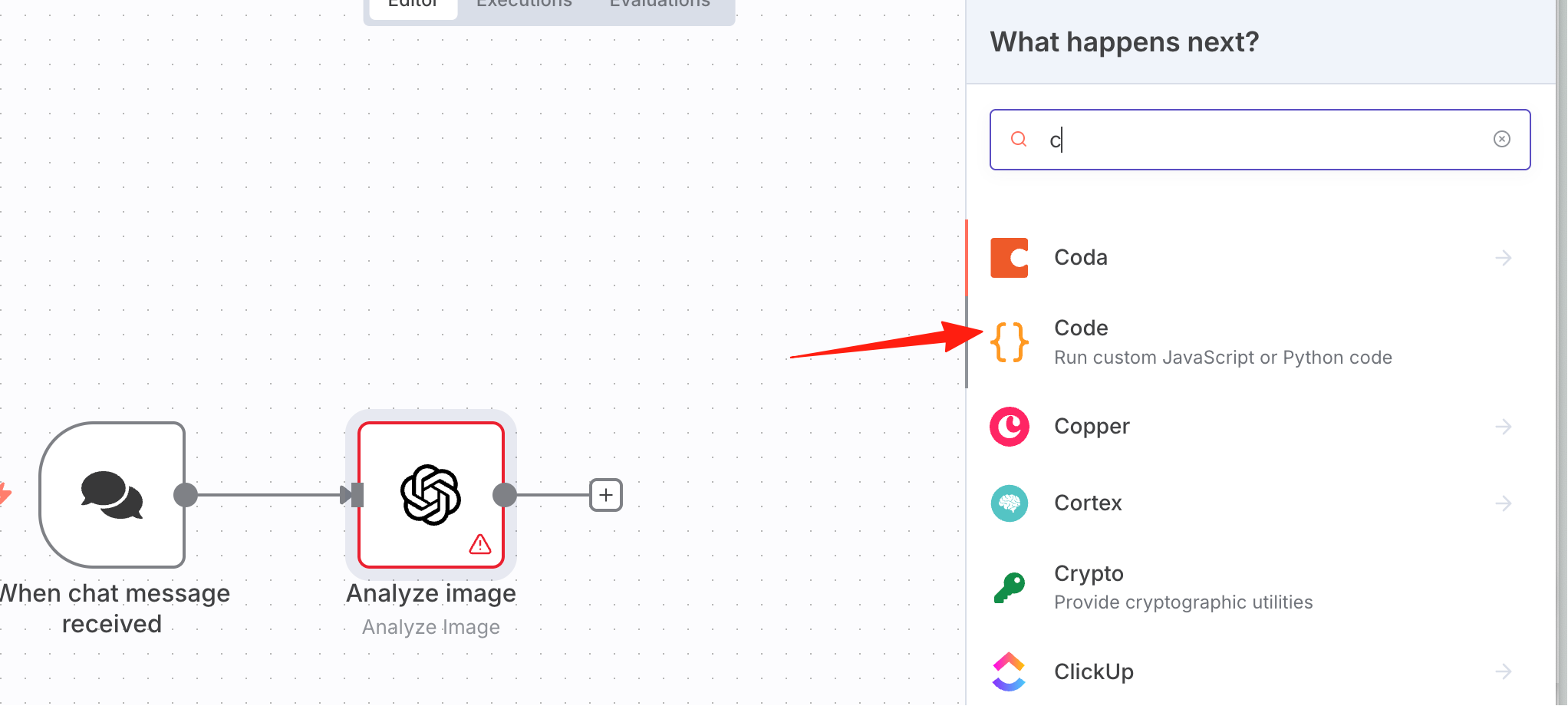
Step 3: Add a Code node to clean the data.
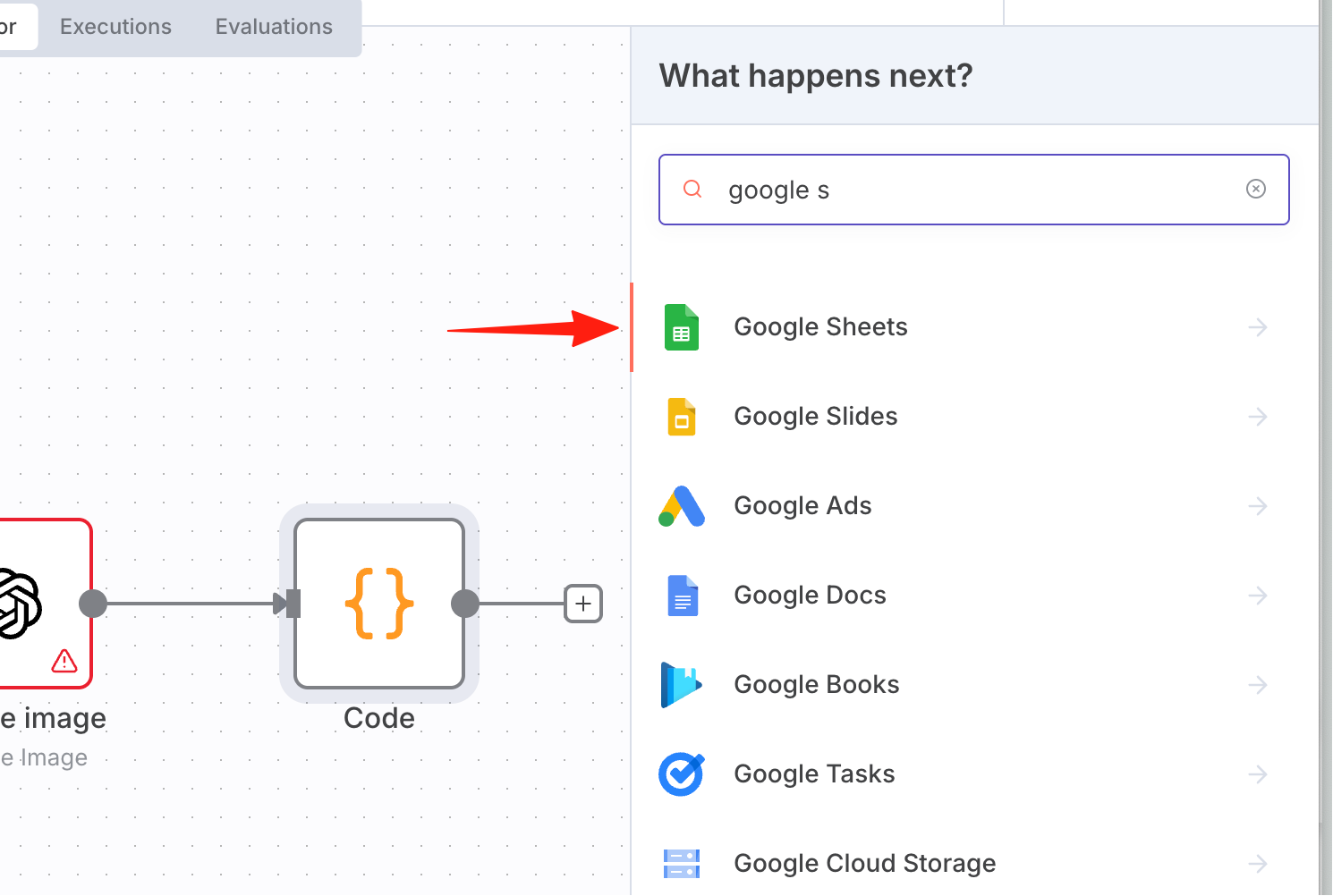
Step 4: Save to Google Sheets.
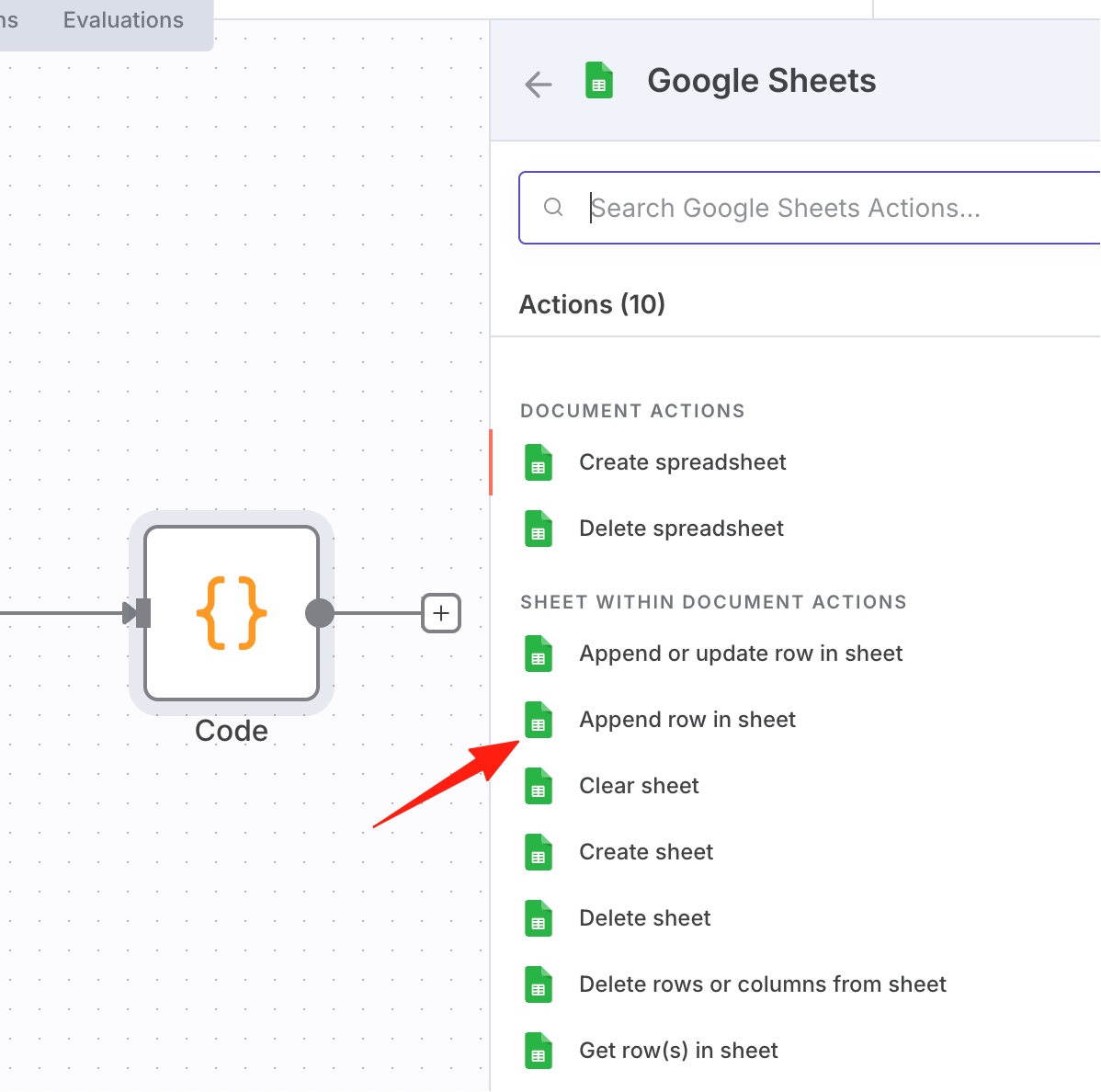
Select 'Add a new row'.
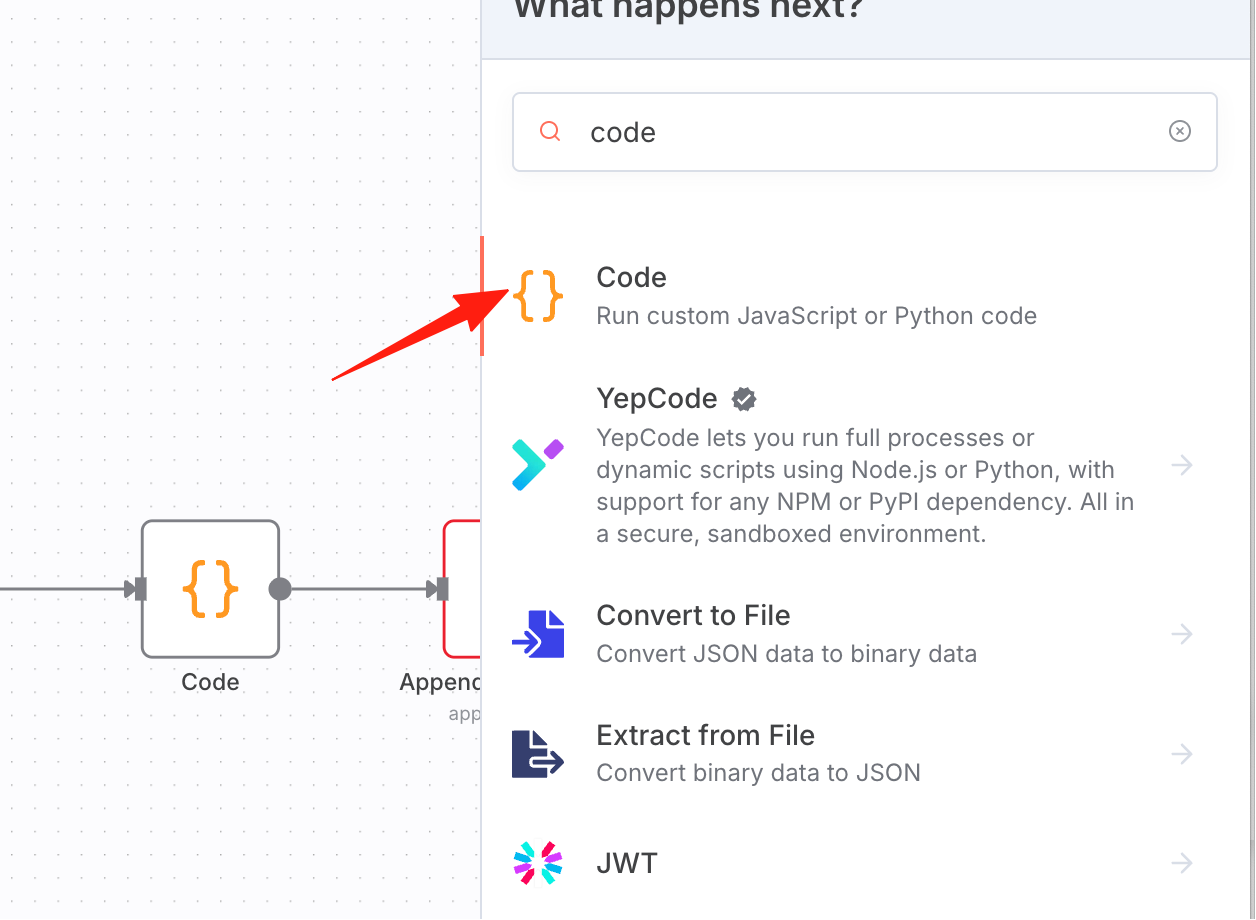
Step 5: Extract the email address from the chat message, add another Code node.
Step 6: Add an If node to check if the email is empty.
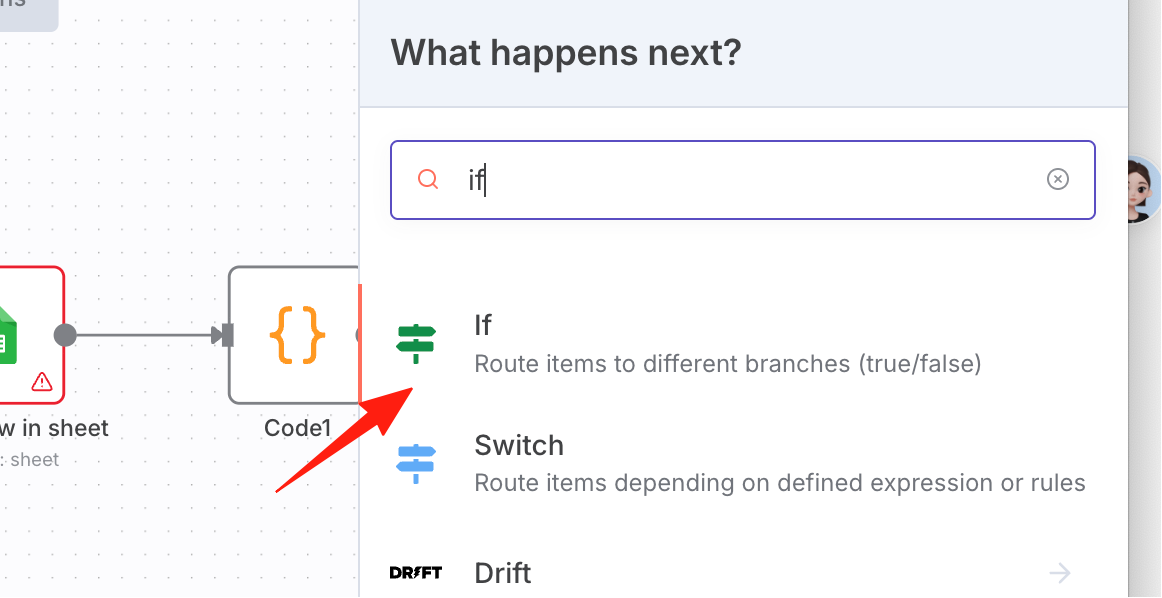
Step 7: Send the email, search for Gmail.
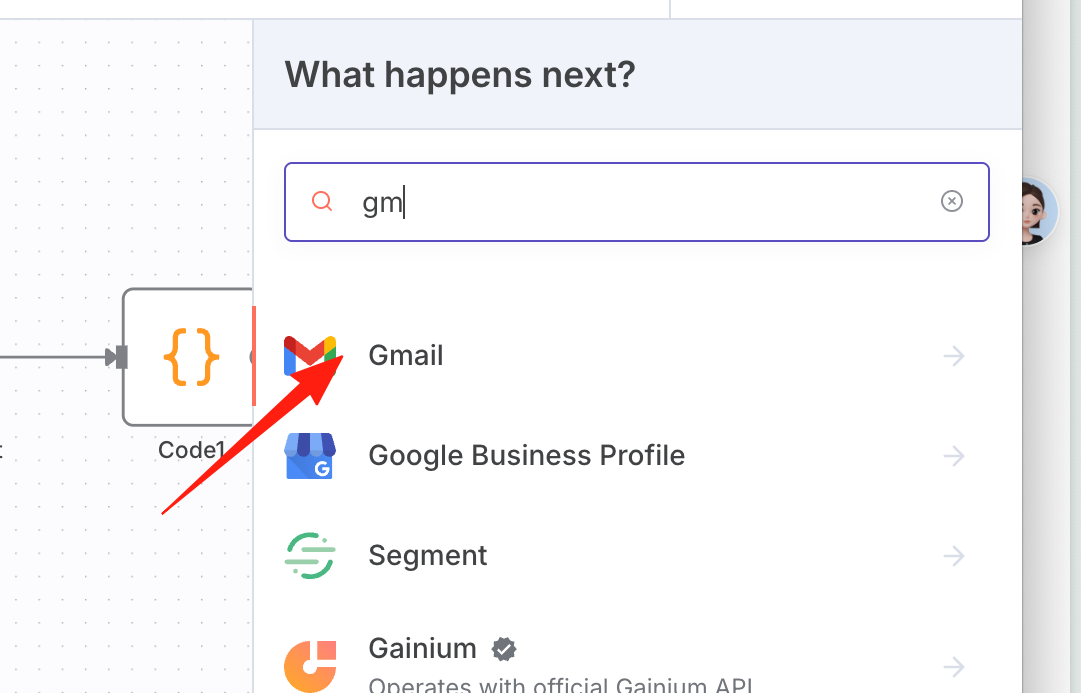
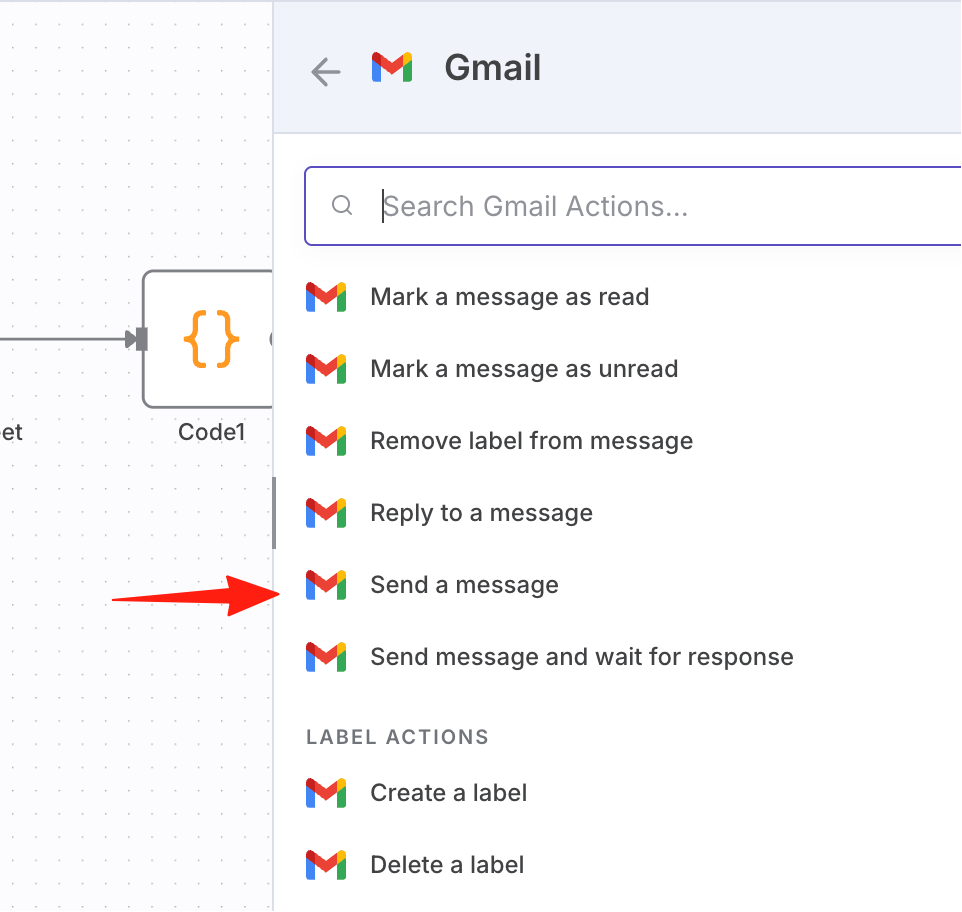
Select 'Send a message'.
These are all the workflow nodes.
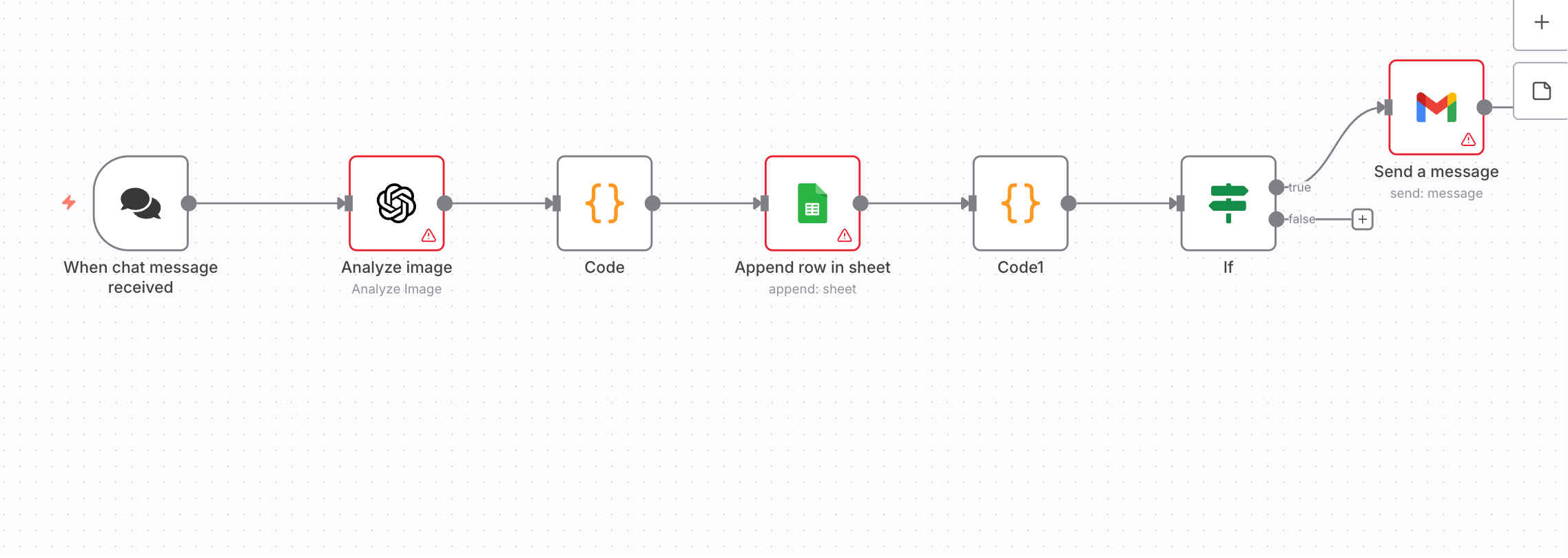
Next, detailed configuration instructions for each node.
1. Chat Message
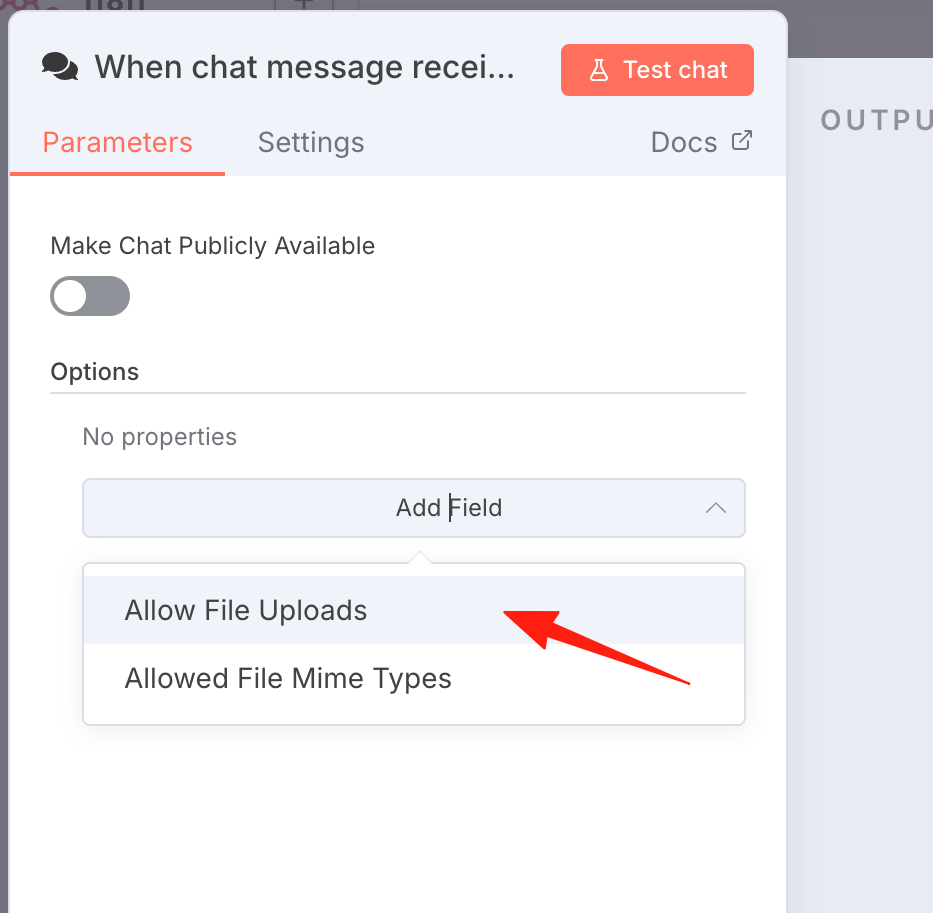
Double-click the node, add the file upload property.
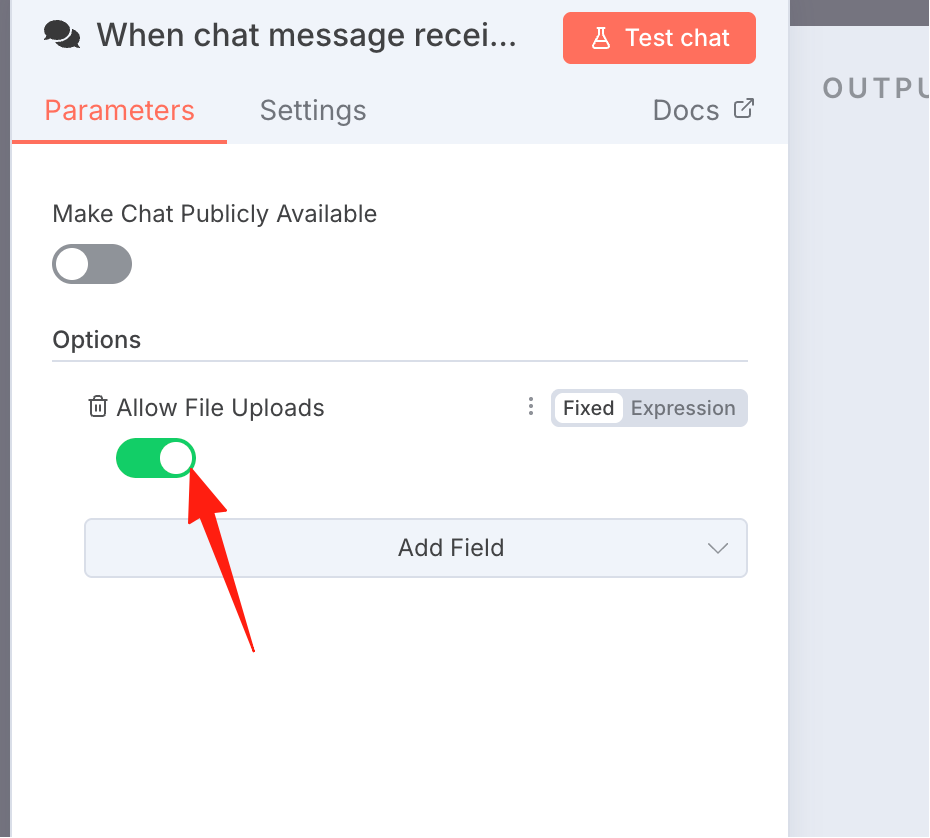
Turn the switch on.
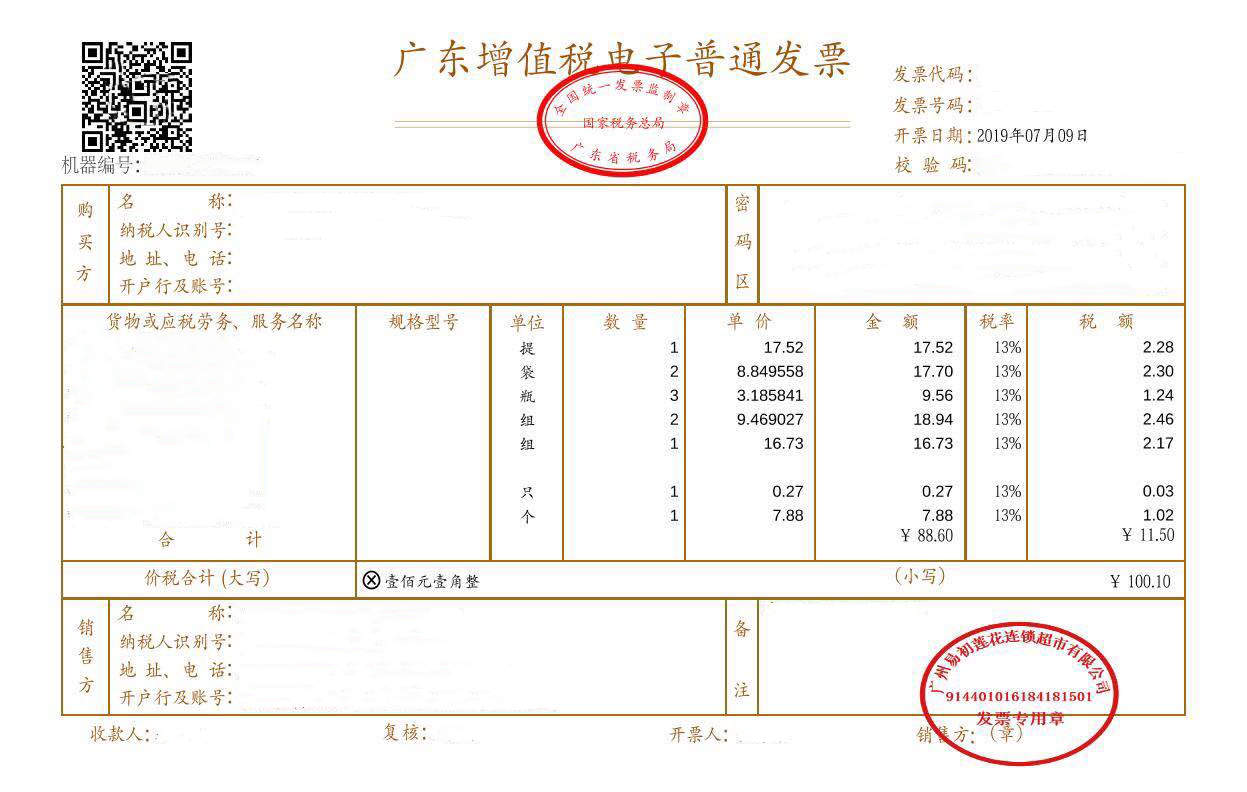
Now you can test it. For example, I have this invoice image on my computer:
In the chat box, type "Send to your.email@gmail.com", click the paperclip icon, and select your invoice image.
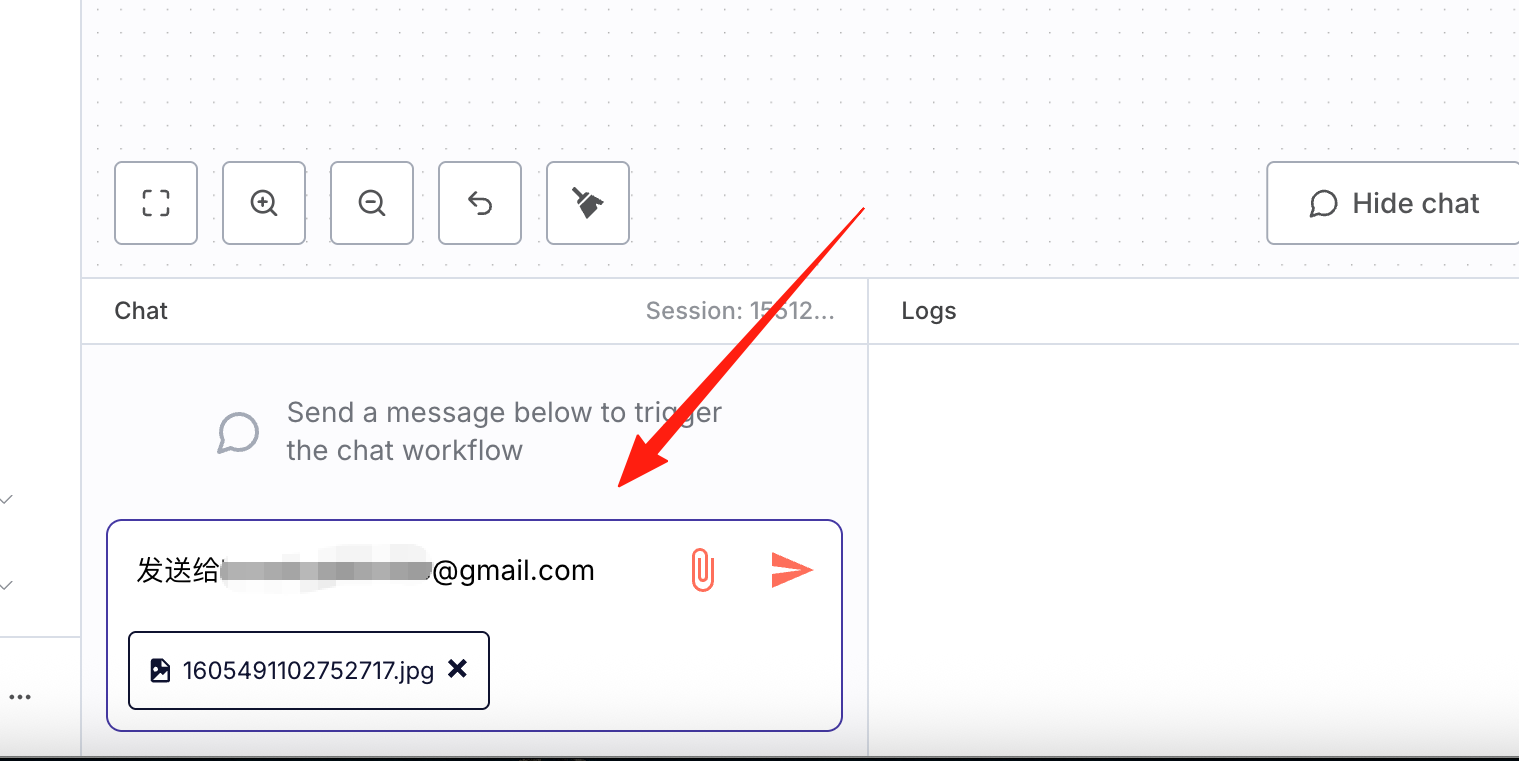
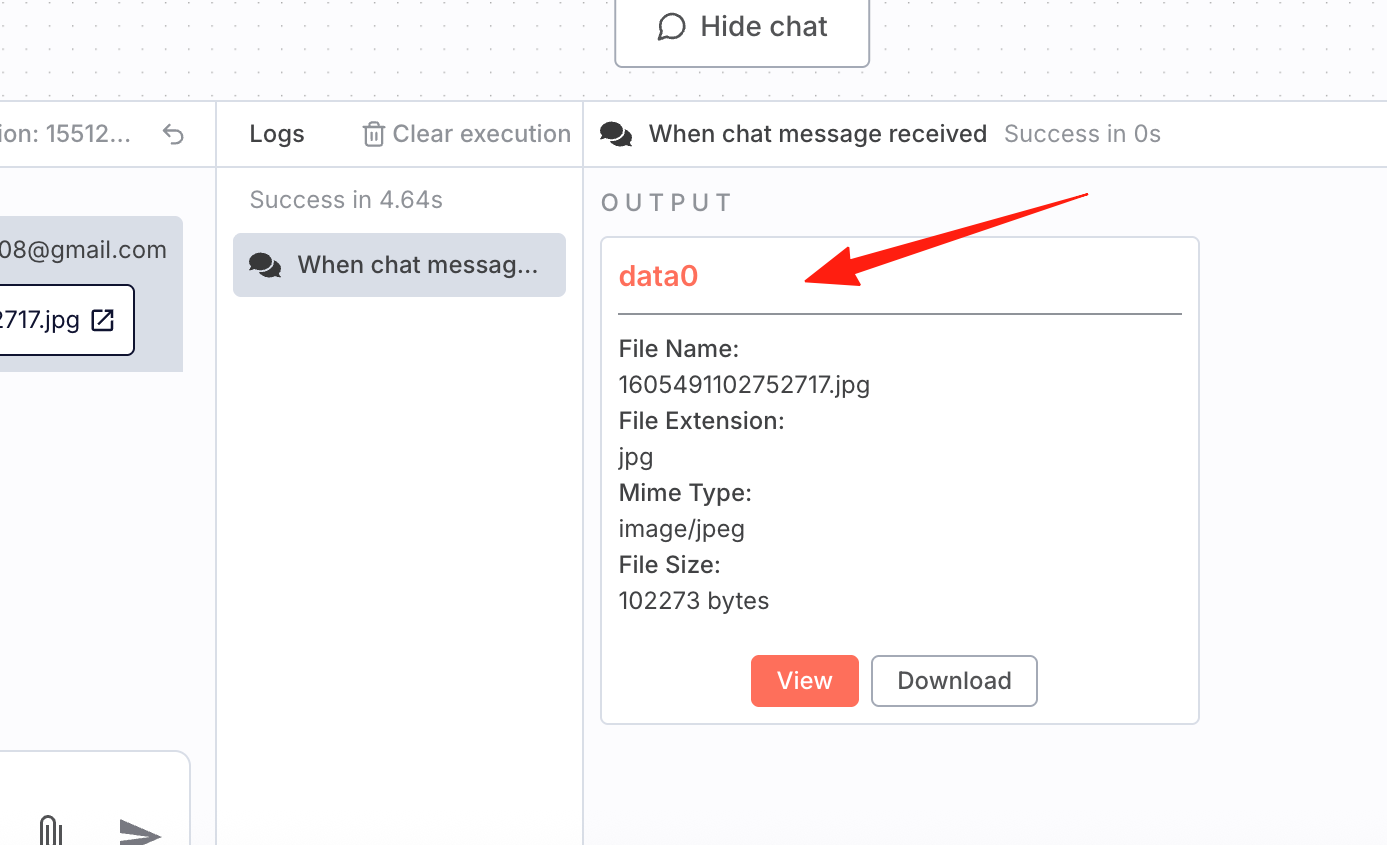
Click send. You can see the output result; the name is data0, which we will use later.
2. OpenAI Configuration
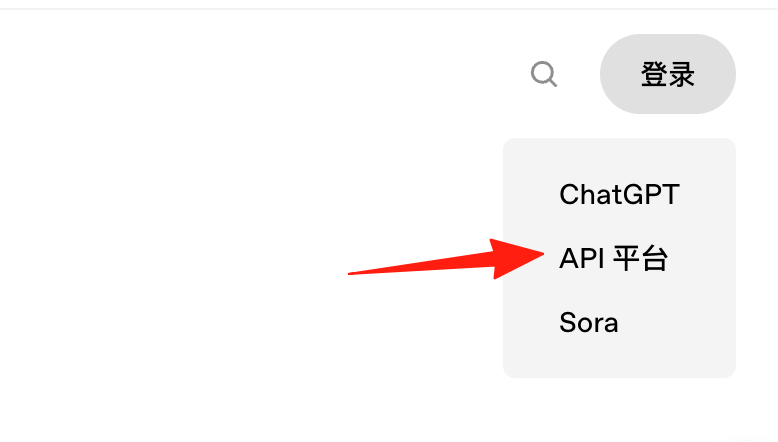
Go to the official website openai.com, select the API platform.
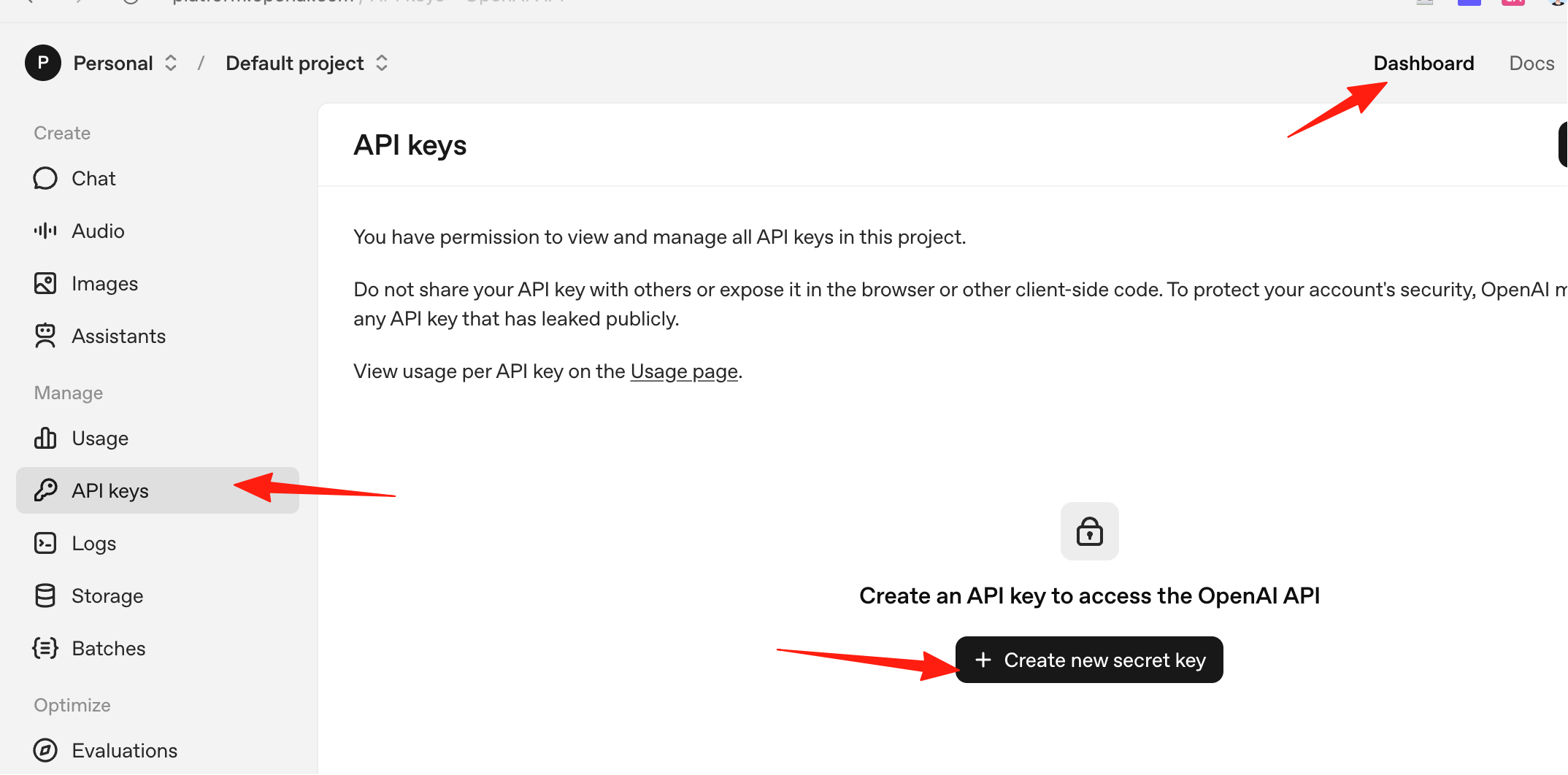
In the top right dashboard, go to API Keys, and create a new key.
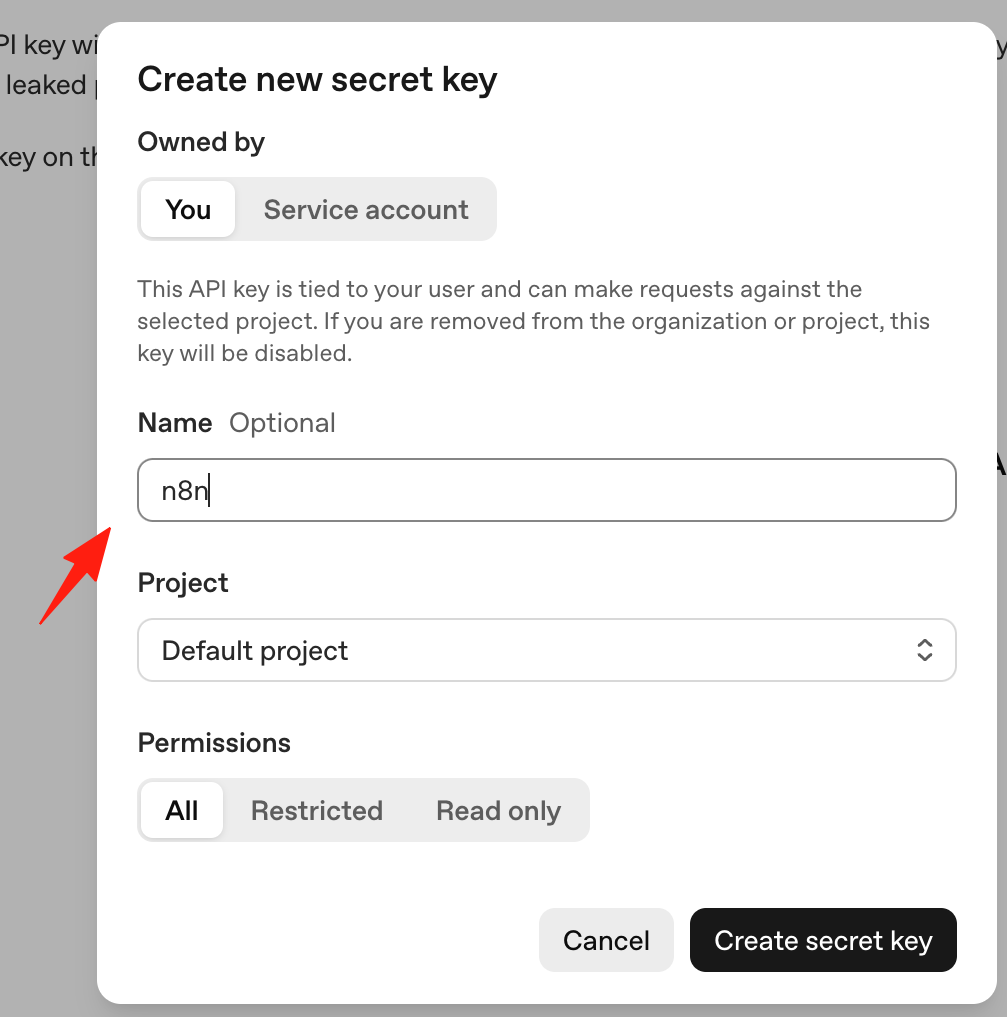
Give it a name, for example, 'n8n'.
Note: You need to have funds in your account first, otherwise the call will fail. Or use another API platform.
For example, I found my OpenAI account had no funds, so I temporarily switched to using Gemini. The steps are the same.
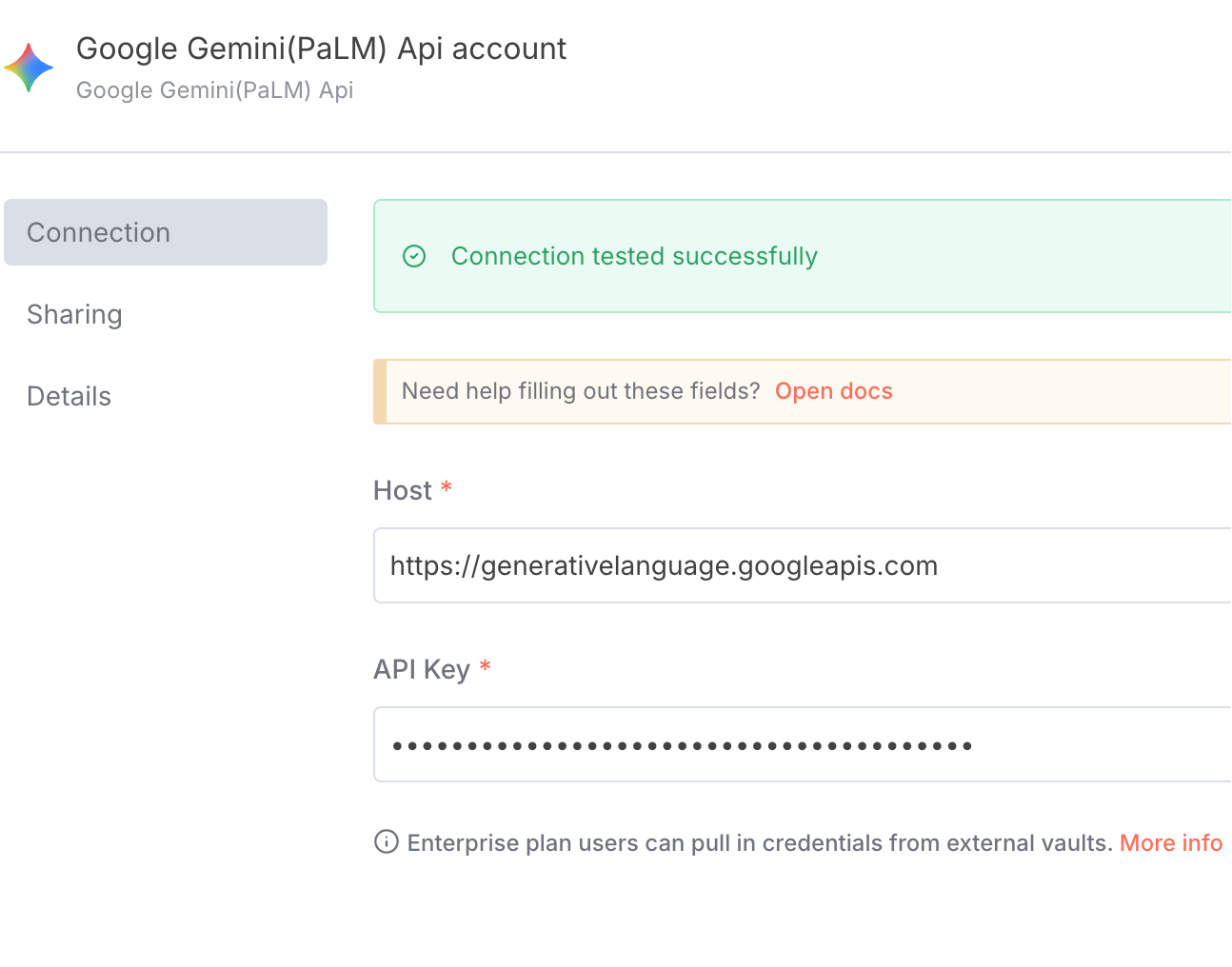
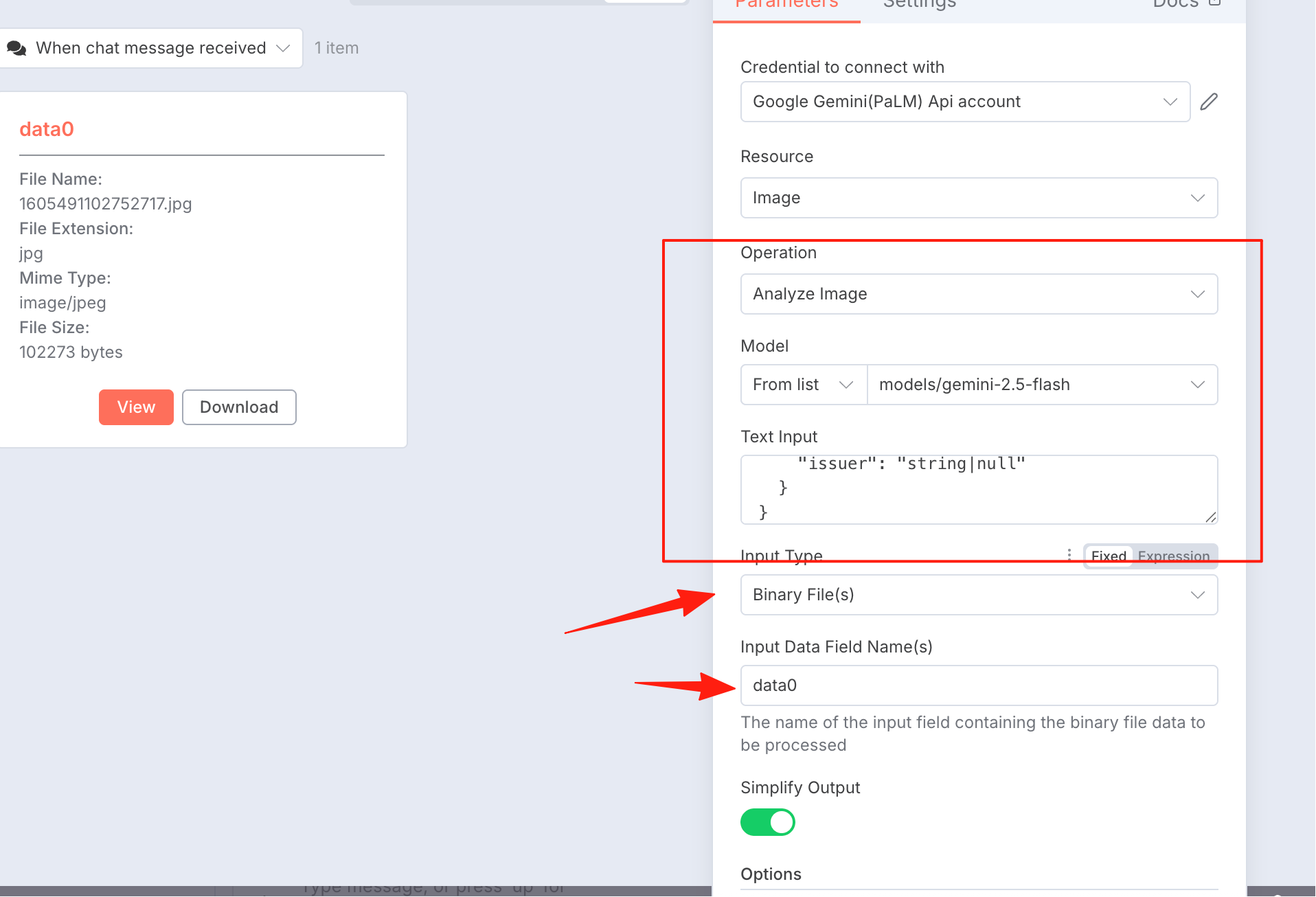
Select the model. Use the prompt below as a reference.
## Role

You are a professional "Invoice Information Extractor". The input is a piece of invoice text (possibly from OCR, email body, or chat paste), and the output is strictly valid JSON, suitable for direct writing to a database/Google Sheets.

## Task
Identify and extract fields from the given invoice text, return a single JSON object, placed inside a markdown code block (`json ... `). Do not output any explanations, comments, or extra characters.

## Output Requirements

Output only a single JSON code block, no additional text.

Use `null` for any values that do not exist or are uncertain.

Dates must be in YYYY-MM-DD format (ISO 8601).

For amount/quantity numerical fields, use number type (not strings), preserve precision but do not add currency symbols or thousand separators.

Use decimals for tax rates (e.g., 1% → 0.01), and also provide a display field (e.g., "1%").

The `items` array must exist; if there are no line items, output an empty array `[]`.

## Field Definition (Schema)

{
  "invoice": {
    "title": "string|null",
    "number": "string|null",
    "issue_date": "YYYY-MM-DD|null",
    "currency": "string|null",
    "buyer": {
      "name": "string|null",
      "tax_id": "string|null",
      "note": "string|null"
    },
    "seller": {
      "name": "string|null",
      "tax_id": "string|null"
    },
    "items": [
      {
        "name": "string|null",
        "spec": "string|null",
        "unit": "string|null",
        "quantity": "number|null",
        "unit_price": "number|null",
        "amount_without_tax": "number|null",
        "tax_rate": "number|null",
        "tax_rate_display": "string|null",
        "tax_amount": "number|null"
      }
    ],
    "totals": {
      "amount_without_tax": "number|null",
      "tax_total": "number|null",
      "amount_with_tax": "number|null"
    },
    "issuer": "string|null"
  }
}
Select the input type as 'Bytes', the name is data0 from above.
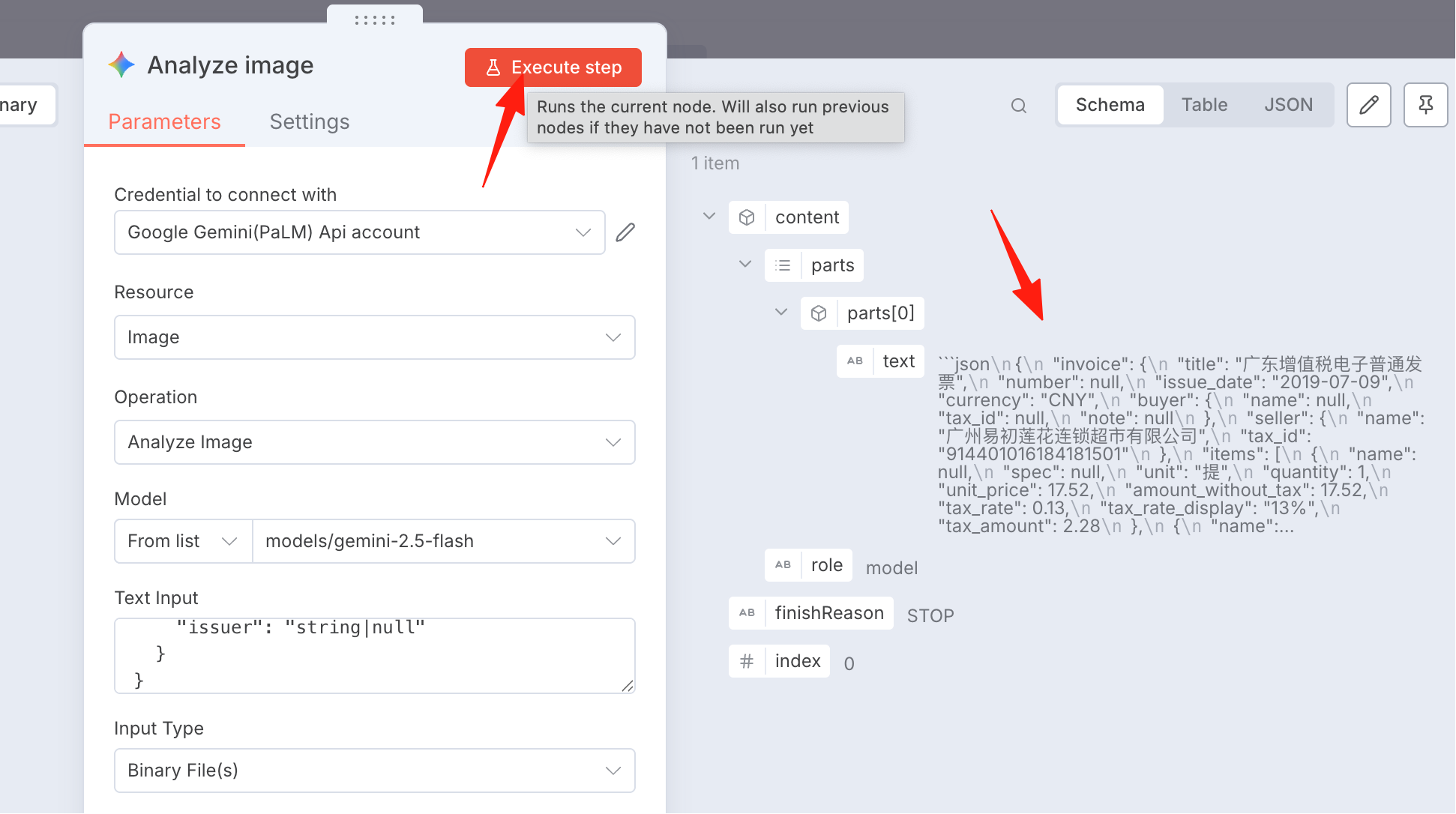
Execute it, and you'll see the output result on the right.
Data Cleaning
This step is to format the result from the previous step to make it cleaner and more presentable.
Reference input code:
// n8n Code Node - Invoice Data Parsing
// Get input data (handle possible string format)
const inputData = $input.first().json.choices[0].message.content;

// If input is a string, parse it as JSON first
let invoiceData;
if (typeof inputData === 'string') {
  // Remove possible markdown code block markers
  const cleanData = inputData.replace(/^```json\s*/, '').replace(/\s*```$/, '').trim();
  invoiceData = JSON.parse(cleanData);
} else {
  invoiceData = inputData;
}

// Extract invoice data
const invoice = invoiceData.invoice;

// Return flattened JSON data
return [{
  json: {
    title: invoice.title,
    invoiceNumber: invoice.number,
    issueDate: invoice.issue_date,
    currency: invoice.currency,
    issuer: invoice.issuer,
    buyerName: invoice.buyer.name,
    buyerTaxId: invoice.buyer.tax_id,
    buyerNote: invoice.buyer.note,
    sellerName: invoice.seller.name,
    sellerTaxId: invoice.seller.tax_id,
    itemName: invoice.items[0].name,
    itemSpec: invoice.items[0].spec,
    itemUnit: invoice.items[0].unit,
    quantity: invoice.items[0].quantity,
    unitPrice: invoice.items[0].unit_price,
    amountWithoutTax: invoice.items[0].amount_without_tax,
    taxRate: invoice.items[0].tax_rate,
    taxRateDisplay: invoice.items[0].tax_rate_display,
    taxAmount: invoice.items[0].tax_amount,
    subtotal: invoice.totals.amount_without_tax,
    totalTax: invoice.totals.tax_total,
    grandTotal: invoice.totals.amount_with_tax
  }
}];
Execute it, and you might find an error.
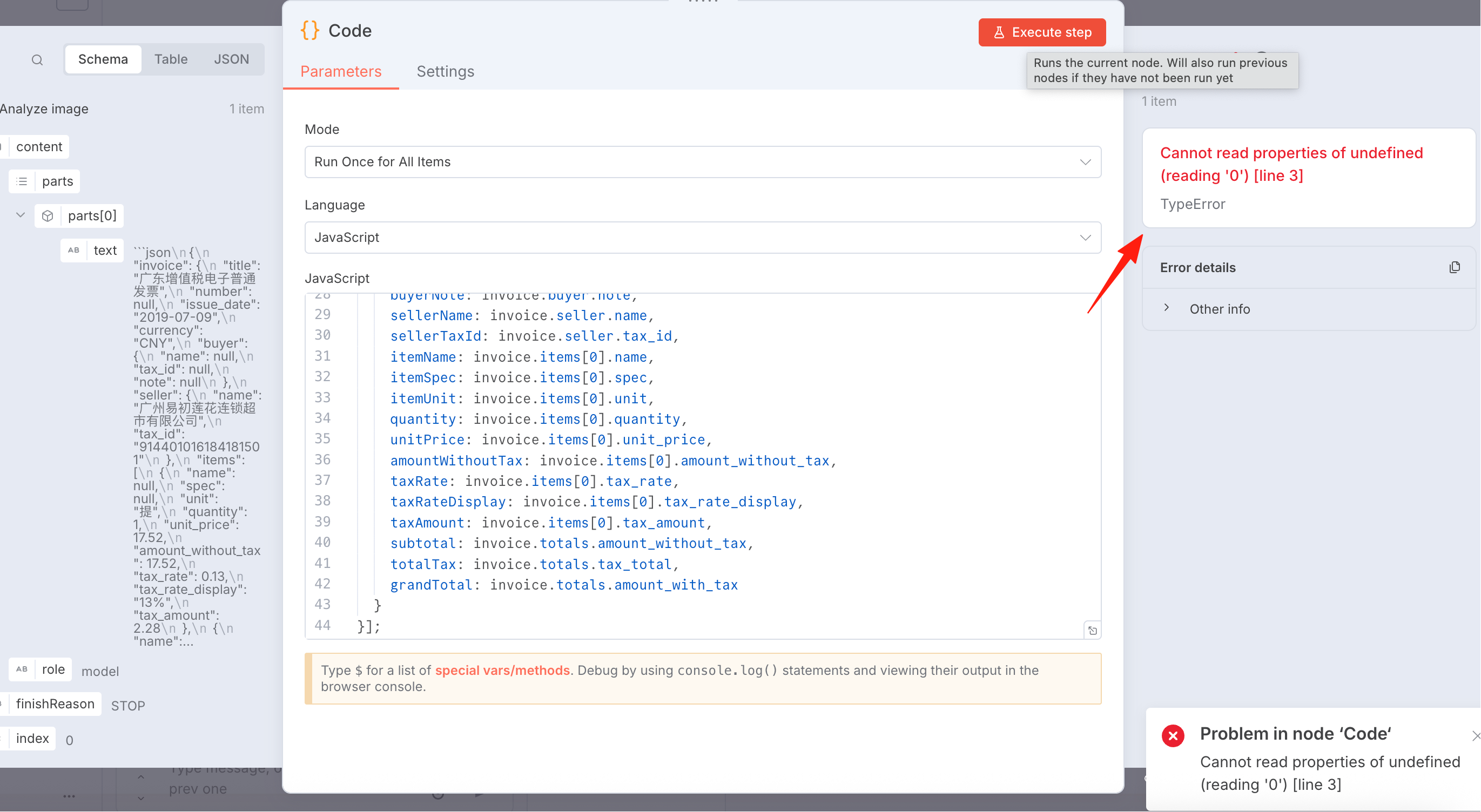
Don't panic, use AI to help us fix it. I used Claude and asked like this: "This is my input in n8n:" [Copy the code from the left side] "This is the code I want for cleaning:" [Copy the code above] "But I encountered this problem:" [Copy the error message]
Claude directly gave me the corrected code:
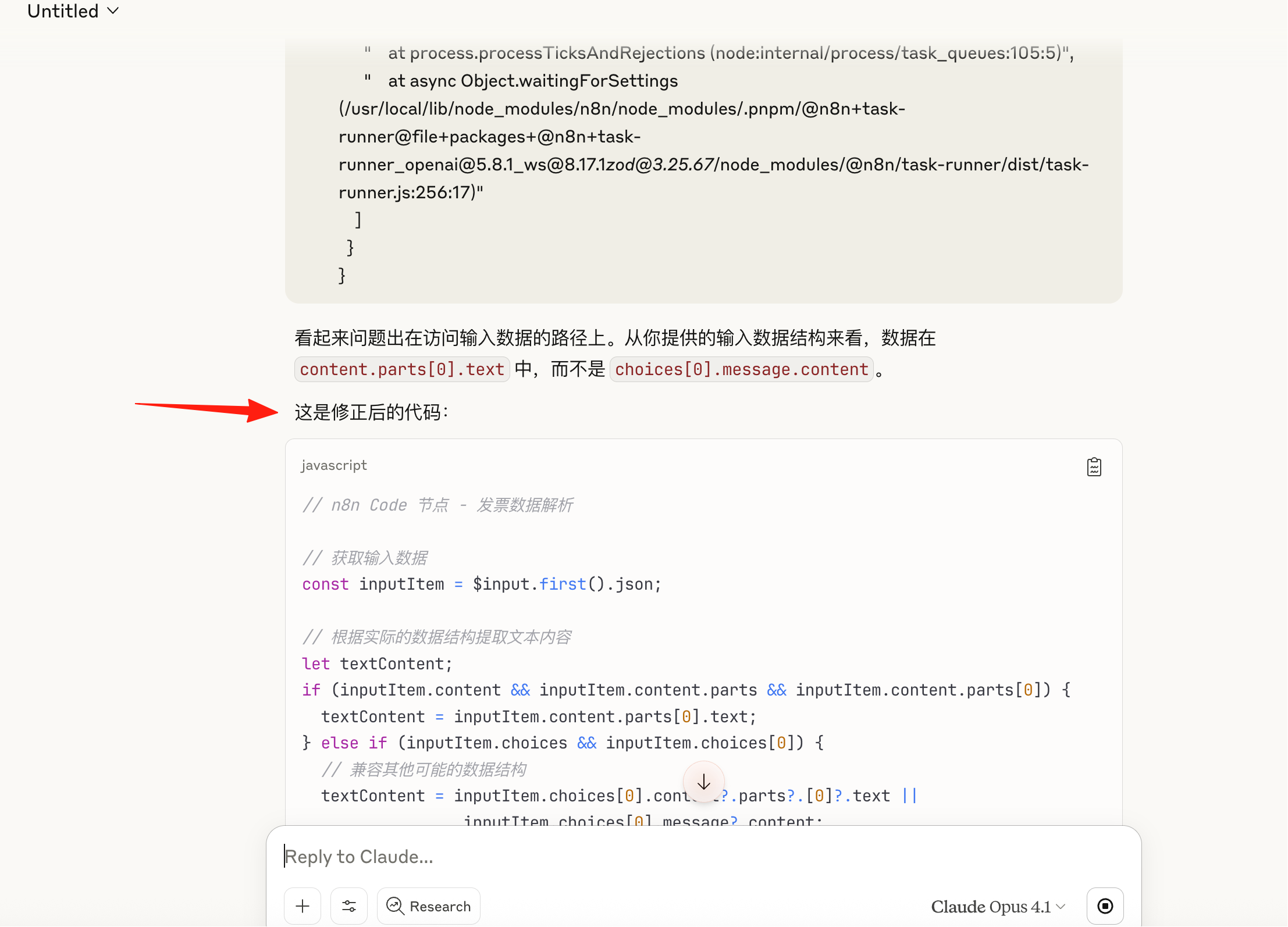
// n8n Code Node - Invoice Data Parsing

// Get input data
const inputItem = $input.first().json;

// Extract text content based on the actual data structure
let textContent;
if (inputItem.content && inputItem.content.parts && inputItem.content.parts[0]) {
  textContent = inputItem.content.parts[0].text;
} else if (inputItem.choices && inputItem.choices[0]) {
  // Compatible with other possible data structures
  textContent = inputItem.choices[0].content?.parts?.[0]?.text ||
                 inputItem.choices[0].message?.content;
} else {
  // If neither matches, try using it directly
  textContent = inputItem;
}

// Parse JSON data
let invoiceData;
if (typeof textContent === 'string') {
  // Remove possible markdown code block markers
  const cleanData = textContent.replace(/^```json\s*/, '').replace(/\s*```$/, '').trim();
  invoiceData = JSON.parse(cleanData);
} else {
  invoiceData = textContent;
}

// Extract invoice data
const invoice = invoiceData.invoice;

// Handle multiple item entries - return each item as an independent record
const items = [];
for (let i = 0; i < invoice.items.length; i++) {
  const item = invoice.items[i];
  items.push({
    json: {
      // Basic invoice information
      title: invoice.title,
      invoiceNumber: invoice.number,
      issueDate: invoice.issue_date,
      currency: invoice.currency,
      issuer: invoice.issuer,

      // Buyer information
      buyerName: invoice.buyer.name,
      buyerTaxId: invoice.buyer.tax_id,
      buyerNote: invoice.buyer.note,

      // Seller information
      sellerName: invoice.seller.name,
      sellerTaxId: invoice.seller.tax_id,

      // Item details
      itemIndex: i + 1,  // Item sequence number
      itemName: item.name,
      itemSpec: item.spec,
      itemUnit: item.unit,
      quantity: item.quantity,
      unitPrice: item.unit_price,
      amountWithoutTax: item.amount_without_tax,
      taxRate: item.tax_rate,
      taxRateDisplay: item.tax_rate_display,
      taxAmount: item.tax_amount,

      // Invoice totals
      subtotal: invoice.totals.amount_without_tax,
      totalTax: invoice.totals.tax_total,
      grandTotal: invoice.totals.amount_with_tax
    }
  });
}

// If there are no items, at least return basic invoice information
if (items.length === 0) {
  return [{
    json: {
      title: invoice.title,
      invoiceNumber: invoice.number,
      issueDate: invoice.issue_date,
      currency: invoice.currency,
      issuer: invoice.issuer,
      buyerName: invoice.buyer.name,
      buyerTaxId: invoice.buyer.tax_id,
      buyerNote: invoice.buyer.note,
      sellerName: invoice.seller.name,
      sellerTaxId: invoice.seller.tax_id,
      subtotal: invoice.totals.amount_without_tax,
      totalTax: invoice.totals.tax_total,
      grandTotal: invoice.totals.amount_with_tax
    }
  }];
}

return items;
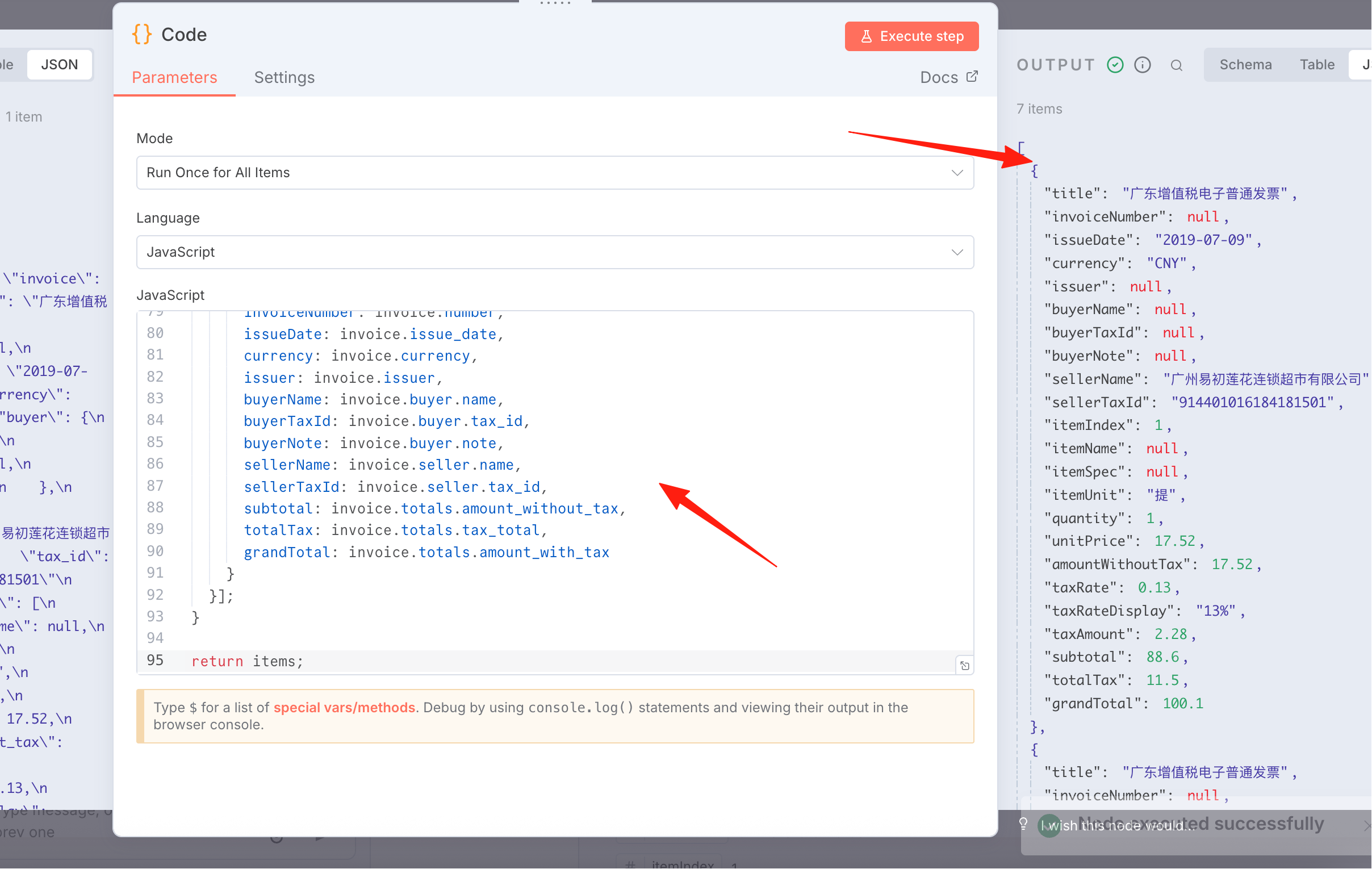
I copied the code above again, executed it, and found the result was now correct.
PS: Remember this? This is how you debug from now on.
Google Sheets
For Google Sheets configuration, you can refer to my previous guide.
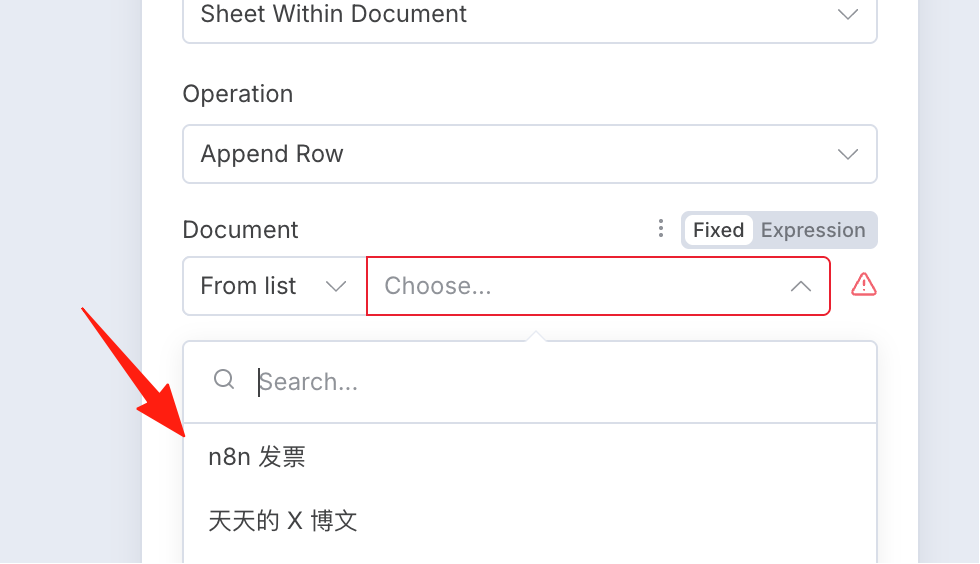
I created a new sheet on Google: 'n8n Invoices'
Reference column names for the sheet:
Invoice Title Invoice Number Issue Date Buyer Name Buyer Tax ID Buyer Note Seller Name Seller Tax ID Item Name Specification Model Unit Quantity Unit Price Amount Without Tax Tax Rate Tax Rate Display Tax Amount Subtotal Without Tax Total Tax Grand Total With Tax Issuer
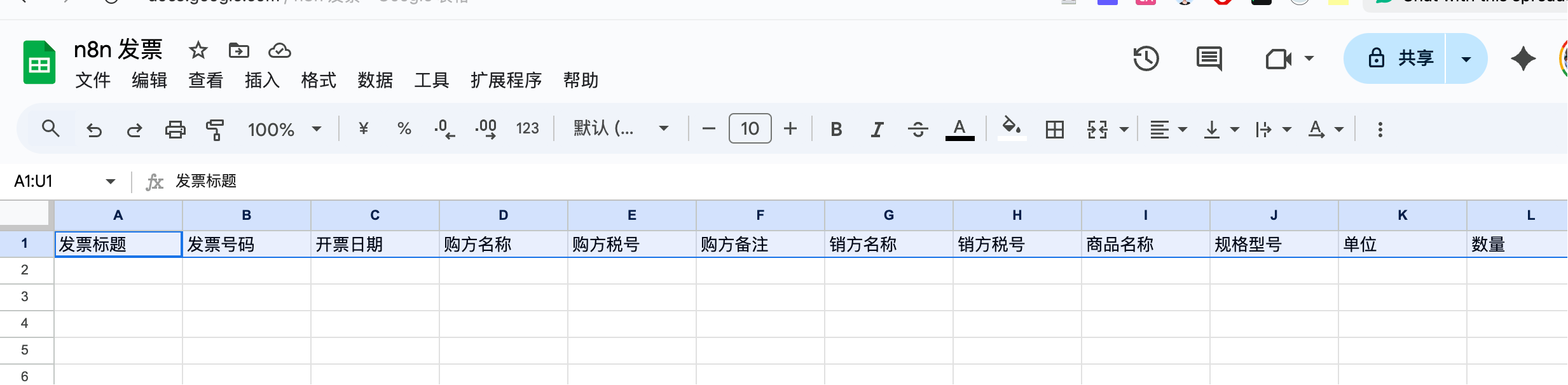
Drag the corresponding fields from the left side to their respective column name positions