
n8n Hands-On Guide 6: How to Store Daily Collected Information in Notion
This guide utilizes Webhook to receive external data and automatically store it in a Notion database.
The entire process is concise and efficient, making it highly suitable for collecting and recording various types of information, such as ideas, tasks, leads, etc.
Workflow Diagram:
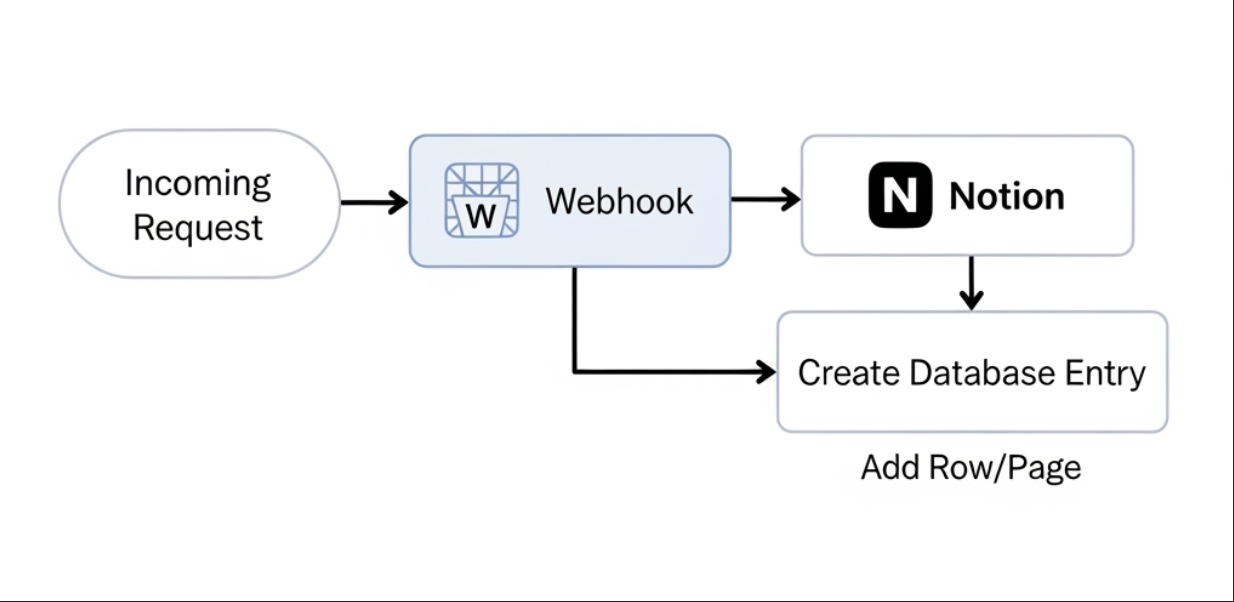
Process Description:
- External Request Trigger: The workflow starts with a Webhook node, configured to listen for external POST requests.
- Data Transmission: When a request arrives, the Webhook node captures the data from the request body and passes it as input to the next node.
- Notion Node Processing: The Notion node receives the data and performs its core task – creating a new record (Page) in the specified Notion database.
- Property Mapping: The Notion node maps the data from the Webhook (e.g., the value of the
ideafield) precisely to the corresponding columns in the Notion database (e.g., Title), based on the rules you set during configuration. - Record Generation: Finally, a new record containing your sent data is successfully created in your Notion database.
First, build a workflow: webhook-notion
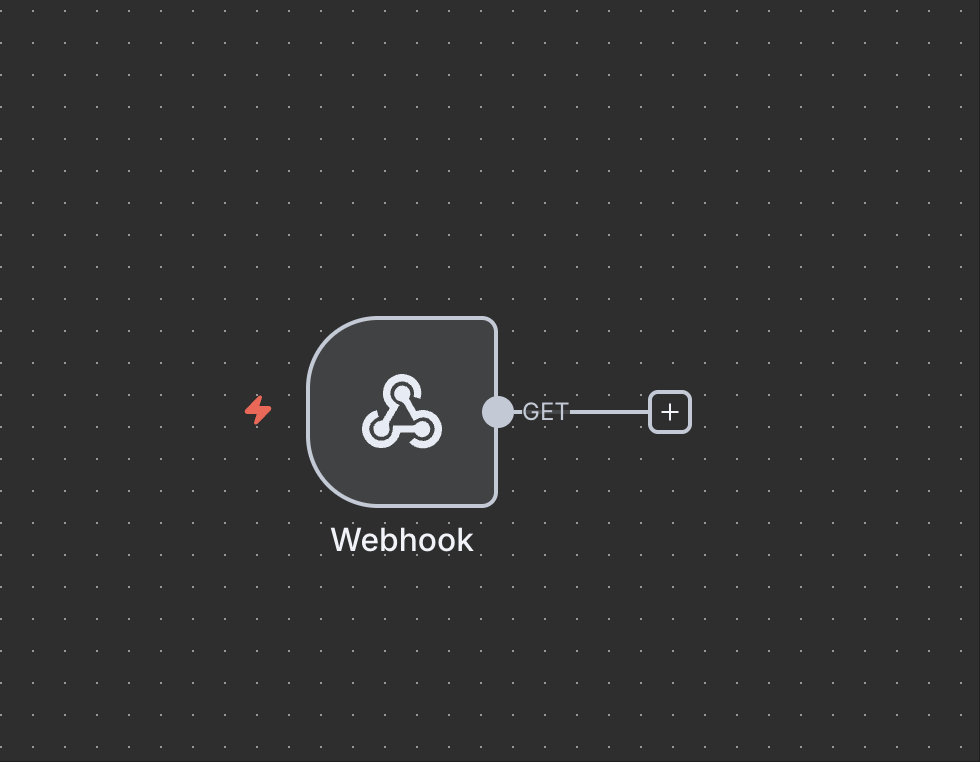
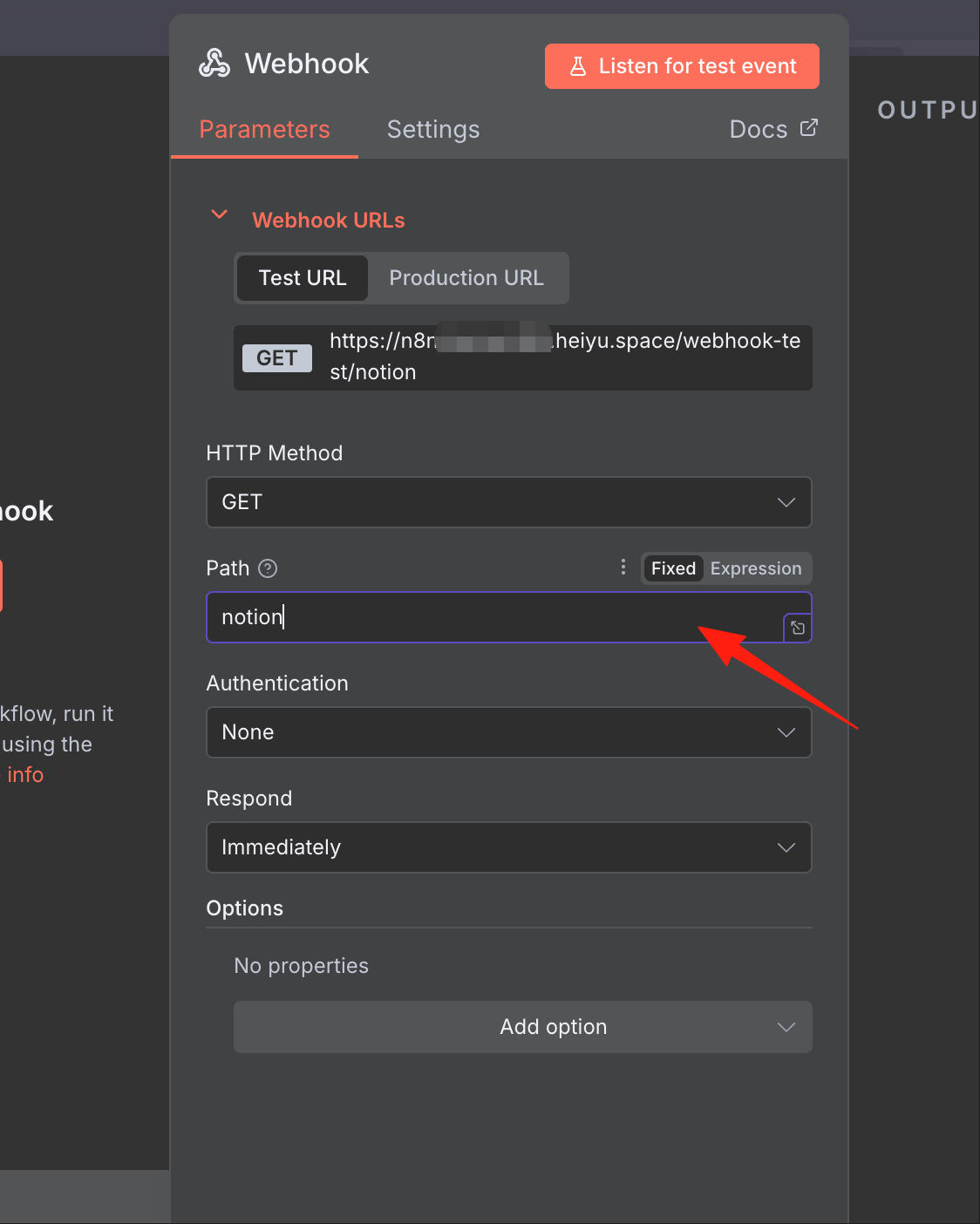
Our goal is to add a new record to the database, so select the action as shown in the image:
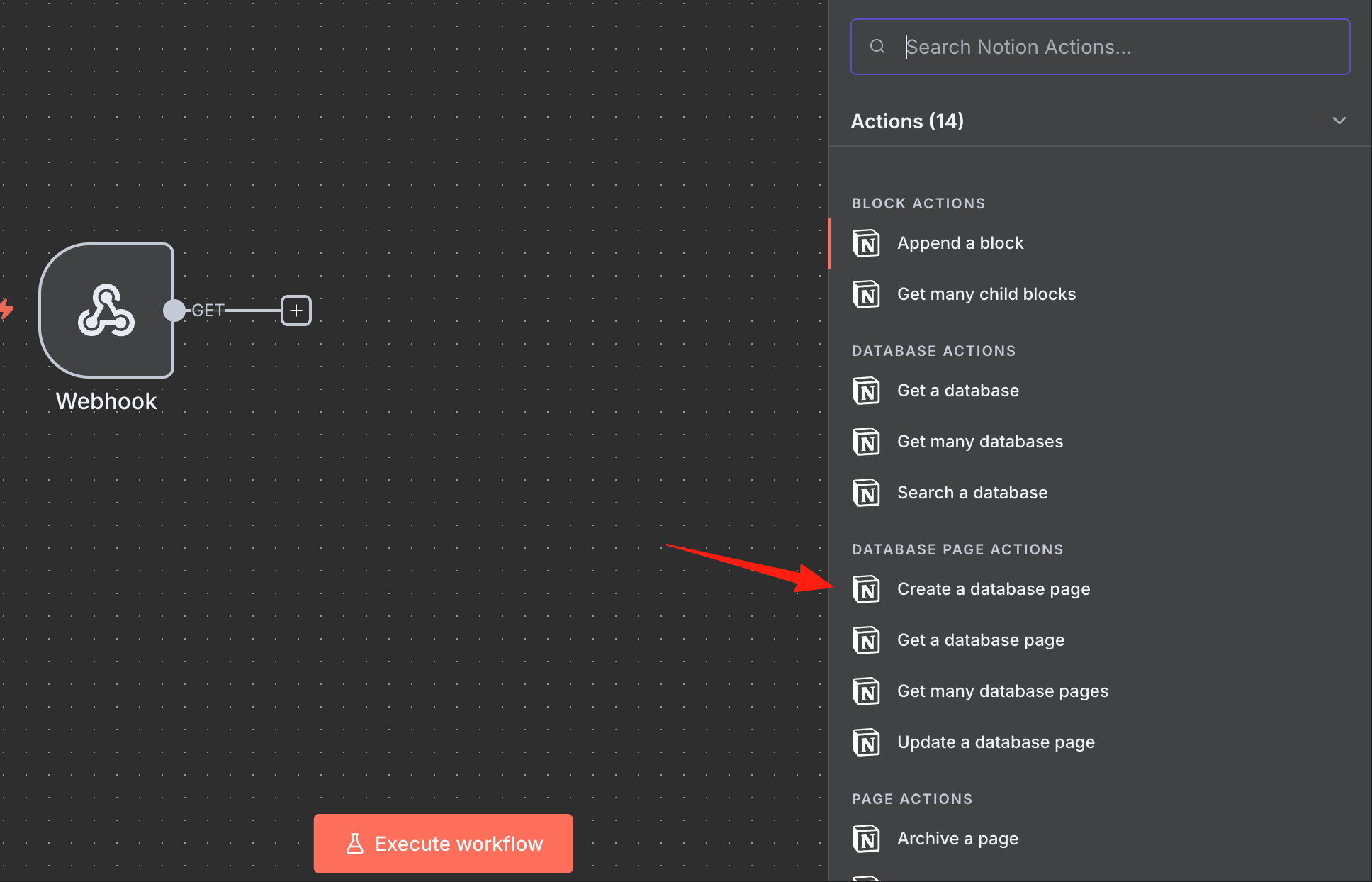
For how to configure Notion authorization, please refer to the previous guide; it won't be detailed here again. The Database field will automatically load your databases.
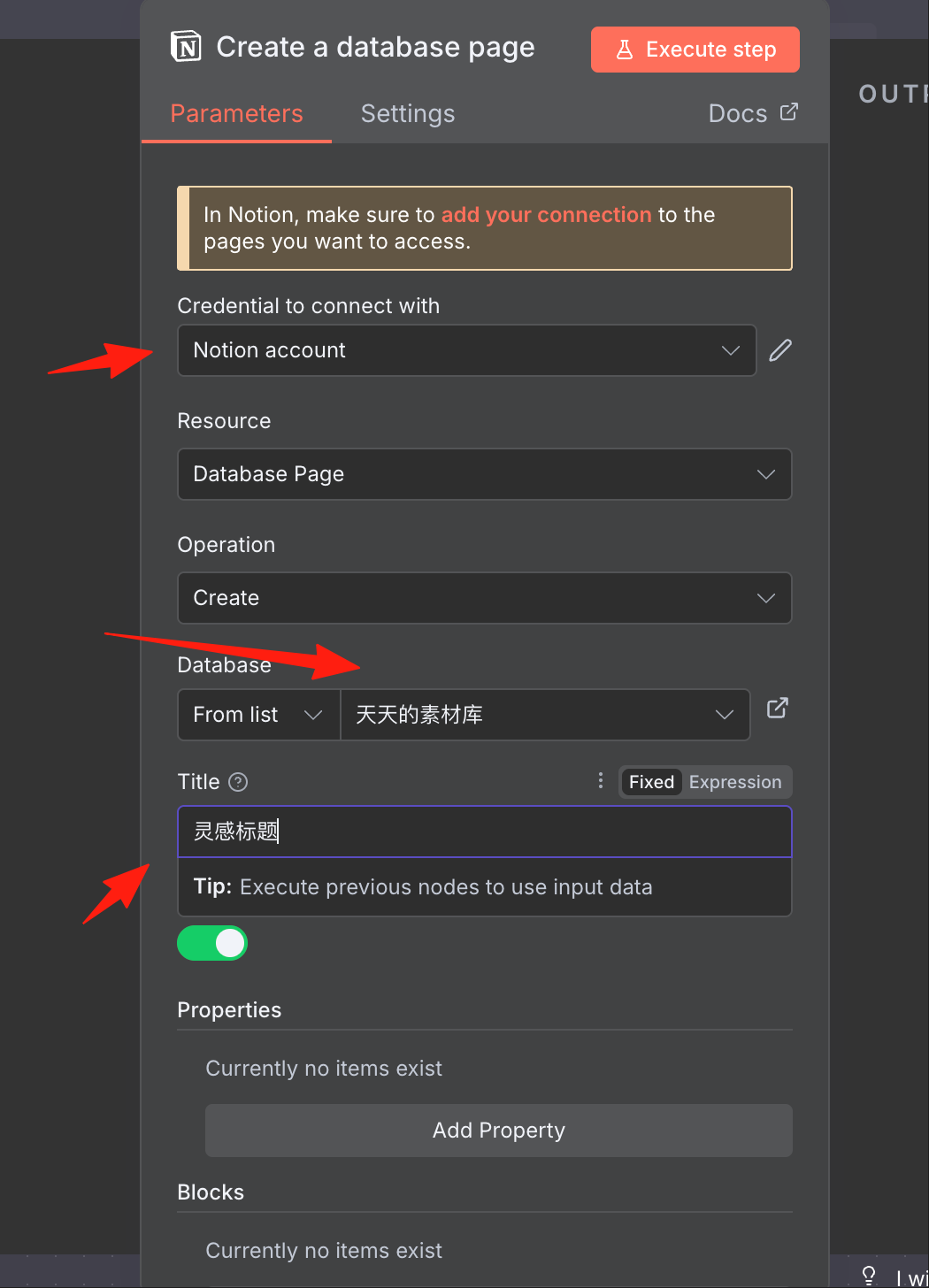
Properties is the most crucial part for field mapping configuration. Click 'Add Property'.
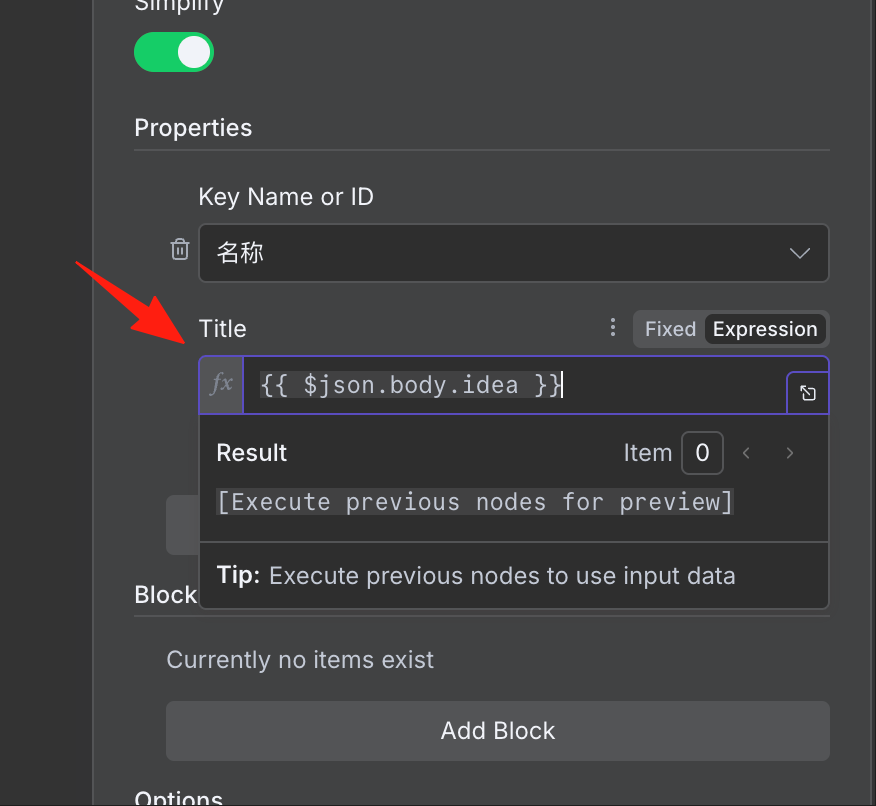
The name/value here must correspond to the column names in your Notion table.
Switch the title property to 'Expression' mode and enter {{ $json.body.idea }}.
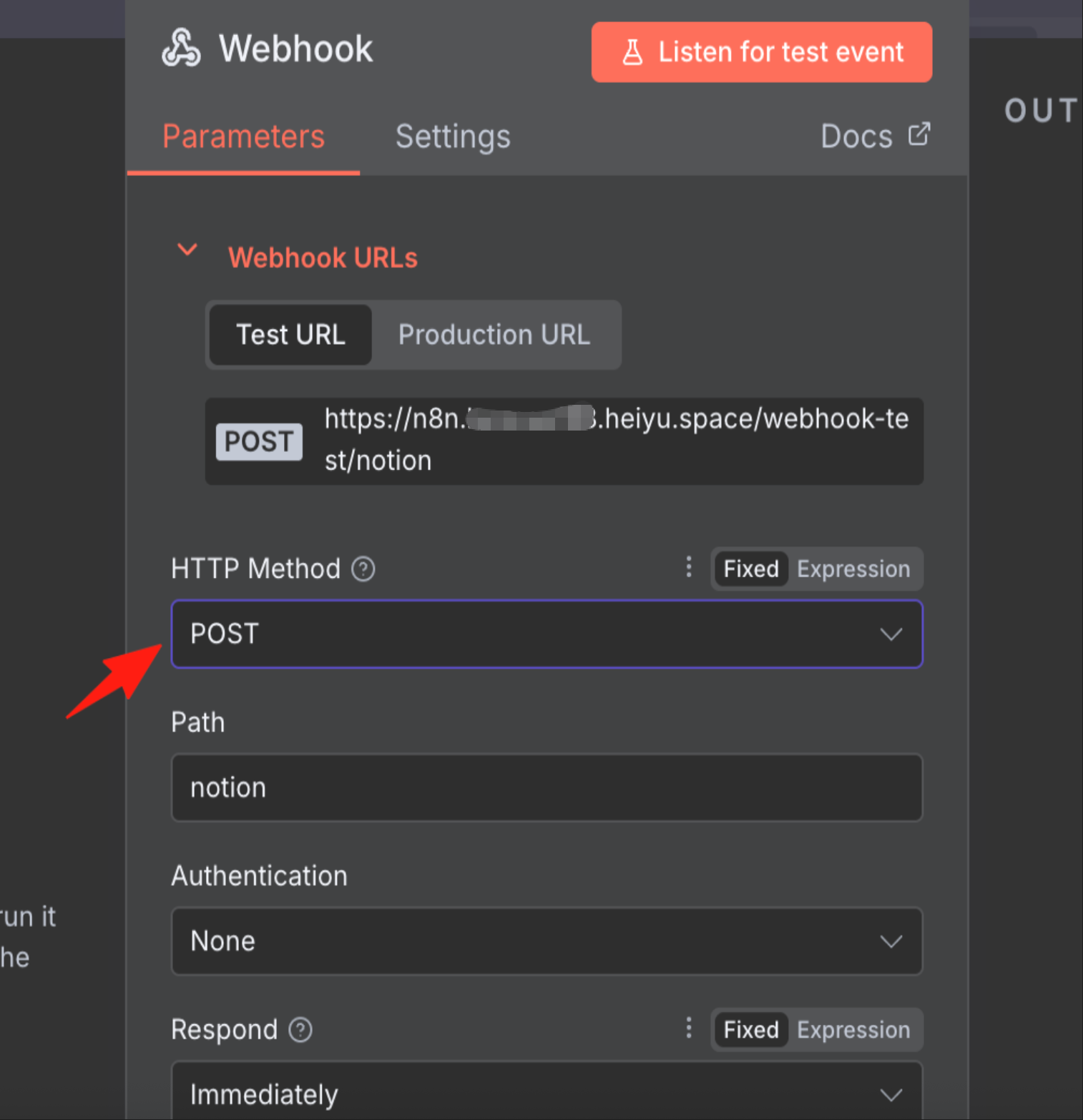
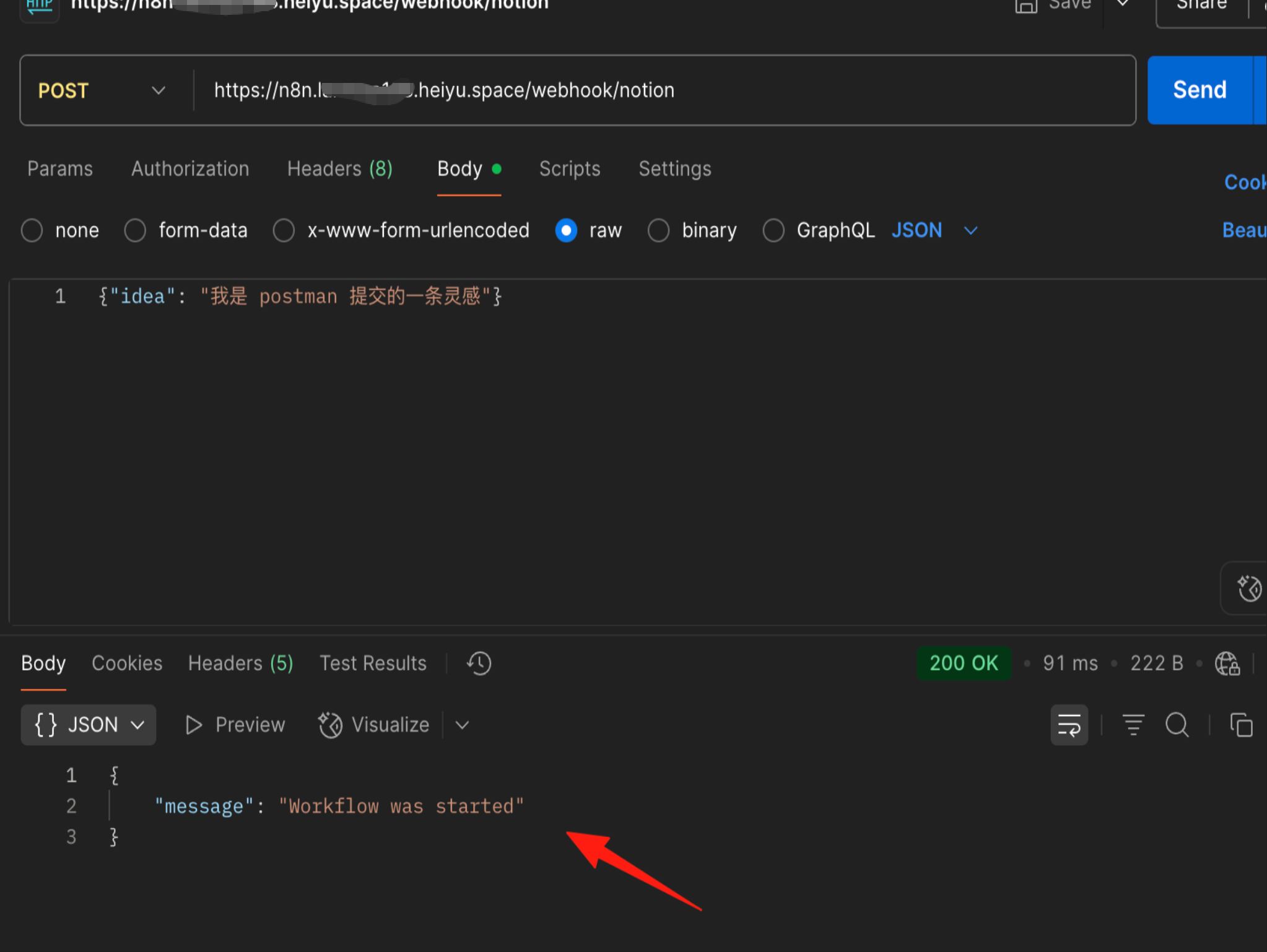
Switch the Webhook node to POST mode, activate the workflow, and let's test the result.
Using Postman, send a POST request, submitting the idea field in the body.
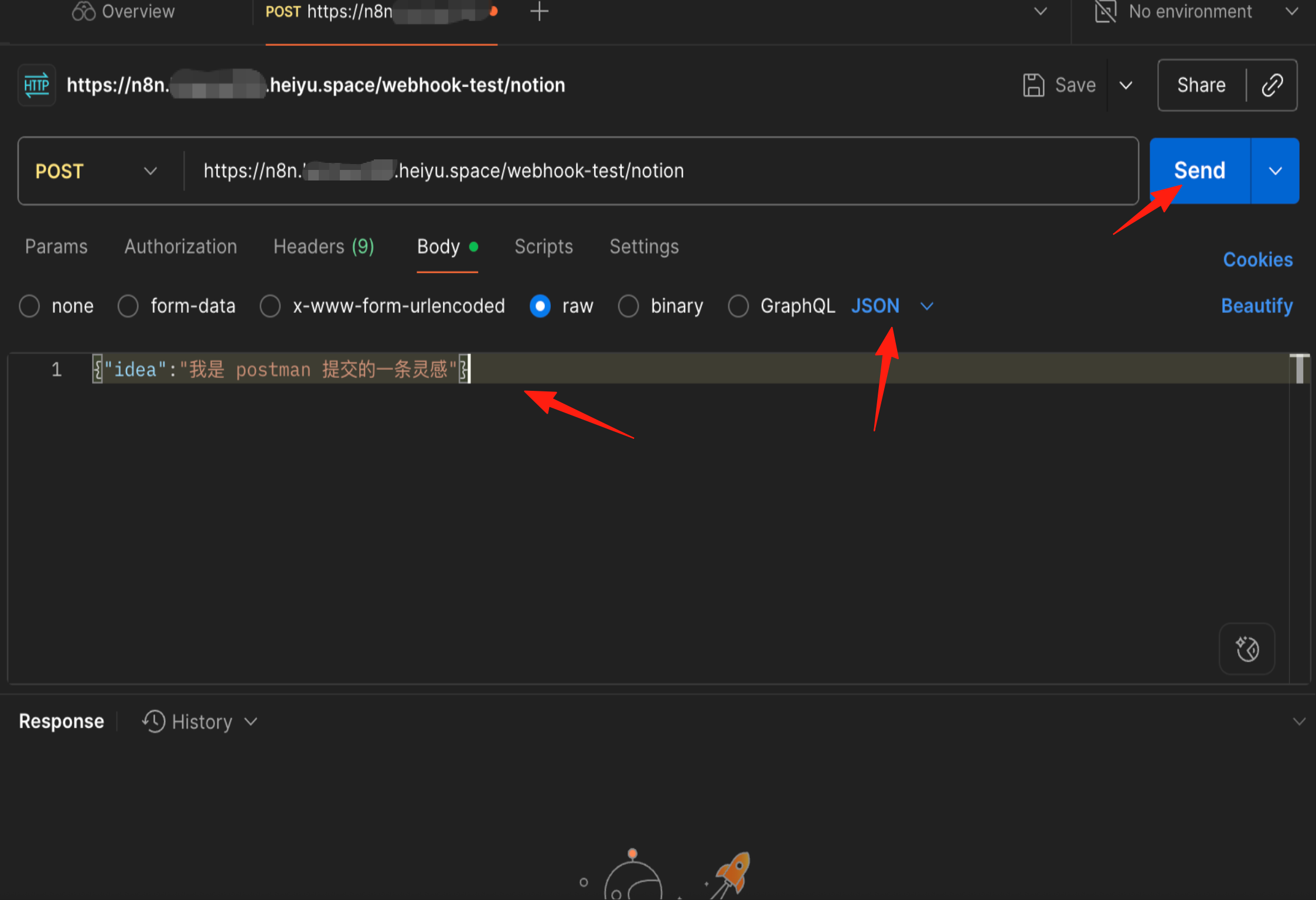
The response "message": "Workflow was started" indicates success.
Return to Notion, and you will find the data has been added.
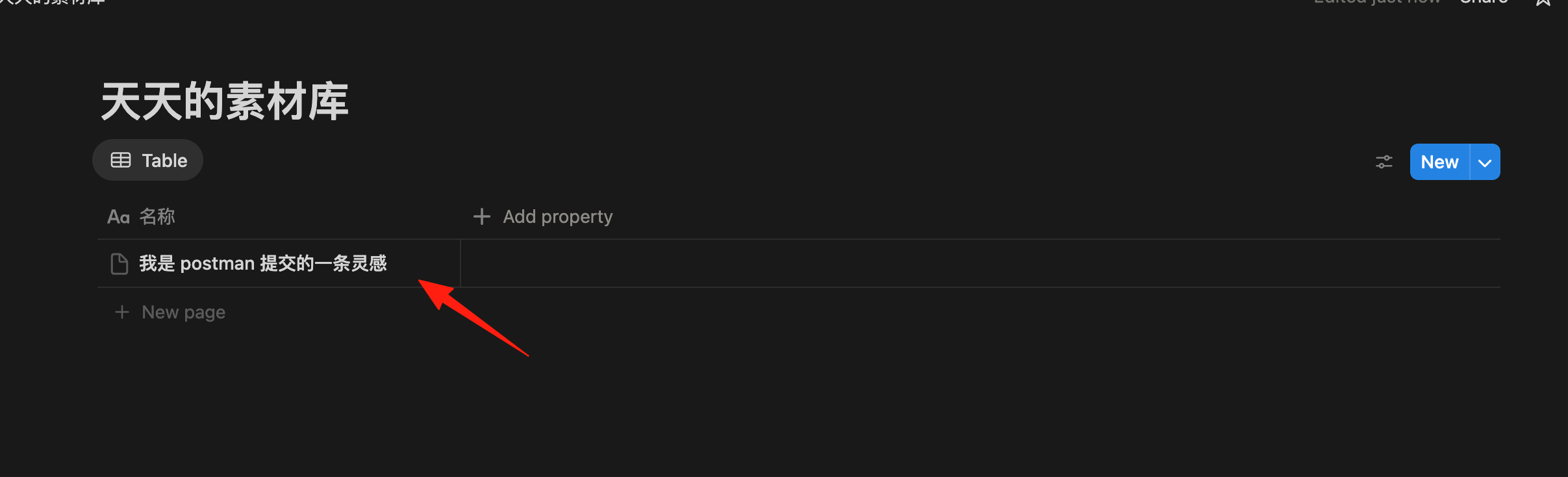
The above demonstrates how to implement a workflow that uses n8n to automatically record data into Notion.