
n8n Hands-on Guide 3: How to Configure the Lark Node
The previous article discussed how to use Google Drive in n8n. However, in certain network environments, many might use Feishu more frequently. This guide explains how to configure the Feishu platform.
https://appstore.lazycat.cloud/#/shop/detail/cloud.lazycat.app.n8n
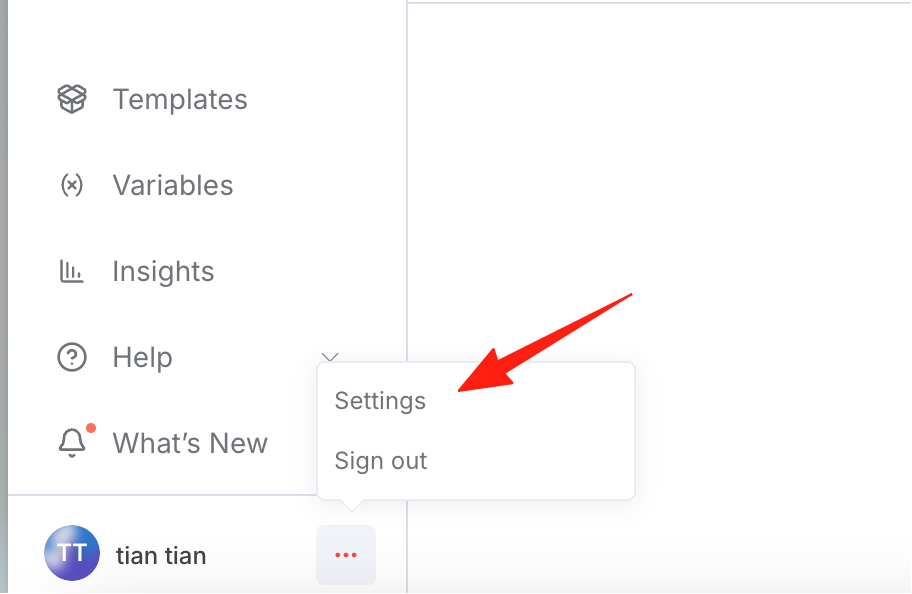
Click the ... next to the avatar in the bottom left corner, then click Setting.
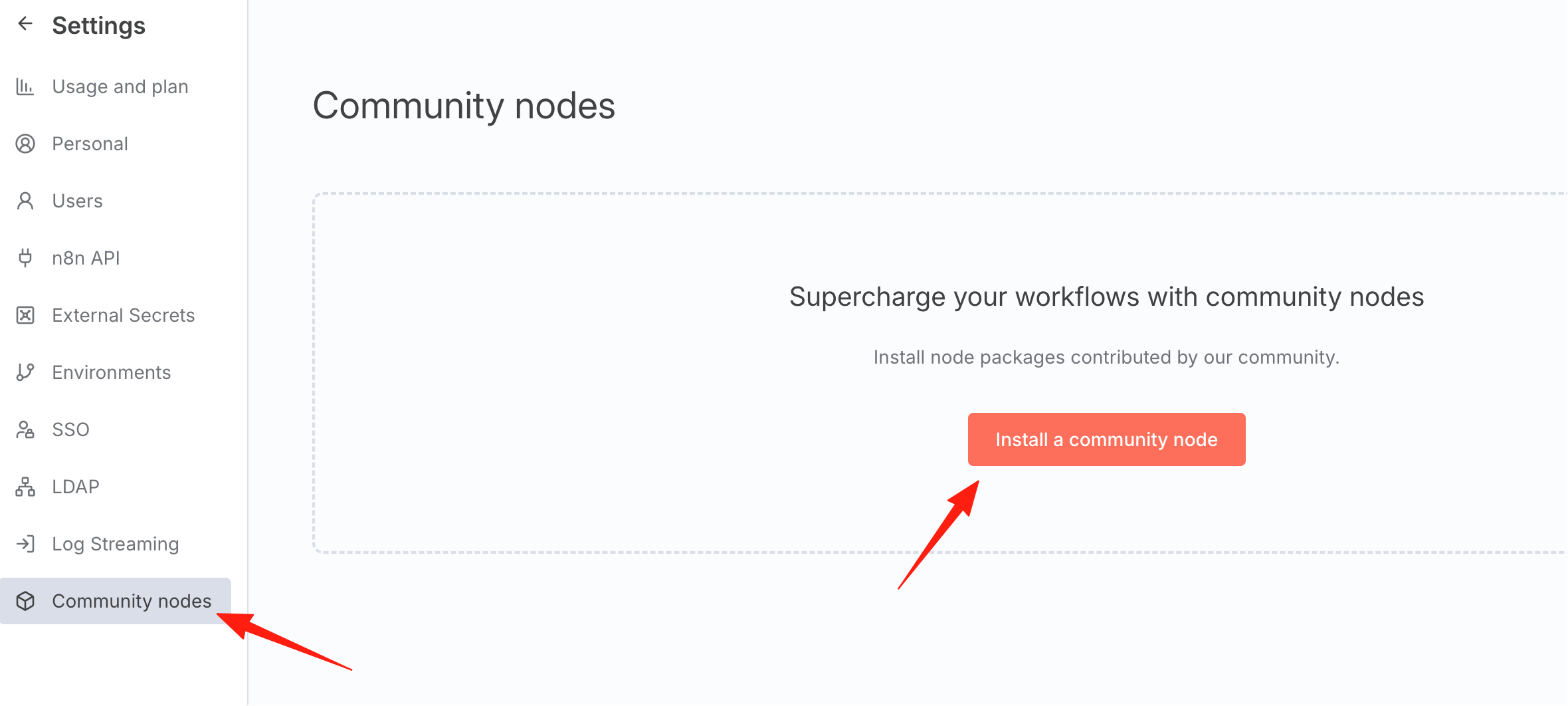
Click Community Nodes.
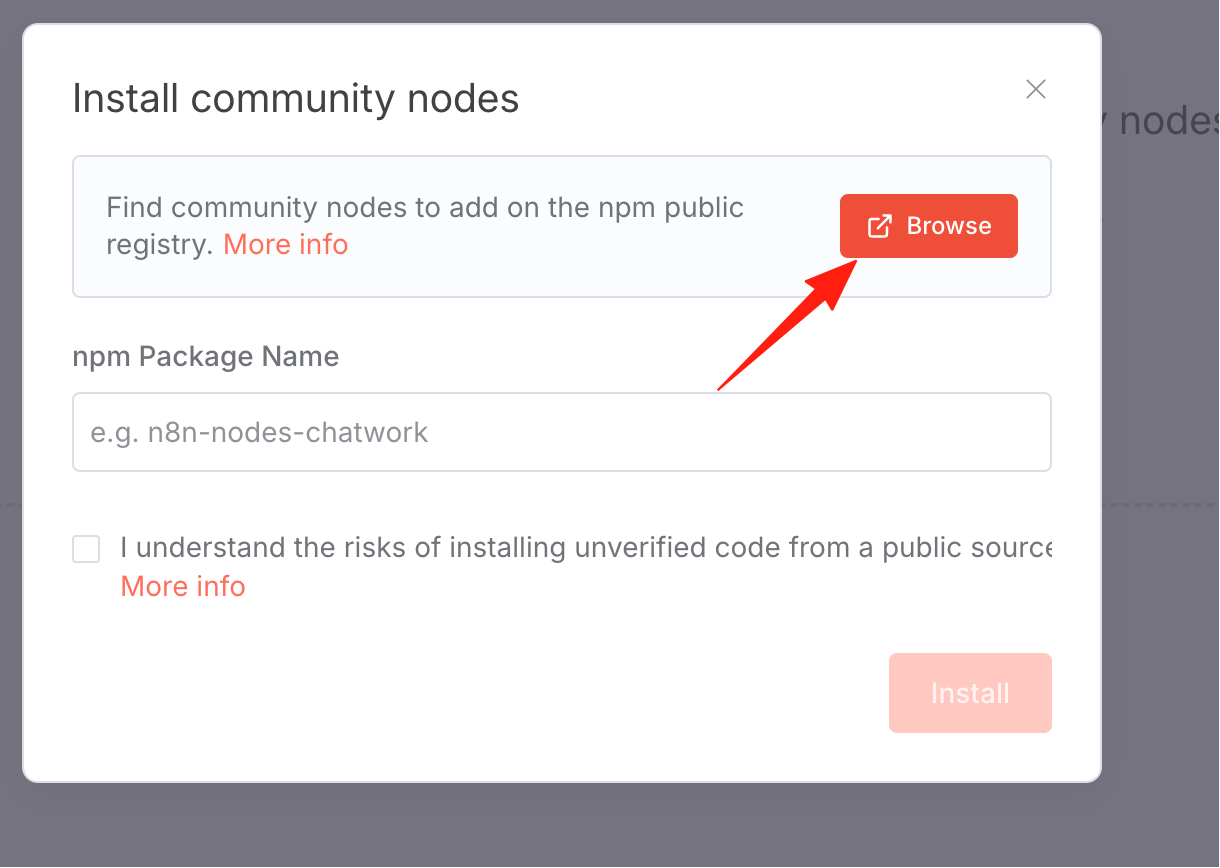
Open the community website.
Search for feishu. We will use the second result.
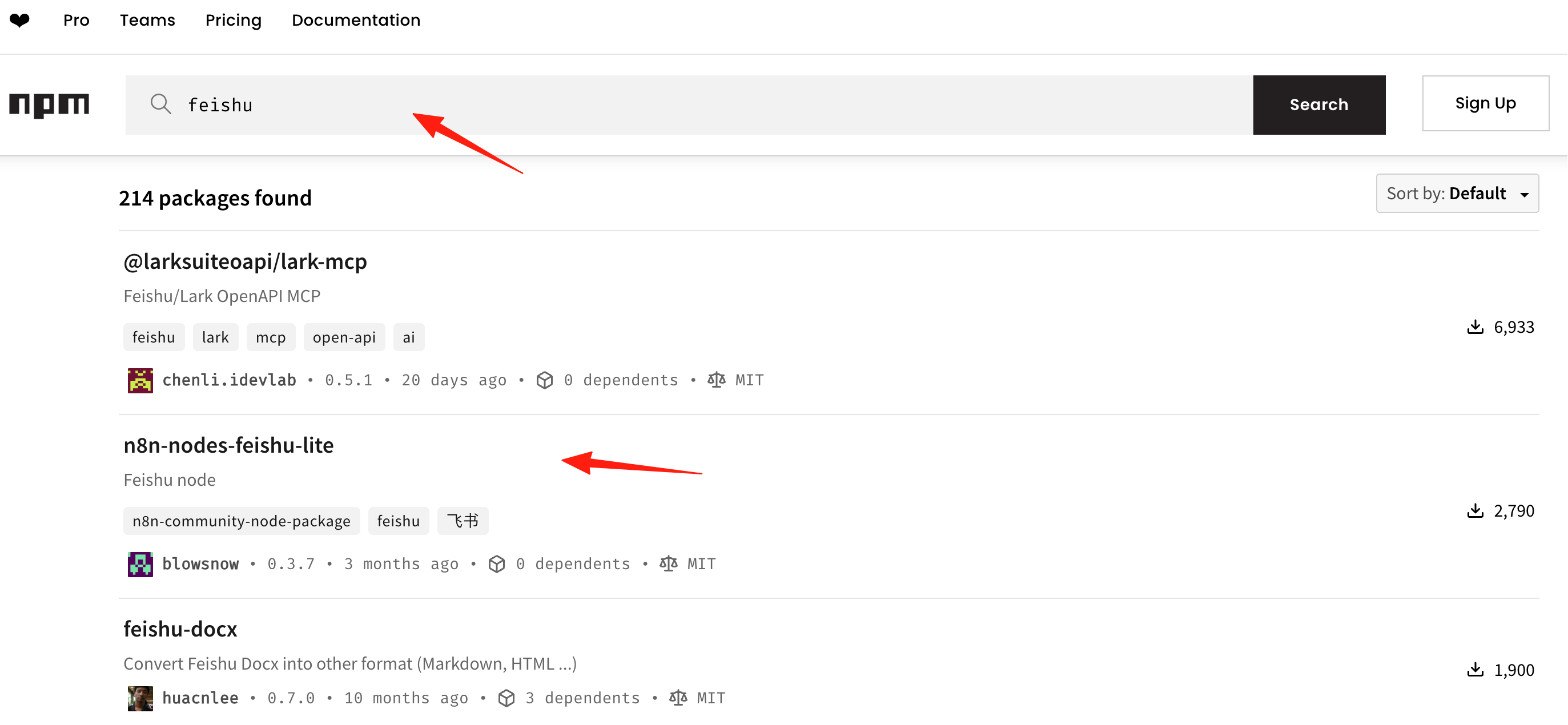
Copy the node name.
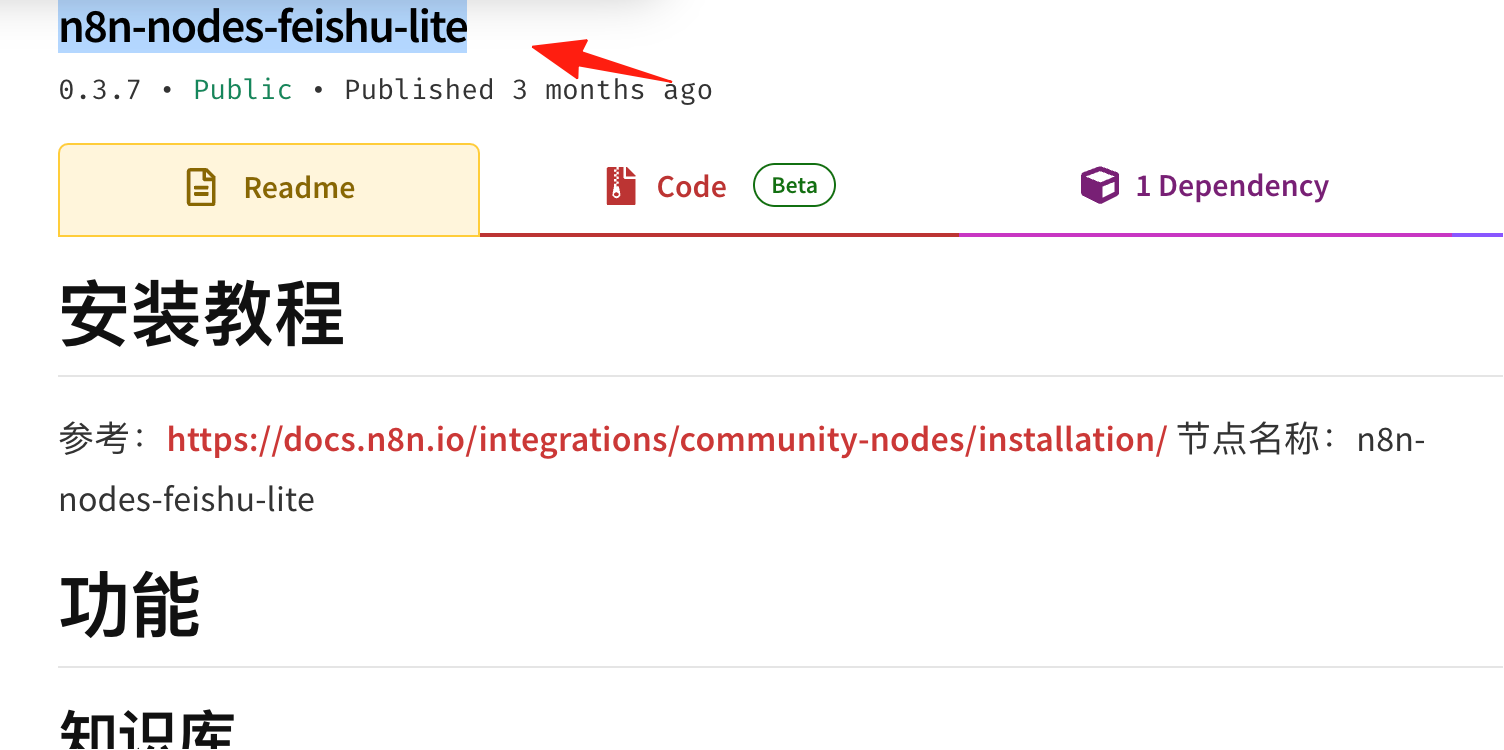
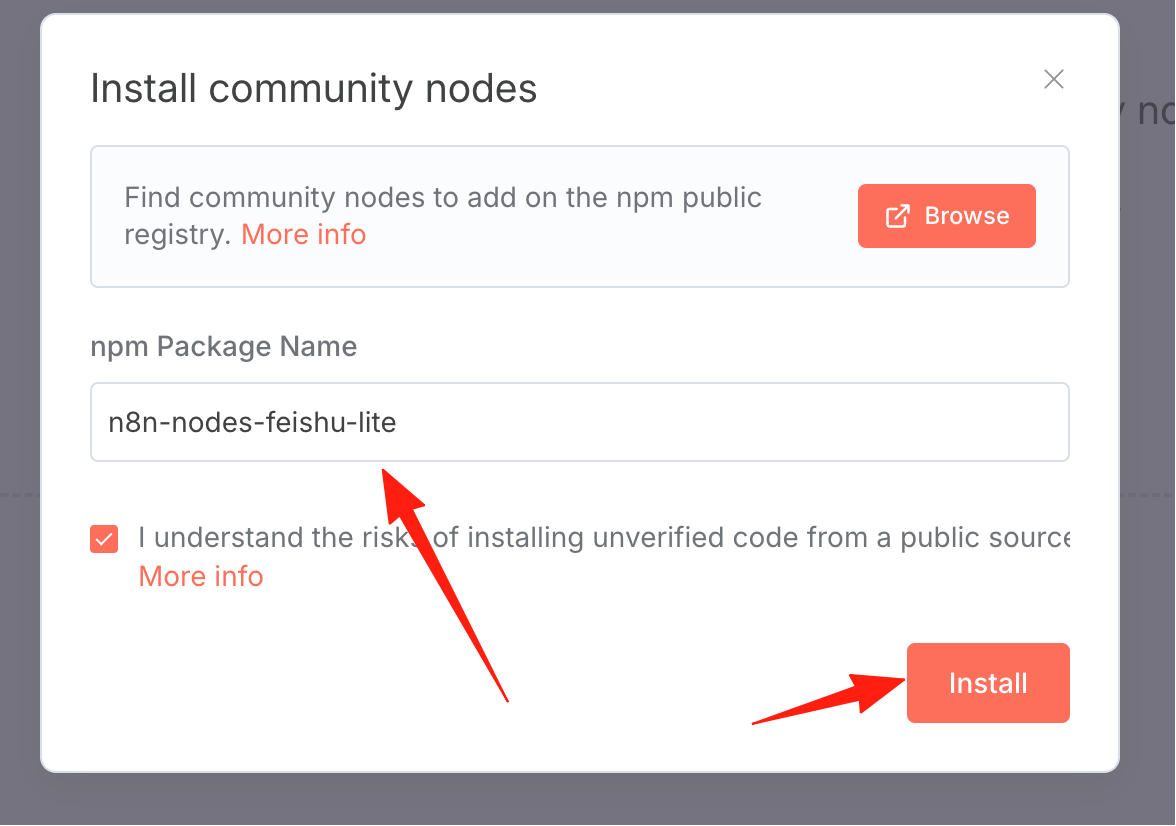
Click Install.
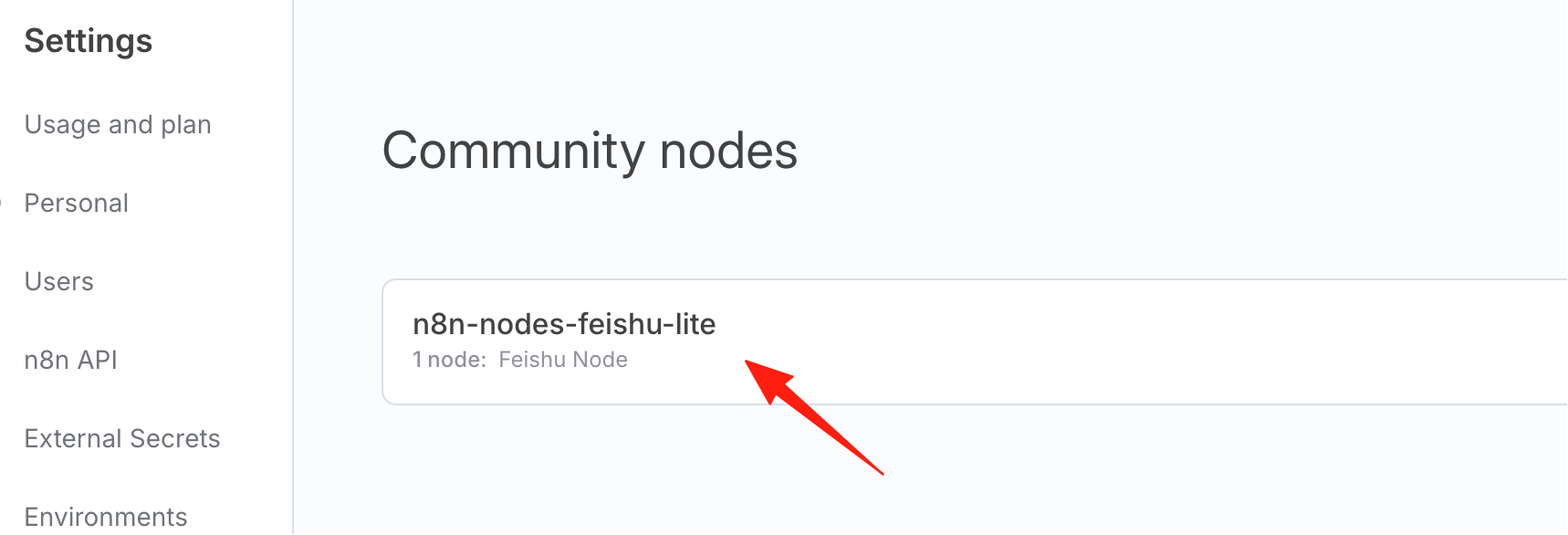
After successful installation, it will be visible here.
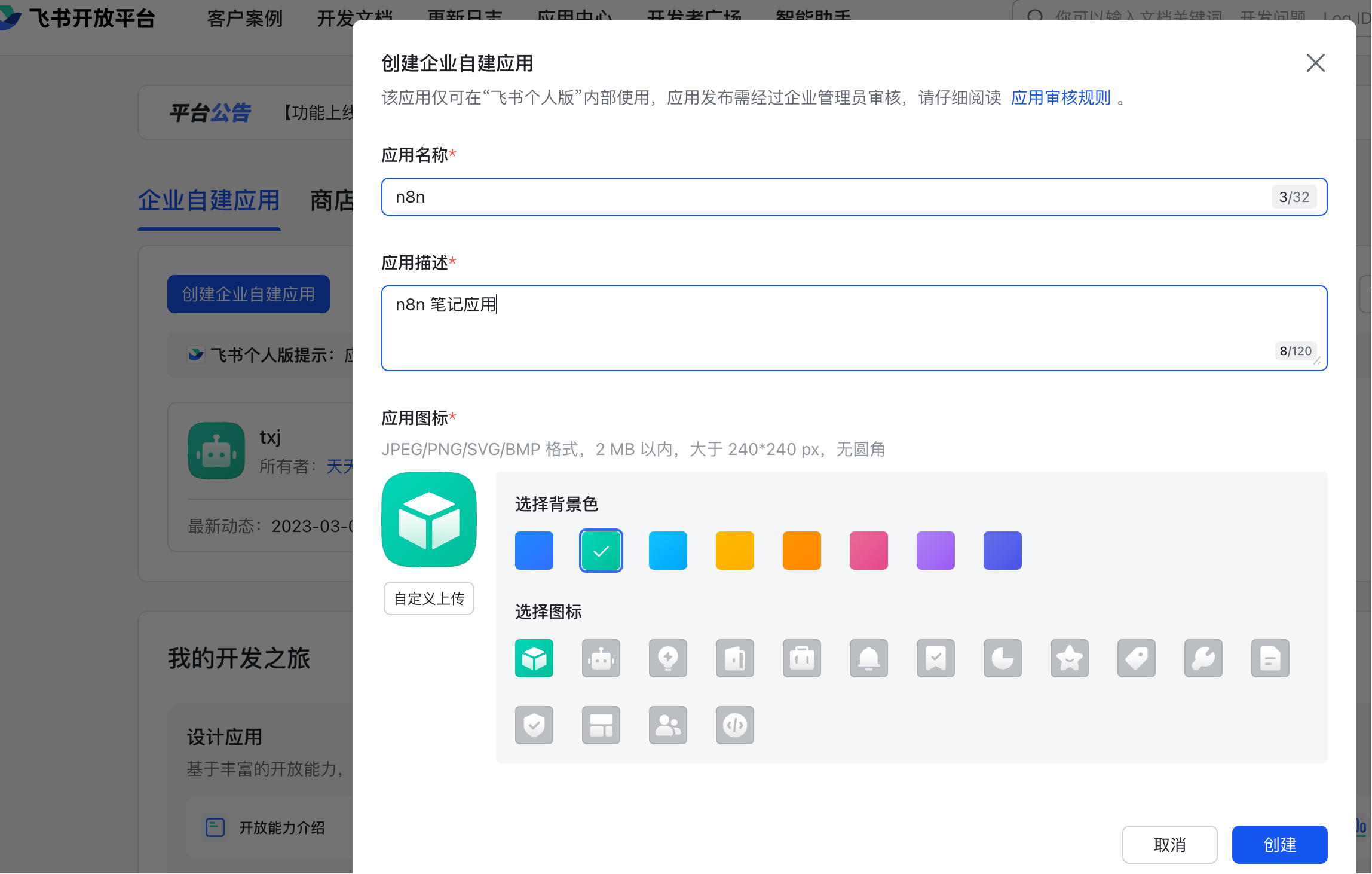
Obtain the Feishu App ID and Secret:
Open the Feishu Open Platform and create an application.
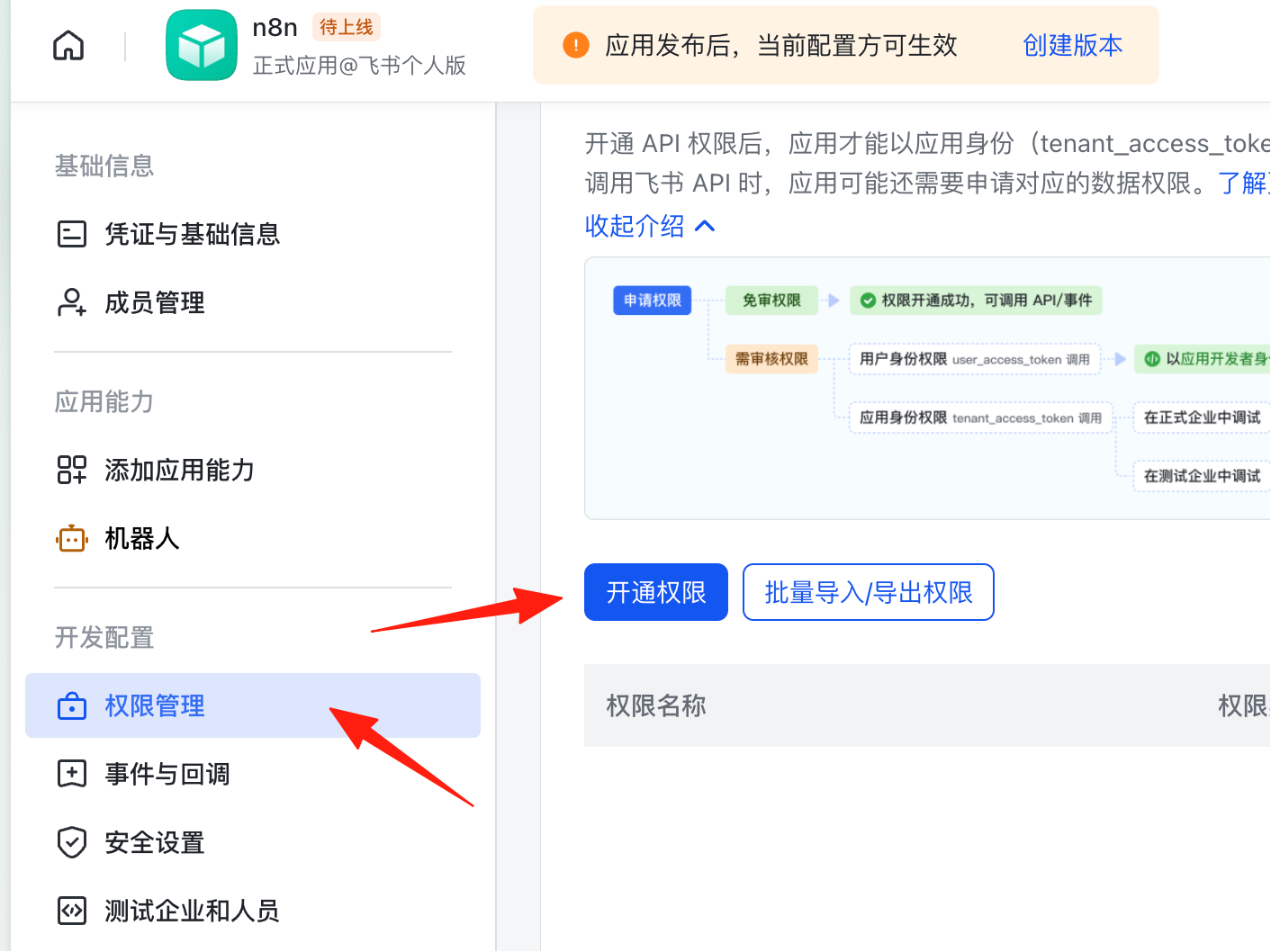
Go to Permission Management and enable the required permissions.
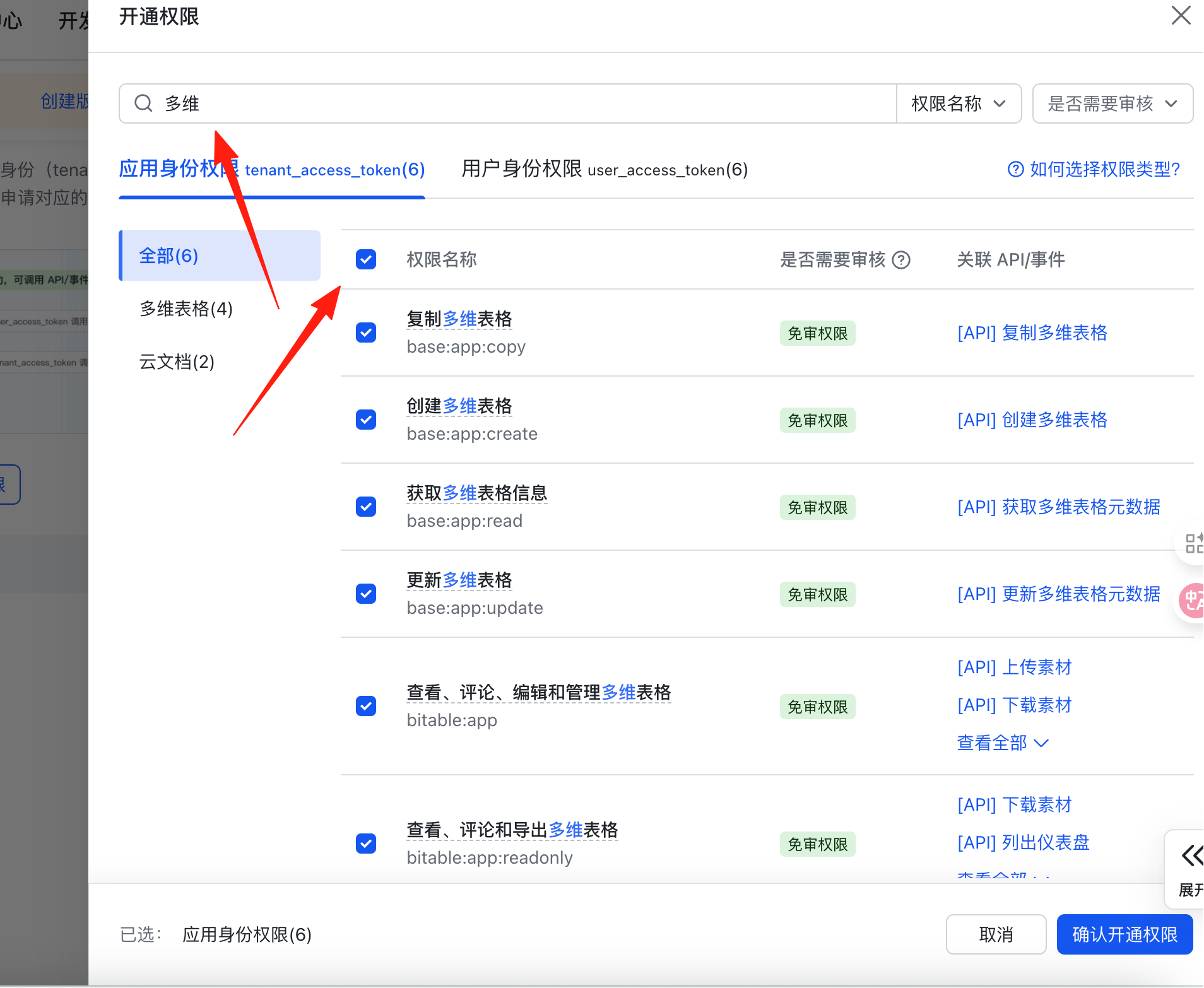
Search for 多维 (multi-dimensional), and check all the relevant options.
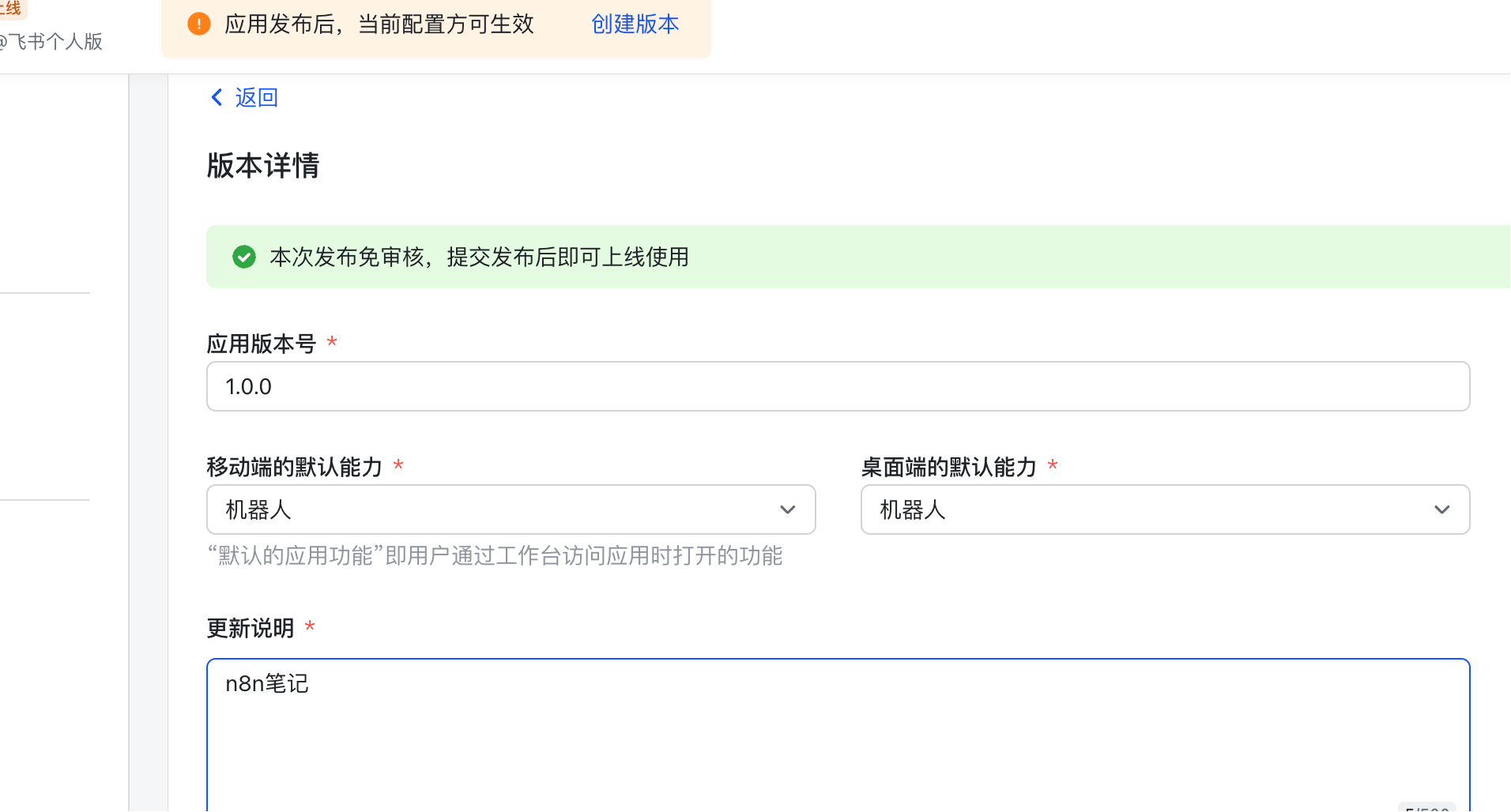
Create a version.
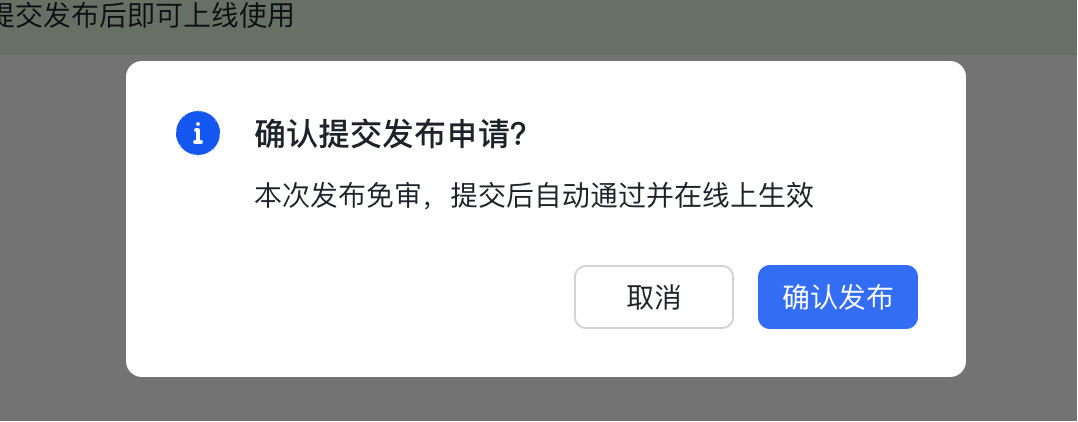
Release the application.
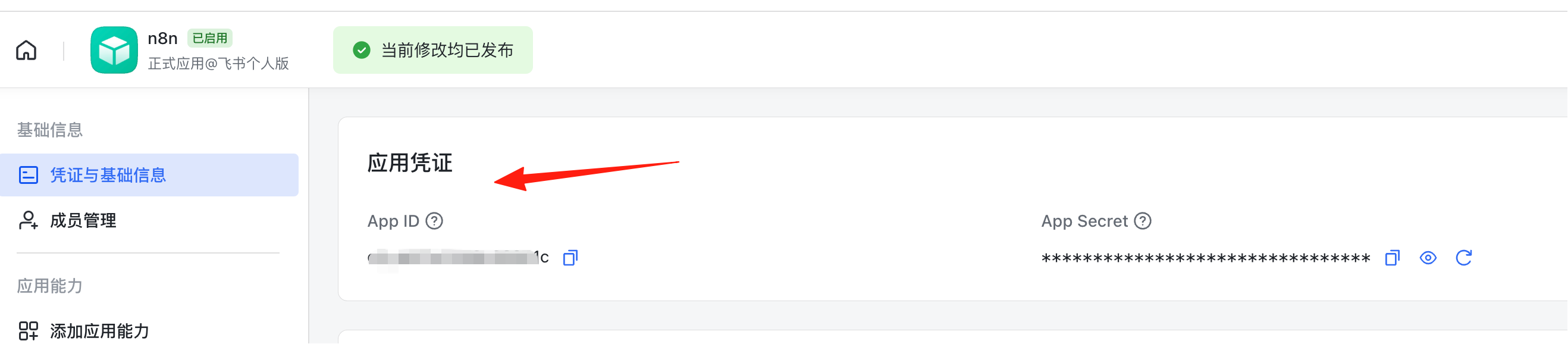
You can now find the App ID and Secret in the Credential Information section.
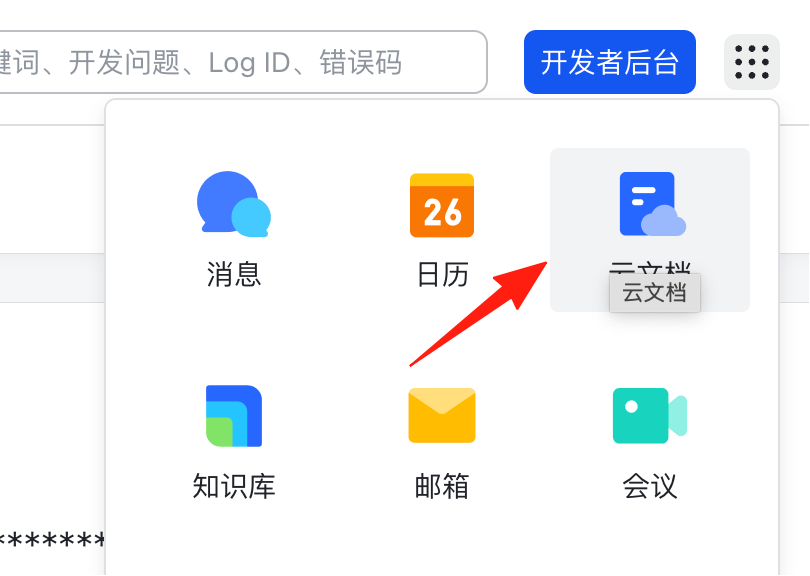
Click Cloud Docs in the top right corner.
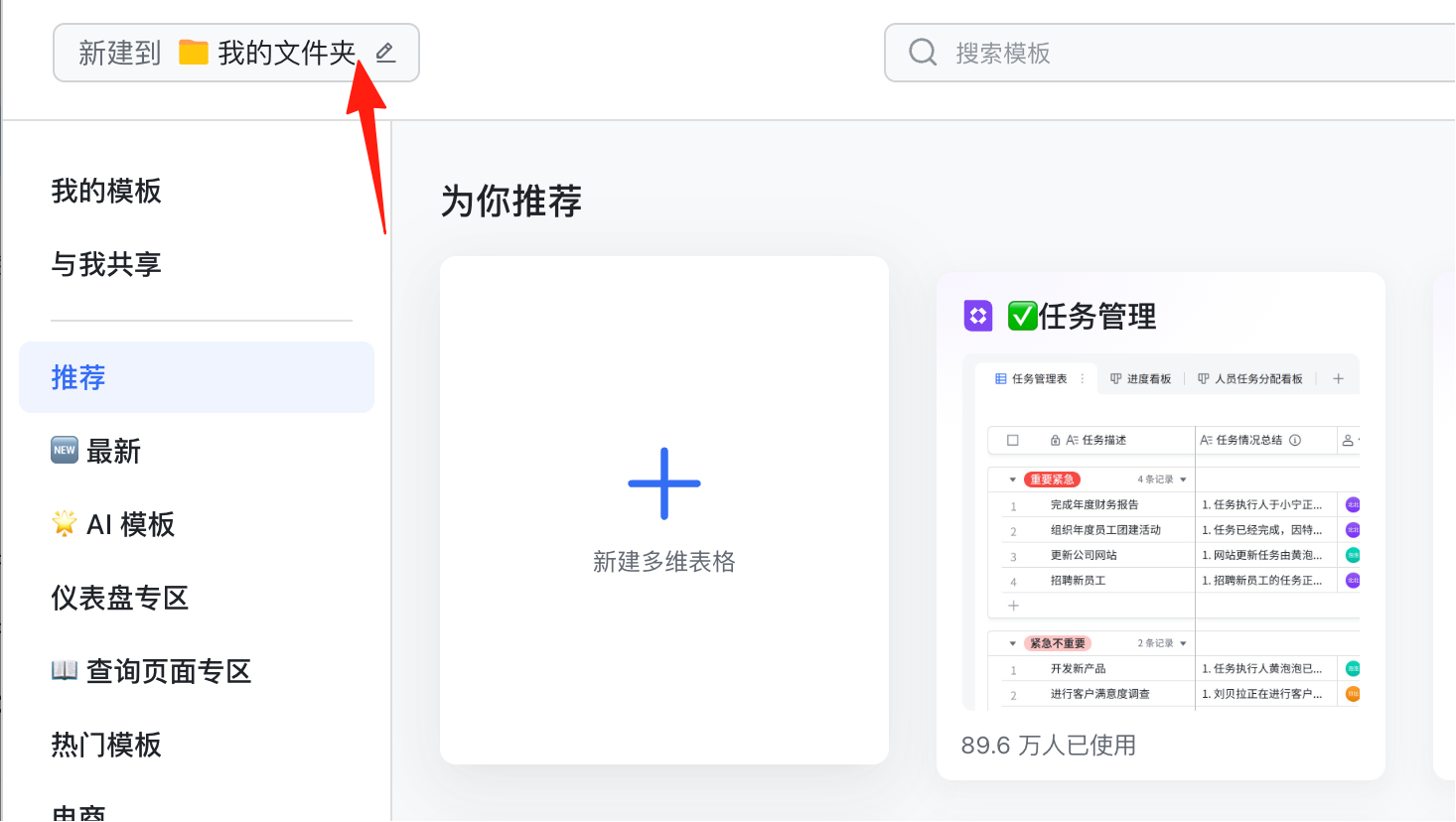
Create a new Base (multi-dimensional table).
Copy the address from above; it will be used later.
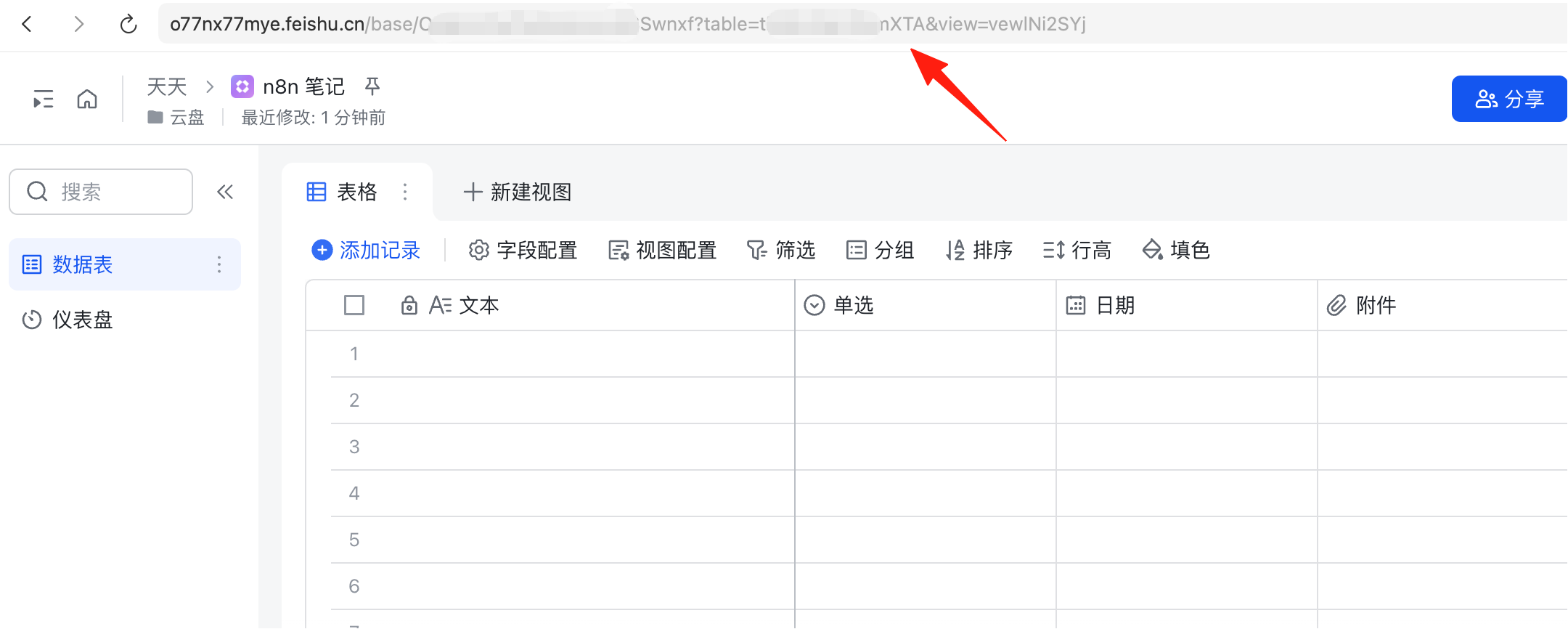
The address looks similar to this:
https://tian.feishu.cn/base/O9l76llJCaZVAVstncccUSSwnxf?table=tbl54l8x14vL0VmXTA&view=vewlNi2SYj
Return to the n8n workspace, add a node.
Search for feishu, and you will see the previously installed node.
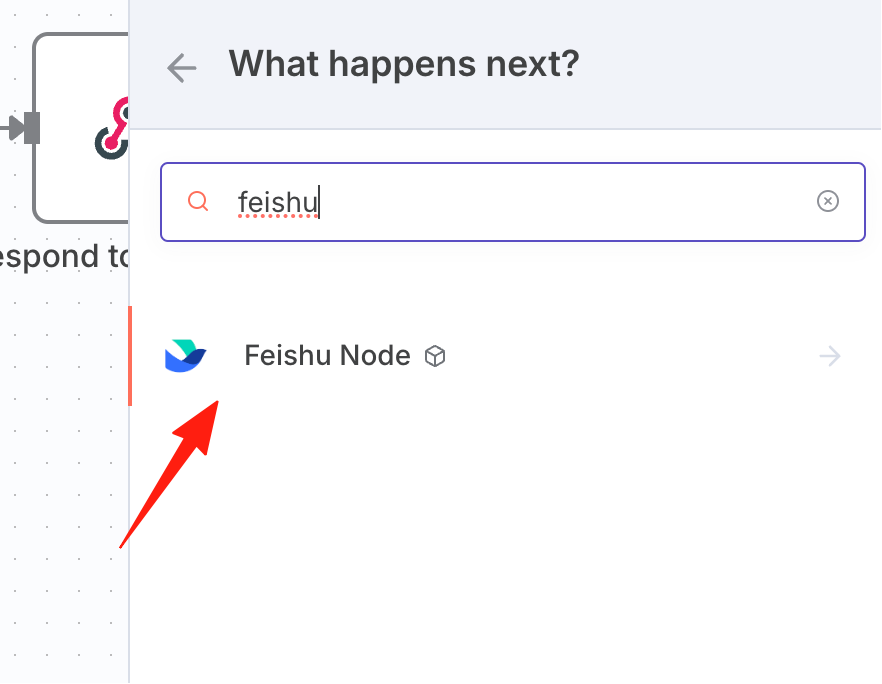
Scroll down to see operations related to Base.
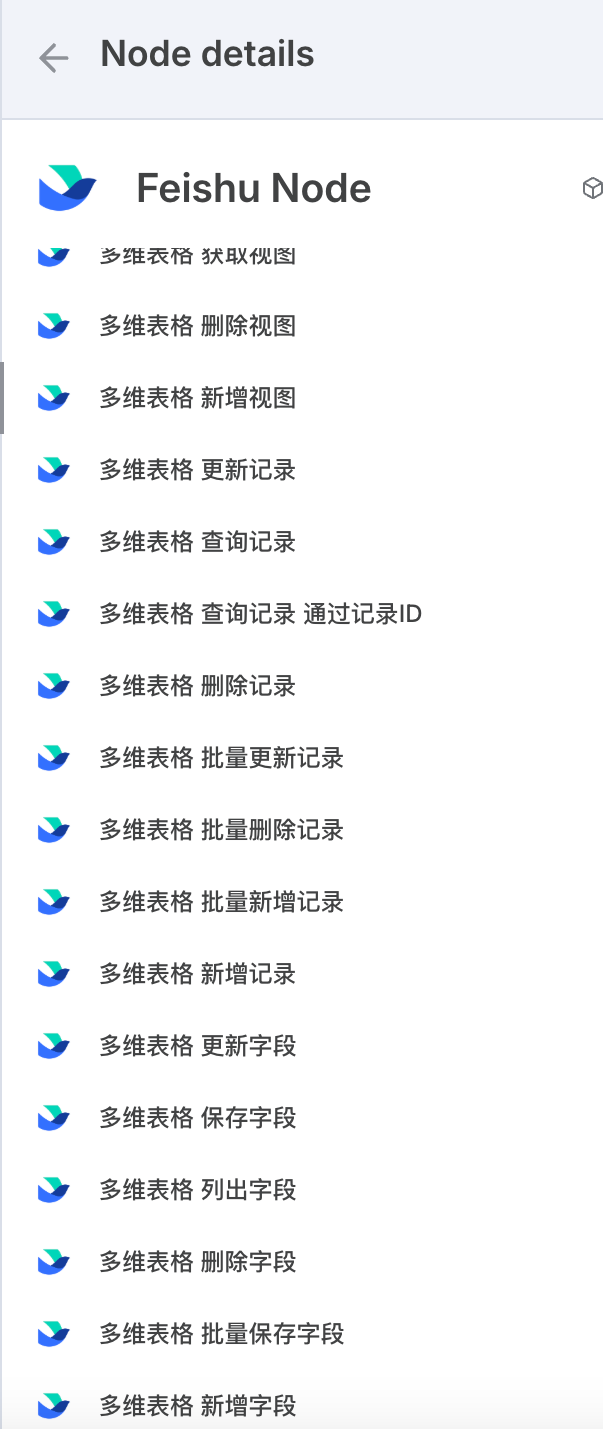
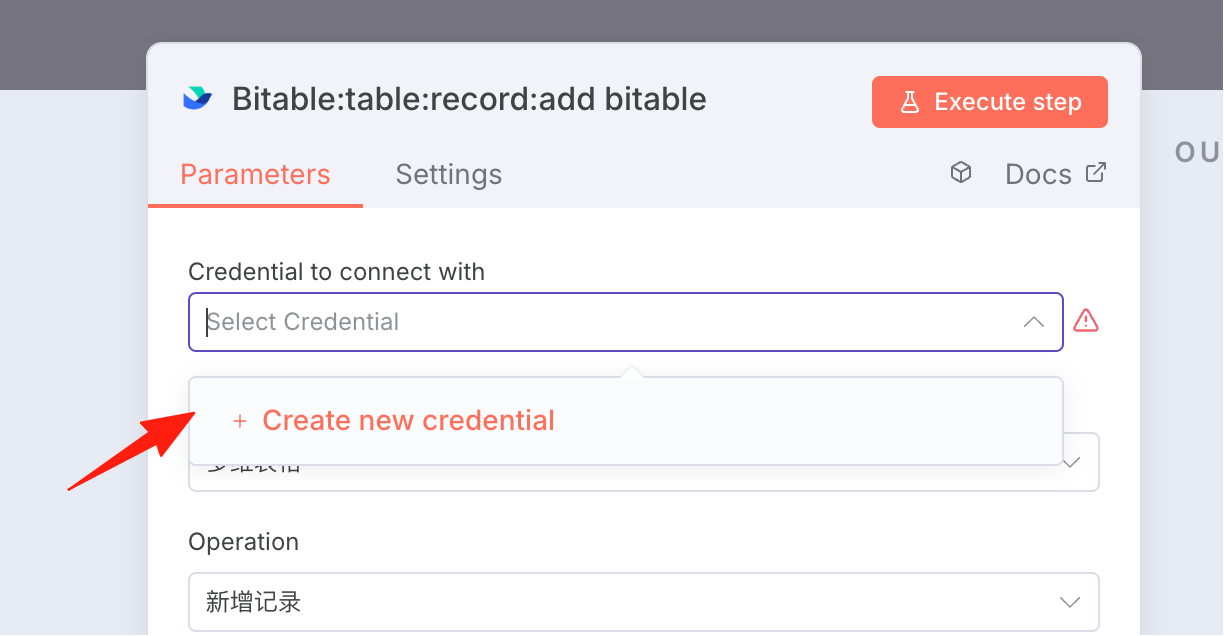
Click Add Record.
First, you need to create a new connection.
The App ID and Secret are the ones we obtained in the first step.
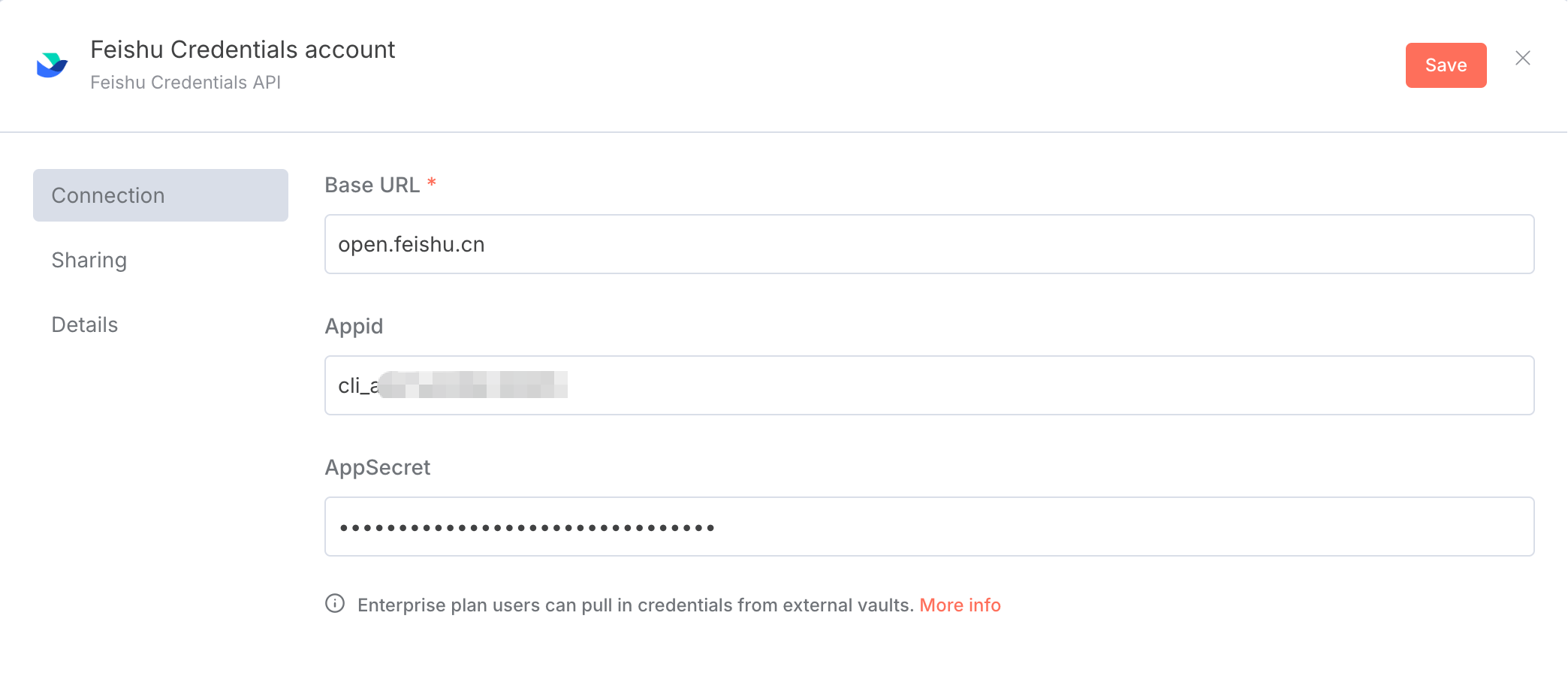
A success prompt will appear after saving.

Base Token:
Return to the Base URL. The content after "base" and before "table" is the Base token.
Note: Do not include the ?.
Base ID:
The content after "table" and before "view" is the Base ID.
Note: Do not include the &.
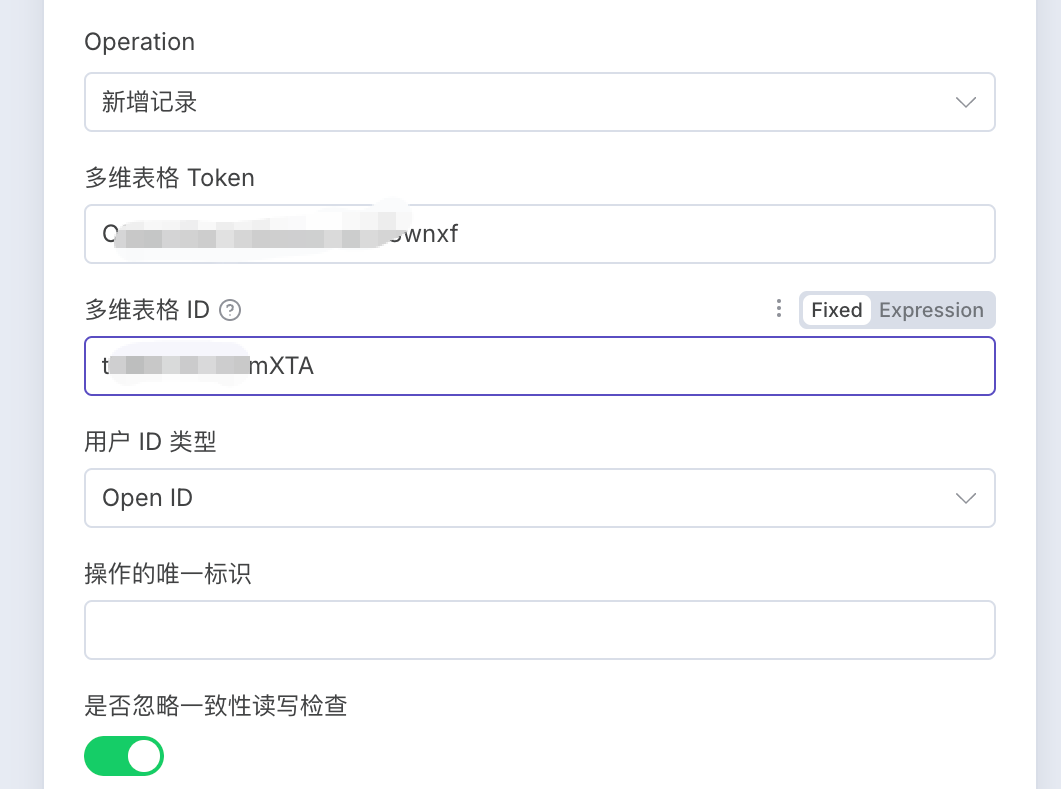
At this point, the n8n node for Feishu-related document operations is ready.