
Quark Drive Auto-Saver - Quark Auto Save Usage Guide
Why This Tool is Needed?
Quark Cloud Drive users have likely experienced this: you find a great resource, manually save it, then a few days later discover it's been updated, so you save it again... This repetitive cycle can drive you crazy. Especially for TV series, tutorial collections, and regularly updated resources, having to manually operate each time is truly bothersome.
Quark Auto Save is designed to solve this pain point. It helps you:
- 🤖 Auto-Save: Set it up once and forget it; new resources automatically go to your cloud drive.
- 📝 Smart Renaming: Organizes messy filenames into a standardized format.
- 📱 Push Notifications: Alerts you when new content arrives.
- 🎬 Media Server Integration: Works with tools like Emby for true automatic series tracking.
https://appstore.lazycat.cloud/#/shop/detail/cloud.lazycat.app.quark
Practical Configuration Guide
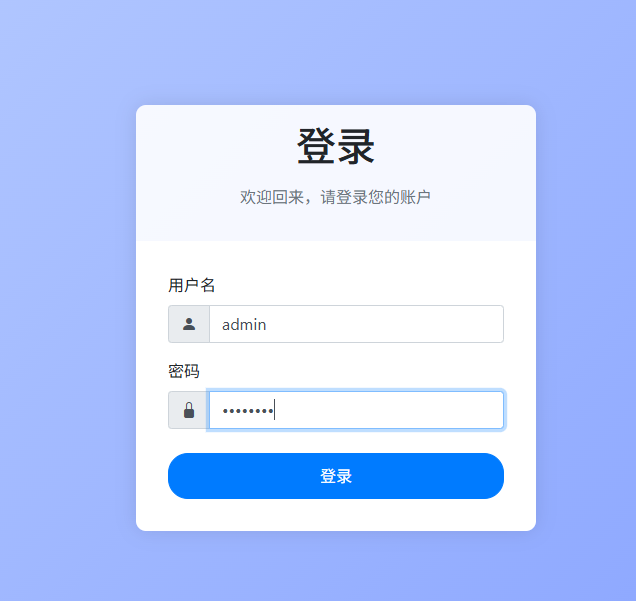
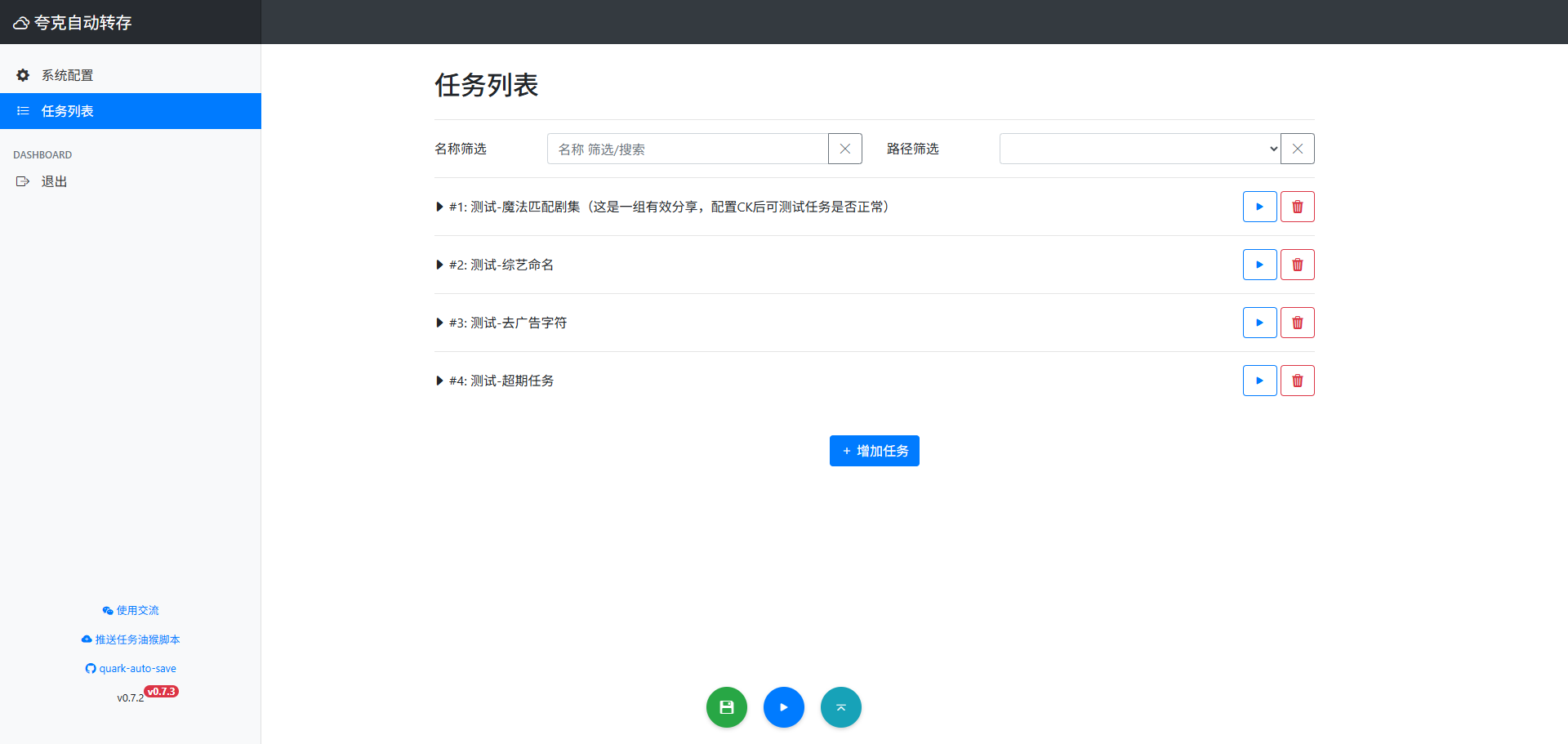
After installing the app, open the login page and use admin/admin123 to log in. You will then see the management interface.
Entering the main page.
1. Basic Configuration - Account Binding
After logging into the WebUI, the first step is to add your Quark account. Here's a handy tip:
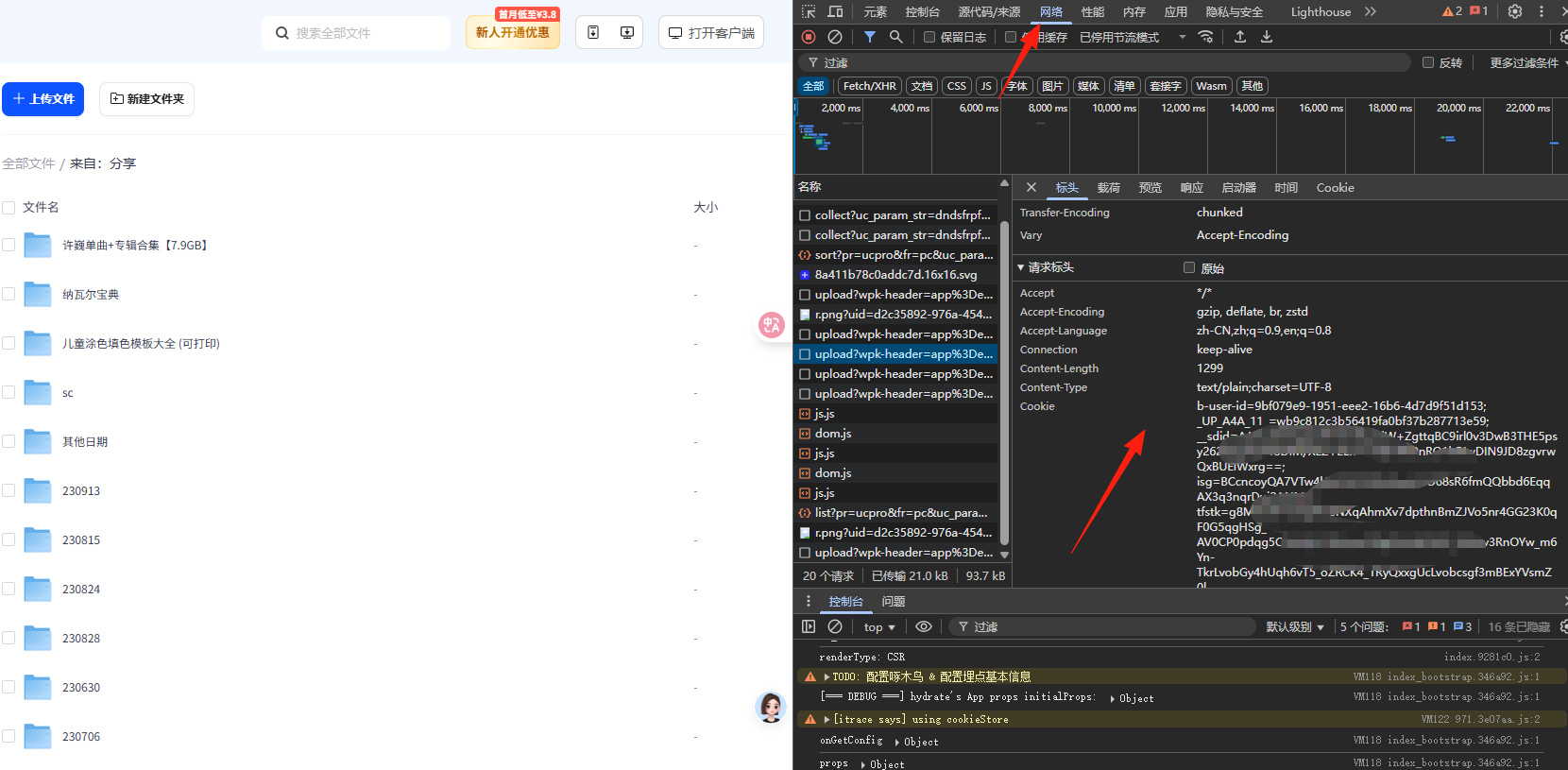
How to Get the Cookie:
- Open the Quark Cloud Drive web version on your computer browser.
- Press F12 to open Developer Tools.
- Click on any folder.
- Find a request in the Network tab and copy the Cookie value.
If you find this step difficult, you can also use a getcookie browser extension to obtain it with one click.
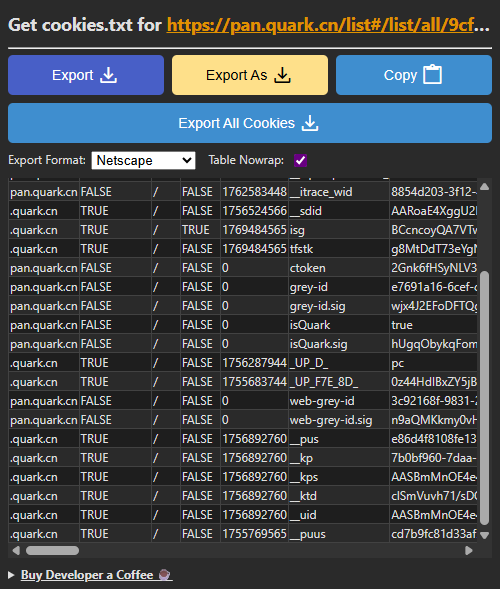
After obtaining the cookie, paste it here.
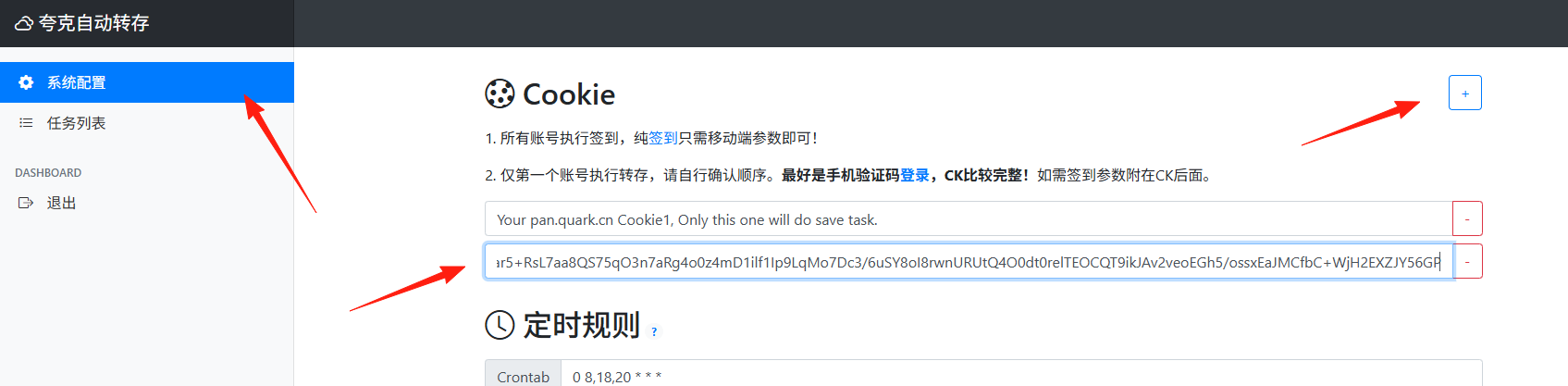
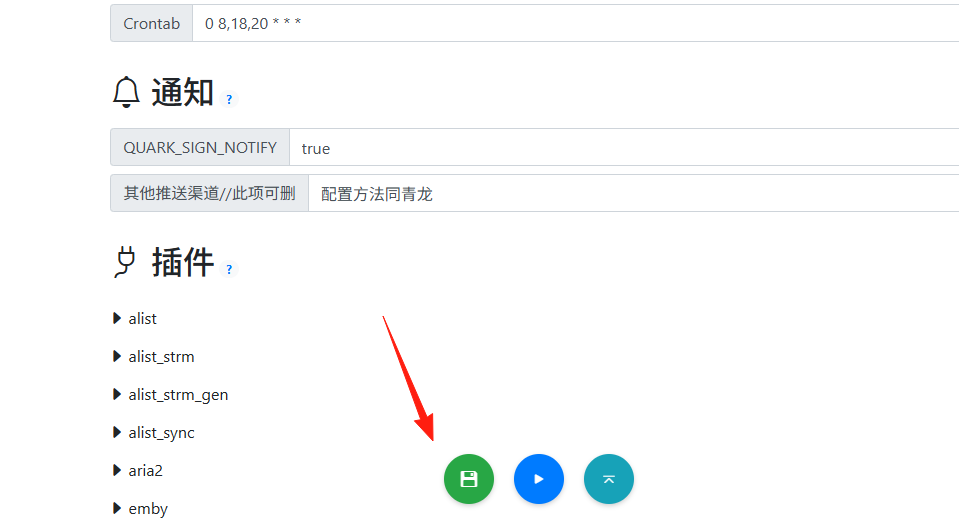
Don't forget to click "Save" at the bottom.
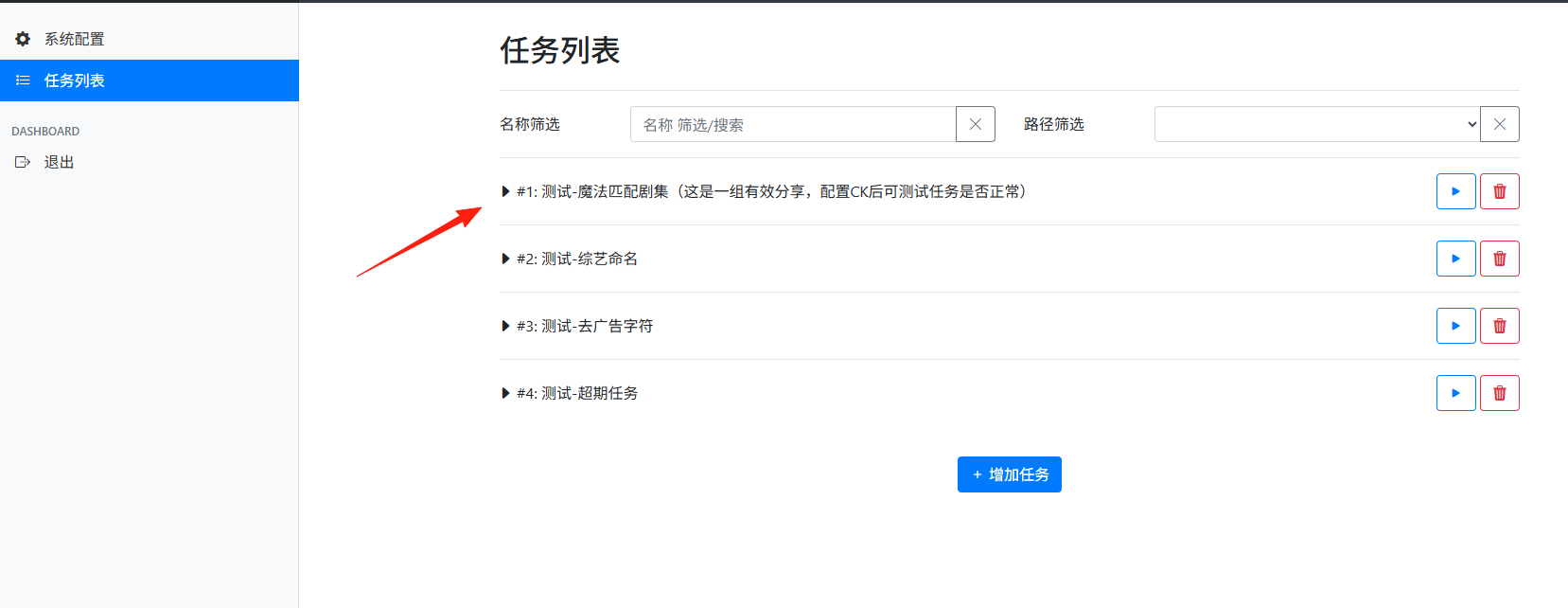
2. Task Configuration - This is the Core
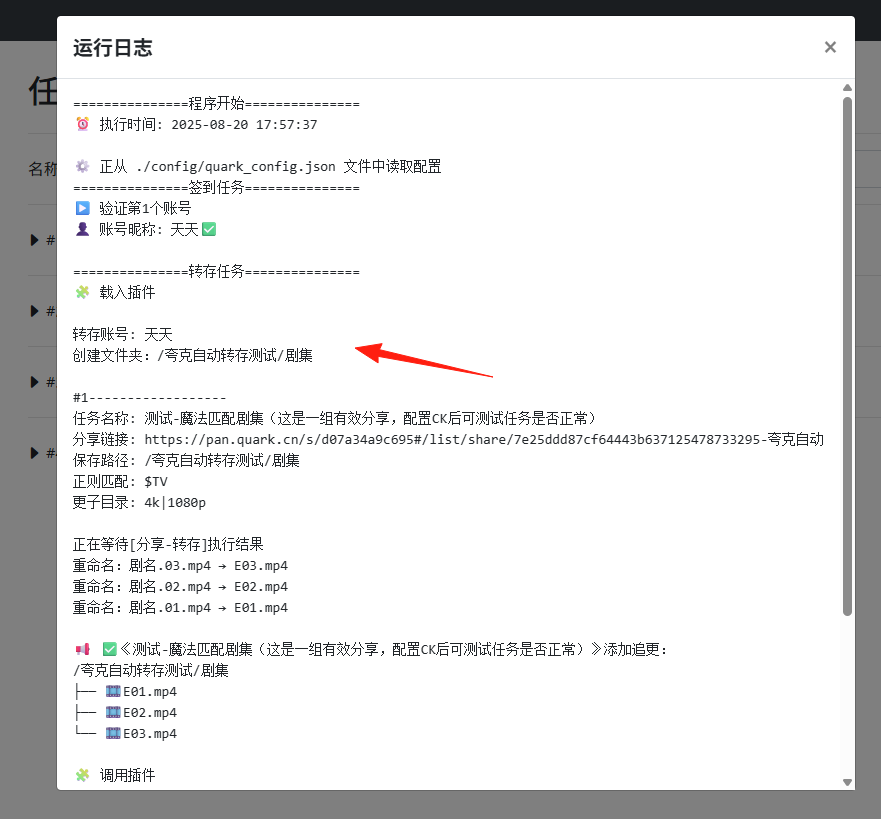
Return to the task list and first test if your configuration is working.
If you can see the run logs containing your account information, it means the setup was successful.
Go back to your Quark Cloud Drive, and you'll find the folder has been created.
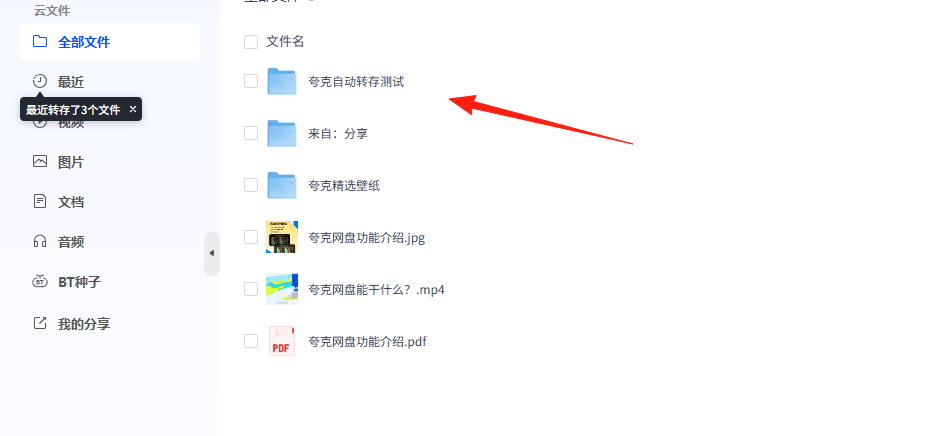
Share Link Processing
Supports various Quark share link formats, including:
- Regular share links
- Password-protected links
- Folder links
Pro Tip: You can add multiple related links to a single task. For example, add all resource links from a specific uploader into one task.
Add a new task.

For example, using the share link: https://pan.quark.cn/s/efabcfbc9c8a
Paste the link, and the name will be automatically fetched.
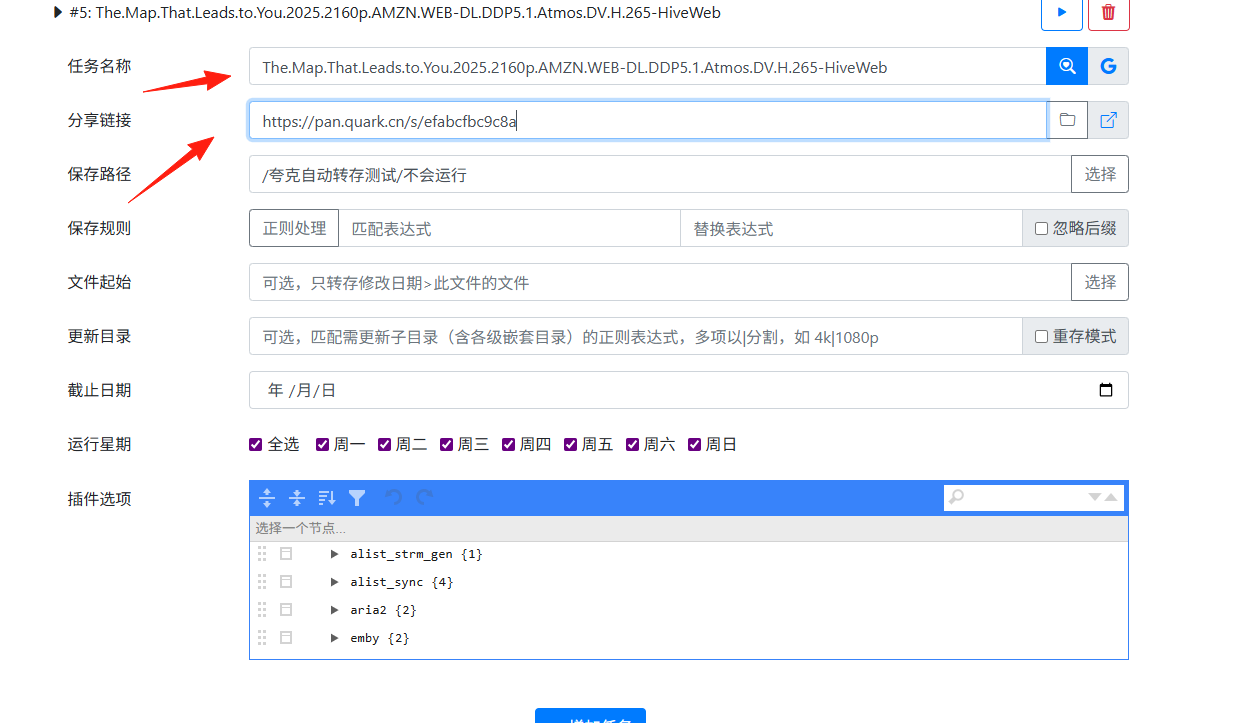
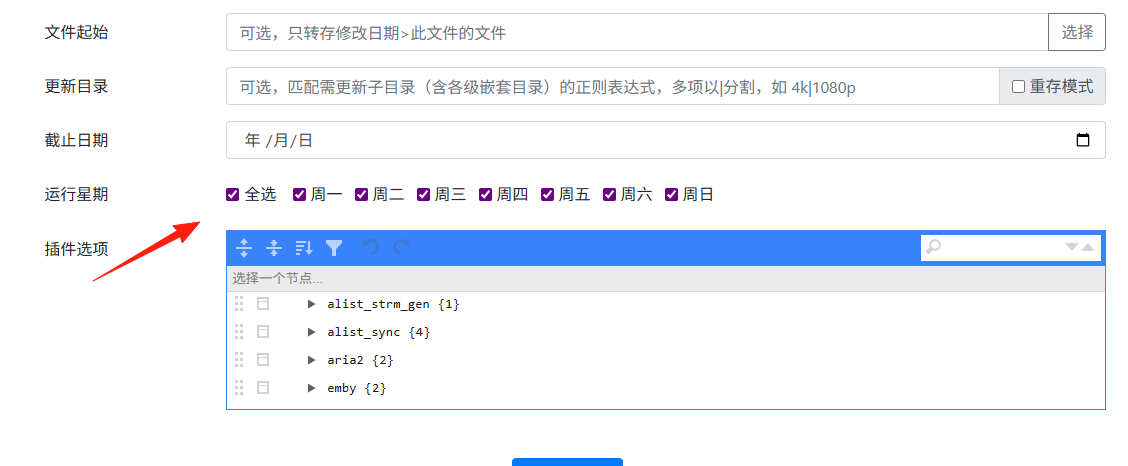
Set the execution schedule, and it will automatically save files periodically.
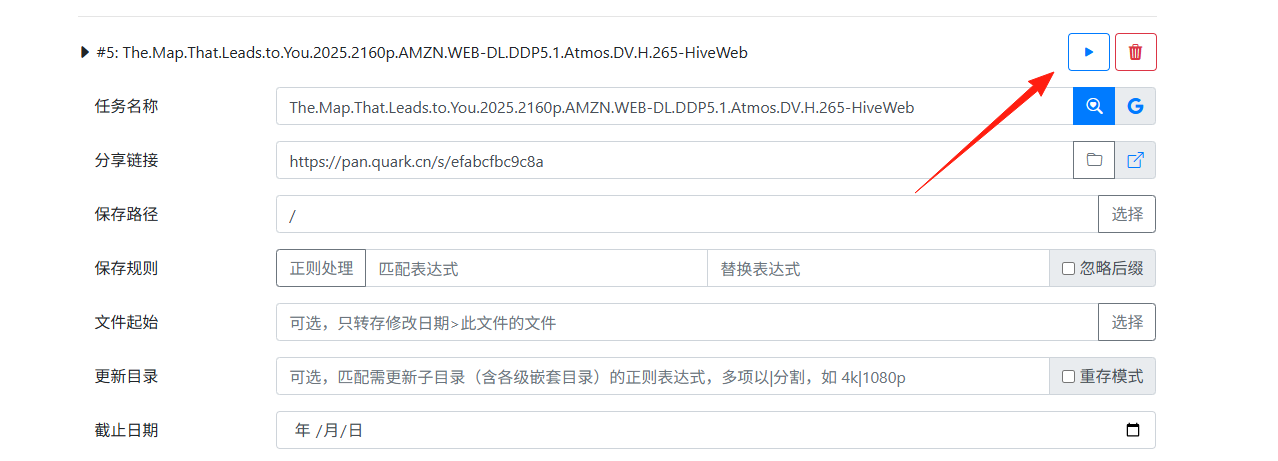
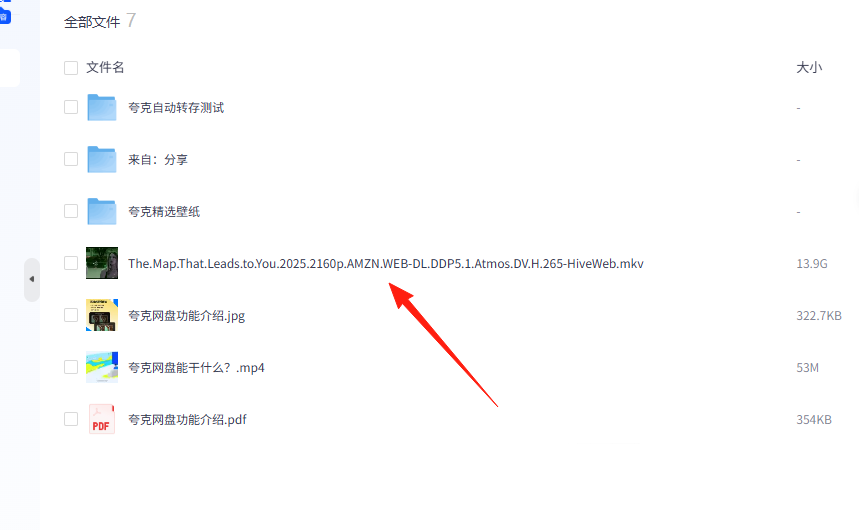
After adding the task, click the run arrow on the right side.
Return to your cloud drive, and you'll see the files have been successfully saved.
File Filtering Rules
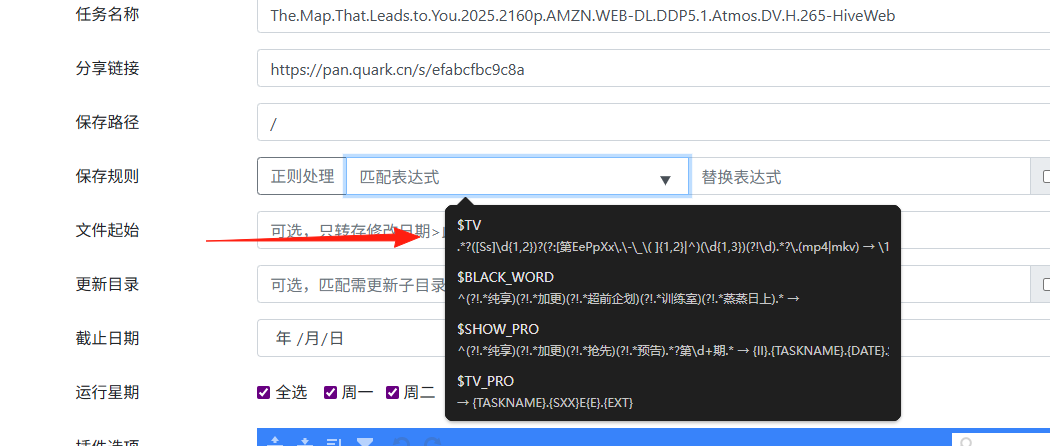
This is the core feature! Use regular expressions to filter and rename files.
Common Filtering Rules:
# Only video files
\.(mp4|mkv|avi|mov)$

# Exclude trailers and extras
^(?!.*(?:预告|花絮|幕后|deleted)).*\.(mp4|mkv)$

# Only files larger than 500MB
# (This requires the file size filtering feature)
File Renaming Magic:
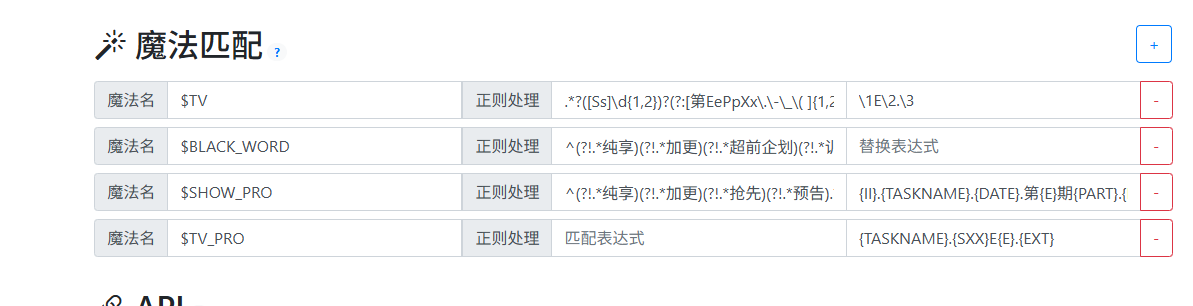
The project supports "magic matching," which is particularly useful:
# Fill `$TV` in the expression field, leave the replacement field empty.
# Automatically identifies TV series format and renames accordingly.

# Fill `$MOVIE` in the expression field, leave the replacement field empty.
# Automatically identifies movie format and renames accordingly.
⚠️ Important Reminders
- Do not set the check frequency too high! It is recommended to have an interval of at least 1 hour to avoid account risk control.
- Resources are not updated in real-time, so frequent checks are unnecessary.
- Protect your Cookie and update it regularly.
Summary
This tool is especially suitable for users who need to track updates of specific resources over the long term.
If you are a heavy Quark user, I highly recommend trying this tool—it will significantly boost your efficiency.