
Sun-Panel Practical Guide: A Stunningly Beautiful NAS Navigation Page
What is Sun-Panel?
Sun-Panel is a navigation panel. Simply put, it organizes all your frequently used websites and services onto a single page, allowing you to jump to them with a single click. It's like the app icons on your phone's home screen, but more visually appealing and practical.
Feature Overview:
- Seamless Internal/External Network Switching: Use internal network addresses at home; automatically switch to public addresses when away.
- Multi-User Management: Every family member can have their own navigation page.
- Extensive Icon Library: Supports tens of thousands of free icons, so you'll always find a suitable one.
- System Status Monitoring: View your server's operational status.
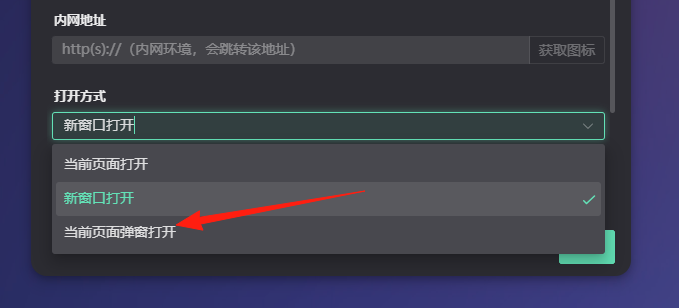
- Popup Window Mode: Open services directly on the current page without navigating away.
https://appstore.lazycat.cloud/#/shop/detail/cloud.lazycat.app.sun-panel
Usage Guide
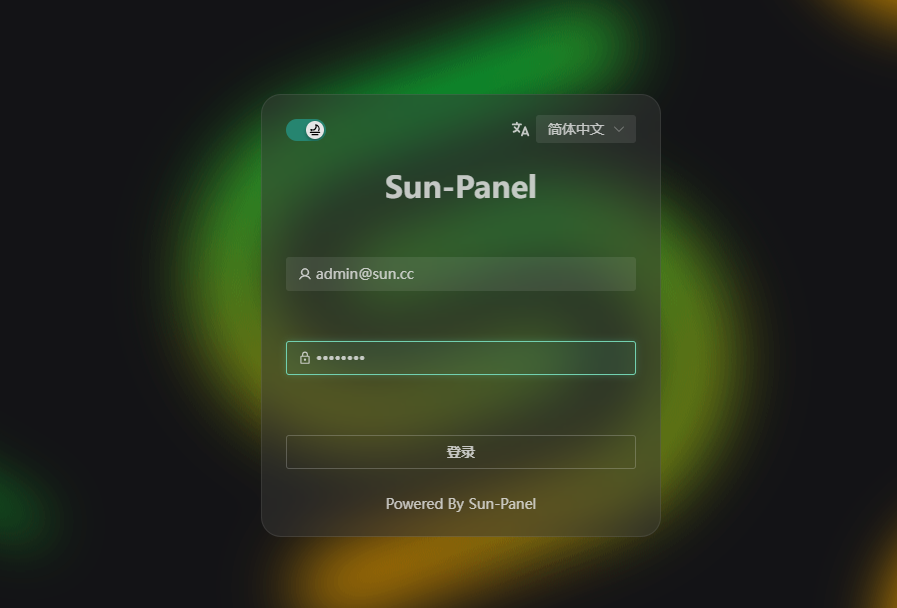
After installing the application, open the login page. The default credentials are: Username: admin@sun.cc Password: 12345678
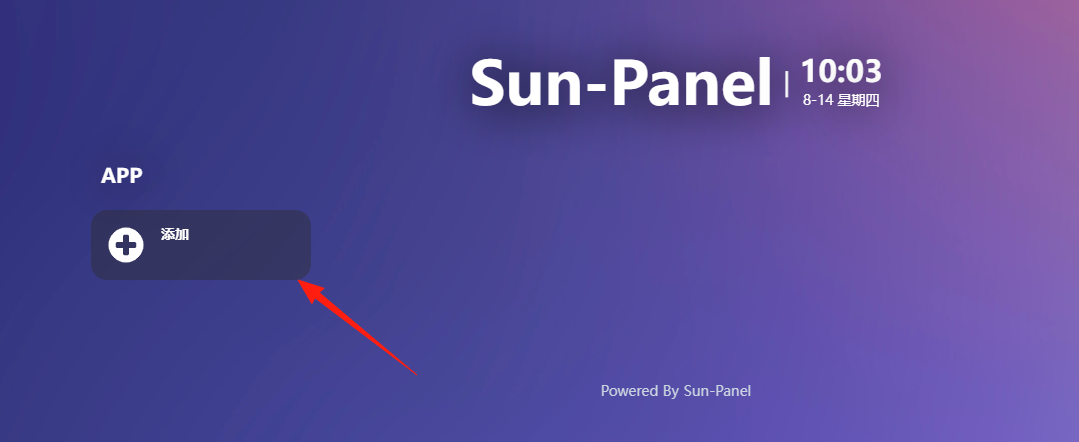
After entering the main page, click to add an icon.
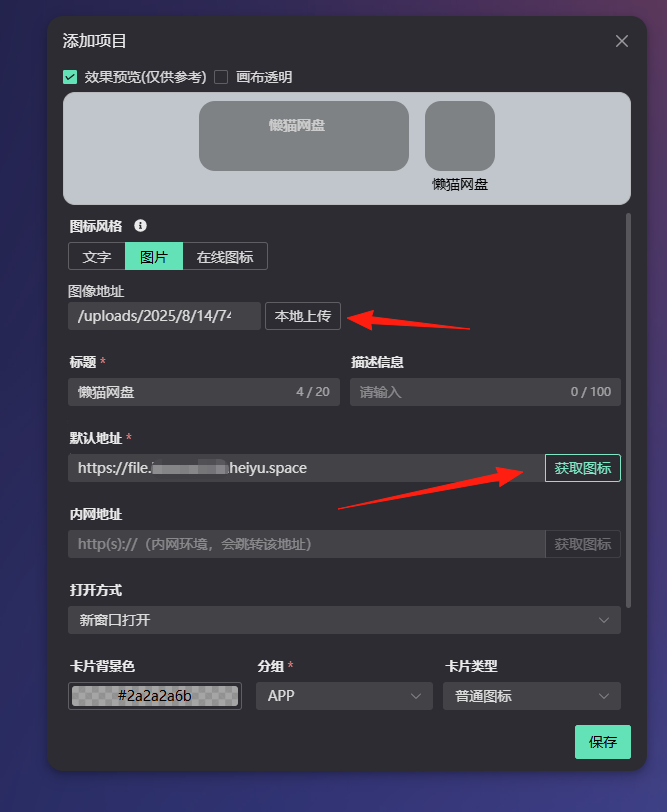
For example, if I want to jump to Lazy Cat Cloud Storage, https://file.your-lazycat.heiyu.space.
After entering the address, you can click "Fetch Icon" to automatically grab the icon, which is quite convenient.
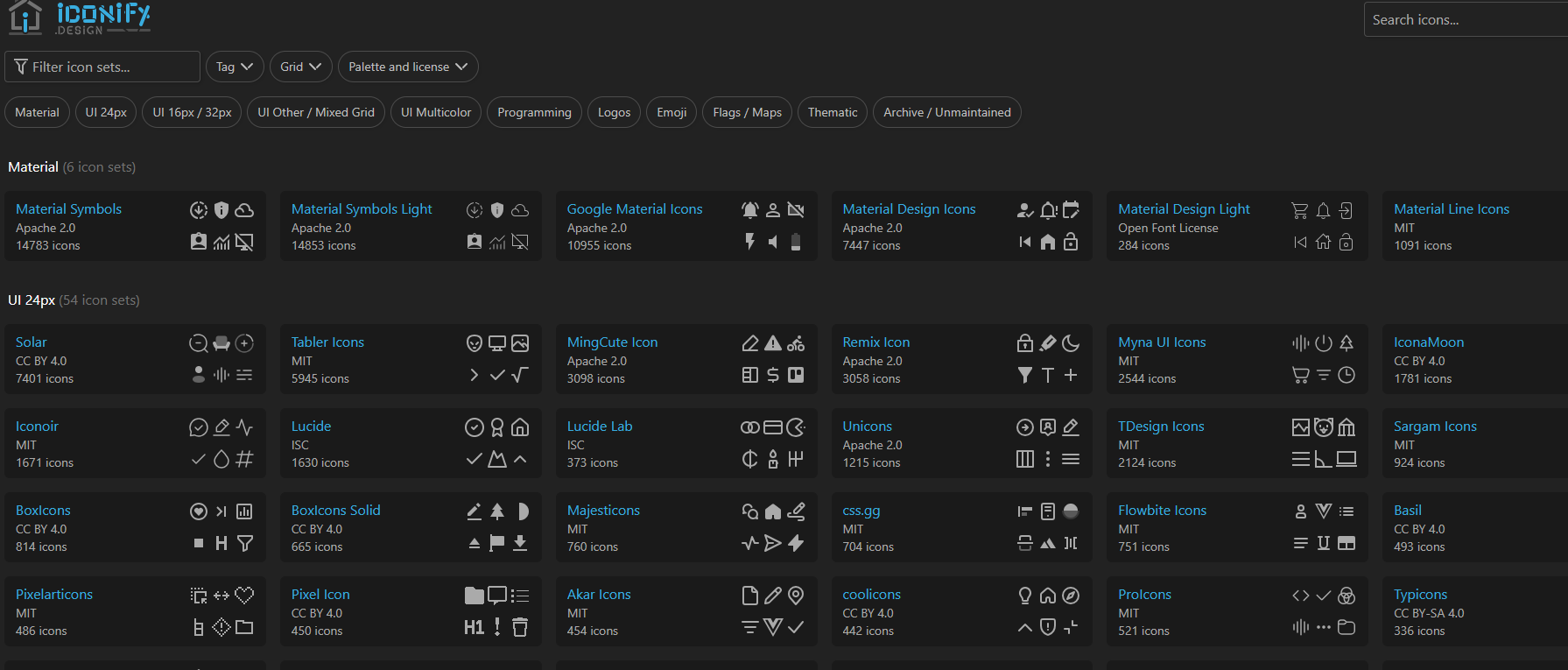
However, if icon fetching fails, you can:
- Click "Select Icon" → "Online Icons"
- Search by keyword (supports Chinese and English)
- Click the icon to copy its code
- Return to Sun-Panel and paste the code
Online Icon Library: https://icon-sets.iconify.design/
Click the settings icon in the top right corner → Group Management → Add Group.
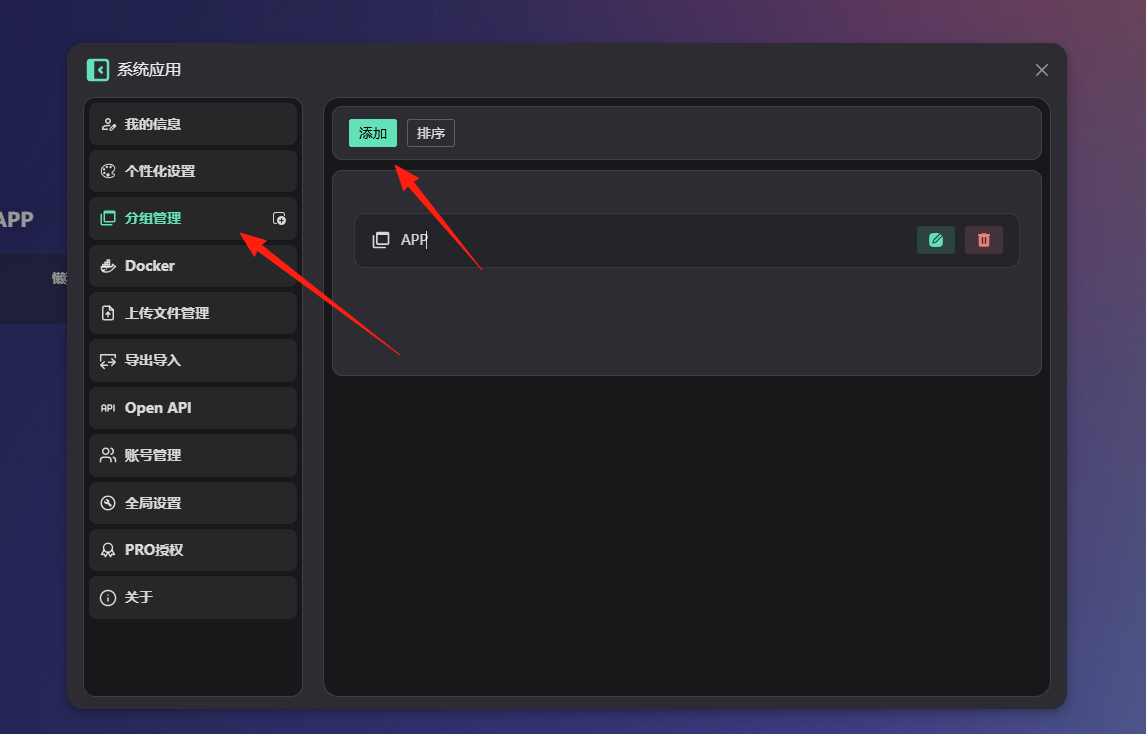
It's recommended to group items by purpose, for example:
- 📱 NAS Management
- 🐳 Docker Services
- 🌐 Frequently Used Websites
- 🛠️ Tools
The result looks like this:

1. Internal/External Network Address Settings
This is a key feature of Sun-Panel:
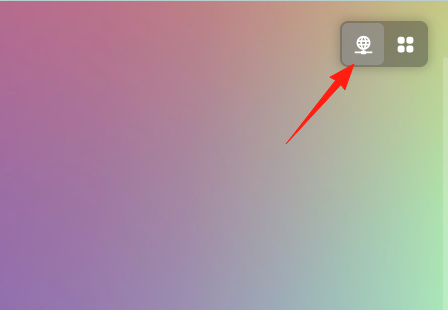
- Address: Enter the public address (e.g., a domain name).
- Internal Address: Enter the local network address (e.g., 192.168.1.100:8080).
The system automatically detects your network environment, using the internal address when you're at home and the public address when you're away.
Jellyfin Media Server:
- Name: Home Theater
- Address: https://jellyfin.your-domain.com
- Internal Address: http://192.168.1.100:8096
- Icon Search:
jellyfin
qBittorrent Downloader:
- Name: Download Management
- Internal Address: http://192.168.1.100:8080
- Icon Search:
download
Some services can be opened directly within Sun-Panel using a popup window, without leaving the page. Just check the "Popup Window Mode" option when adding an item. Note that some websites block opening in iframes, in which case the popup feature won't work.
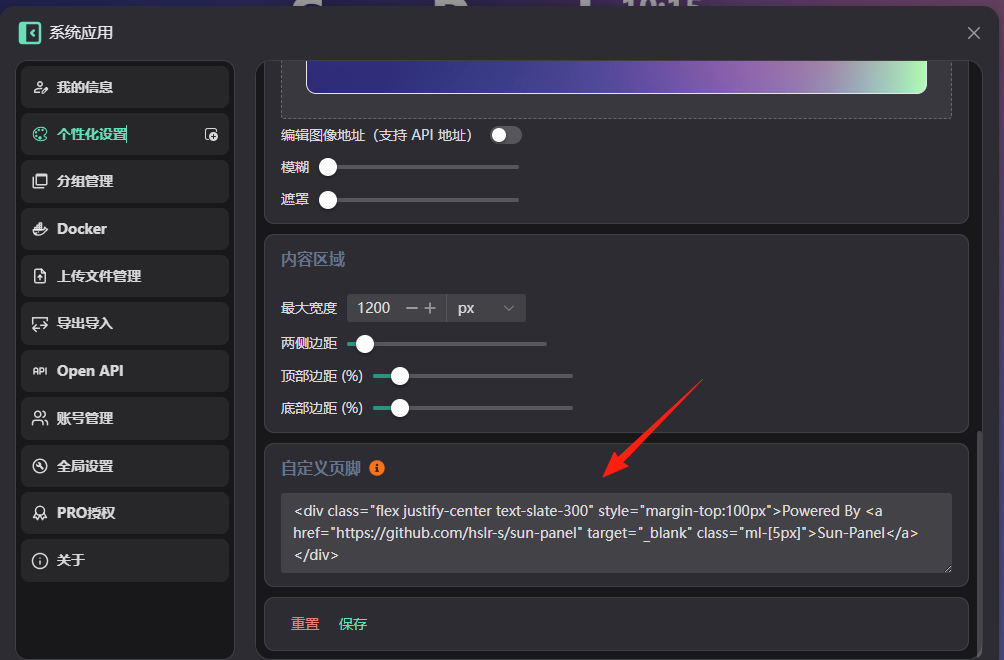
If you know a little CSS, you can add custom styles in the settings to make the page more visually appealing to you.
Sun-Panel can display basic server information:
- CPU Usage
- Memory Usage
- Disk Space
Final Thoughts
Sun-Panel is a practical and good-looking tool. Set it up once, and you can enjoy using it for a long time.
If you have a NAS or a server, we highly recommend trying out this project. Spend just ten to twenty minutes setting it up, and you'll find managing various services becomes much easier.